Available on Professional and Scale · Updated 22 October 2026
Also asked as: “shop the look” · “pin products on a photo” · “shoppable image” · “show my store locations” · “list my branches on my website” · “store locator” · “opening hours on my storefront” · “only in universal” · “this theme sections” · “section disappeared after changing theme”
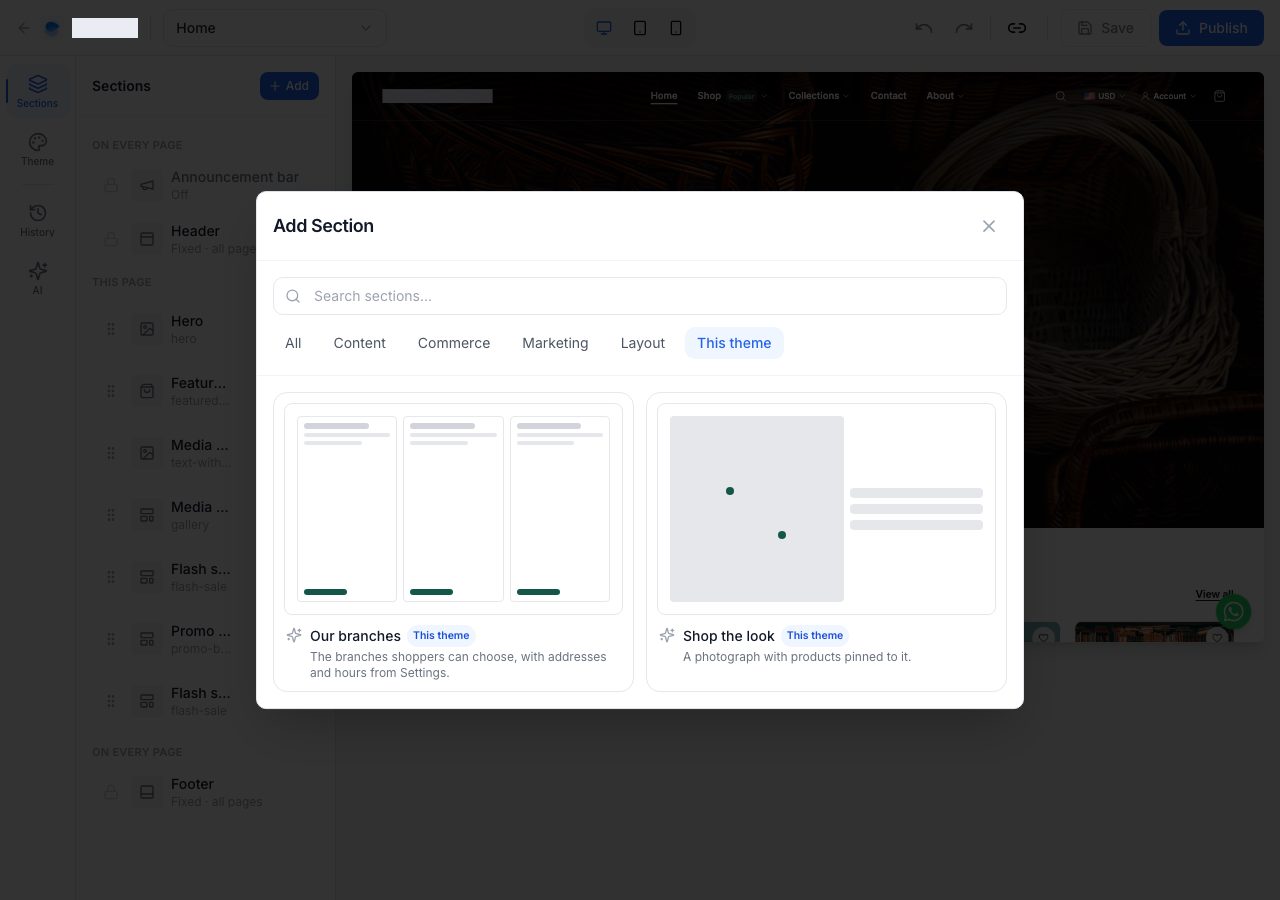
Some sections belong to one theme. Universal has two:
- Shop the look: one photograph with up to six of your products pinned to it.
- Our branches: the locations shoppers can choose, with their addresses, opening hours and directions.
You add them in the storefront editor like any other section, so they are on Professional and Scale. They are offered only while you are editing Universal.
Add one
In the editor, choose Add above your sections, then the This theme tab. Choose the section, and it is added to the page you are on.
Like every change in the editor, nothing reaches shoppers until you Publish. Save keeps your work as a draft.
Shop the look
A new Shop the look shows shoppers nothing. In the editor it says what it needs: a photograph, then the products.
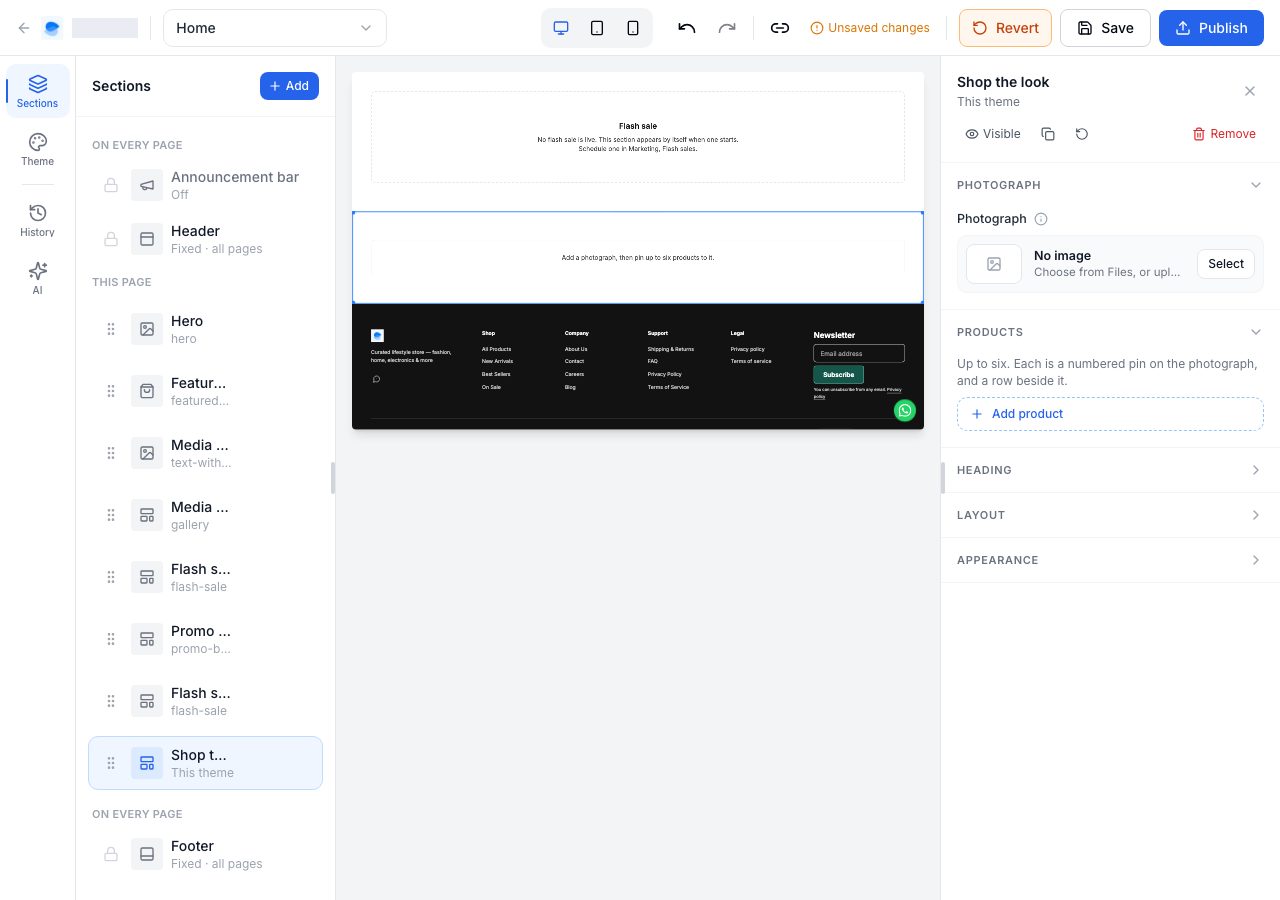
- Under Photograph, choose Select. Your Files open: choose a picture, or upload one, and choose Insert. One picture of the products together works best: a rail, a table, an outfit.
- Below the photograph, Add alt text describes it for shoppers who use a screen reader. The description is kept with the picture in your Files, so every section using that picture has it.
- Under Products, choose Add product, then pick the product from Add products….
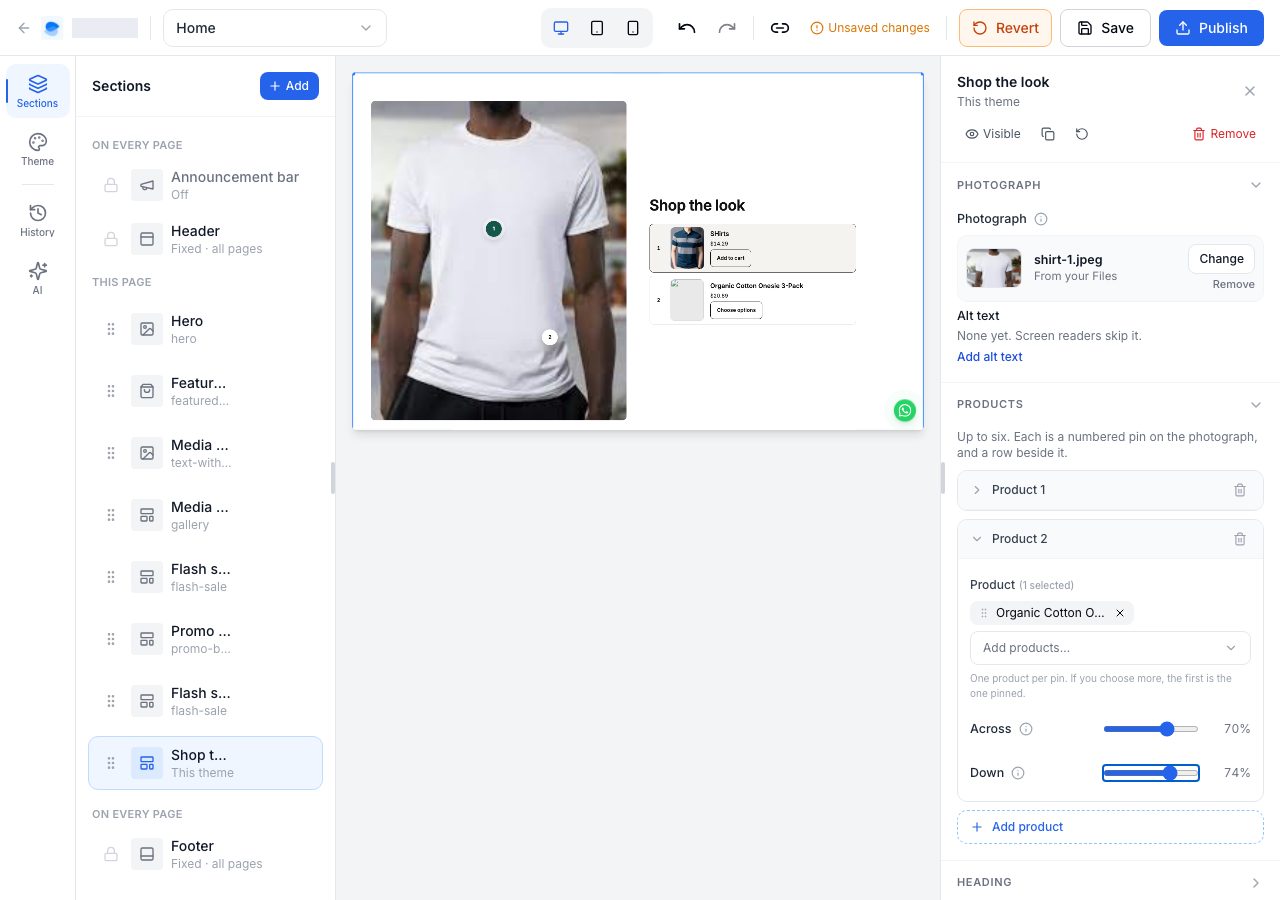
- Place its pin with Across (from the photograph's left edge) and Down (from its top edge).
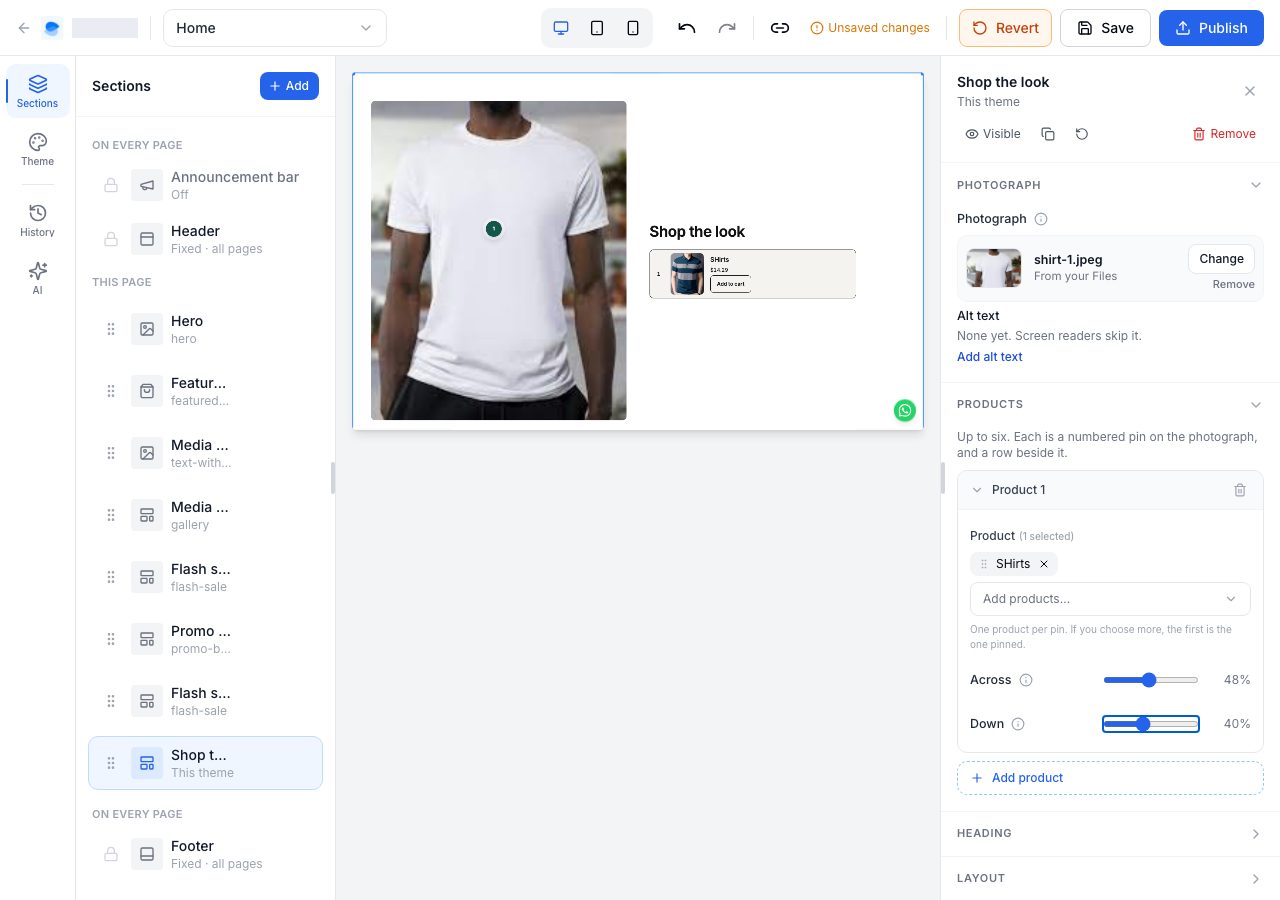
Repeat for each product, up to six. Each product is a numbered pin on the photograph and a row beside it with its picture, name, price and a button to buy it. A shopper pointing at a pin sees its row marked, and the other way round.
The rest of the settings:
- Heading and Description, above the products. The heading starts as "Shop the look".
- Layout: the Photograph on the left or the right, and its shape: Portrait, Square or Landscape.
- Appearance: the colour scheme and spacing every section has.
A pin shows a product only while it is Active and on your online store. If you archive or unpublish a pinned product, its pin is dropped and the pins are numbered again. When none of its products is left, the section hides itself.
Our branches
Our branches shows the locations shoppers can choose, so it only has something to show once your store sells by location. Until then the editor says shoppers cannot choose a location yet, and to turn on Shop by location in Settings → Fulfilment; the locations that sell online are the ones it shows. Shoppers see nothing until then.
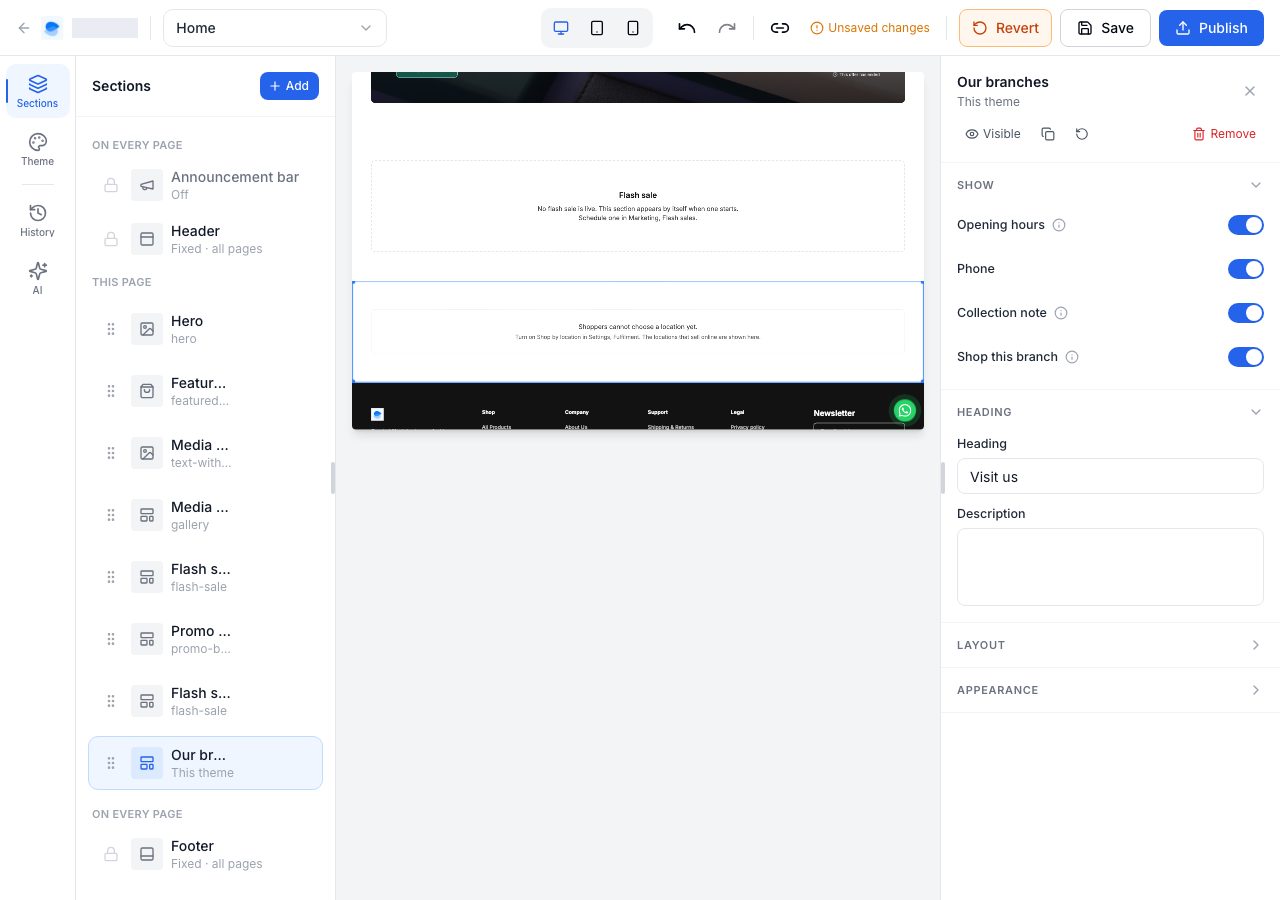
To fill it, go to Settings → Fulfilment, choose Shop by location, and save (see Which location fulfils an order). Shoppers can then choose any location that sells online, and each one becomes a card with its name, address and phone. A location that does not sell online is left out (see Locations).
A card shows opening hours and a note for collecting an order when the location has a pickup location: they are its Operating hours and Pickup instructions, set under Settings → Shipping and delivery → Pickup locations (see Pickup locations). Get directions opens the address in Google Maps.
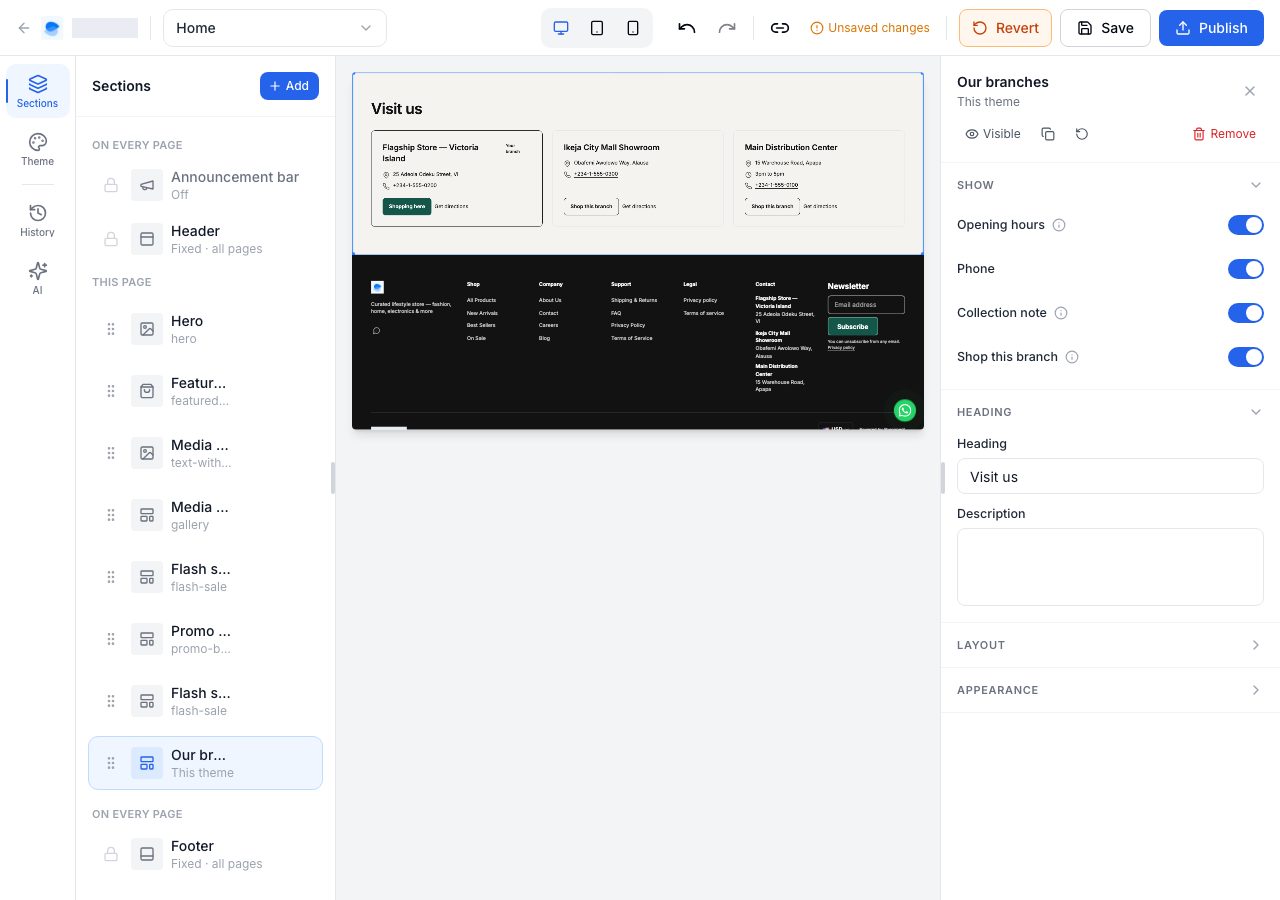
With two or more locations to choose from, each card also has Shop this branch, which switches the shopper to that location, so the stock and prices they see are that location's. The location they are shopping is marked Your branch.
The settings:
- Show: switch Opening hours, Phone, Collection note and Shop this branch on or off.
- Heading and Description. The heading starts as "Visit us".
- Layout: Columns on desktop, 2, 3 or 4. Phones show one card per row.
If you publish another theme
These sections belong to Universal, so another theme cannot draw them. Publish another theme and they stay in your pages, exactly as you left them, but shoppers do not see them. The editor lists them as Only in Universal. Publish Universal again and they are back.
Troubleshooting
- Shop the look does not show on my shop: it needs a photograph and at least one pinned product that is Active and on your online store. Then publish.
- Our branches is empty, or missing from my shop: choose Shop by location in Settings → Fulfilment, and check the locations you want shown sell online in Settings → Locations.
- A branch has no opening hours: the hours come from the location's pickup location. Set its Operating hours under Settings → Shipping and delivery → Pickup locations, or switch Opening hours off for the section.
- There is no Shop this branch button: it shows only when shoppers can choose two or more locations.
- I cannot find This theme in Add section: the tab lists the sections of the theme you are editing. Only Universal has these two.