Available on every plan · Updated 22 October 2026
Also asked as: “contact form” · “where do messages go” · “enquiries inbox” · “customer sent a message” · “not getting contact emails” · “change my contact page” · “turn off the contact form”
Your online store has a Contact page with a form on it. A shopper fills it in, and the message lands in Enquiries in your dashboard. You can also have each one emailed to you. It is on every plan.
1. Set up your Contact page
Go to Online Store → Pages and choose Contact. Everything about the page is on this one screen. The form's settings used to be under Settings → Contact Form; that address now opens this page.
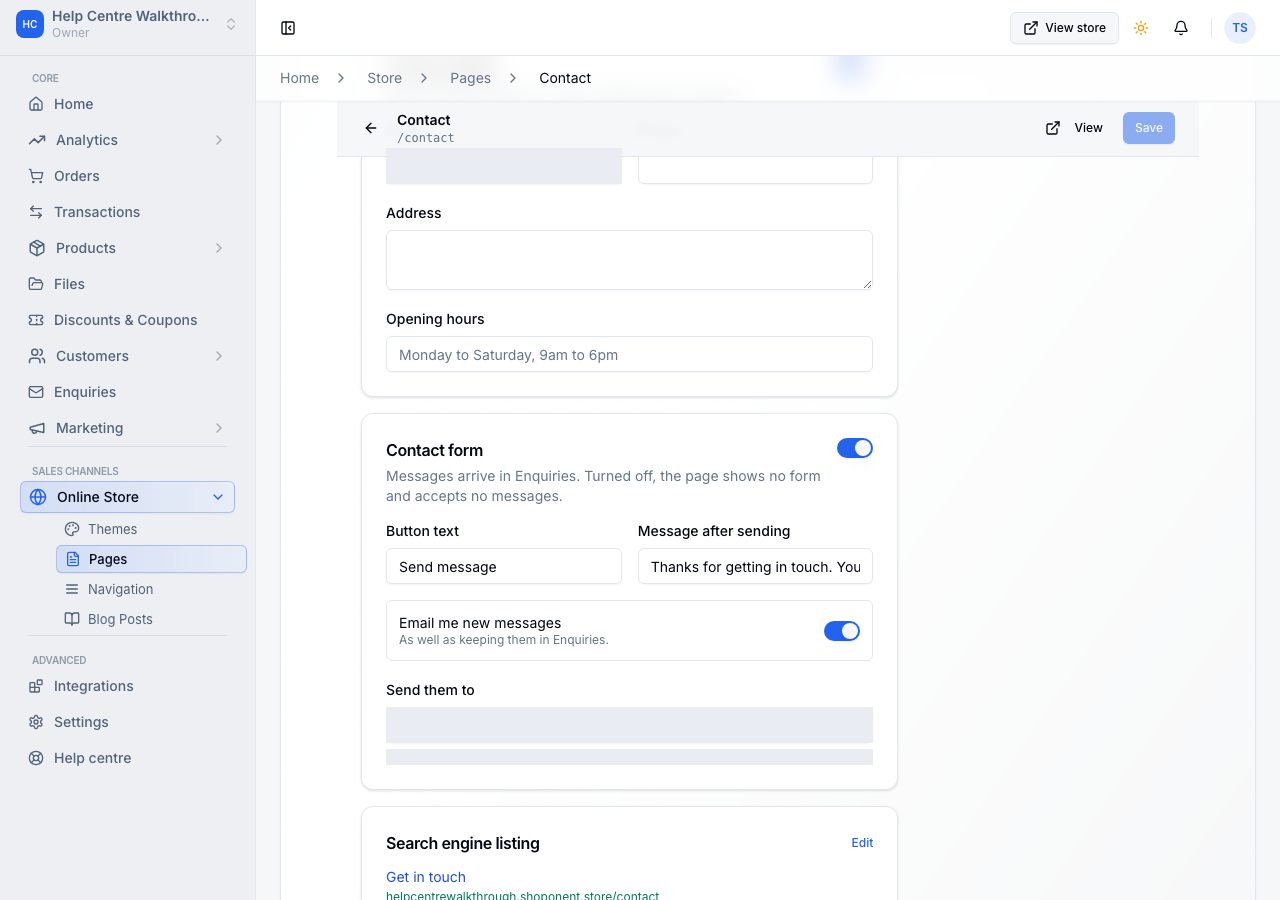
- Content: the page's Heading and an Introduction, the line under it.
- Contact details: Show contact details shows or hides them. They come From your store, your store's email, phone and address from Settings → General, so this page, your footer and your receipts all say the same; or choose Write your own for different details on this page only. Opening hours sit under them.
- Locations: Off, The locations shoppers can choose (the locations that sell online, from Settings → Locations), or Write your own for a list of names and addresses on this page only.
- Contact form: Show the form shows it and accepts messages. Turned off, the page shows no form and accepts no messages.
- Button label and Message after sending, the line a shopper reads once they have sent a message. Leave either empty to use your theme's wording.
- Email me new messages sends you an email each time someone writes, as well as keeping it in Enquiries. The email's reply-to is the shopper, so replying in your mail app goes straight to them.
- Send messages to is where those emails go. Leave it empty and your store's contact email is used.
Choose Save at the top of the screen. Your online store shows the changes within a few seconds.
2. Look at the form
Open your online store and go to Contact. The form asks for a name, an email address, an optional subject and the message.
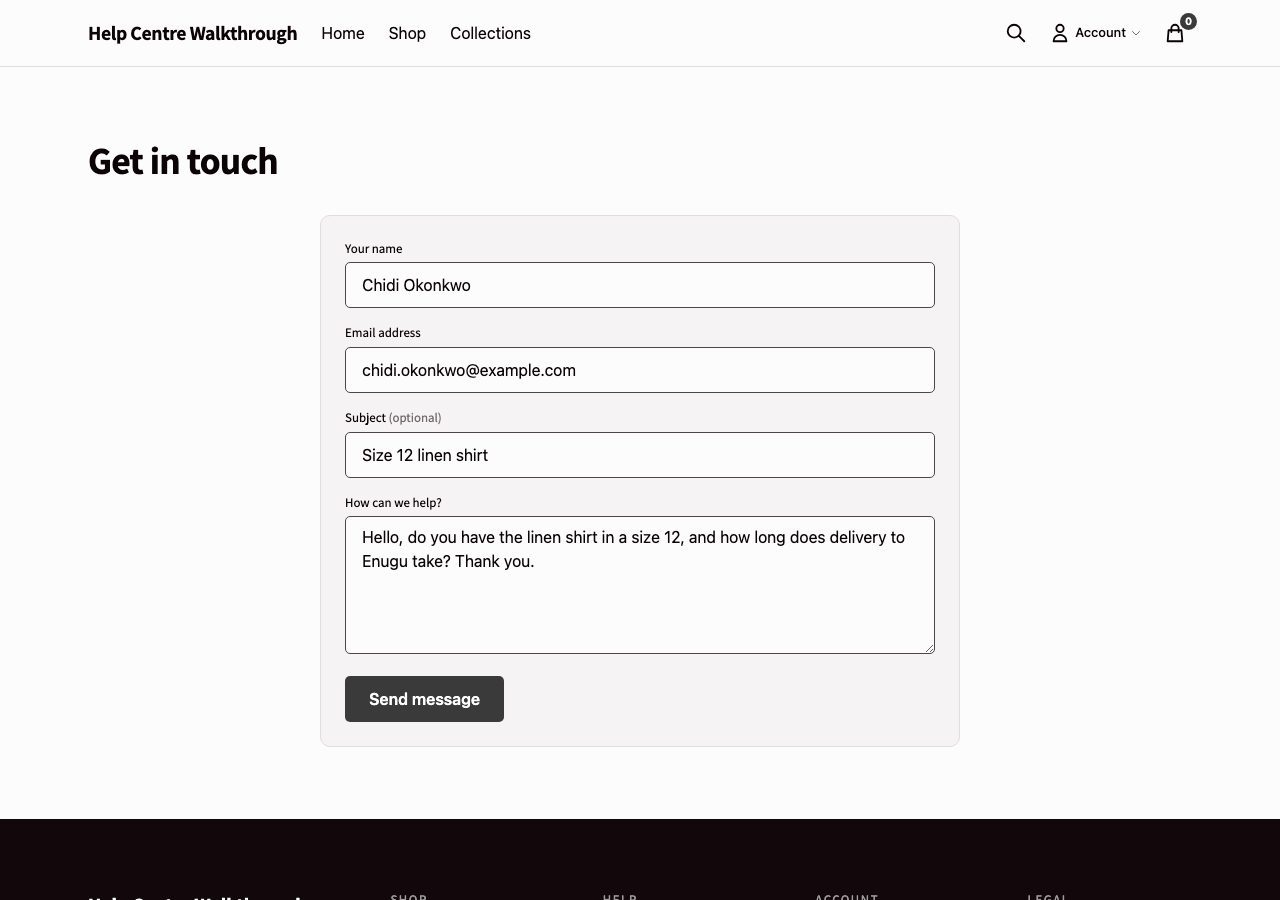
The heading, the introduction and the contact details come from the screen in step 1. Nothing on the page promises how quickly you reply: once a shopper sends a message, they see that it has been sent, and nothing more. If you do want to say when you answer, write it in the introduction yourself.
3. Read what comes in
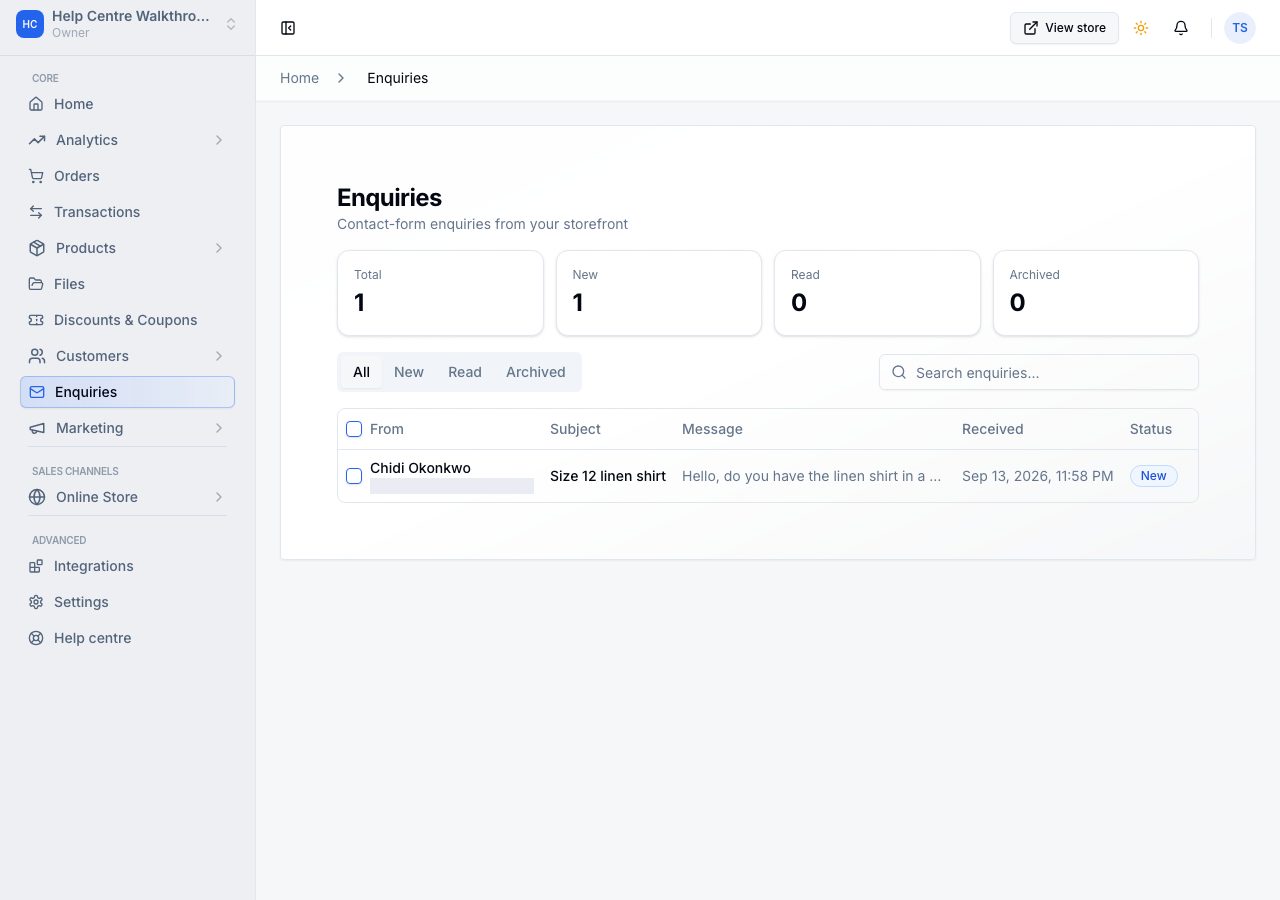
Messages appear under Enquiries in the left-hand menu, which has its own page: The enquiries inbox. In short, the views are All, New, Read and Archived, each with its count, and a new one carries a dot.
Open one and it counts as read from that moment. The message is shown in full with the sender's name and email address.
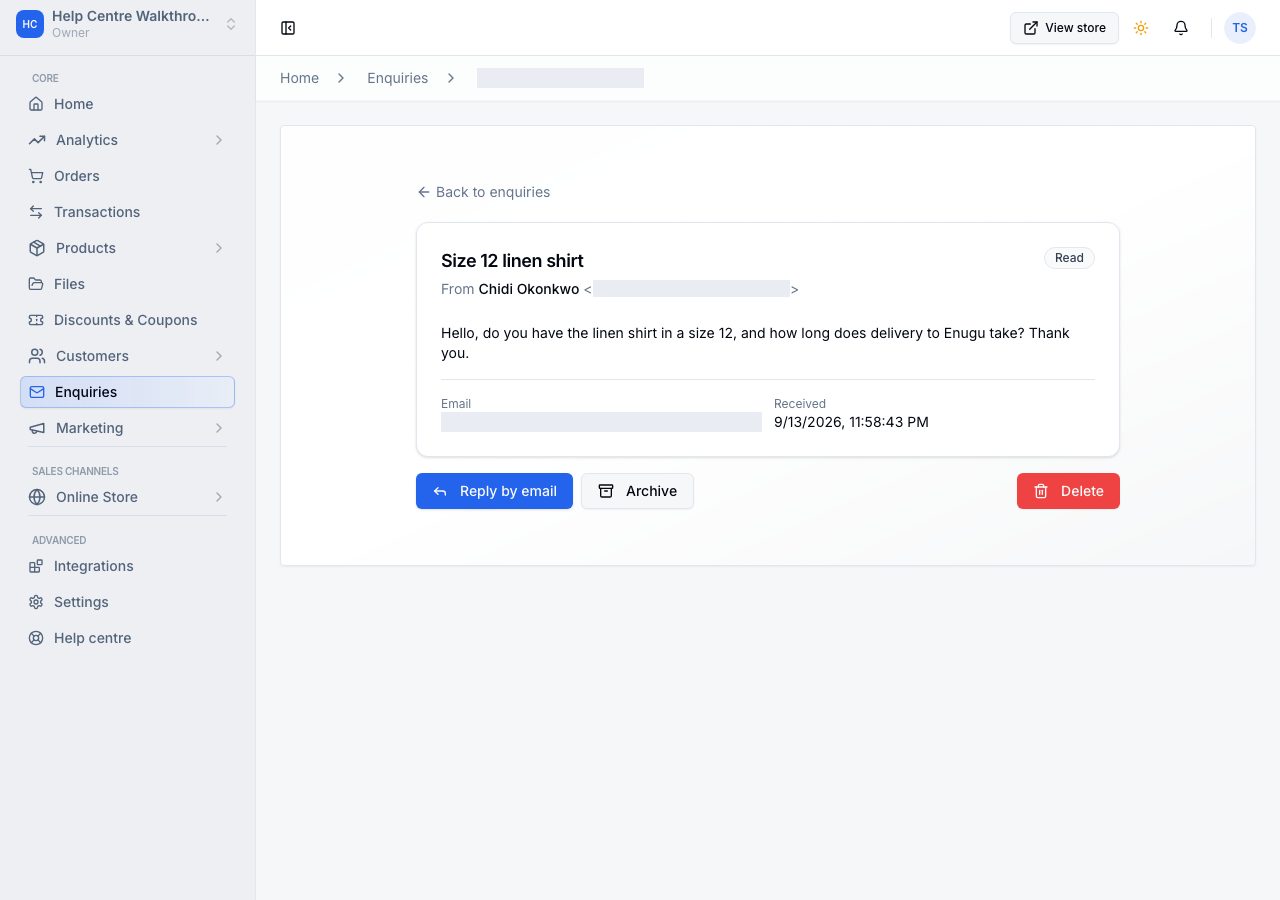
- Reply by email opens your own mail app with the shopper's address filled in. Replies are not sent from the dashboard, and the conversation carries on in your inbox.
- Archive takes it out of the way without losing it.
- Delete, in the ⋯ menu, removes it for good.
Each row in the list has the same actions in its ⋯ menu.
What stops spam
Every form carries a hidden field that a person never sees and a robot usually fills. Anything that fills it is silently dropped. On top of that, the same visitor can only send a handful of messages in ten minutes. Neither costs a real shopper anything, and there is no puzzle to solve.
If it does not work
- No form on the Contact page. The Contact form switch is off. Nothing else hides it.
- A message arrived in Enquiries but not in your email. Email me new messages is off, or the address in Send messages to is wrong. If that box is empty, check that your store contact email is set under Settings → General. Emails are sent as a best effort: a message is always saved to Enquiries even when the email cannot be sent, so nothing is ever lost.
- A shopper says they got an error. They have sent several messages in a short time and hit the limit. It clears on its own within ten minutes.
- You cannot find Settings → Contact Form. It moved onto the Contact page, in step 1.
- You want to change the page's layout. Its words, details and form are on the Contact page's screen on every plan. Moving sections around is done in the storefront editor, on Professional and above.
Email support@shoponent.com with your store name if anything here does not match what you see. We read and answer every message.