Available on every plan · Updated 22 October 2026
Also asked as: “guest checkout” · “shoppers must create an account” · “checkout questions” · “order notes” · “abandoned carts” · “store is busy message” · “cancel unpaid bank transfer orders”
Settings → Checkout has three tabs: General (on every plan), Abandoned checkouts (Professional and Scale) and Custom checkout (Scale). Each tab keeps its own changes, and Save at the top saves every tab you changed.
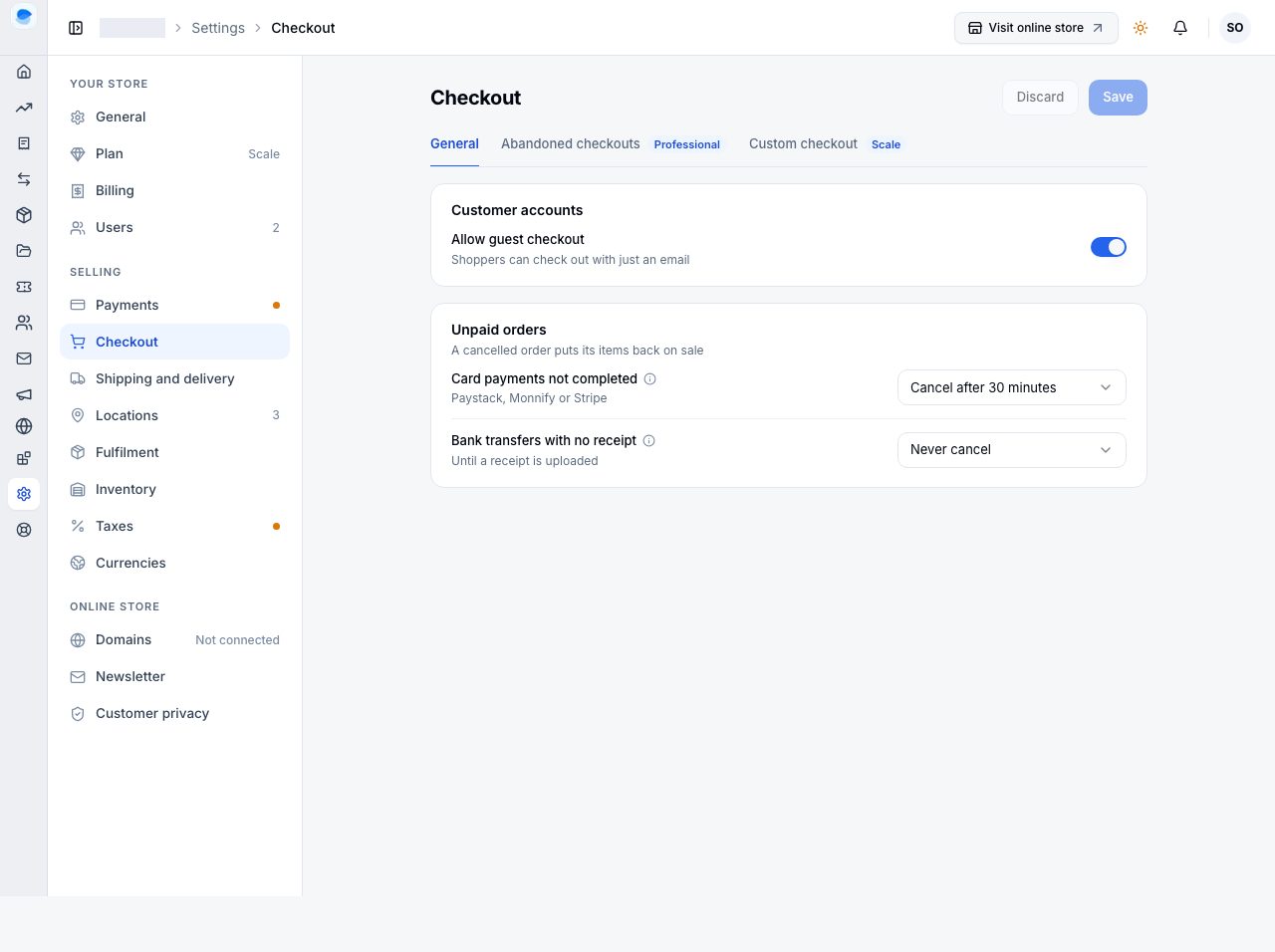
Allow guest checkout
On by default, and worth leaving on. A shopper checks out with just an email address and no account. With it off they must sign in or create an account first, which loses you orders from first-time buyers.
Nothing is lost by allowing guests. The order is still yours, it still appears in your Orders list with the customer's details, and after paying the shopper is offered an account: we email a code to the address they ordered with, and once they enter it the order and any earlier ones under that email are in their account. Nobody can claim a shopper's orders by typing their email, because the code goes to that inbox. A shopper who already has an account with you is recognised from their email and signs in right there at checkout, with a code we email them. Shoppers never need a password with you.
Unpaid orders
An unpaid order holds its items back from other shoppers. Unpaid orders decides how long, and a cancelled order puts its items back on sale:
- Card payments not completed (Paystack, Monnify or Stripe): an order whose card payment was started and not finished is cancelled after the time you choose, or never. Before cancelling, we ask the payment provider; an order that was paid after all is marked paid instead.
- Bank transfers with no receipt: it waits for the shopper's receipt, not for you to check it. Once a receipt is in, the order waits for your check however long that takes. With a time set, the shopper sees it counting down and is emailed if the order is cancelled. More in Accept manual bank transfers.
Pay on delivery orders are never cancelled by either: they are unpaid until handover by design.
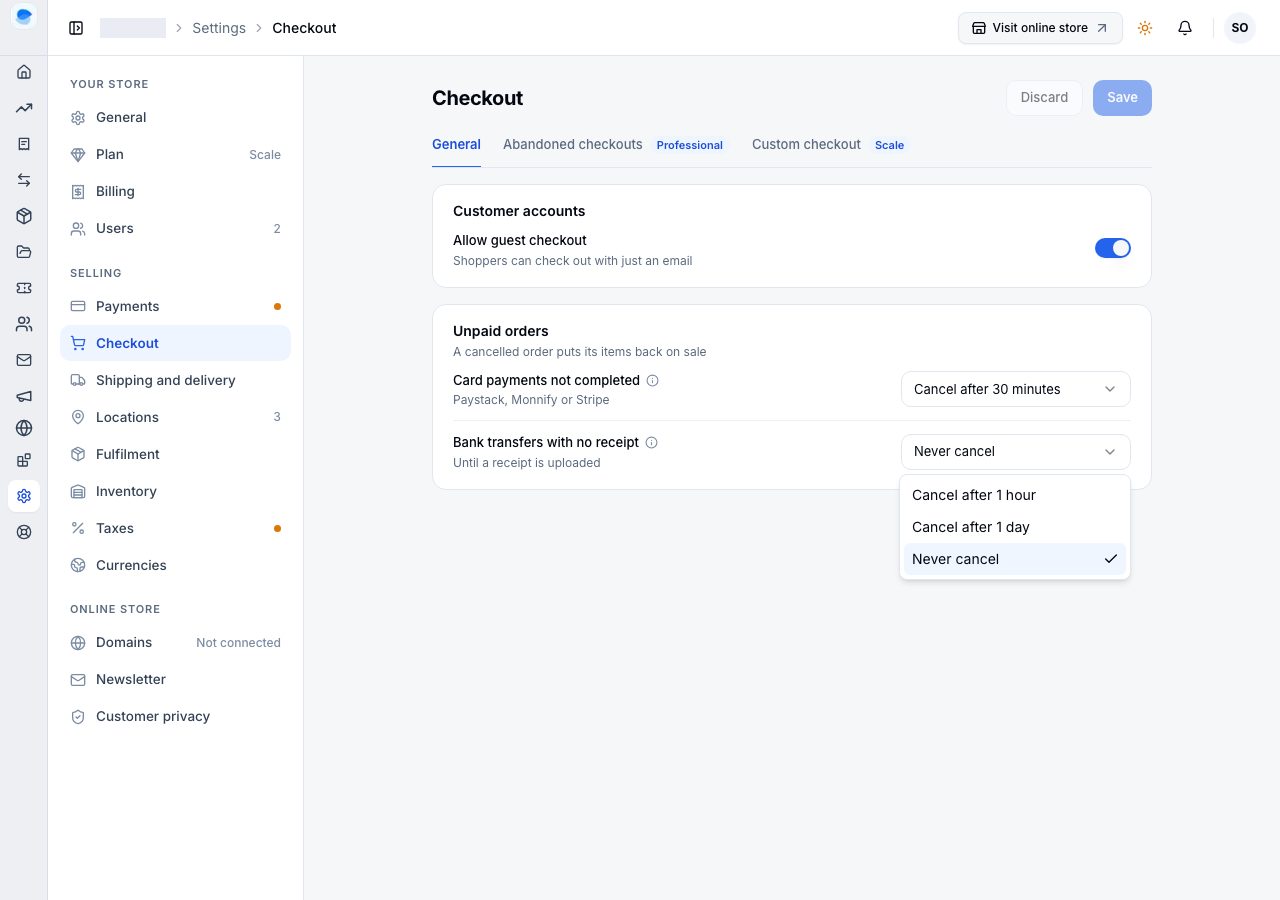
Abandoned checkouts
Tracking abandoned checkouts and emailing their reminders is the second tab, on Professional and Scale. See Abandoned checkouts.
Custom checkout
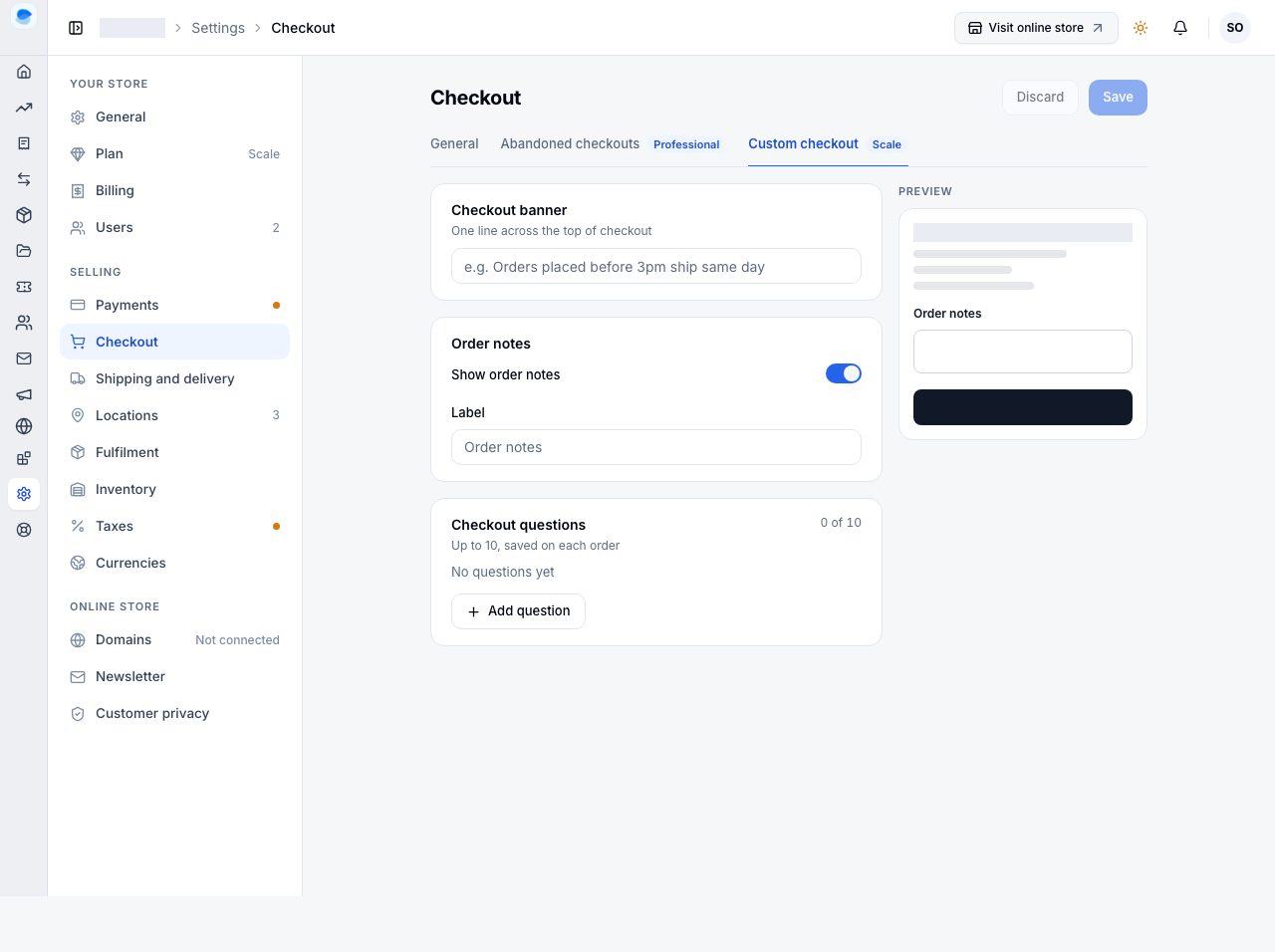
On Scale, the third tab makes three things on the checkout page yours, with a preview beside them:
- Checkout banner: one line across the top of checkout, for example that orders placed before 3pm ship the same day.
- Order notes: the optional box a shopper uses for delivery instructions. Rename it, or turn it off.
- Checkout questions: up to ten questions a shopper answers at checkout, such as a gift message or how they heard about you, each its own page with Add question. A question can be required, which means the order cannot be placed without an answer. Answers are saved on the order.
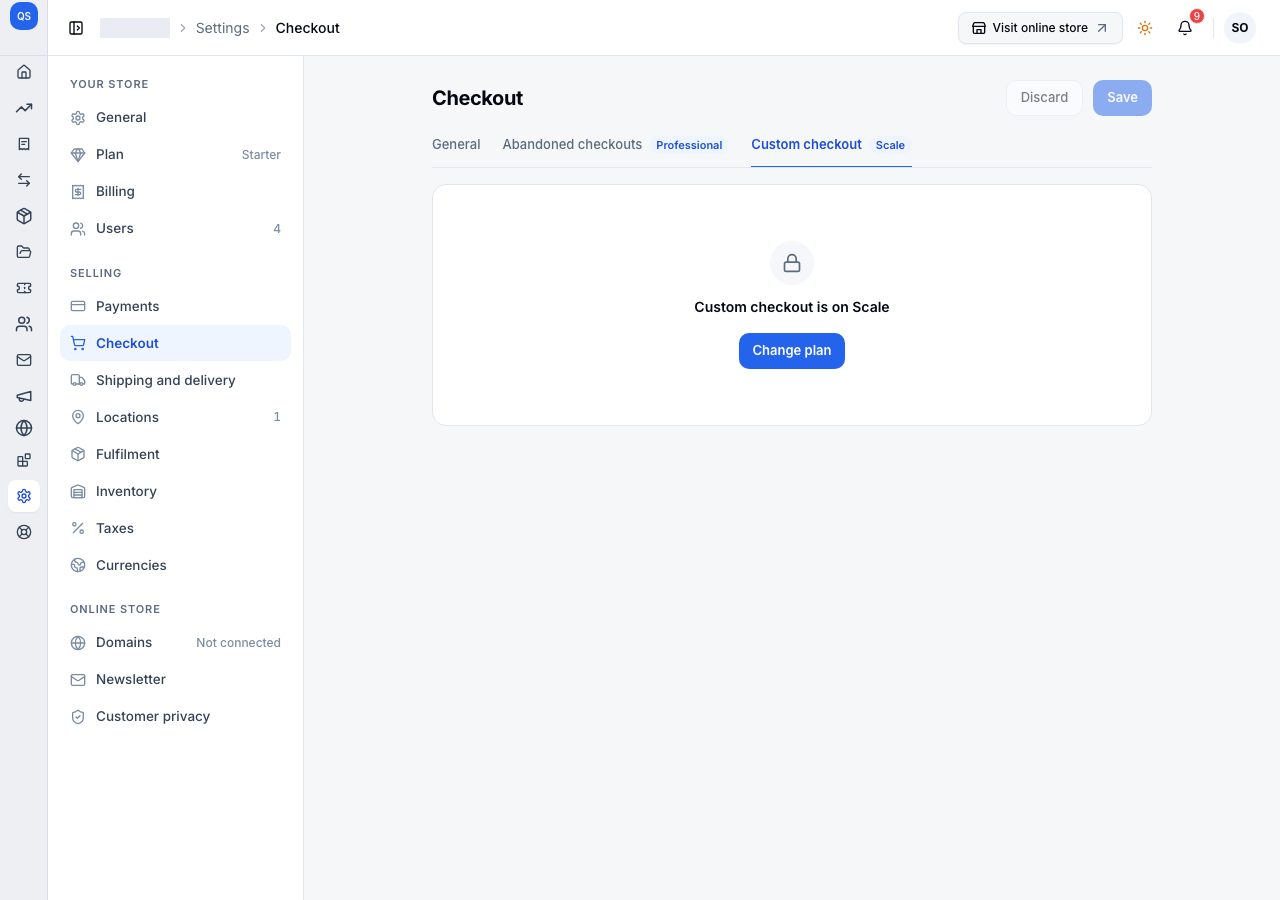
Below Scale, the tab says Custom checkout is on Scale, with Change plan.
When your online store is full
The message shoppers read while they wait to enter a busy online store is the Waiting room message, under Settings → General, on the Online store card.
If it does not work
- Shoppers still have to create an account: Allow guest checkout is off. Turn it back on and save.
- You added checkout questions and cannot see the answers: they are on the order itself.
- Orders keep cancelling while shoppers are still paying by card: choose a longer time for Card payments not completed.
Email support@shoponent.com with your store name if anything here does not match what you see. We read and answer every message.