Available on Professional and Scale · Updated 30 October 2026
Also asked as: “write a blog post” · “add an article” · “blog seo” · “shoppable blog” · “add products to a blog post” · “blog categories” · “schedule a post”
A blog is how people find your store without paying for an advertisement. Someone searches for a question, reads your answer, and is already on your online store. Online Store → Blog posts is where you write them. It is on Professional and above; see the pricing page.
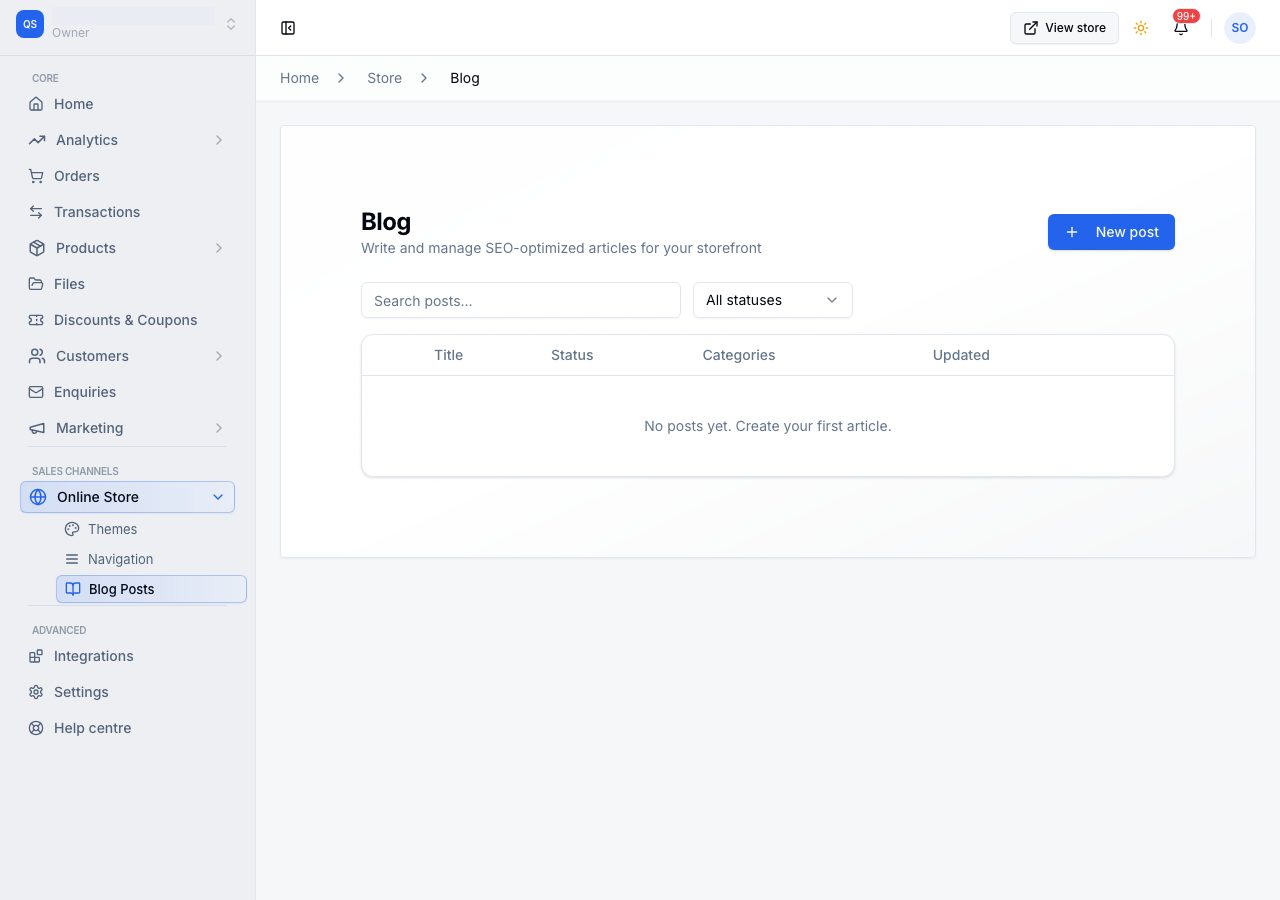
Blog posts lists every post you have written. All, Visible and Hidden each show how many posts they hold. Search by a post's title or its category, show one category at a time, and sort by Newest first, Oldest first, Recently edited or Title A to Z. The Shop the post column says how many of your products each post puts in front of readers. Choose a post to open it.
1. Write a post
Choose Write a post. The post is down the middle and its settings down the right.
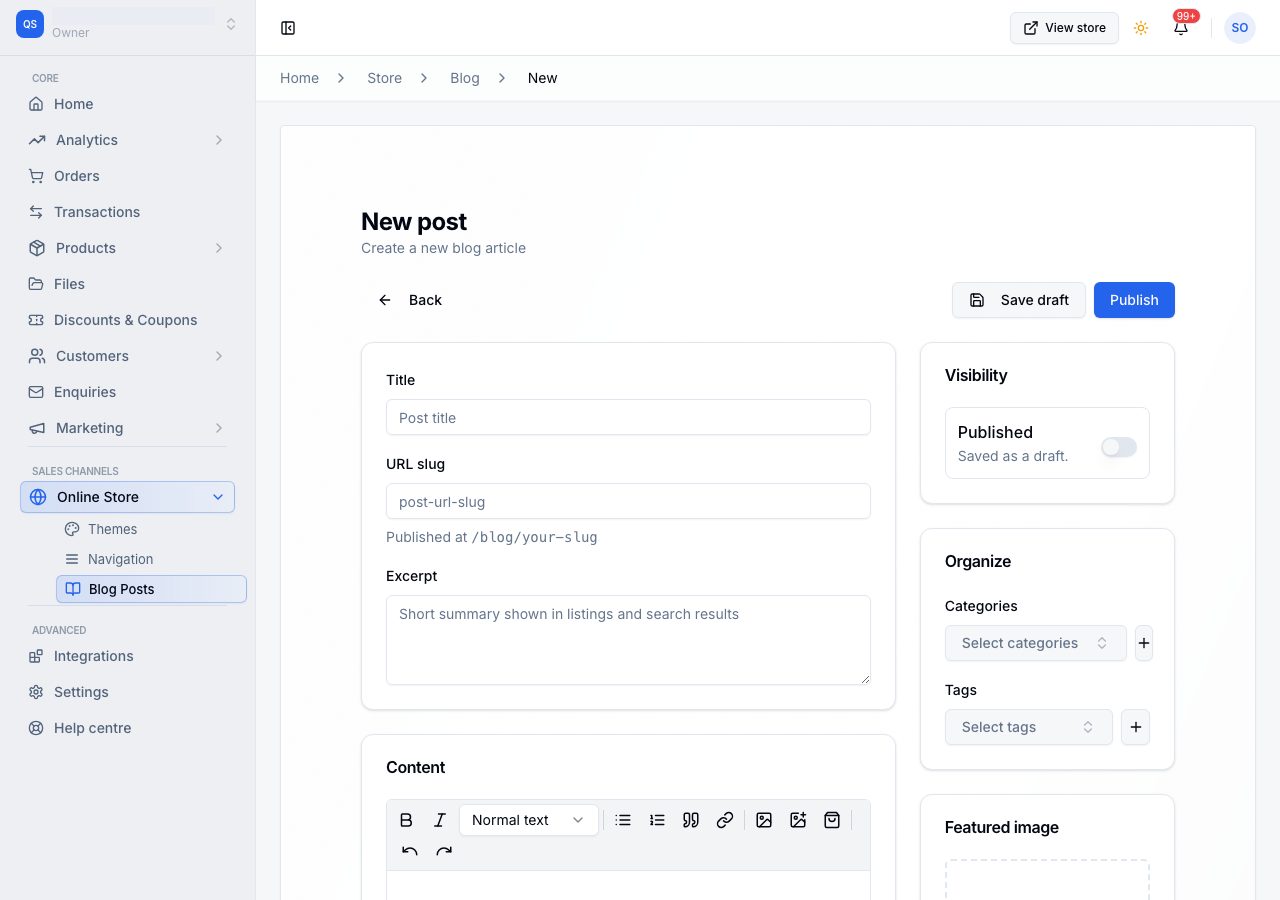
- Title, the headline.
- Content, the article: bold, italics, headings, lists, quotes, links, pictures, and Add products (step 2).
- Excerpt, the short summary shown on your blog page and when the post is shared.
- Image, on the right: shown at the top of the post, on your blog page, and when the post is shared on WhatsApp, Instagram or in search.
The bar at the top says what you have changed and not saved yet. Save post (or Save, once the post exists) keeps it; Discard goes back to what was saved. If you leave with changes not saved, you are asked first.
2. Put your products in it
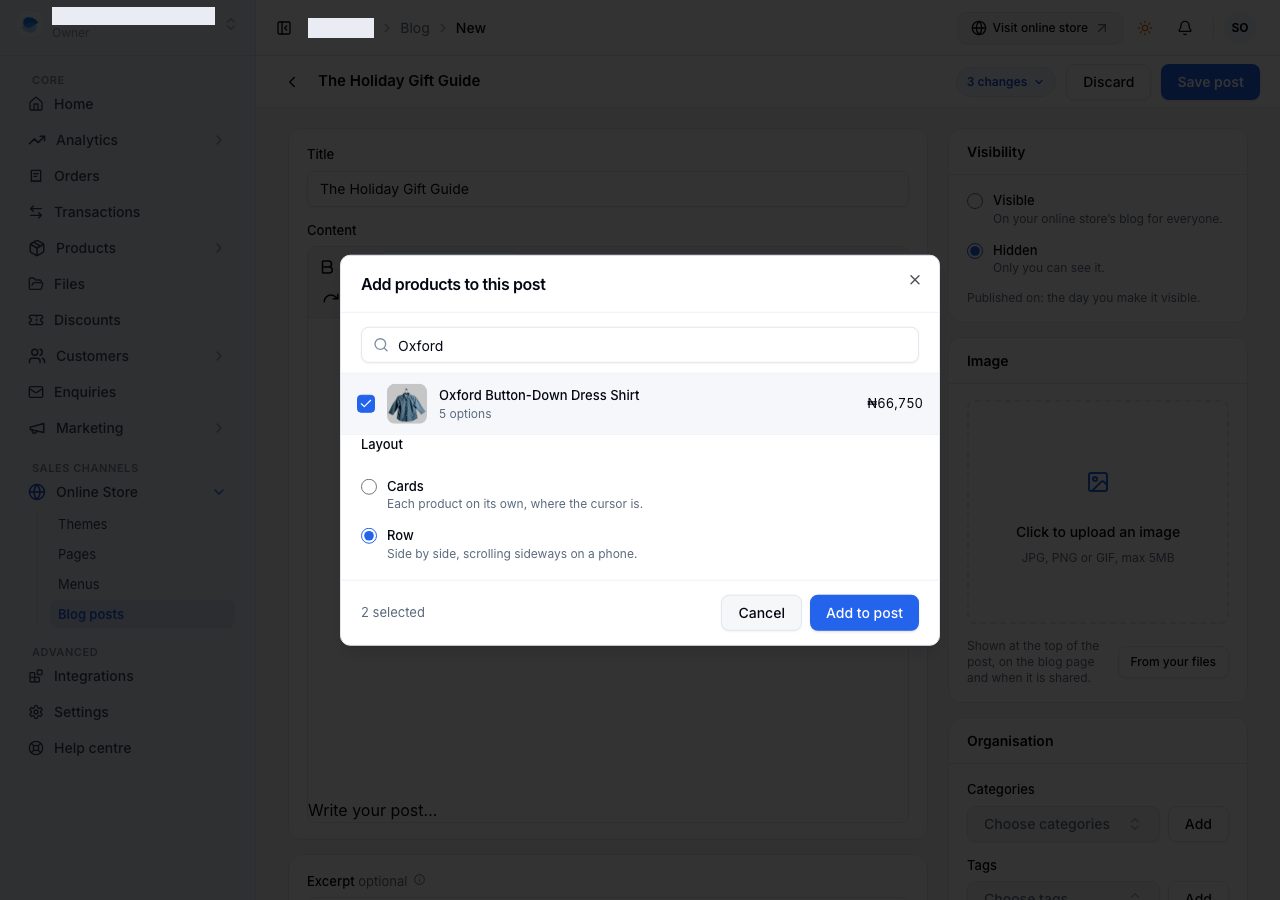
Choose Add products in the toolbar. Search for products, tick the ones you want, then choose the Layout:
- Cards: each product on its own, where your cursor is.
- Row: side by side, scrolling sideways on a phone.
A reader who chooses a product opens it in a quick view over the post: they pick its options, add it to their cart, and carry on reading. A small note in the corner confirms it, with View cart for when they are ready.
The products are live: the price, the picture and whether it is in stock are read from your catalogue every time somebody reads the post, so an article written in March never shows March's price. A product that is sold out can still be added, and readers see it as sold out. A product you delete or unpublish simply leaves the post rather than leaving a broken card.
3. Say how it looks in search
Search engine listing, under the post, shows it as a search result, with your online store's address. Edit opens its fields.
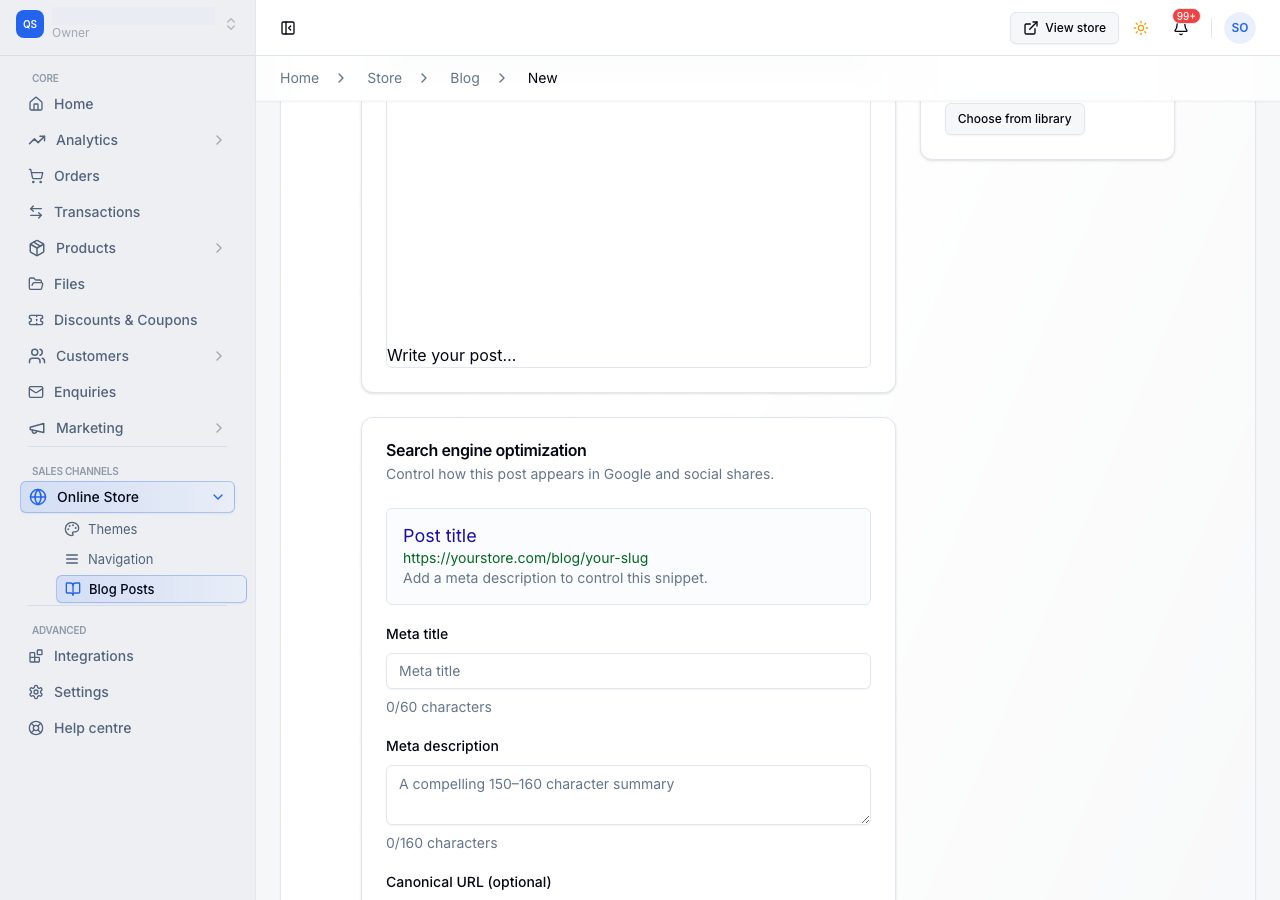
- Page title: the headline in search results. Leave it empty and the post's title is used.
- Meta description: what a searcher reads under the title. Leave it empty and the excerpt is used.
- URL handle: the last part of the post's address, under
/blog/. It is made from the title until you set it. Settle it before you make the post visible, because changing it later breaks links people have already shared.
When the post is shared, the link shows its Image; a post without one shows your store's social sharing image, from Online Store → Pages → Home.
Everything else search engines want is filled in for you: the article's author, its dates, its structured data, its place in your sitemap.
4. File it
Under Organisation, choose the post's Categories and Tags. Each has its own page on your online store, so a reader can see everything you have written on one subject. Add beside each creates a new one without leaving the post.
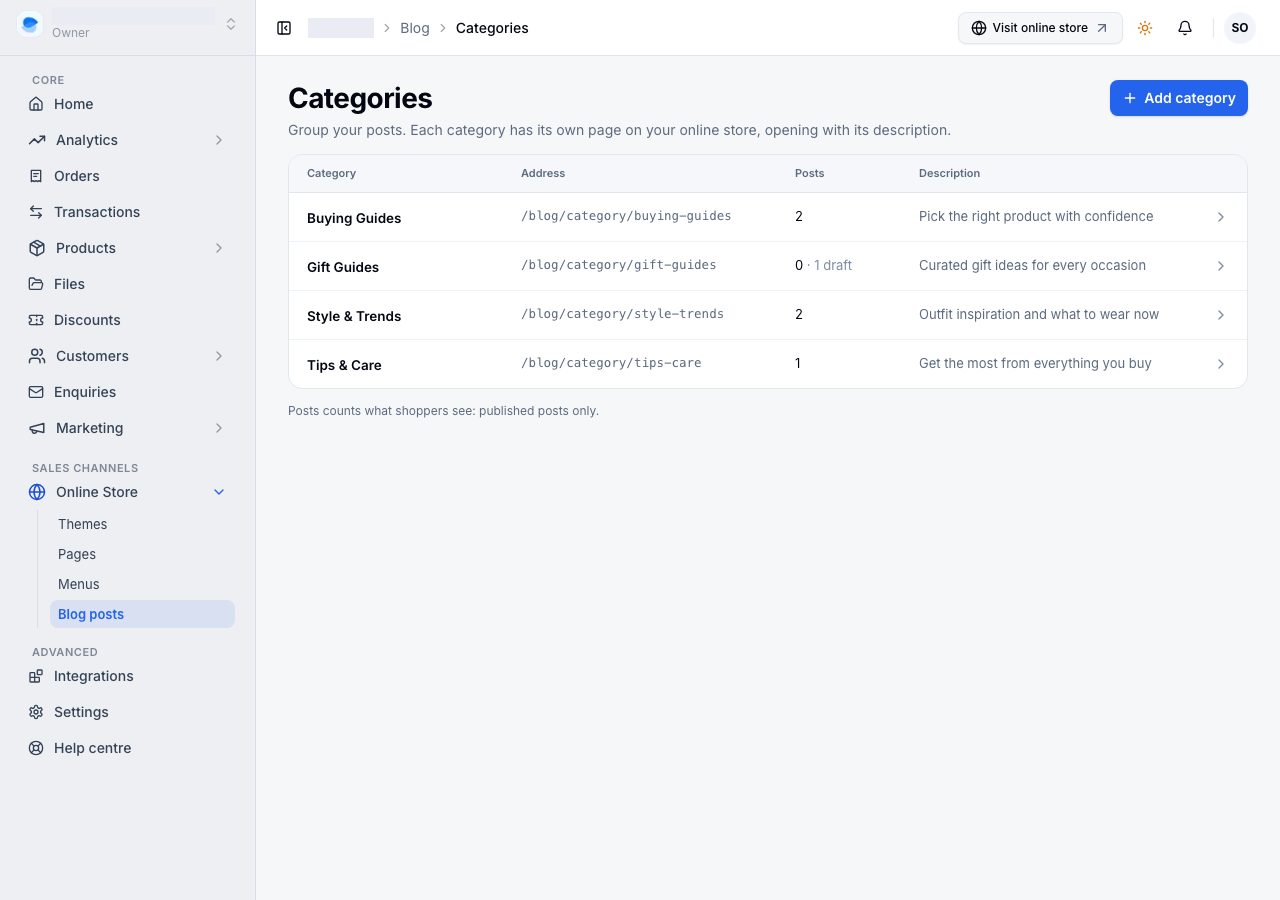
Categories, at the top of Blog posts, lists every category with its URL handle, how many published posts it holds (and drafts beside), and its description, which its page on your online store opens with. Choose one to change it or delete it. Deleting a category keeps its posts; they are no longer filed under it.
5. Make it visible
Visibility is Visible, on your blog for everyone, or Hidden, which only you can see. Choose one and save. A visible post appears on your online store at once, under /blog, with its own page, and in the category and tag pages it belongs to.
There is no scheduling: a post goes live when you make it visible, so keep it hidden while you write and make it visible when you mean to.
What is not in it yet
- Comments. Posts do not take them.
- Scheduled publishing.
- An RSS feed.
If it does not work
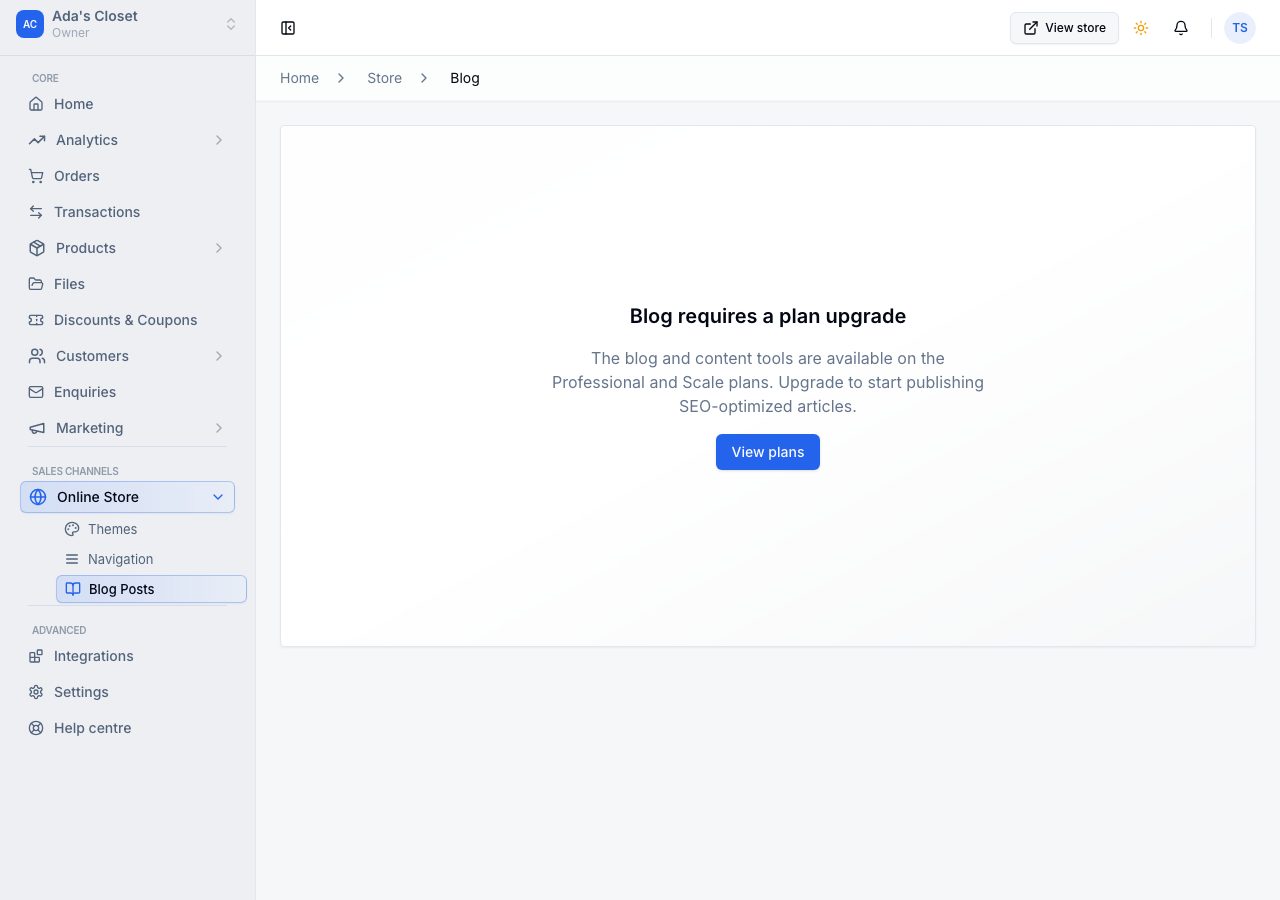
Blog posts opens an upgrade screen. It needs Professional or Scale.
The post is not on your online store. Its Visibility is Hidden, or the change is not saved yet: the bar at the top still lists it.
A category page says Page not found. An empty category has no page. It appears once a published post uses it.
Nobody can find your blog. Add a link to
/blogin your header or footer under Menus.A product in a post is missing. The product was deleted or unpublished. Products are read live, so the article stays readable without it.
Email support@shoponent.com with your store name if anything here does not match what you see. We read and answer every message.