Available on every plan · Updated 30 October 2026
Also asked as: “privacy policy” · “terms of service” · “shipping and returns” · “remove the policy pages” · “write my own policy” · “policy page says not published” · “edit policies on starter”
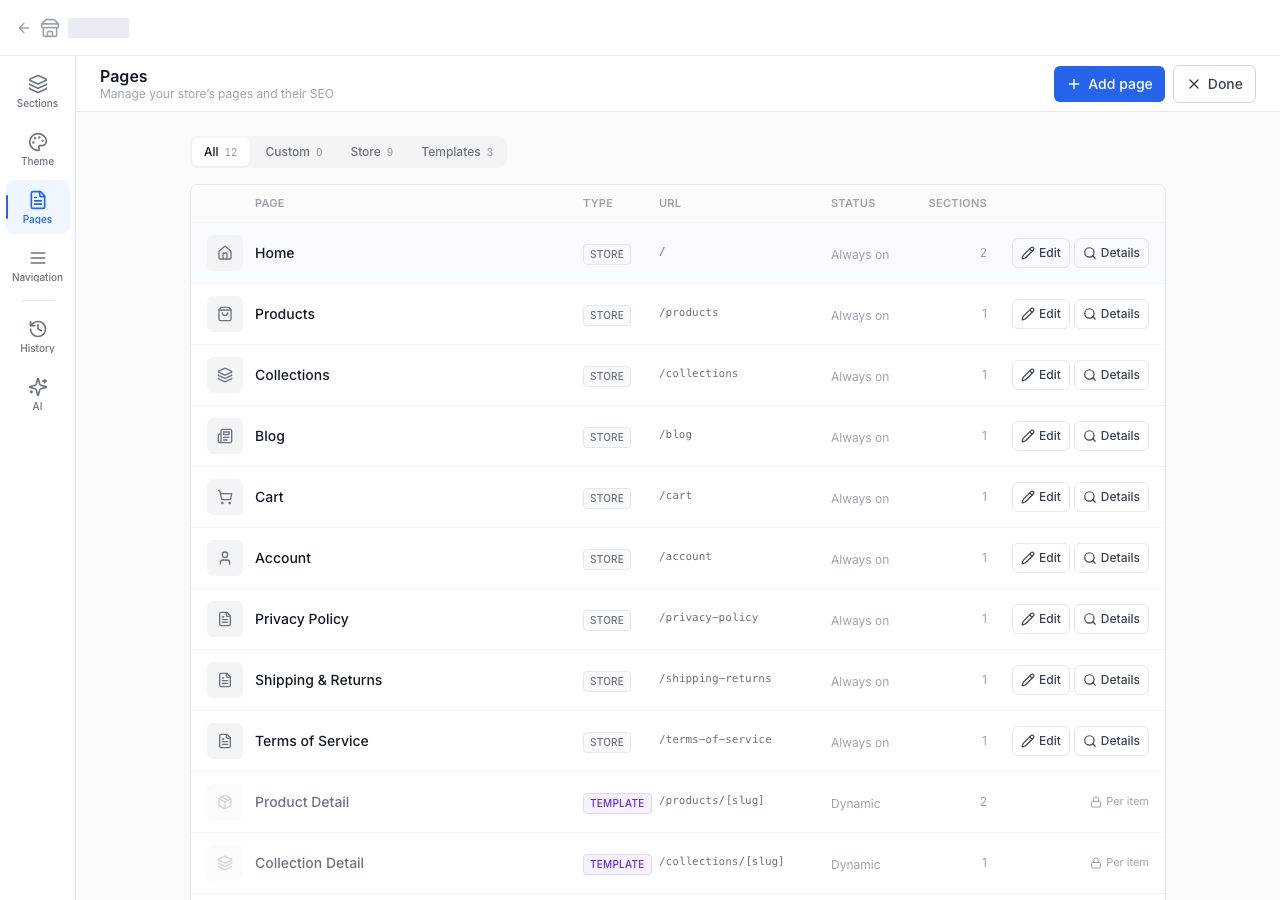
Three pages exist on every storefront from the day it opens:
- Privacy policy, at
/privacy-policy - Shipping and returns, at
/shipping-returns - Terms of service, at
/terms-of-service
The titles shoppers read are your own: each page's Title is yours to set.
They are not decoration and they are not ours. They are published under your store's name, as your statements to your customers, which is why they behave differently from every other page.
What they start as
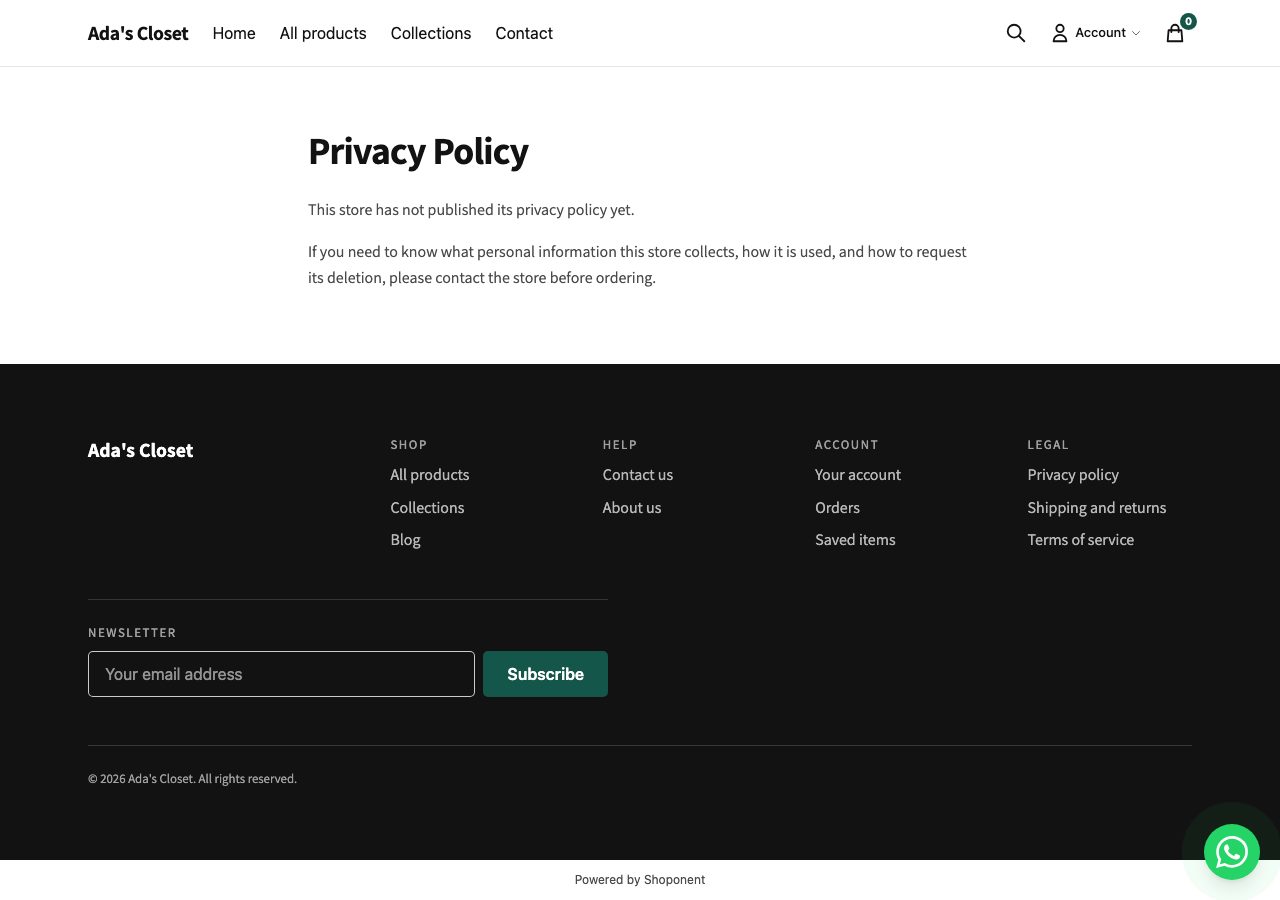
They start empty and honest. Each one says that the store has not published that policy yet and tells the shopper to get in touch before ordering.
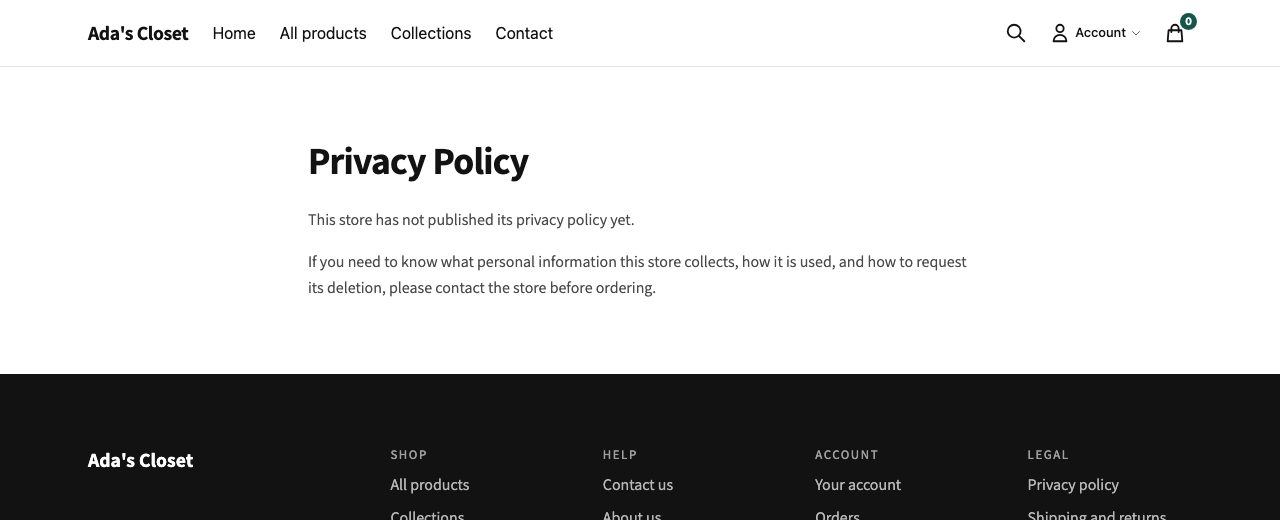
That is deliberate. The platform will not put a returns window, a delivery promise or a liability clause on your online store under your name, because those are commitments with real weight, and only you can make them. A placeholder that says nothing has been written is unfinished, and looks it, which is the point. Write them before you start selling.
What never changes about them
- They cannot be deleted. They are always on your online store, and there is no control to remove them.
- Their addresses are fixed. You cannot move them.
- The links to them are always in your footer, even when you build your own footer menu that does not include them. See The links in your header and footer.
- Applying a theme keeps them. These three carry over to any theme with your words intact. See Choose a theme.
Writing your own
Go to Online Store → Pages and choose the policy you want to write. Its screen opens with its Title, and the policy itself below it in Content, with headings, bold, italics, lists, quotes, links and tables. A policy still showing the placeholder is marked Not written yet beside Content.
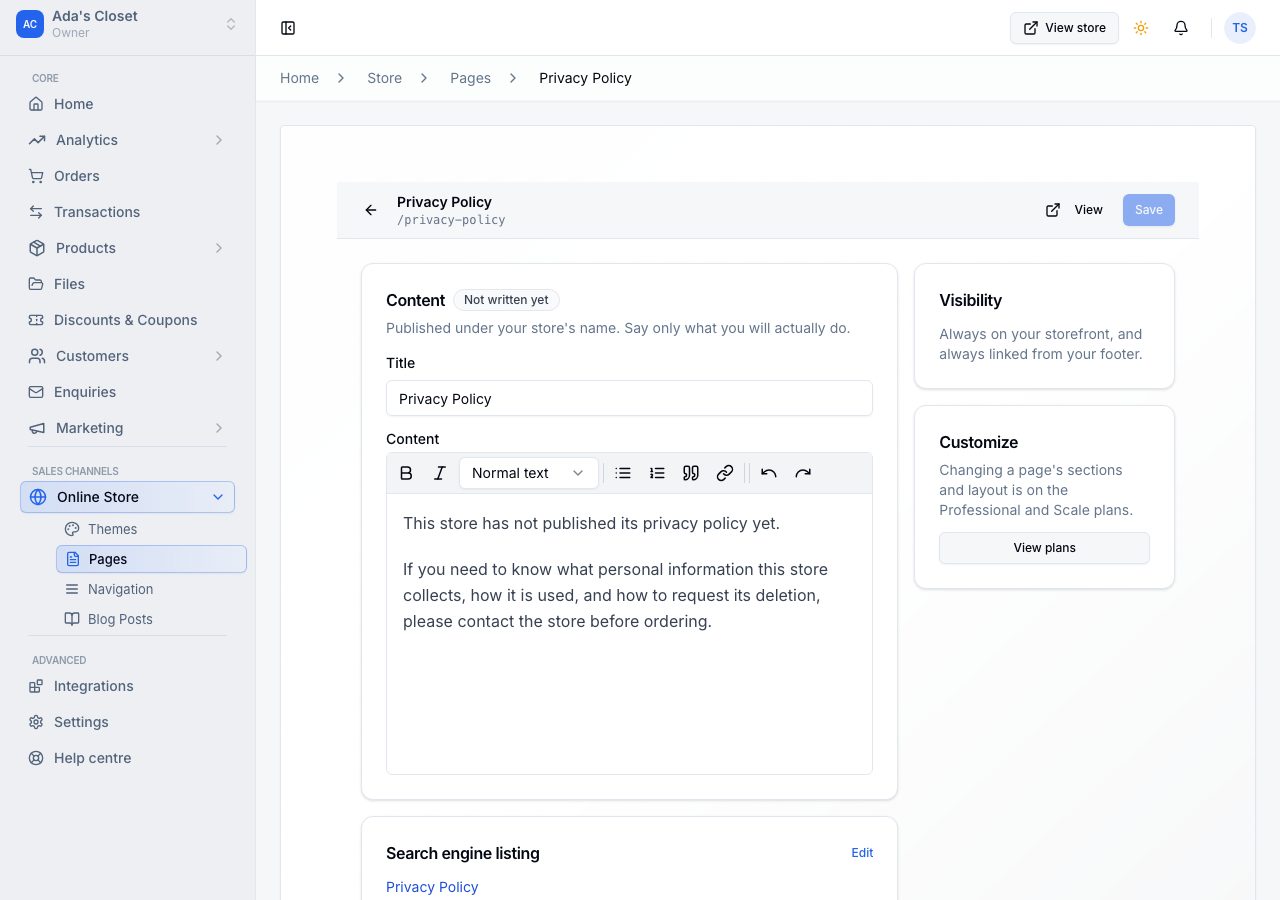
Replace the placeholder with your own words and choose Save at the top of the screen. There is no separate publish: your online store shows the new text within a few seconds. This works on every plan.
Below the policy on the same screen is the page's Search engine listing, how it appears in search results, saved by the same Save. See Pages on your online store. Policies used to be written under Settings → Policies; that address now takes you to Online Store → Pages.
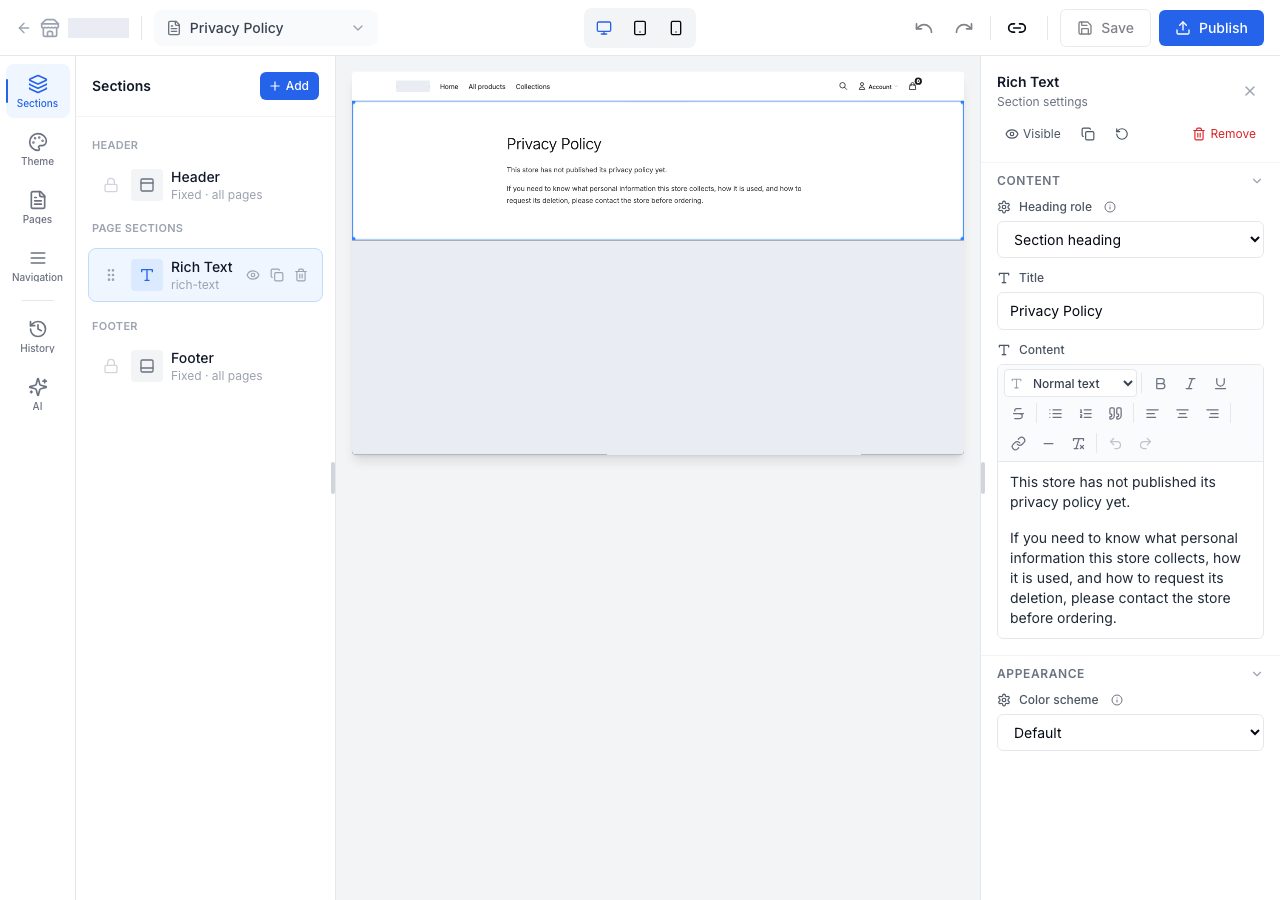
On Professional and above you can also reach them in the storefront editor: choose Pages, then Edit on the policy. Both places change the same text, so use whichever you prefer. In a draft theme the editor shows them read-only, with a link here, because they are your store's in every theme.
What to put in them, roughly
We cannot write these for you, and anything we suggested would be wrong for some stores. What shoppers most often look for:
- Privacy: what you collect, what you use it for, whether you share it, and how someone asks you to delete it.
- Shipping and returns: where you deliver, how long it takes, what delivery costs, and what happens if someone wants to return something, including who pays the return delivery and how long they have.
- Terms: how an order is accepted, how prices and stock are handled, and how a dispute is dealt with.
Say only what you will actually do. A returns window you will not honour is worse than no returns window, because the shopper can point at it.
If it does not work
- Save stays greyed out, or says the policy is blank. A policy needs a title and some words. An empty page tells shoppers less than the placeholder does, so write at least a sentence, or leave the placeholder until you can.
- Your footer menu does not list them and you want it to. They are reachable from the footer whether or not your menu lists them, but you can also add them to a menu yourself, as ordinary links to the three addresses above.
- You saved and the storefront still shows the old text. Refresh after a few seconds; a storefront page is cached briefly.
- You want to delete one. You cannot, and you should not want to: a storefront without a privacy policy is a problem with your payment provider before it is a problem with anybody else.
Email support@shoponent.com with your store name if anything here does not match what you see. We read and answer every message.