Available on every plan · Updated 30 October 2026
Also asked as: “change my menu” · “header links” · “footer links” · “add a link to my storefront” · “my menu is not showing” · “dropdown menu” · “mega menu” · “add a picture to my menu” · “link goes nowhere” · “page not found from my menu” · “navigation”
Until you make a menu of your own, your online store shows the links the theme came with. Online Store → Menus replaces them with yours. It is on every plan, and every change to a menu in use reaches shoppers as soon as you save it.
See your menus
Go to Online Store → Menus. Your menus are listed on the left, each saying where it goes (Header or Footer), whether it is in use, and how many links it holds. The menu you open shows on the right as one row per link, with the links inside a link indented under it.
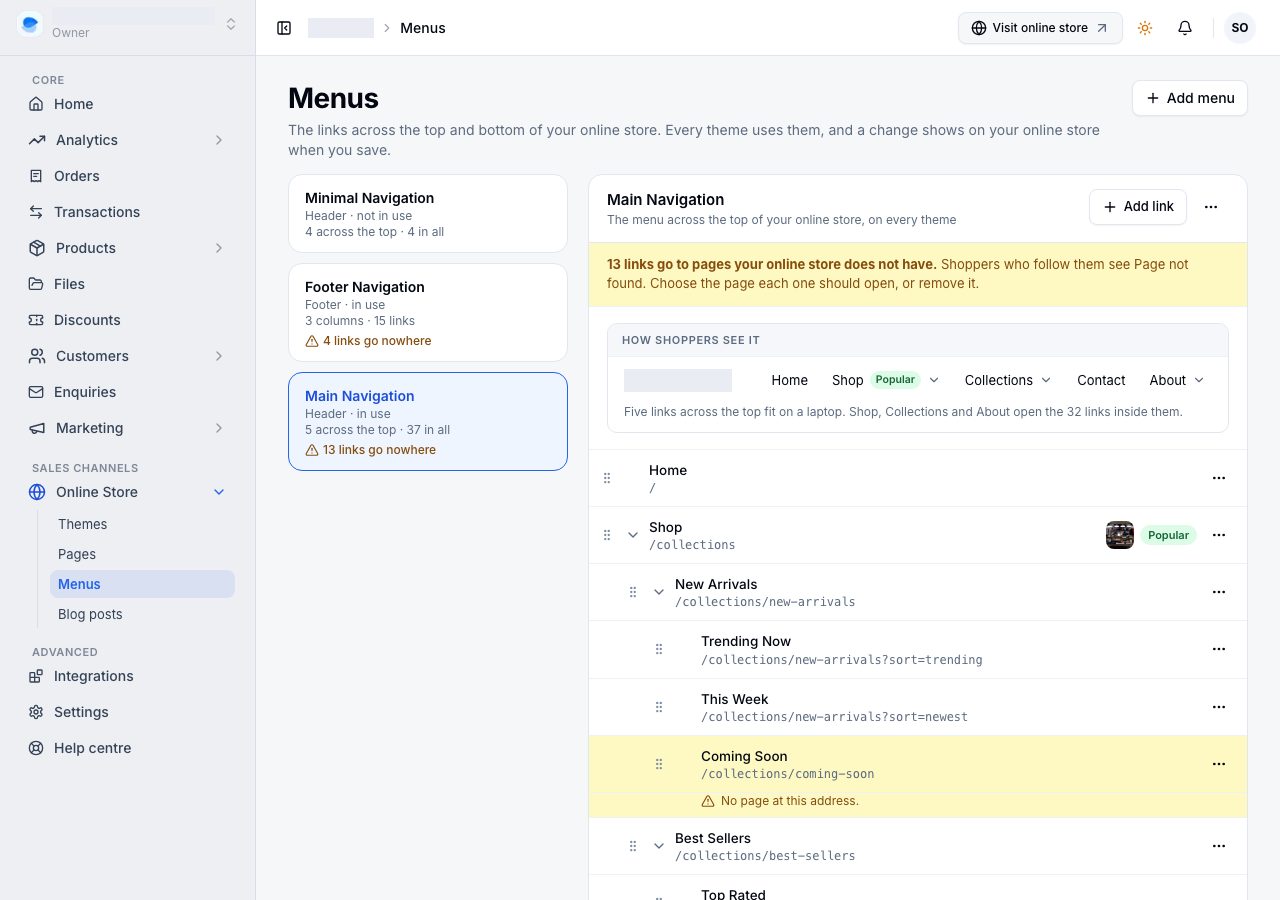
Above a header menu, How shoppers see it draws the links across the top of your online store, and says how many links open a dropdown.
- Header: each top link sits across the top of your online store. A link with links inside it opens a dropdown, and those can hold links of their own: three levels in all.
- Footer: each top link is a column, with its links under it. A top link with no link of its own is a column heading, shown as No link: a column heading.
On a phone, choose a menu from the list at the top, then Add link beside its count.
Add or change a link
Choose Add link, or open a link's ⋯ menu and choose Edit link.
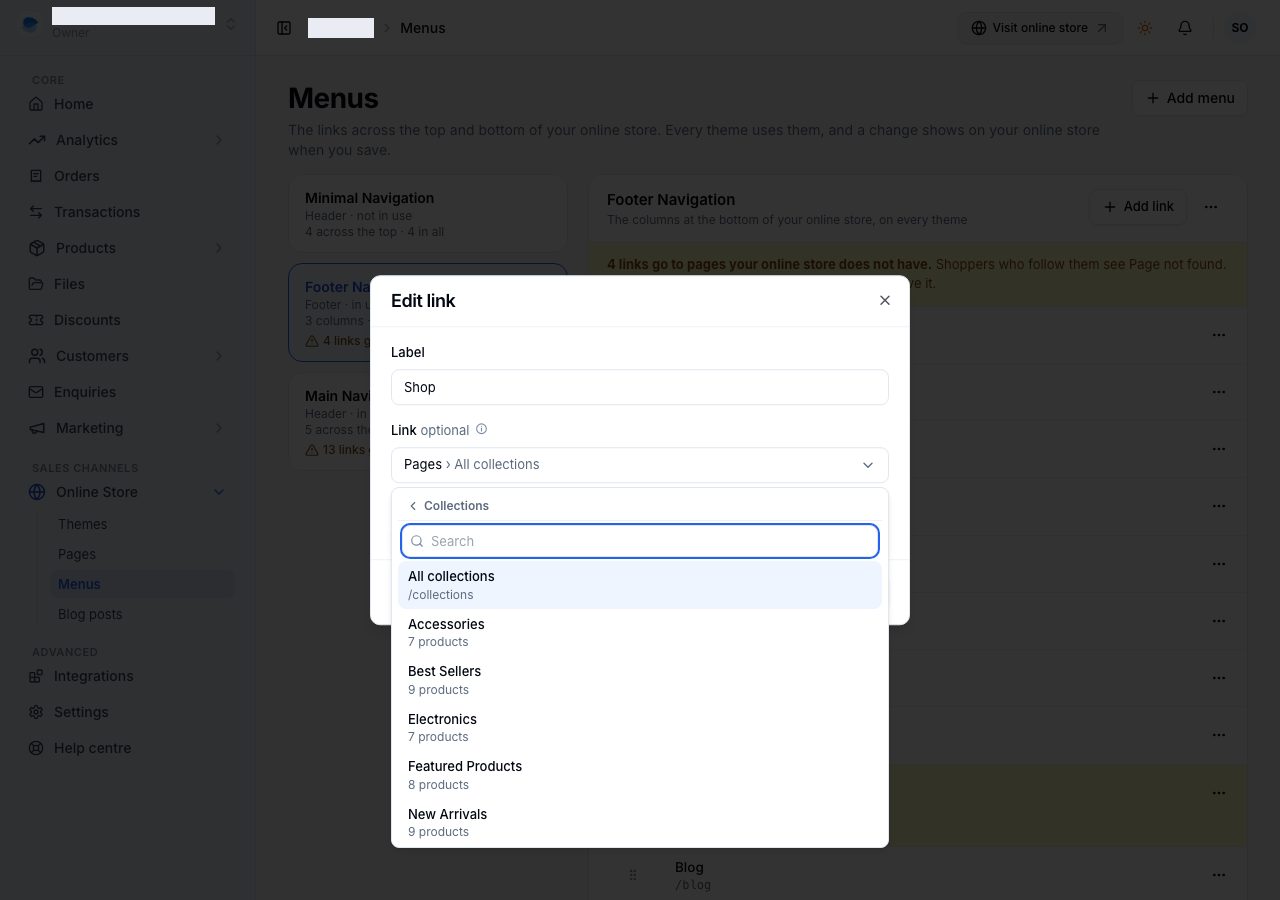
- Label: the words a shopper reads.
- Link: what the link opens. Choose it from your store: Pages, Collections, Products, Blog posts or Flash sales, then the one you mean, so the address is always right. Web address is last, for somewhere that is not your store.
- Open in a new tab: for a link that leaves your store.
- On a header link, a Picture and a Description show in a large dropdown when your theme draws one, and a top link can take a Badge, such as New or Sale, shown beside it. Whether your header opens its links as a dropdown or a mega menu is the header's Menu type on desktop, in the storefront editor; see The storefront editor.
Choose Save. The menu is saved at once: there is no separate Save for the menu. Remove link, in the dialog, removes it the same way.
Move a link
Drag a row by its handle to move it among the links beside it. A link's ⋯ menu also has Move up, Move down, Put inside the link above and Take out of the link it sits in, and Add a link inside. Each move is saved as you make it, and the order here is the order shoppers see.
Links that go nowhere
A link to an address your store does not have takes a shopper to Page not found. Menus checks every link: the menu's card says how many go nowhere, the menu says so across its top, and each such row is marked where it sits, with the link inside it opened.
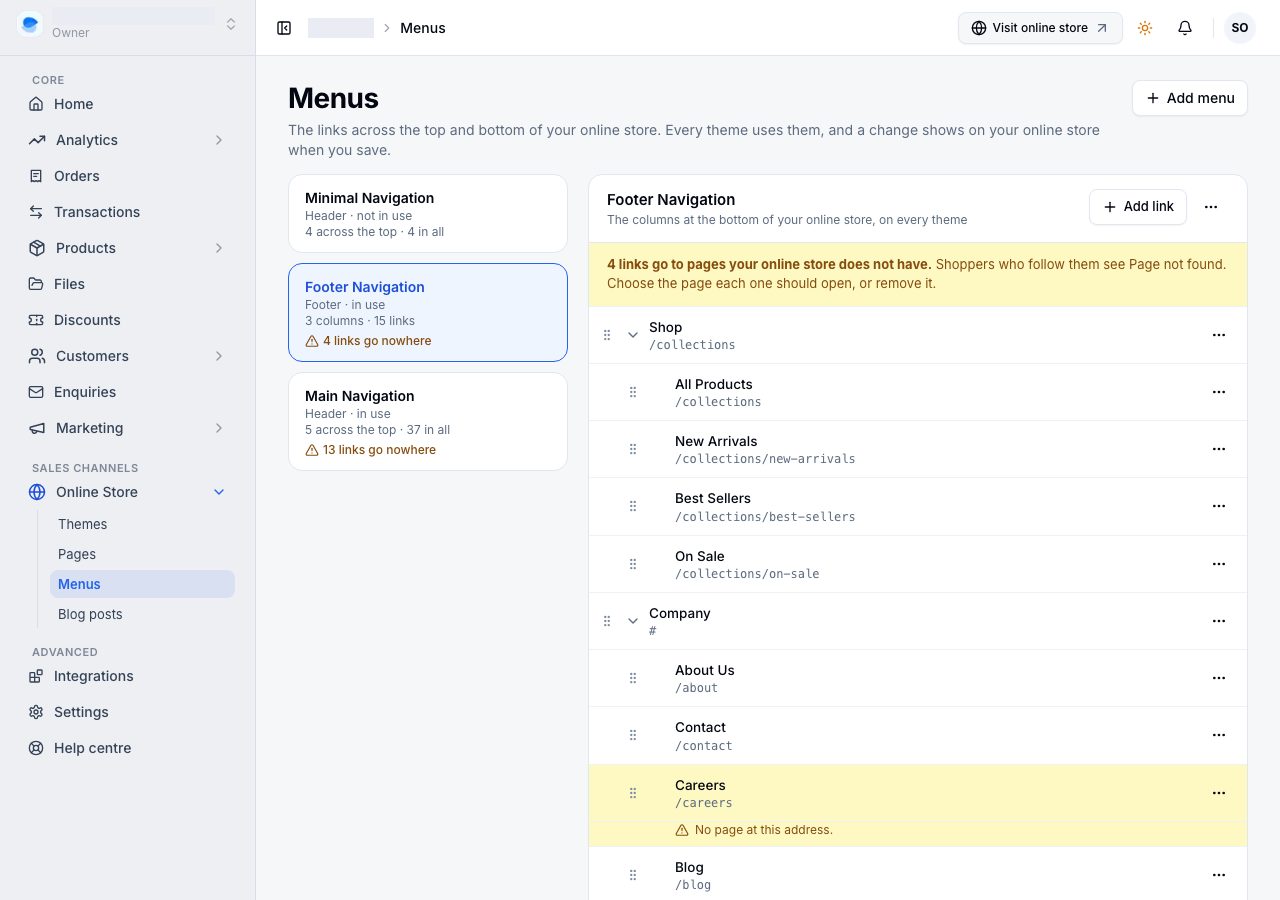
- No page at this address: open the link and choose the page it should open, or remove it.
- When the page it meant is clear, the row says where that page is, for example Your privacy policy is at /privacy-policy, and Use it points the link there.
Add a menu
Choose Add menu, give it a Name (for you, never shown to shoppers) and a Location, Header or Footer, and add its links.
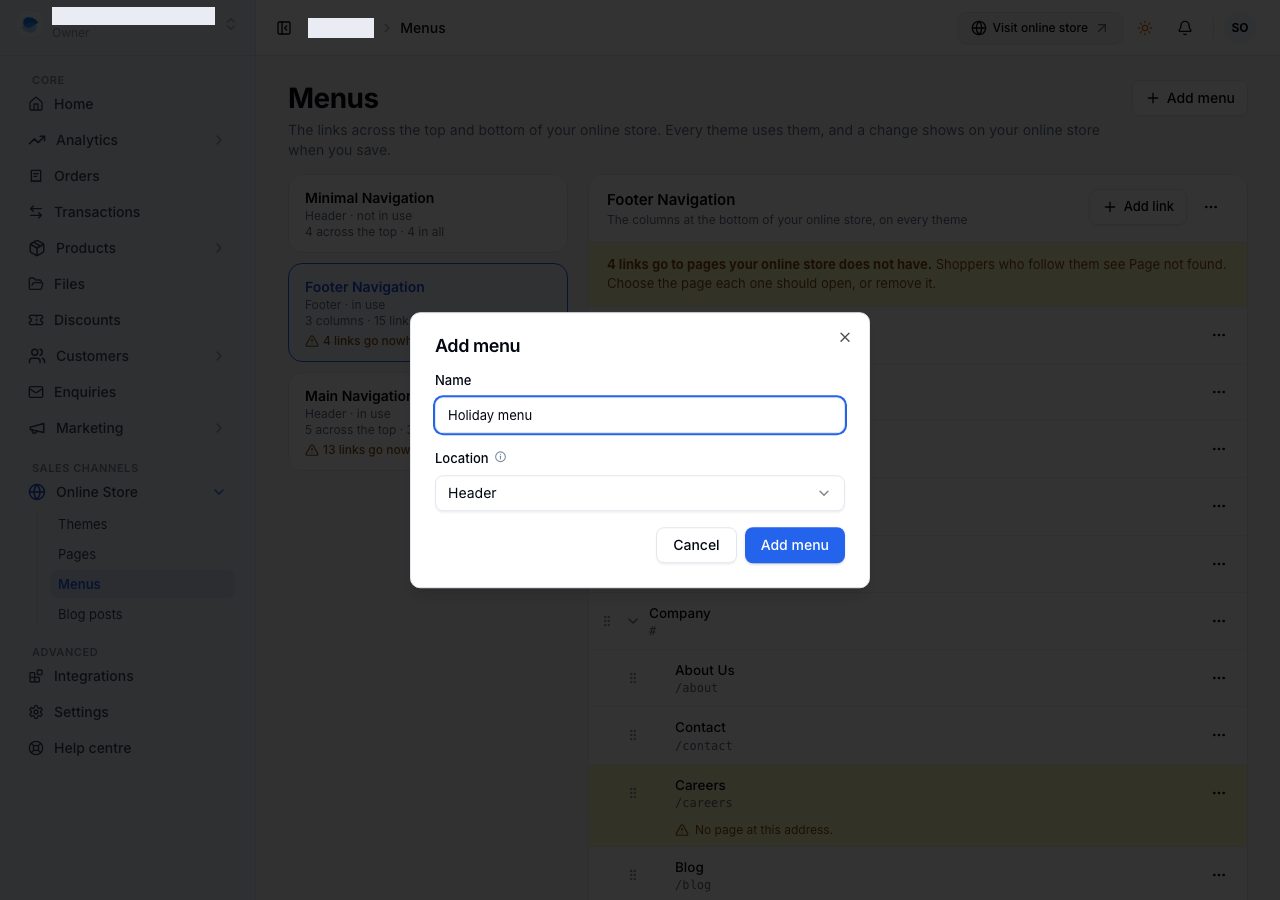
A new menu is not in use yet. In its ⋯ menu at the top right, Use it for the header (or the footer) puts it on your online store in place of the one in use. You can keep several menus for one place, a seasonal one for instance, and switch without retyping anything. Rename menu and Delete menu are in the same ⋯ menu; a menu in use cannot be deleted until another takes its place.
What a menu cannot remove
The links to your privacy, shipping and returns and terms of service pages are always reachable from the footer, even when your own footer menu does not list them. Those pages are published under your store's name as your own policy, so the platform keeps them reachable. See Your policy pages.
If it does not work
- You saved but the storefront still shows the old links. The menu is not the one in use (its card says not in use: use Use it for the header or for the footer), or you are inside the few seconds a storefront page stays cached. Refresh once.
- A link goes nowhere. Its row says so. Open it and choose the page from Link, or use Use it when the row names the page it meant.
- The header shows links you did not add. The menu in use for the header is a different one, or you have none and the theme's own links are still showing.
- You cannot put a link inside another. A header has three levels and a footer two; a link already at the deepest level cannot take links of its own.
Email support@shoponent.com with your store name if anything here does not match what you see. We read and answer every message.