Available on every plan · Updated 22 October 2026
Also asked as: “add whatsapp to my store” · “chat button” · “shoppers message me” · “whatsapp number not working” · “ask on whatsapp”
Most Nigerian shoppers would rather ask a question on WhatsApp than fill in a form. Switch this on and your online store carries a WhatsApp button; tapping it opens a chat with you, in the shopper's own WhatsApp, on their phone or their desktop. It is on every plan, there is no verification to go through and no cost per message, because nothing is sent through us.
1. Open WhatsApp chat
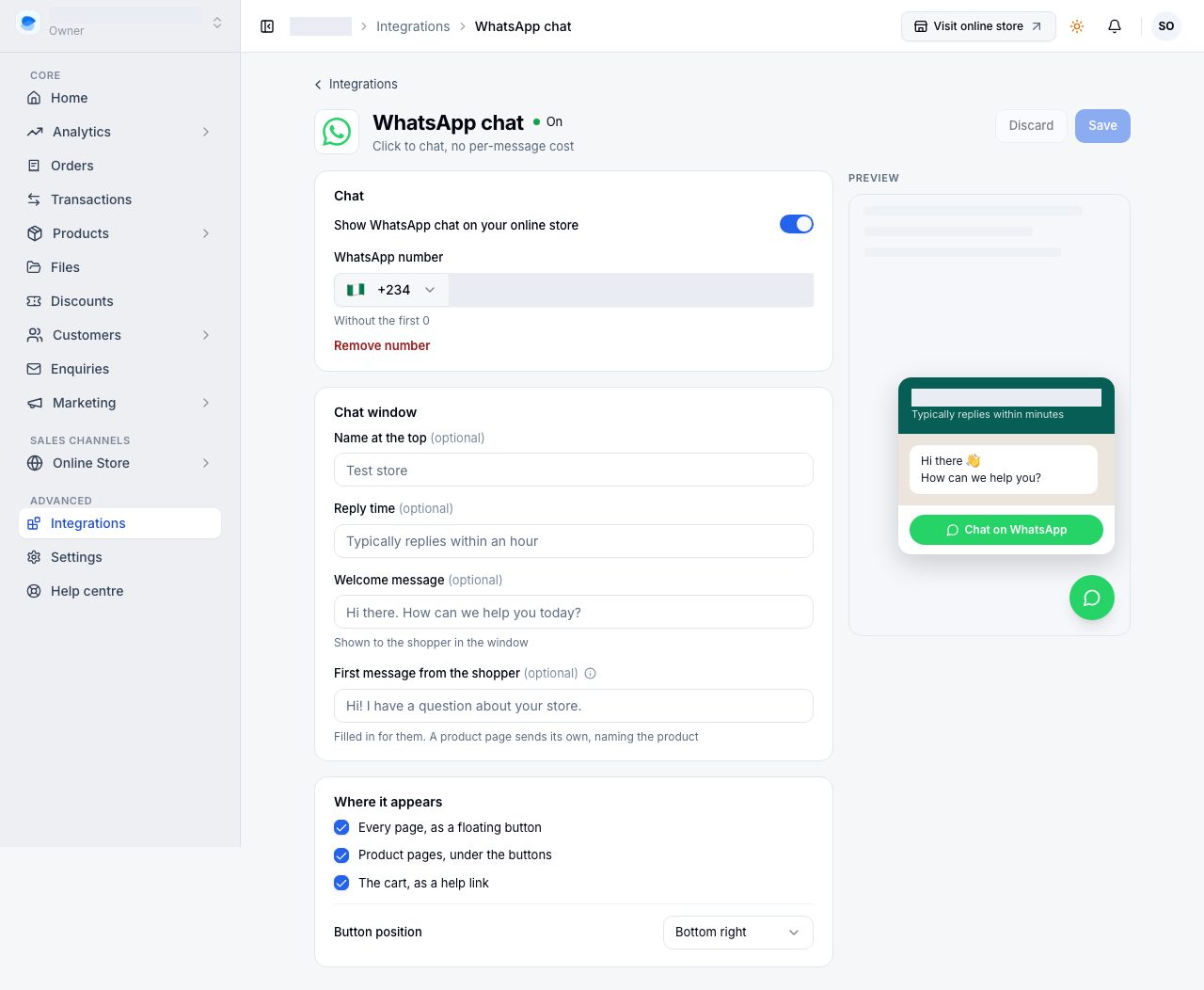
Open Integrations and choose WhatsApp chat. The page shows a preview of the chat window beside its settings, and changes nothing until you choose Save.
2. Fill in your details
- Chat: turn on Show WhatsApp chat on your online store, and give the WhatsApp number shoppers will message. Choose the country from the flag (Nigeria is +234), then type the number without the first 0. It must be a number that has WhatsApp on it.
- Chat window, all optional: Name at the top (your store's name if blank), Reply time ("Typically replies within an hour"; say only what you can keep to), and the Welcome message shown to the shopper in the window.
- First message from the shopper (optional): filled in for them when they tap through. A product page sends its own instead, naming the product, the option chosen and the price, with a link to the page.
3. Choose where it appears
Where it appears has three places, each with its own tick:
- Every page, as a floating button. Button position puts it at the bottom right or the bottom left.
- Product pages, under the buttons: an enquiry link under Add to cart, whose message already names the product.
- The cart, as a help link.
Choose Save.
4. Check your online store
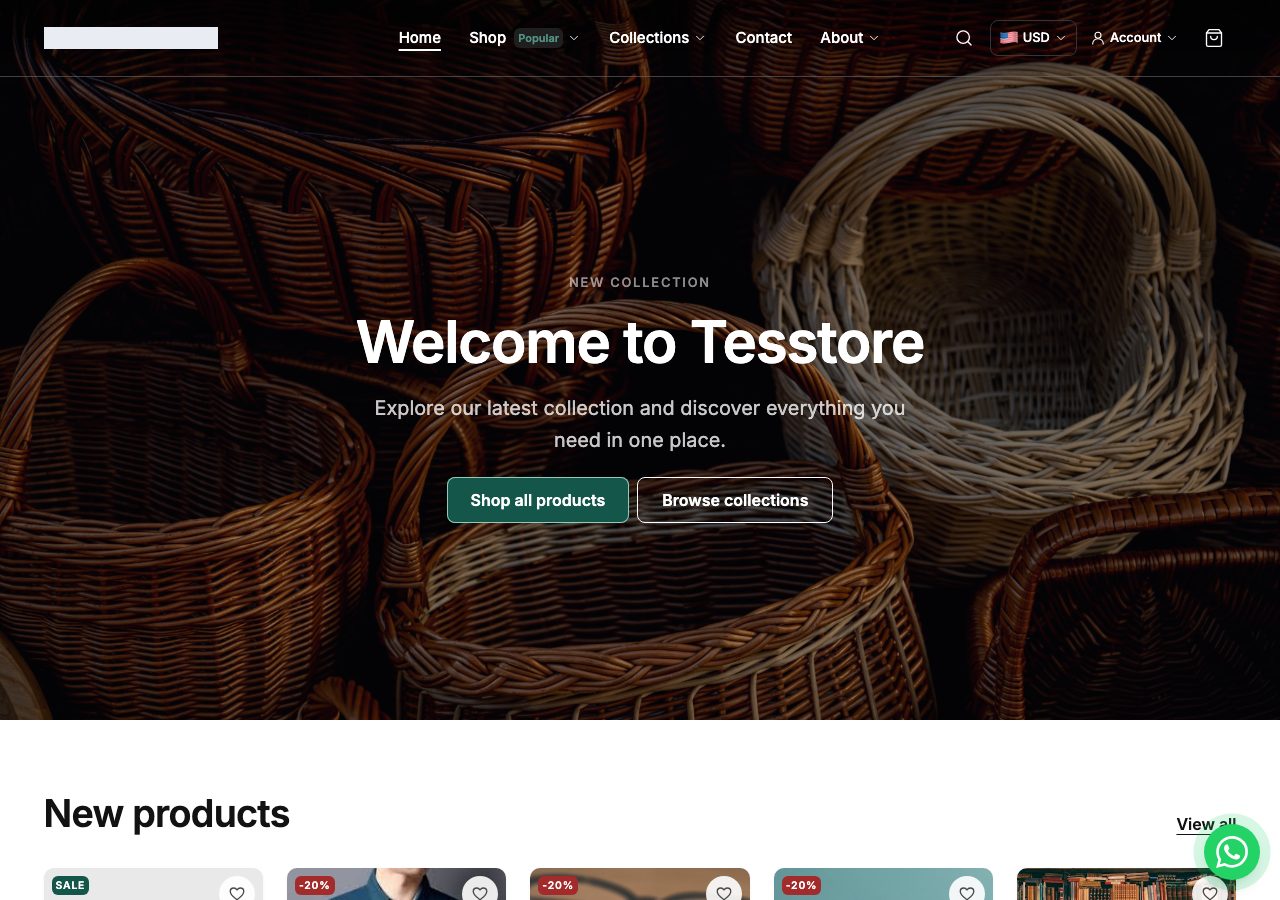
Open your online store. The button sits in the corner you chose.
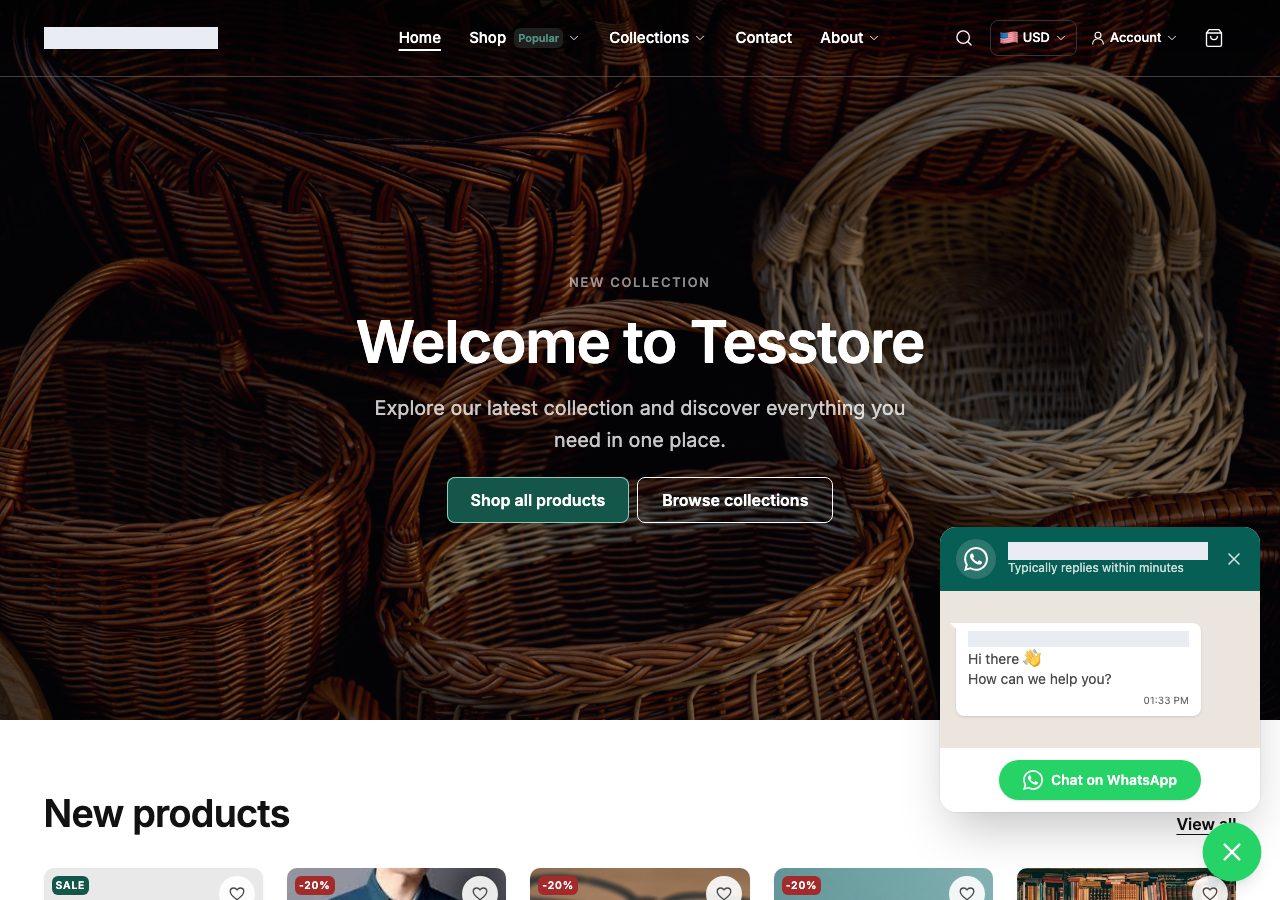
Tapping it opens the chat window with your name, your reply time and your welcome message. Chat on WhatsApp hands the shopper to WhatsApp itself; the conversation then lives on your phone like any other, and you reply from there.
What this is not
This is a link, not a messaging service. Order confirmations, delivery updates and abandoned checkout reminders are not sent over WhatsApp: those go by email. Nothing a shopper types in WhatsApp reaches Admin, and there is no record of the conversation in your store. What you get is a shopper who can reach you in one tap, from every page, using the app they already have open.
If it does not work
- No button on the online store: the switch is off, the number is empty, or the place is unticked under Where it appears. Each hides it completely rather than showing a broken button.
- The chat opens to the wrong person, or to nobody: the number is wrong or has no WhatsApp on it. Check the country, and drop the first 0: a Nigerian 0801 number is entered as 801 after +234.
- You changed something and the online store still shows the old version: refresh once. A page is cached for a few seconds after a change.
Email support@shoponent.com with your store name if anything here does not match what you see. We read and answer every message.