Available on every plan · Updated 30 October 2026
Also asked as: “which pages does my store have” · “where do I edit my about page” · “add a page” · “about us page” · “page title in google” · “delete a page” · “hide a page” · “page url” · “change the words on my home page” · “change the home page picture” · “home page banner” · “schedule a page” · “publish a page later” · “edit my slideshow”
Your online store already has the pages it cannot do without: the home page, the product, collection and blog listings, About, Contact, your three policy pages, the cart and your customers' account area. Online Store → Pages lists them all on every plan, and each one opens a screen where you change its words and how it appears in search. On Professional and above you can add your own pages there too, such as answers to questions shoppers ask or how to care for what they buy, and change any page's layout in the storefront editor.
A size chart is not a page: make it in Products → Size Guides, and it shows on the products it fits. See Size guides. A sale has its own page too, made by the sale. See Flash sales.
See your pages
Go to Online Store → Pages.
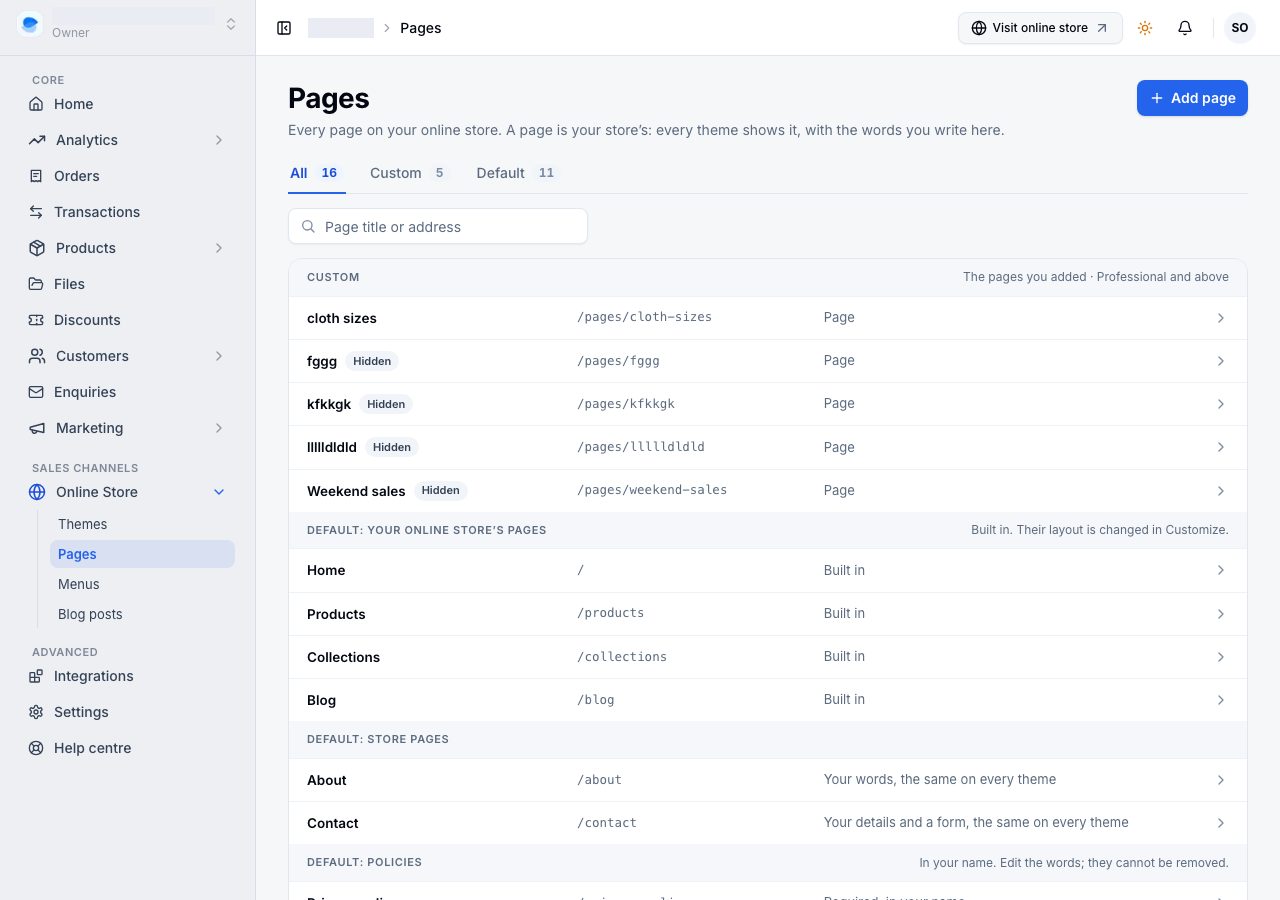
The list is grouped by what each page is:
- Custom: the pages you added, first. A page waiting for its Publish on says Scheduled, with the day.
- Default: your online store's pages: Home, Products, Collections and Blog. They are built in, and their layout is changed in the storefront editor.
- Default: store pages: About and Contact. Their words are yours and the same on every theme.
- Default: policies: your privacy, shipping and returns, and terms of service pages, published in your name. You edit the words; they cannot be removed.
- Run by Shoponent: the cart and your customers' account area, with a lock. We run those so checkout and sign-in work the same everywhere.
All, Custom and Default at the top show one kind at a time, each with its count, and the search finds a page by its title or address. Choose a row to open the page. A page shoppers cannot open is marked Hidden; a page they can open carries no mark.
A flash sale's own page is not listed here: each sale makes its own, in Marketing → Flash sales. See Flash sales.
If you have not chosen a theme yet, the page says Your online store has no theme yet and Choose a theme takes you to Online Store → Themes, because a theme is what gives your online store its pages.
Add a page
On Professional and above, choose Add page. A new page opens, not saved yet, for you to write before anything is made.
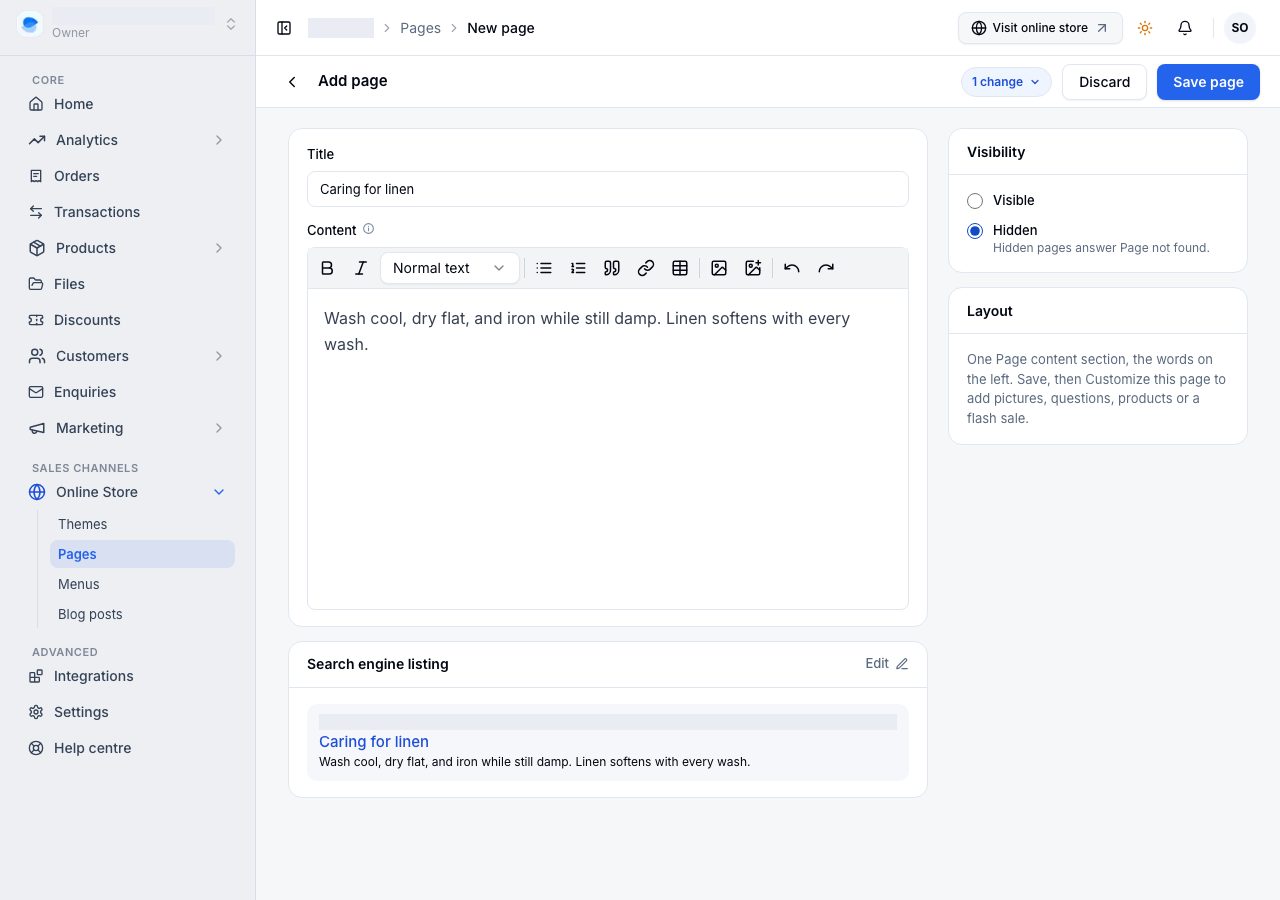
- Title: the page's name, which shoppers see.
- Content: the page's words, with headings, bold, italics, lists, quotes, links, tables and pictures.
- Visibility: Visible or Hidden. A new page is Visible unless you choose Hidden. A visible page can wait for Publish on, a day and time in your store's time; until then it answers Page not found.
- Search engine listing: see below. Its URL handle follows the title until you set it, so "Caring for linen" becomes
caring-for-linen. A page you add lives under/pages/, so it can never take an address your store already uses.
Choose Save page. The page is made, and its screen opens. On Starter, Add page says that adding pages comes with Professional, with See plans.
Change a page you added
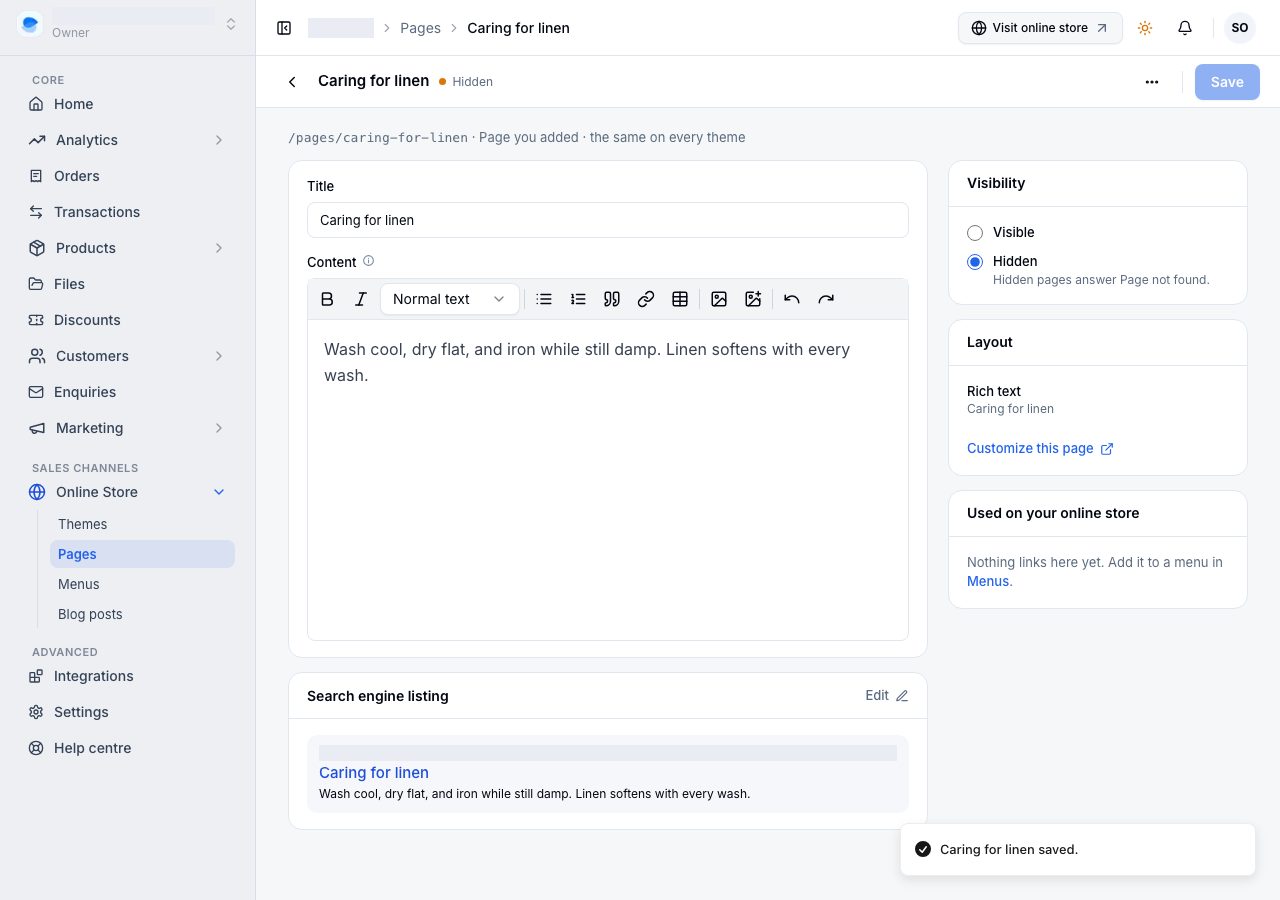
- Title and Content: as when you added it. The words are the page's text section, listed as Rich text under Layout.
- Search engine listing: see below.
- Visibility: Visible or Hidden, with Publish on. Hidden pages answer Page not found.
- Layout lists the page's sections, and Customize this page opens it in the storefront editor to add more, such as a picture with text, a product list or a flash sale. On Starter it says that changing a layout comes with Professional.
- Used on your online store says what links to the page: a menu, or a collapsible row on the product page. Hide or delete the page and the screen says first which of these will drop out.
Save, at the top, saves everything on the screen at once, and lists what you have changed until you do. Discard puts back what was saved. On a phone, Save sits at the bottom of the screen. Delete page is in the ⋯ menu at the top, and asks you to confirm.
Put a link to a new page in a menu under Menus: a page nobody can reach is a page nobody reads.
Change one of your store's pages
Your store's own pages open the same kind of screen.
Home: its hero, below.
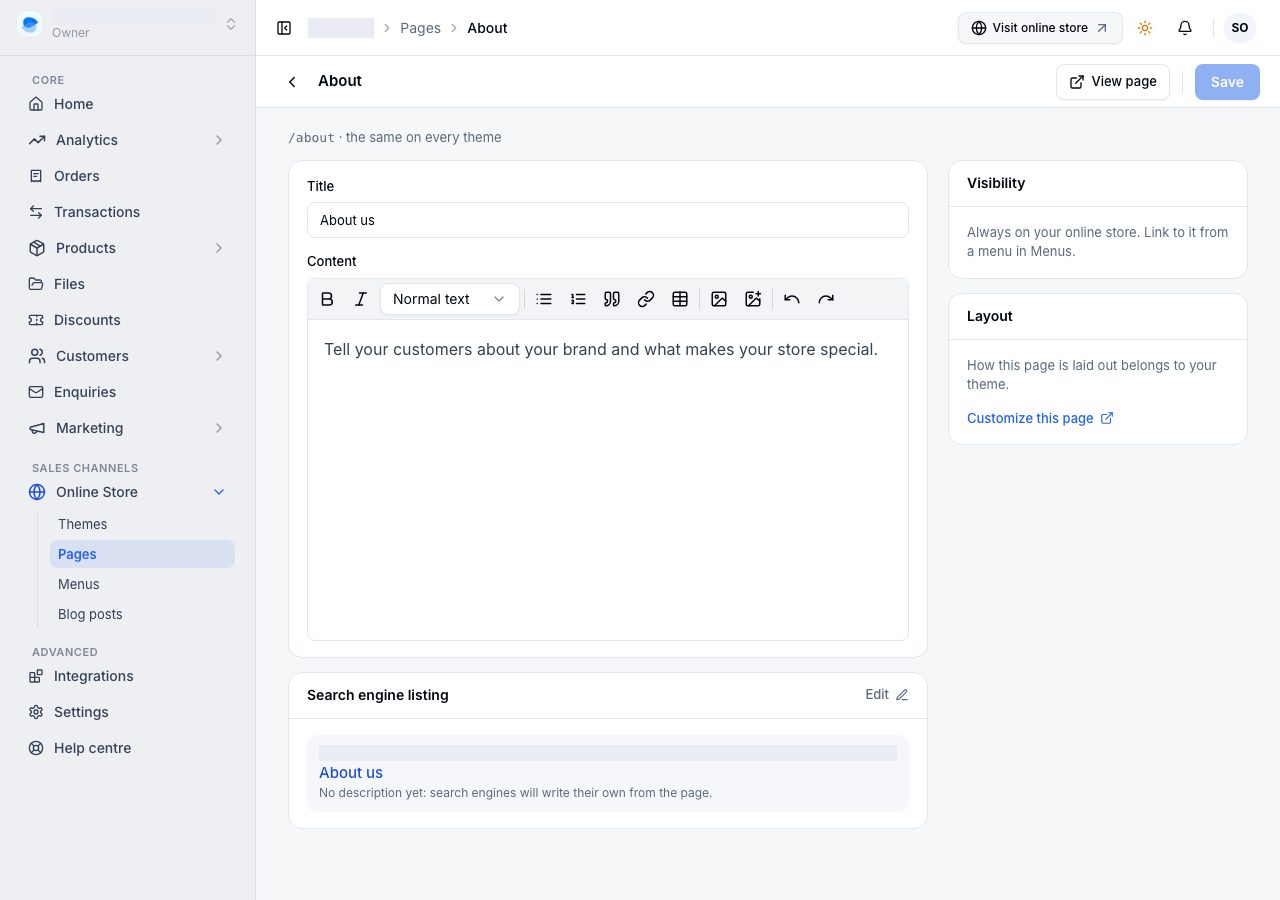
About: its Title and Content. Until you write it, it is marked Not written yet.
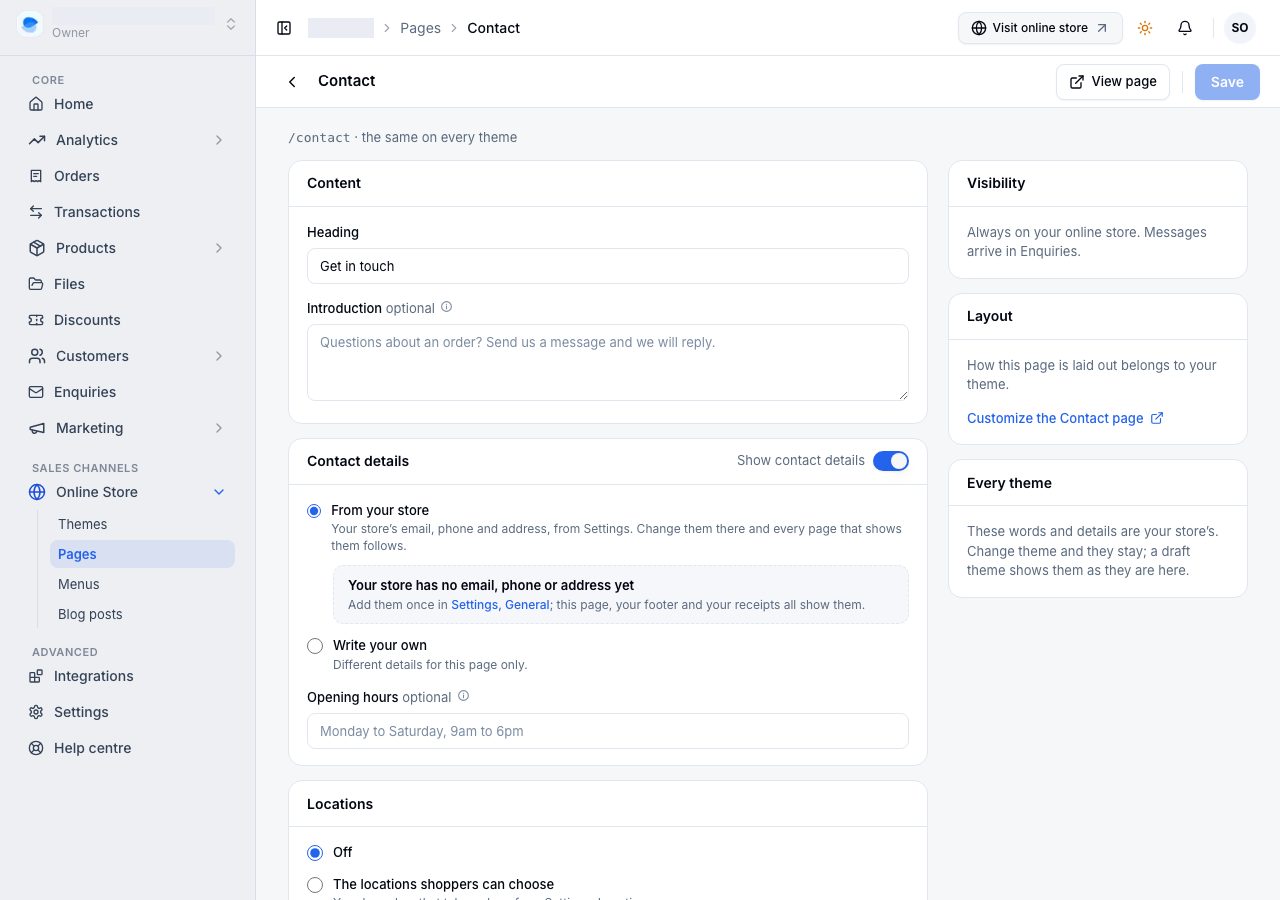
Contact: its words, its details and its form. Contact details come From your store (your store's email, phone and address, from Settings → General, so this page, your footer and your receipts all say the same) or Write your own for this page only, with Opening hours under them. Locations lists none, The locations shoppers can choose (your branches that take orders), or ones you write for this page. Contact form has its Button label, the Message after sending, and where messages are emailed. See Your contact form and where messages land.
Privacy policy, Shipping and returns and Terms of service: Title and Content, marked Not written yet until you replace the placeholder. See Your policy pages.
Products, Collections and Blog: only their search engine listing, because what they show comes from your catalogue.
These are always on your online store, so their Visibility says so rather than offering a switch. About's text, Contact's words and details and your policy pages are your store's, so every theme shows them and publishing another theme keeps them. The home page hero belongs to each theme: this page edits the hero of the theme that is live. See Choose a theme.
Change your home page's hero
The hero is what your home page opens on: a heading, a line of text, a picture and up to two buttons. Open Home from the list. The hero comes first, on every plan.
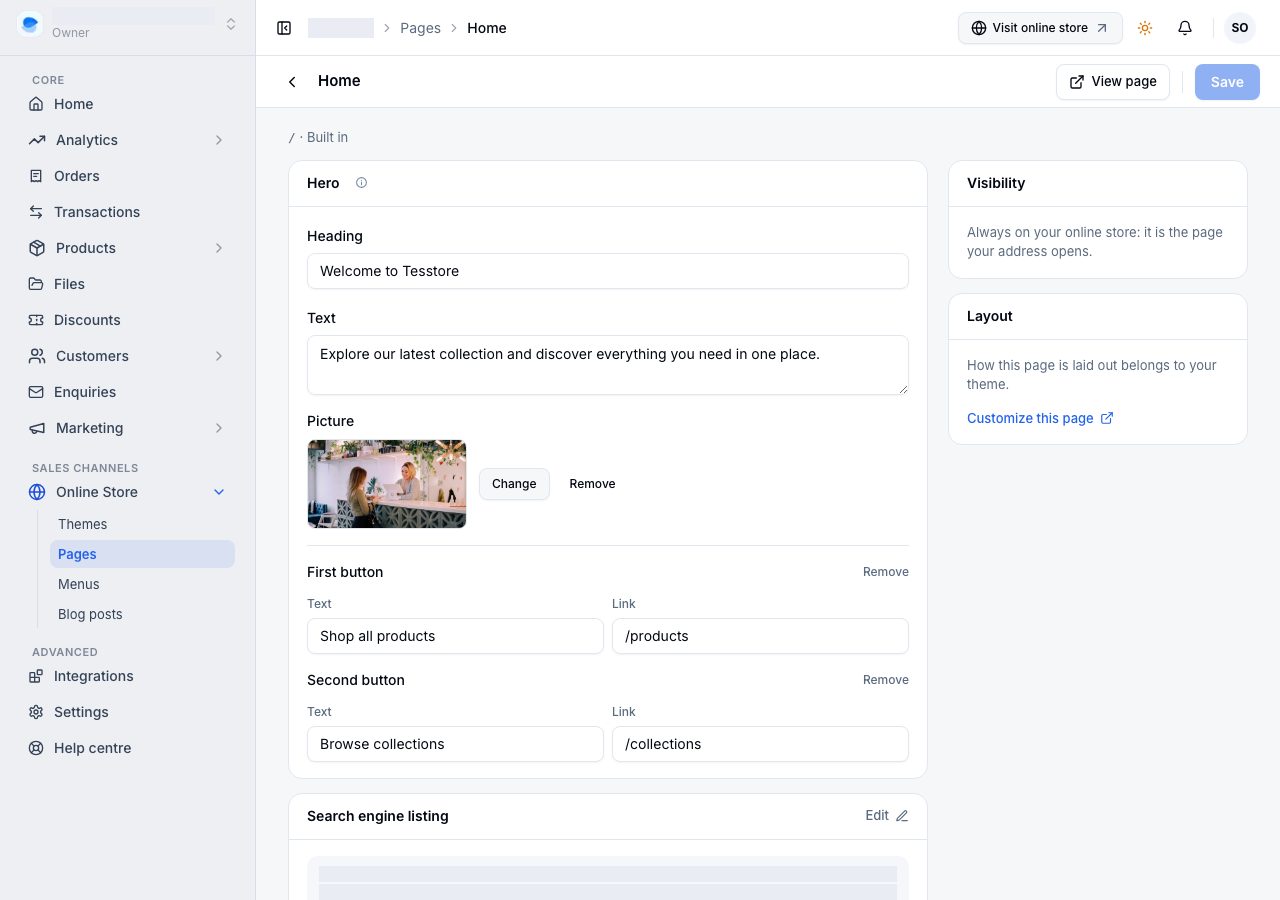
- Heading is the large line at the top. A hero always needs one.
- Text is the smaller line beneath it.
- Picture: Choose picture picks an image from your Files, Change swaps it, and Remove takes it off.
- First button and Second button each take a Text and a Link. The link is a page on your store starting with
/, such as/products, or a full web address. Fill in both or neither; Remove clears a button, and a button with both empty is not shown.
If the heading holds {{storeName}}, your online store shows your store's name in its place. The line under the heading says what shoppers read, and it stays right if you rename your store.
If your home page opens on a slideshow, the card is called Hero slideshow, first slide. The fields are the same, and they change the first slide only. Adding, removing or reordering slides is done in the storefront editor, on Professional and above.
- The storefront editor changes this same hero, so a change in one place shows in the other.
- Applying a theme, or saving your brand colour, keeps these words, the picture and the buttons, as long as both themes open the home page the same way: both on a hero, or both on a slideshow. On a slideshow that is the first slide only: the other slides are storefront editor work, which applying a theme replaces like any other section.
- The picture is an image. A video cannot be chosen here.
- If your home page opens on neither, the card says so. Add a Hero section to the top of your home page in the storefront editor, or choose a theme whose home page opens on one.
How a page appears in search, and when it is shared
Every page's screen has a Search engine listing. It shows a preview of how the page might look in search results, and Edit opens the fields behind it.
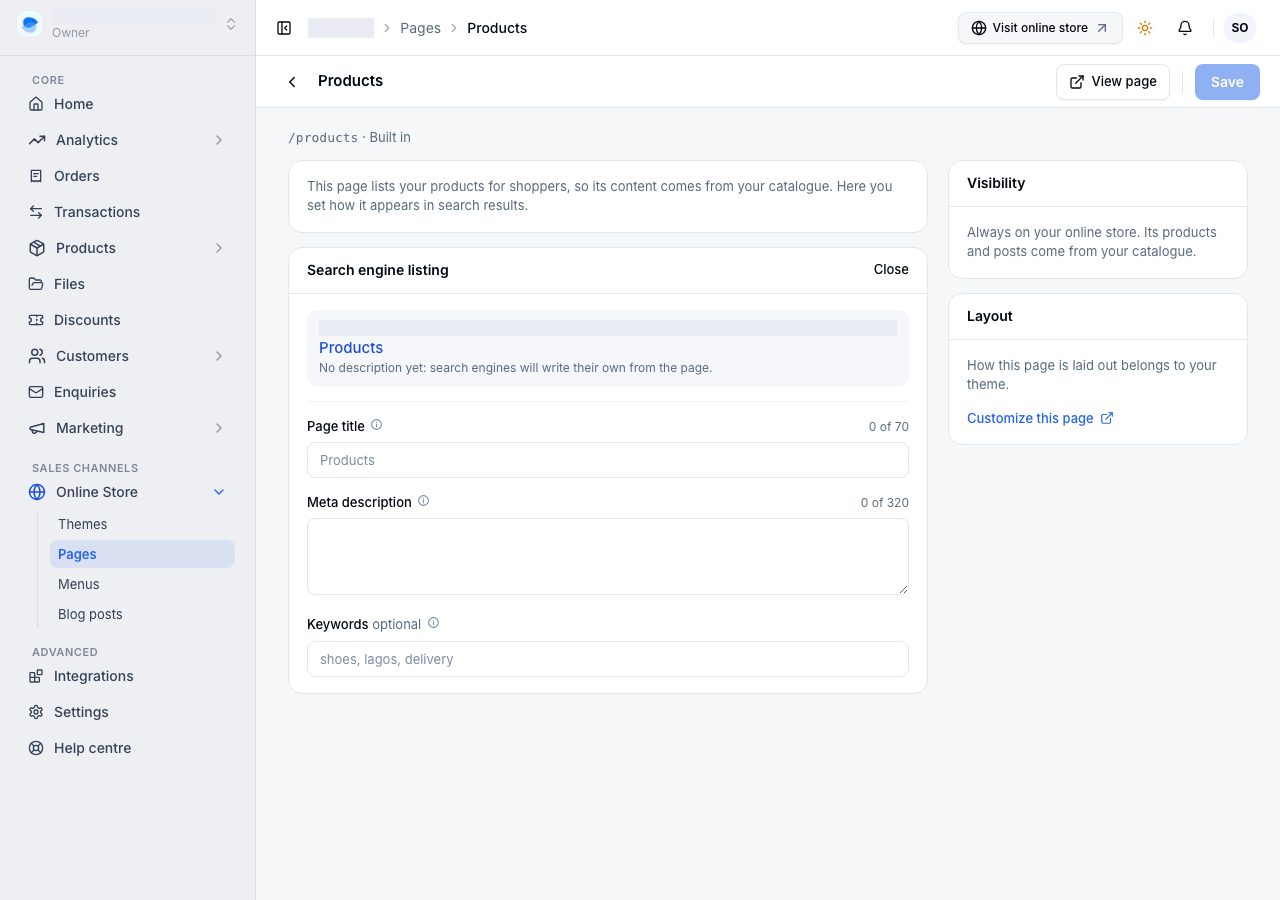
- Page title: the headline in search results and the name in a browser tab. Search results show about the first 70 characters. Empty, the page's title is used.
- Meta description: the short summary underneath. Search results show about the first 320 characters, so put what matters first.
- URL handle, on a page you added: the last part of its address, after
/pages/. Changing it changes the page's address, and links already shared stop working. - Keywords, on your store's pages, separated by commas. Search engines give these little weight.
- Social sharing image, on Home: the picture a link to your store shows when someone shares it on WhatsApp, Facebook or X, and on a blog post that has no image of its own. A wide image about 1200 by 630 pixels works best.
The listing is saved with the screen's Save, and search engines update their results on their own schedule, which can take days.
Pages in the storefront editor
The storefront editor's page list, at the top, is grouped the same way: your online store's pages (with the product page, collection page, blog post and flash sale page, each laid out once for every product, collection, post or sale), your store pages, and the pages you added. Find a page searches it. A page you added says at the top of its settings that its name, address, visibility and search listing are in Pages, with Open in Pages. Open the editor from Online Store → Themes → Customize, or from Customize this page on a page's screen.
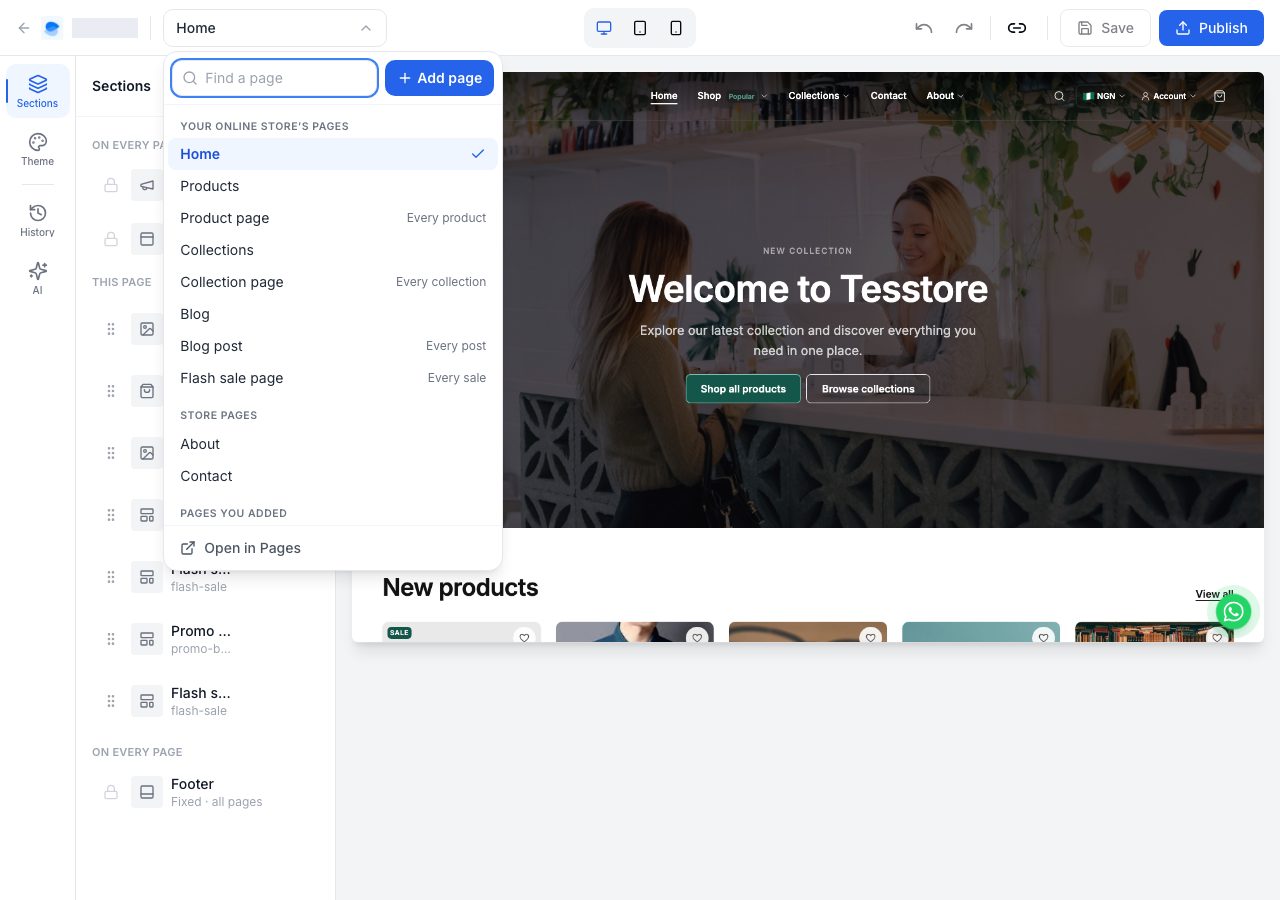
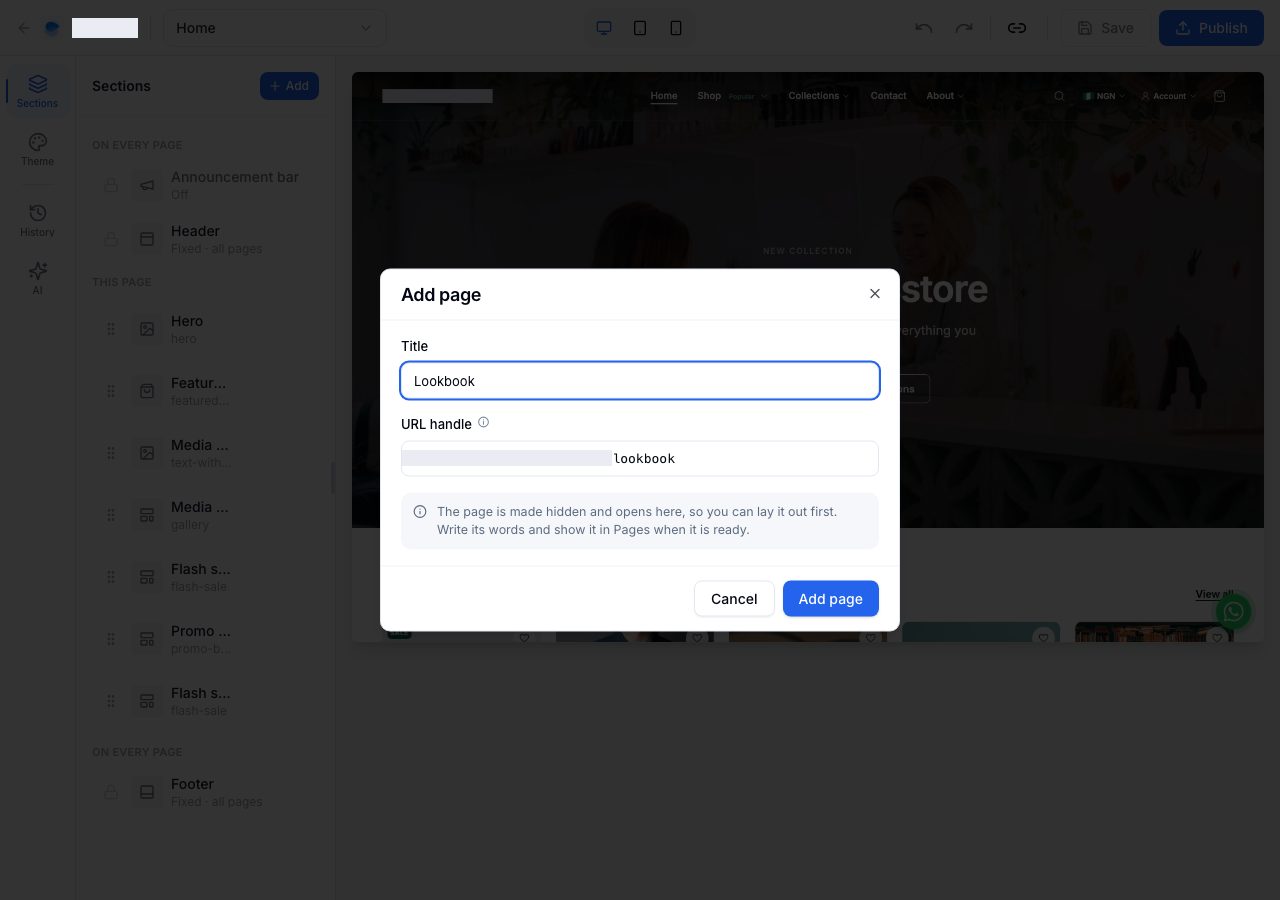
Add page in that list is a shortcut for laying a page out first: it asks for a Title and a URL handle, makes the page Hidden, so its empty words never reach a shopper, and opens it in the editor. Write its words and show it in Pages when it is ready.
If it does not work
- Add page says See plans. Adding your own pages is on Professional and above. Every plan edits its home page, About, Contact and policy pages.
- Save stays greyed out. Nothing has changed yet, or something cannot be saved: an empty title, a hero button with its text and no link (or the other way round), or an address that is not allowed. The bar at the top says which.
- Your new page is not on the online store. It is Hidden (a page added from the storefront editor starts hidden), its Publish on has not come yet, or nothing links to it.
- You are looking for a campaign page. Pages no longer have dates: a sale is a flash sale, with its own page that ends by itself, and any page can show it with a Flash sale section. See Flash sales.
- You cannot change a page's address, or delete it. It is one of your store's pages. Only a page you added has an address you own and can be deleted.
- You renamed a page's address and links broke. Old links to the old address stop working, and nothing redirects them yet. Put the old address back if the links matter.
- A page says it is built from sections. Its content lives in sections, so change it in the storefront editor with Customize this page.
Email support@shoponent.com with your store name if anything here does not match what you see. We read and answer every message.