Available on every plan · Updated 11 October 2026
Also asked as: “size guide” · “size chart” · “add a size chart to a product” · “measurements table” · “shoe size conversion” · “ring sizes” · “size guide not showing” · “inches or centimetres” · “paste a size chart from excel”
A size guide is a table of your sizes with a note on how to measure. You make it once in Products → Size Guides and attach it to the products it fits. A product with a guide shows Size guide beside its Size option, and the guide opens over the product. A product without one shows no link at all, so a shopper never opens an empty guide. Size guides are on every plan.
See your size guides
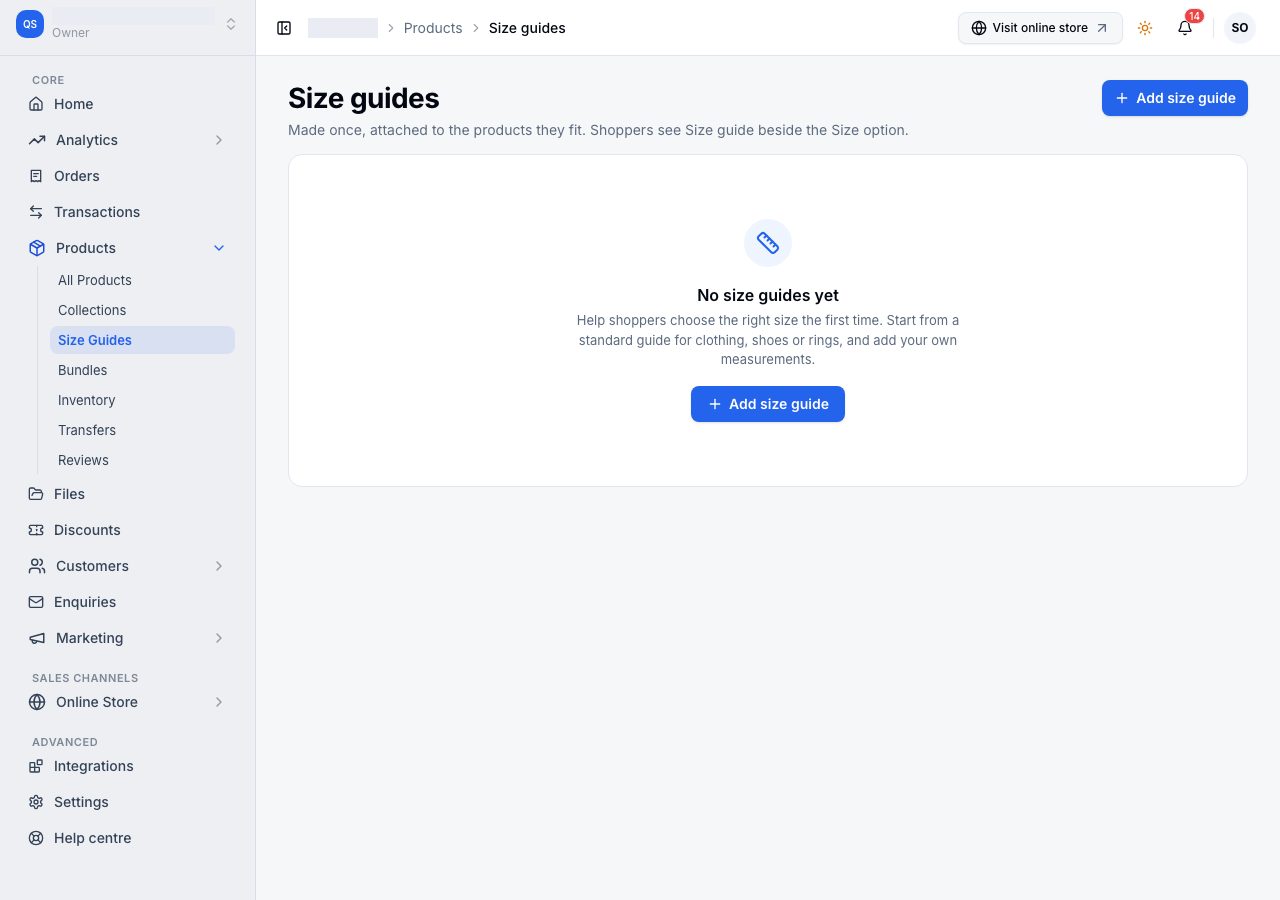
Go to Products → Size Guides. Until you add one, the page offers to start.
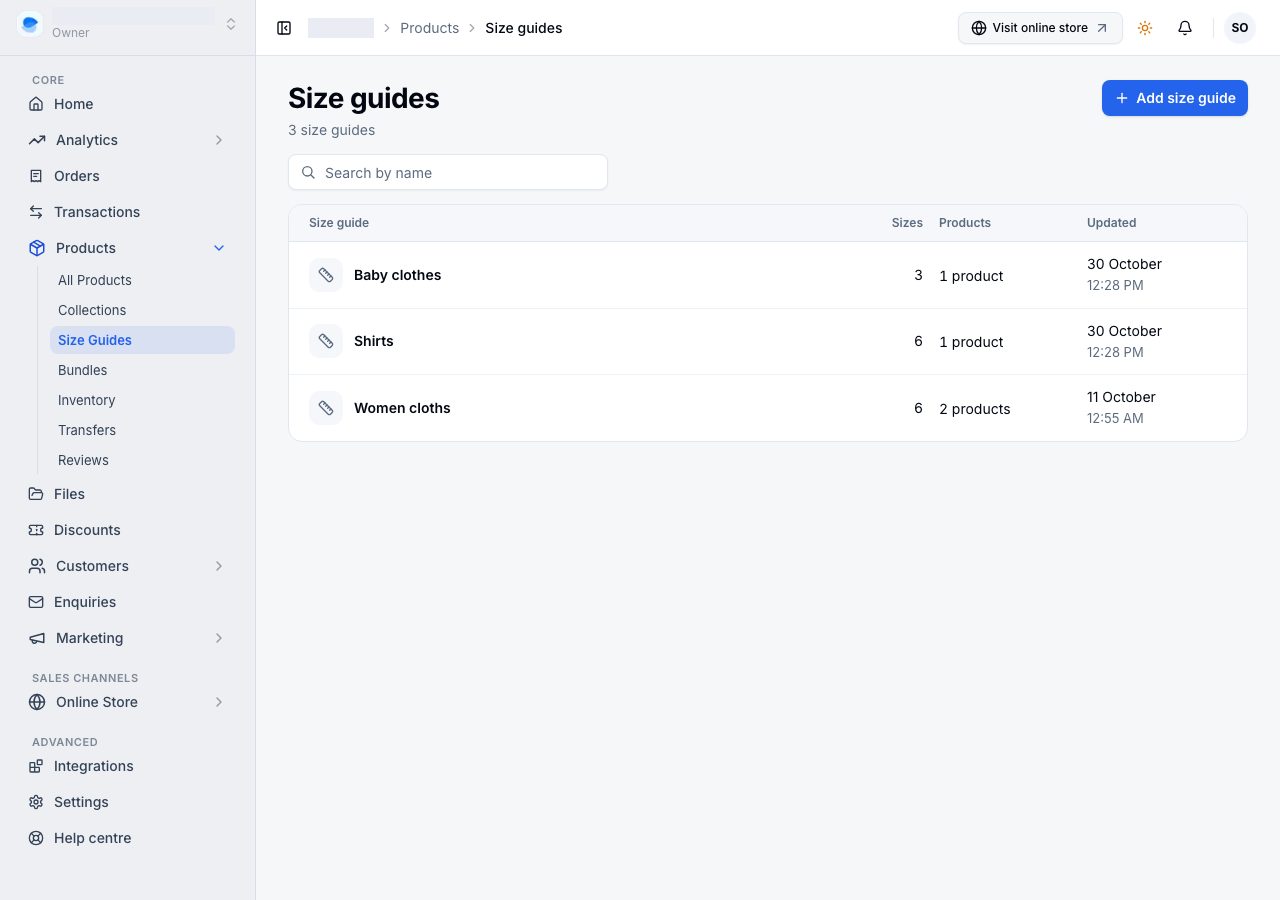
Once you have guides, each row shows how many sizes the guide has and how many products use it. A guide no product uses says No products in amber, because shoppers never see it. The search finds a guide by its name. Choose a row to open the guide.
Add a size guide
Choose Add size guide, then choose where to start and Continue. A start fills in what a standard fixes and leaves your own measurements to you, because what a Medium measures depends on your brand and cut.
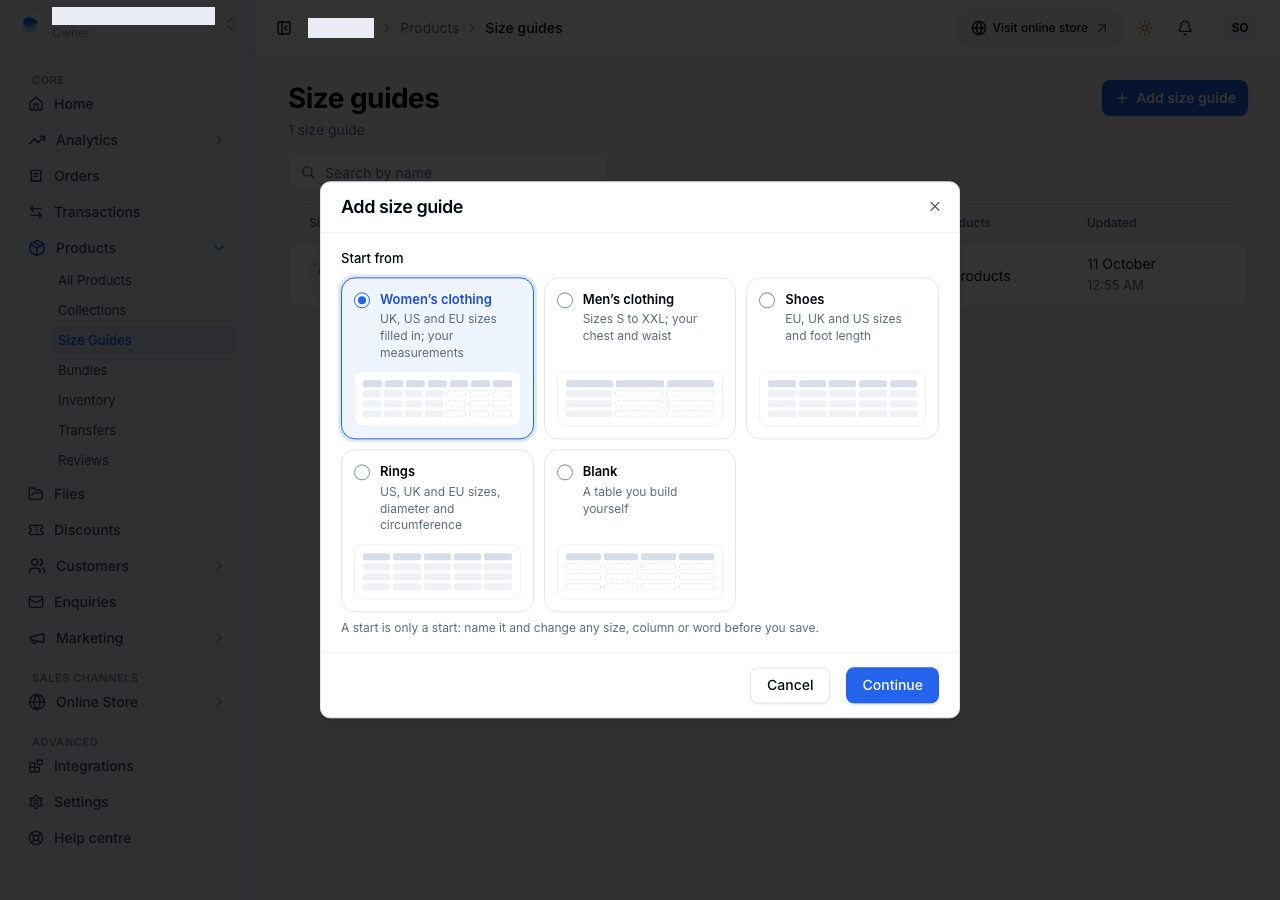
| Start from | Filled in for you | Yours to fill in |
|---|---|---|
| Women's clothing | Sizes XS to XXL against UK, US and EU dress sizes, and how to measure bust, waist and hips | Bust, waist and hips for each size |
| Men's clothing | Sizes S to XXL, and how to measure chest and waist | Chest and waist for each size |
| Shoes | EU sizes against UK, US men's and US women's sizes and foot length | Nothing. The note says brands vary a little |
| Rings | US sizes 5 to 10 against UK and EU sizes, inner diameter and circumference | Nothing |
| Blank | A Size column | Everything |
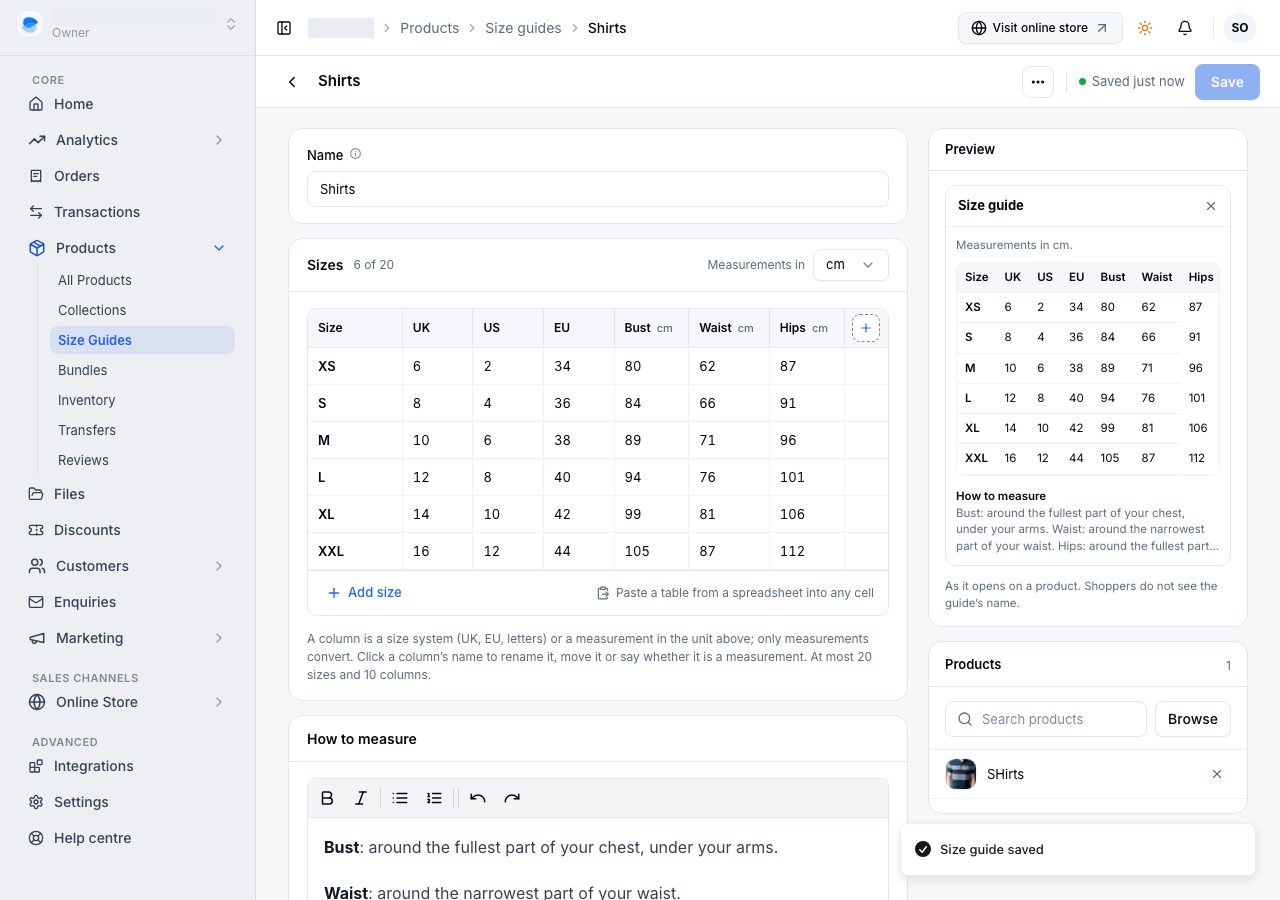
The new guide opens on its own page, not saved yet:
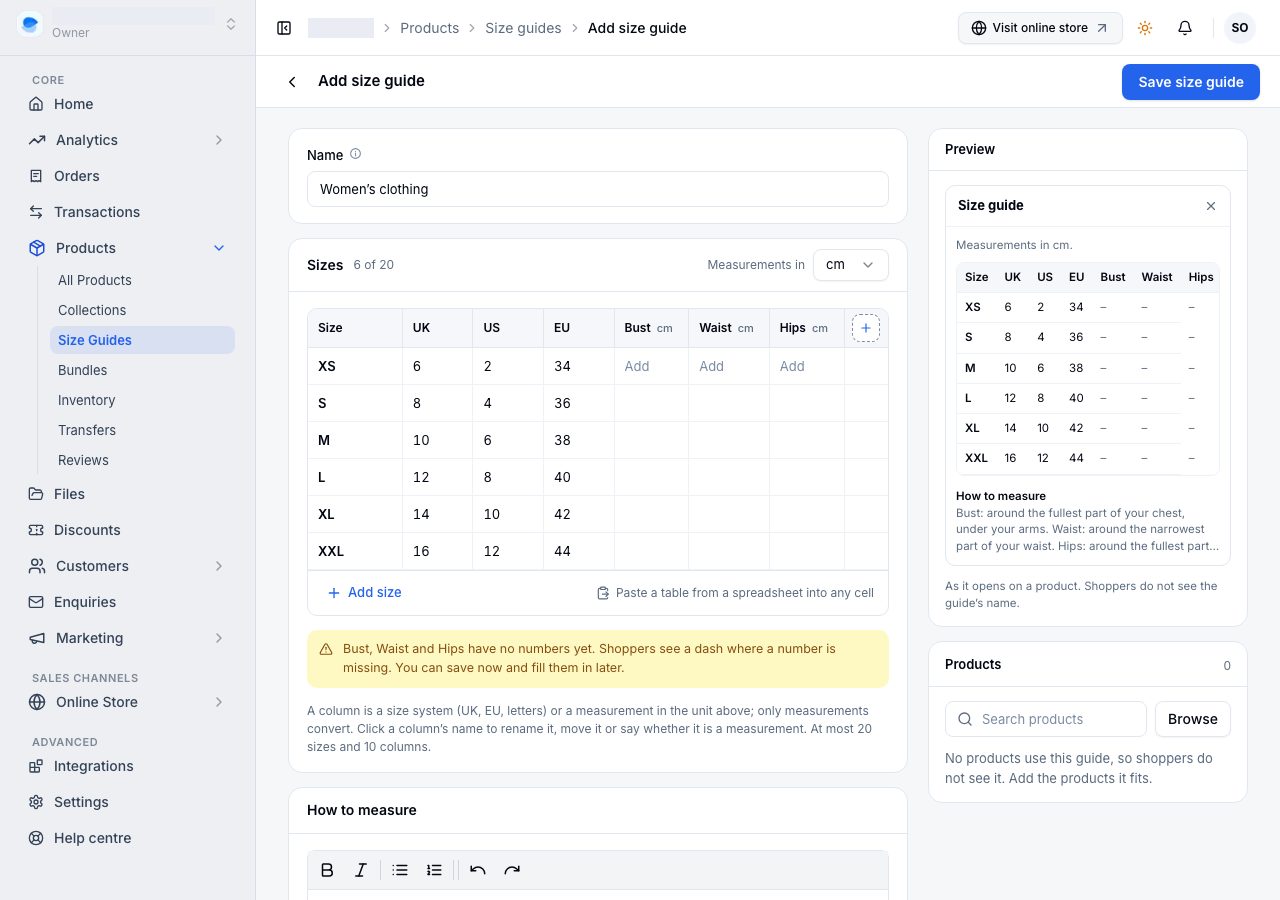
- Name: filled in from the start, such as "Women's clothing". Only you see it, so name it for the stock it fits, such as "Women's dresses" or "Sneakers". Shoppers see Size guide.
- Everything else is the start's, ready to change: a start is a copy, so change any size, column or word.
Save size guide, at the top, makes the guide. Until then nothing exists: leave the page and nothing is added to your size guides.
Fill in the sizes
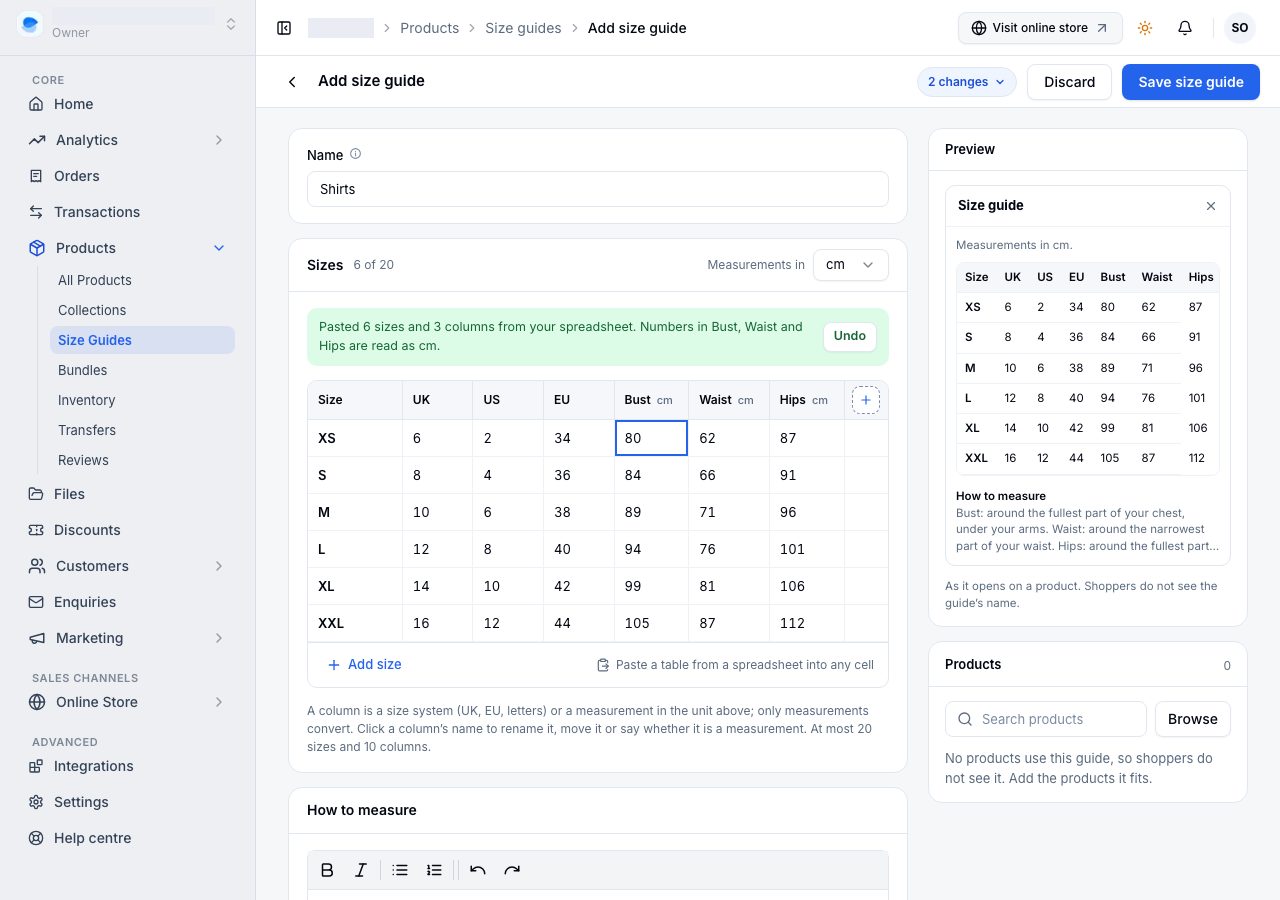
The Sizes card is one table: a row for each size, a column for each size system (UK, EU, letters) or measurement (bust, foot length). Type in it like a spreadsheet:
- Tab moves along a row, and Enter moves down a column. Enter in the last row adds a size.
- Paste a block of cells copied from Google Sheets or Excel into any cell, and it fills from there, adding the sizes and columns it needs. A first row of headings names the columns. The bar above the table says what was pasted, with Undo.
- Add size at the bottom adds a row. A size's own menu, in its first cell, adds a size above or below it, moves it, or deletes it.
- + at the end of the headings adds a column.
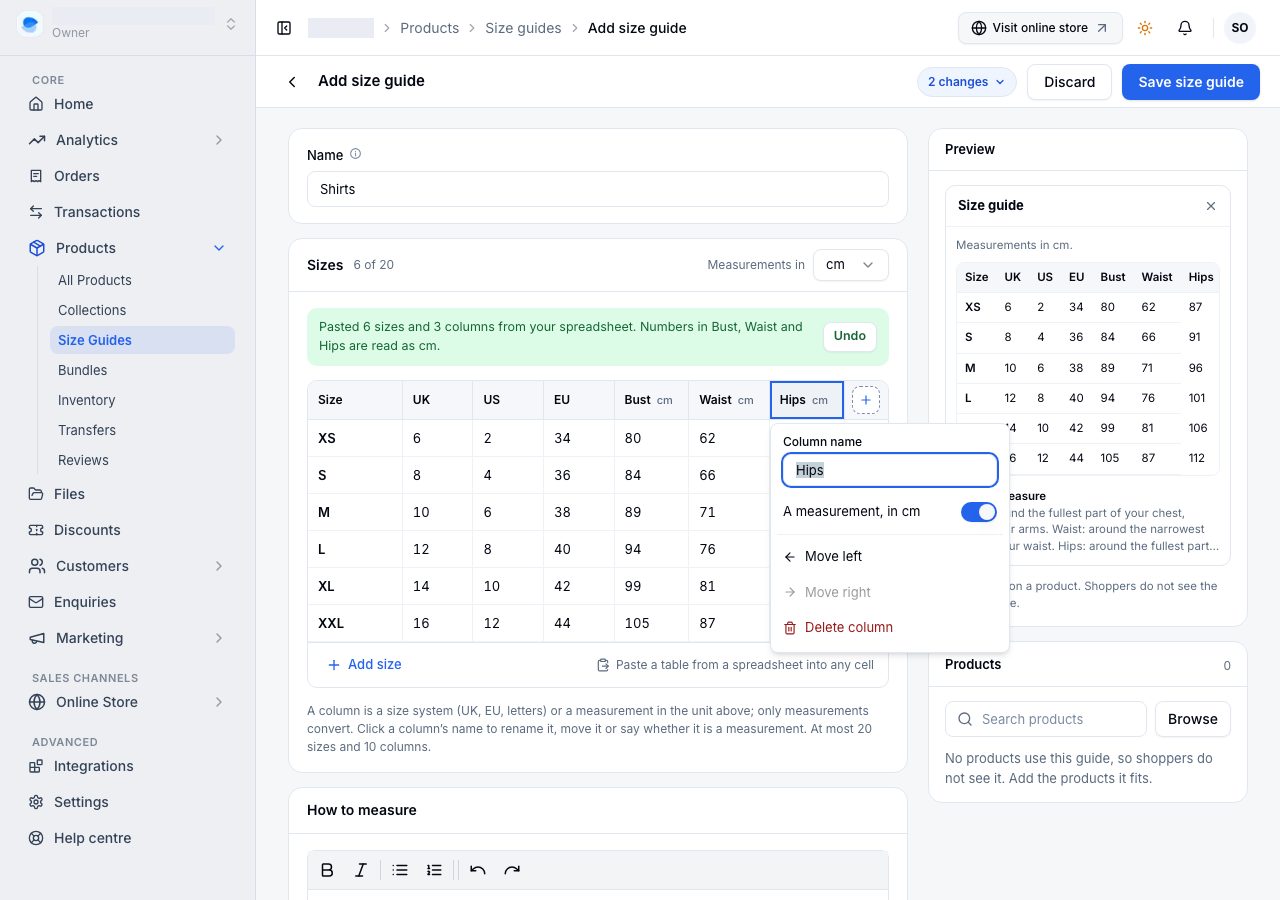
Choose a column's name to change it: rename it, say whether it is A measurement, move it, or delete it. The first column names the sizes, so it stays first and is never a measurement.
A measurement holds a number or a range, such as 88-92. You can save a guide before you know every number: the page says which measurements are still empty, and shoppers see a dash where a number is missing.
A guide holds up to 20 sizes and 10 columns, and each size and column name is used once, so shoppers never see two Mediums.
On a phone, each size is a row: tap it to fill in that size, one field per column. Columns below the sizes renames, moves and deletes columns.
Centimetres, inches or millimetres
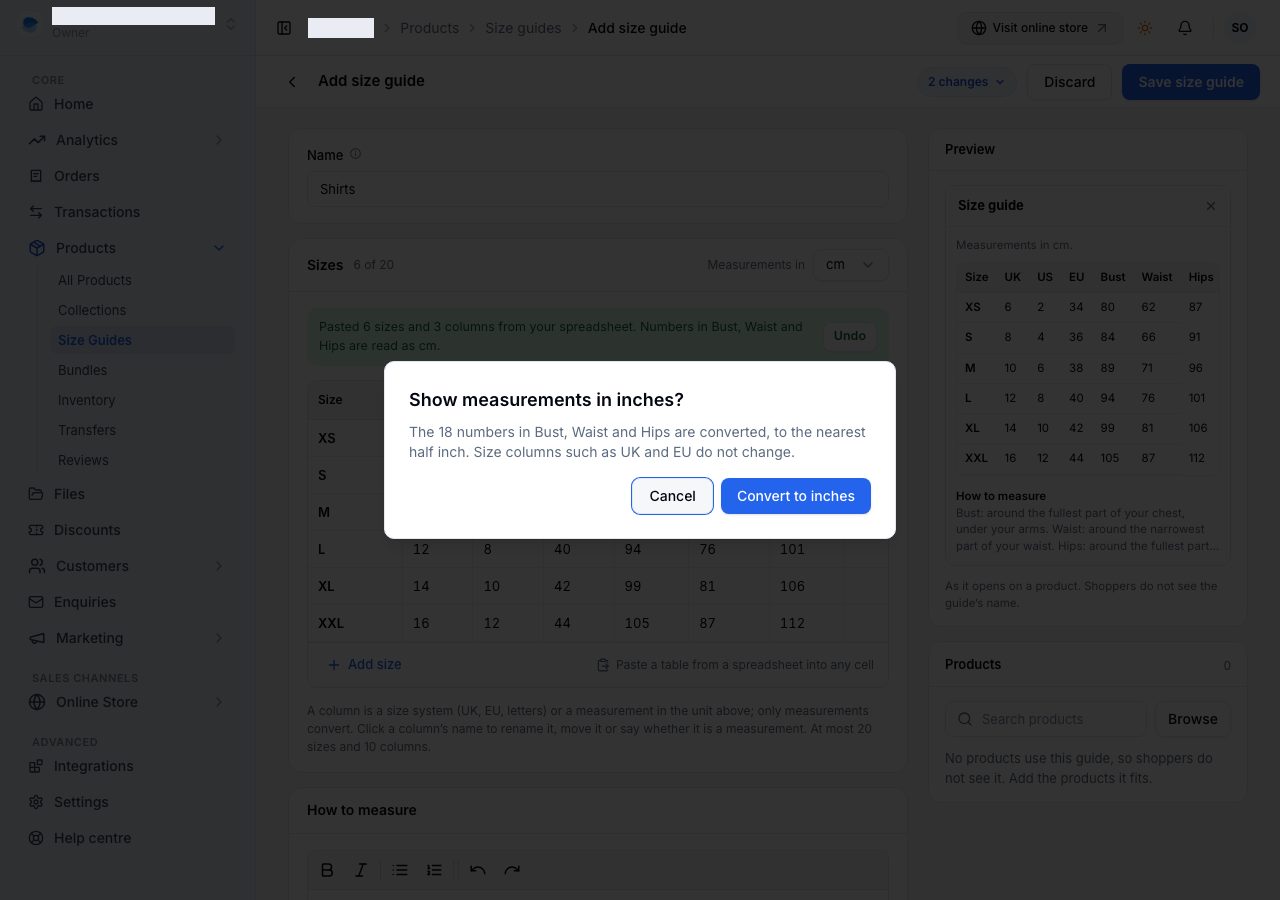
Measurements in, at the top of the Sizes card, is the unit of every measurement column. Change it, and the page asks before converting the numbers already there: to the nearest half inch from centimetres, or to the nearest hundredth of an inch from millimetres. Size columns such as UK and EU never change.
How to measure, and a picture
How to measure holds a few lines, with bold, italics and lists, and an optional Picture from your Files, such as a drawing of where to measure. Every start except Blank writes these lines for you. Shoppers read them under the table.
Preview, on the right, shows the guide as it opens on a product. Shoppers never see the guide's name.
Choose the products it fits
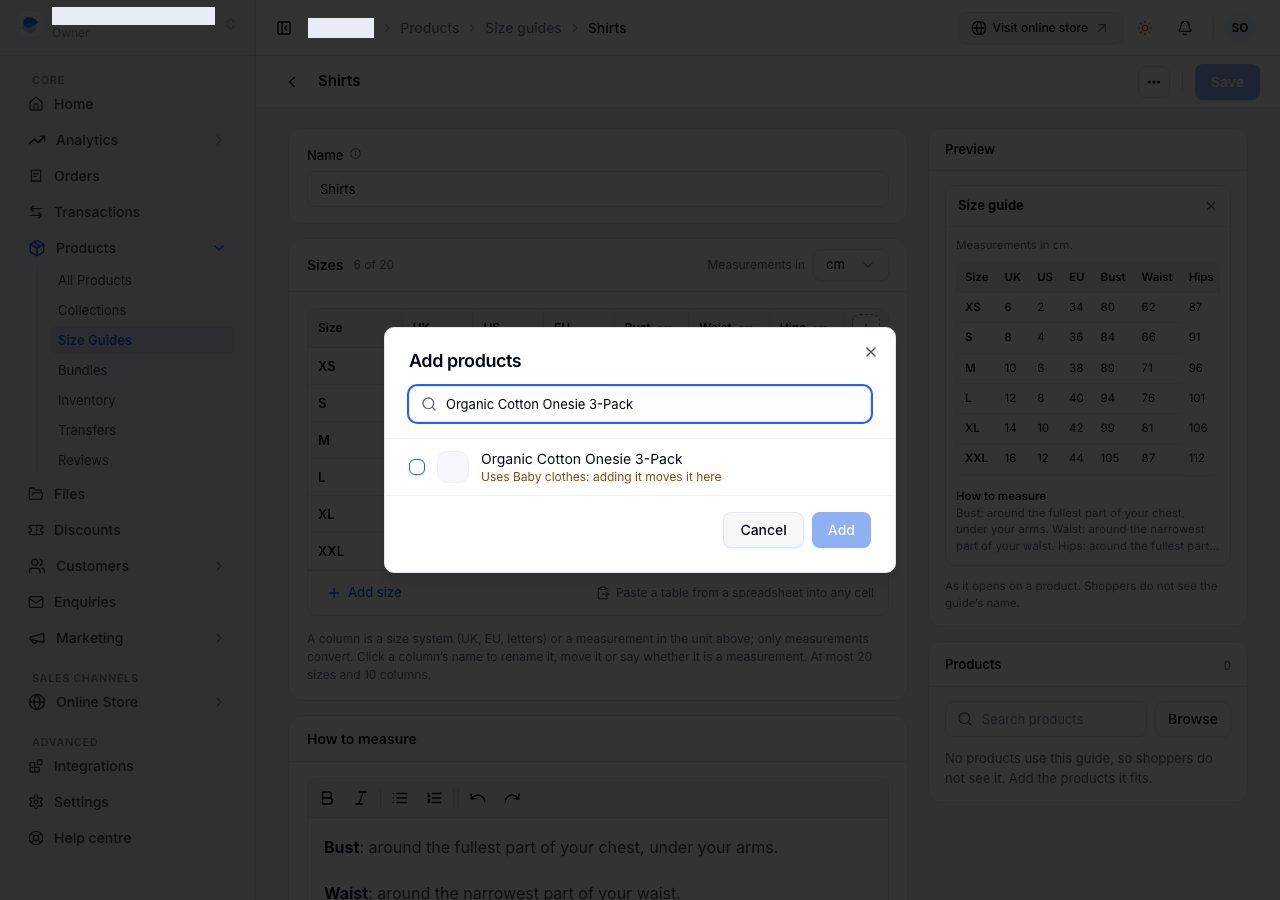
The Products card lists the products that show this guide. Browse (or type in the search box) picks more, and × takes one off.
A product has one size guide or none. If you choose a product that uses another guide, Browse says so, such as "Uses Baby clothes: adding it moves it here", and saving moves it.
Save, at the top, saves the guide and its products at once, and lists what you have changed until you do. On a new guide, products you add are saved with it by Save size guide.
Choose a guide from a product
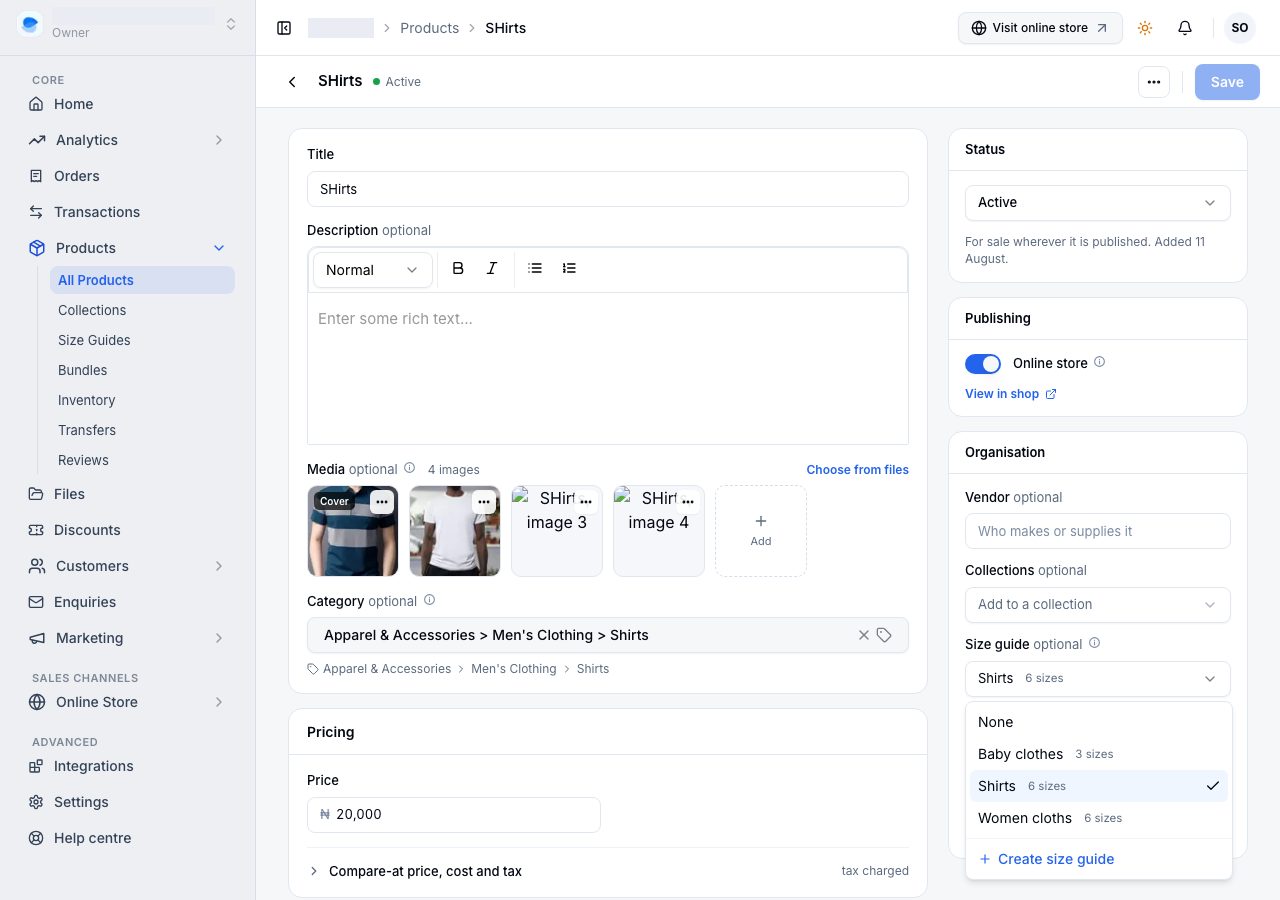
A product's page has Size guide in its Organisation card: None, one of your guides, or Create size guide, which asks for a name and where to start, makes the guide at once, and comes back with it chosen, so you never leave the product you are editing. The choice is saved with the product.
What shoppers see
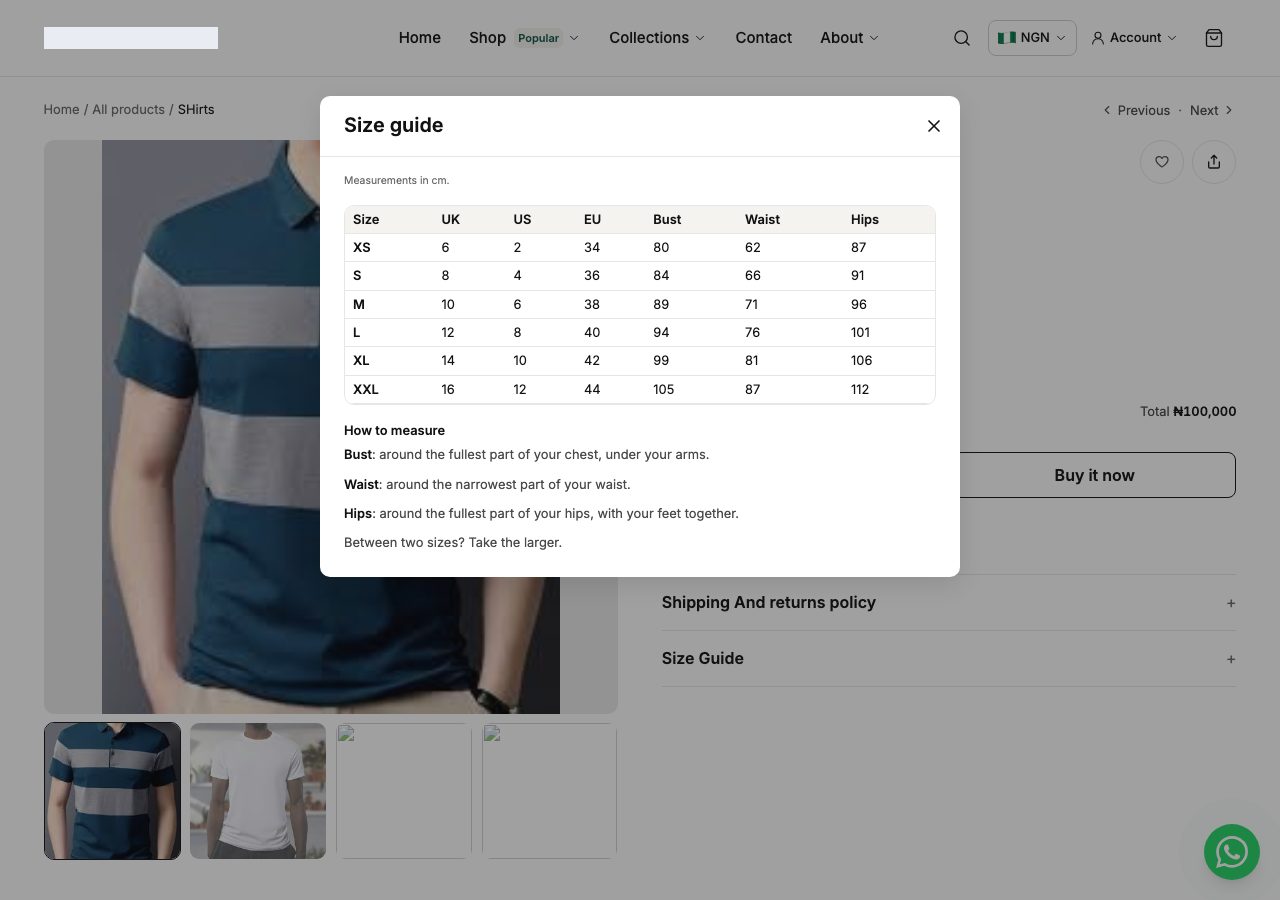
On the product's page, Size guide sits beside the Size option (or the first option, or under the price on a product with none). It opens the guide over the product: a window on a laptop and a sheet on a phone, with the first column held in place when the table scrolls sideways. The table comes first, then how to measure and the picture.
The product section's Show size guide and Link label settings in the storefront editor turn the link off or rename it. Size guides show on the Universal theme; other themes show them as each is redrawn.
Duplicate or delete a guide
On a guide's page, the ⋯ menu at the top has Duplicate, which makes a copy with no products, and Delete size guide. Delete says how many products stop showing a size guide. Nothing else about those products changes.
If it does not work
- A product shows no Size guide link. It has no guide (check Size guide in its Organisation card), the product section's Show size guide is off in the storefront editor, or your theme does not show size guides yet.
- Save says a measurement must be a number. A measurement holds a number or a range such as
88-92. For words like "One size", turn the column's A measurement off. - Save says two sizes have the same name. Each size is named once. Rename one, or delete the extra row.
- A paste was too big. A guide holds up to 20 sizes and 10 columns. Paste fewer, or delete rows first.
- The numbers changed when you switched units. Converting rounds to the nearest half inch, so switching back may not give the same numbers. Discard puts back what was saved.
Email support@shoponent.com with your store name if anything here does not match what you see. We read and answer every message.