Available on every plan · Updated 30 October 2026
Also asked as: “add a product” · “edit a product” · “product in sizes or colours” · “one variant's price, stock or barcode” · “product not on my storefront” · “another product already uses this SKU” · “change a product's web address” · “leave without saving”
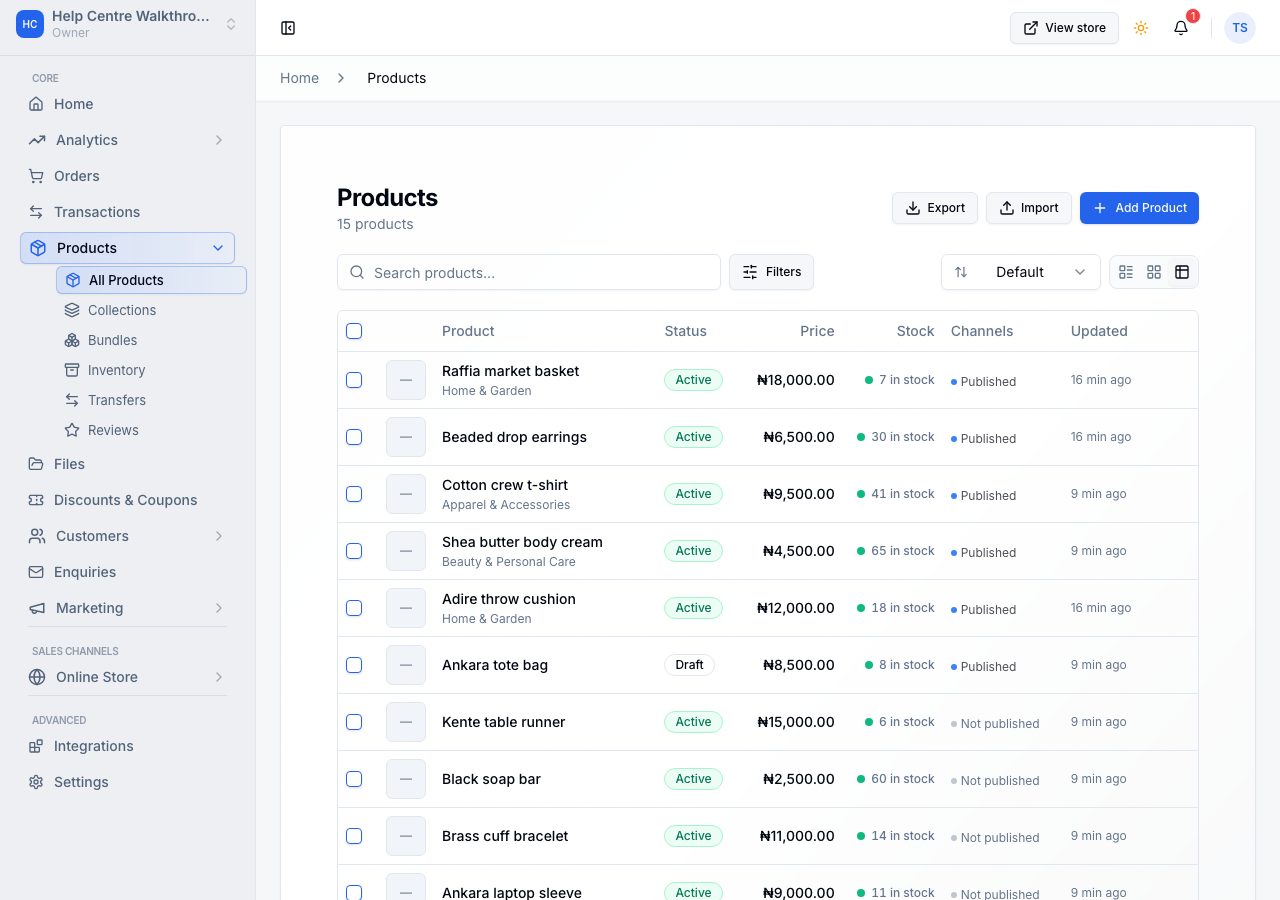
Products → All Products is your catalogue. Add product opens an empty form, and choosing a product in the list opens the same form with its details in it. Everything below applies to both.
The form is one column, top to bottom: what the product is, what it costs, what is left, what versions it comes in, how it ships, how many one order may take, what is offered with it, and how it appears in a search result. Beside it, a column that stays with you as you scroll holds whether it is for sale, where, and how it is filed. The header stays at the top as you scroll and holds Save; while something is unsaved it shows a small count, "3 changes", that opens to name them.
Title, description, photographs and category
Title is the only field the form insists on besides the price: it is the product's name on your online store, and it becomes the product's address there. The description takes formatting and sits on the product's page under the photographs.
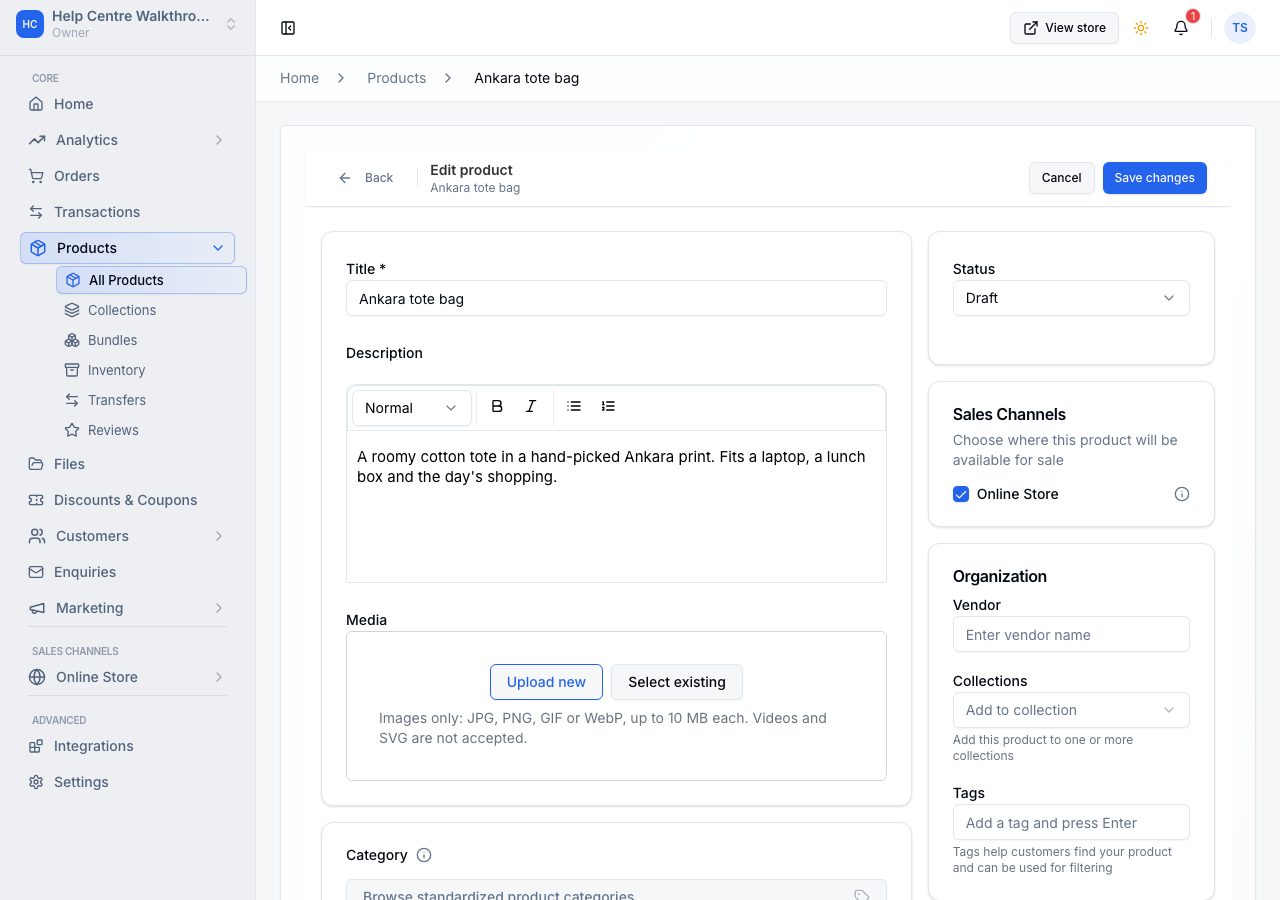
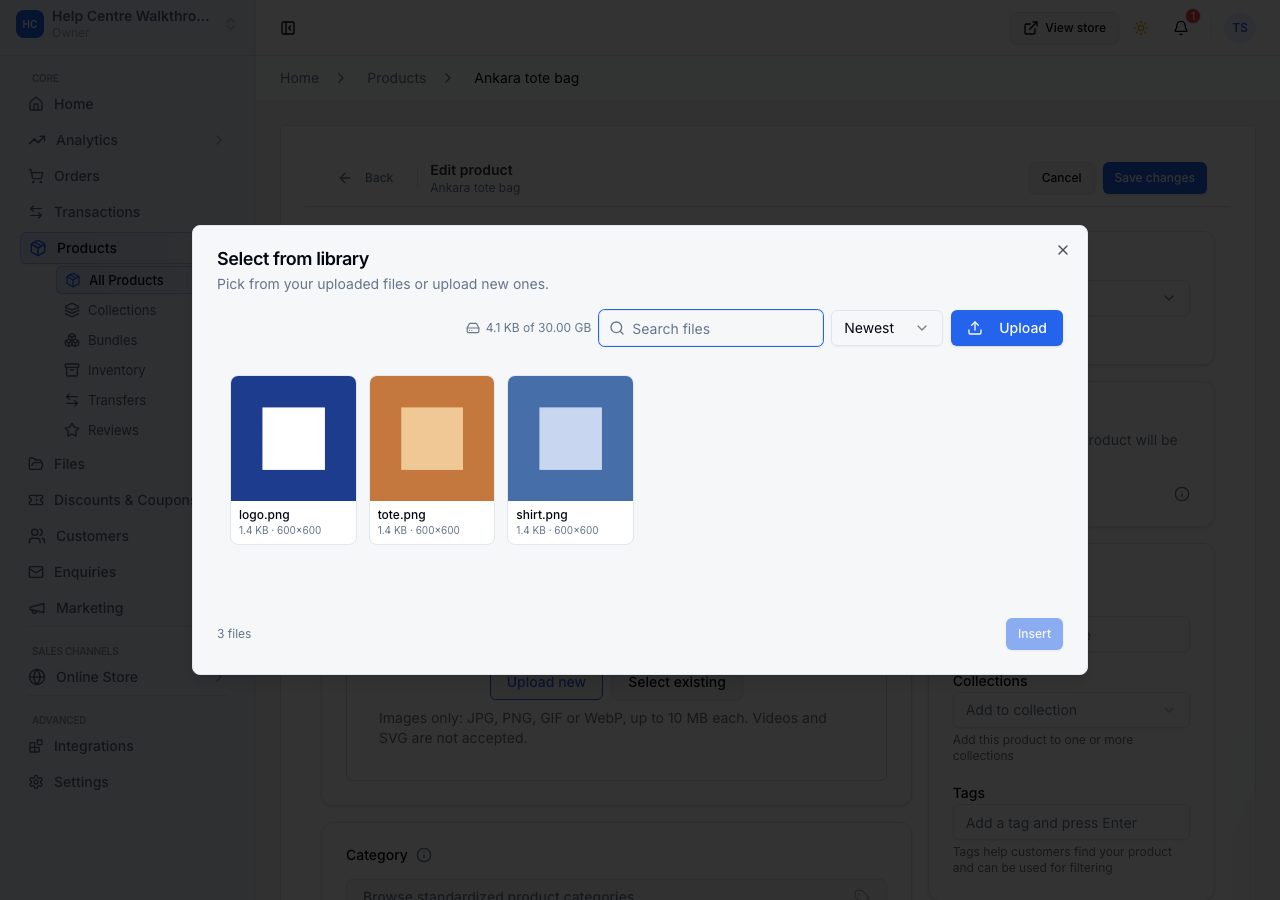
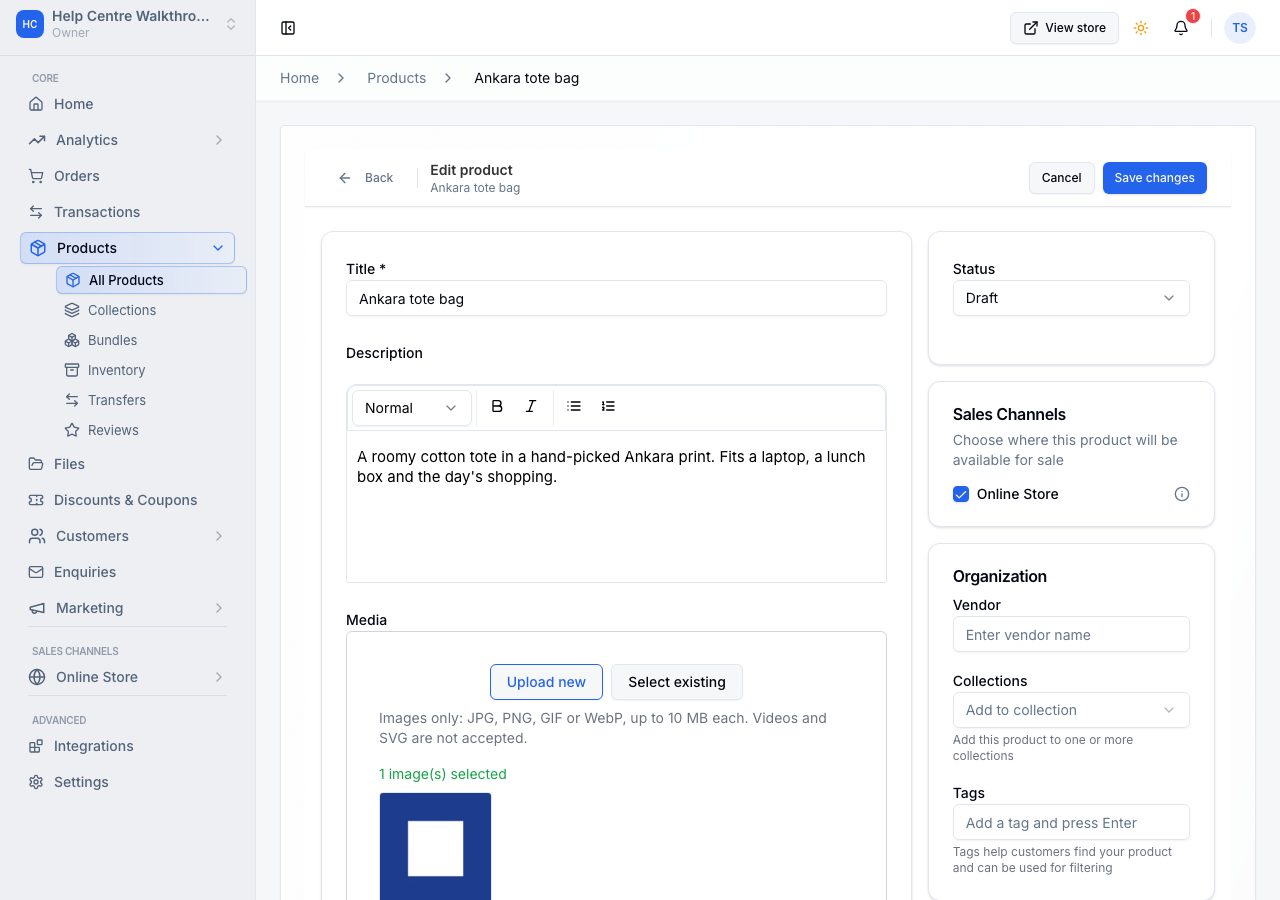
Media takes images: JPG, PNG, GIF or WebP, up to ten megabytes each. Drop them on the box, choose upload, or Choose from files to pick from the media library you have already built.
The first image is the cover, shown in listings and search results. Click an image to look at it at full size and step through the rest. The three dots on an image offer Preview, Make cover, Replace and Remove; you can also drag images to reorder them. Removing an image from the product leaves the file in your library. If one file is refused (too large, or not an image) the others still go in; only the refused one is asked about.
Category is a choice from the standard list, optional. It groups your reports, helps shoppers find the product, and tells the form which options products like it usually come in.
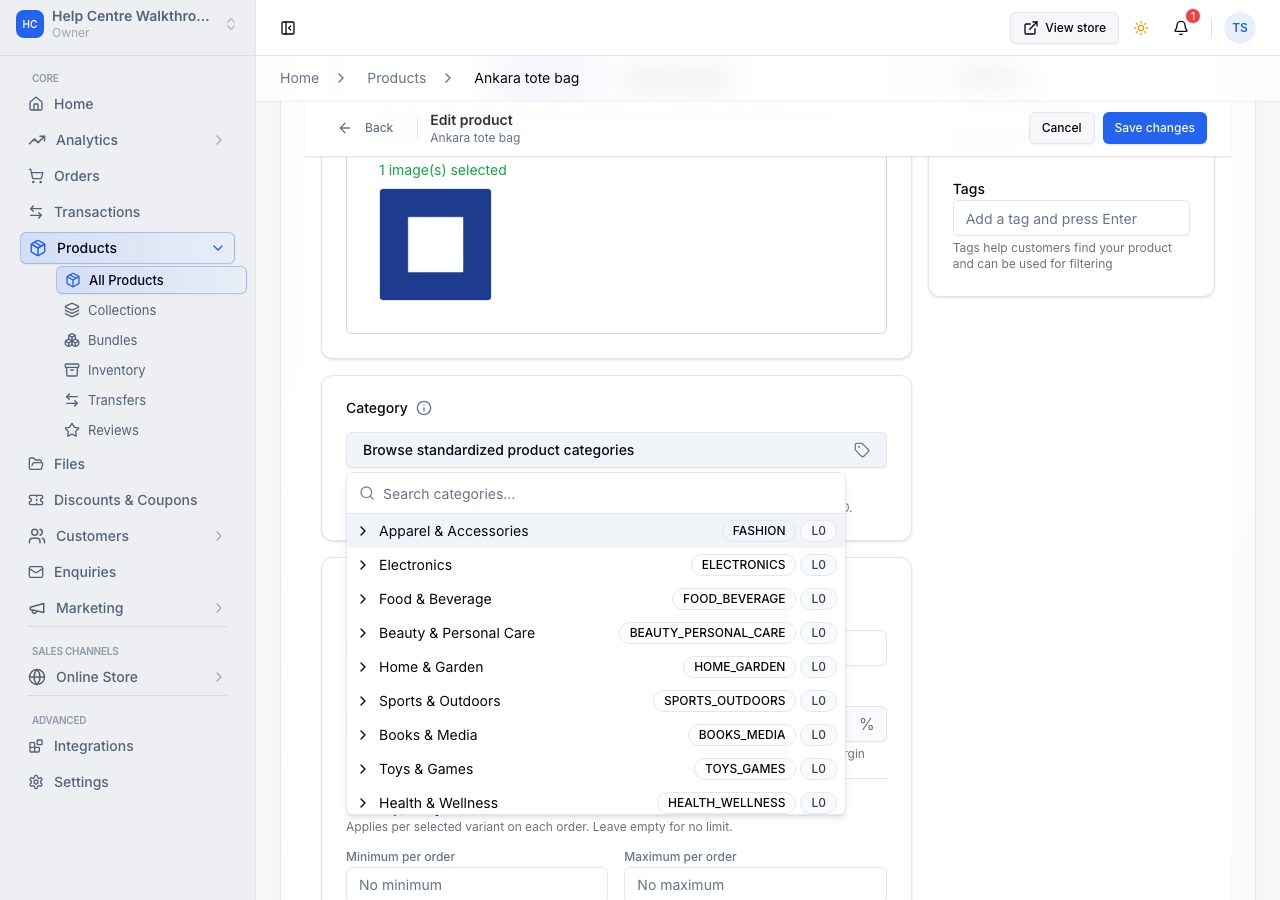
Where a field needs explaining, a small i beside its name opens the explanation. The names themselves are the ones every platform uses.
Single version, or options
A new product asks first, under This product, whether it Has variants. Off, it is a single version with one price, one stock count and one SKU, set in the Pricing and Inventory sections below. On, it skips those two and opens the Variants section, where each combination gets its own. You can change your mind while you type, and on a saved product the Variants section does the converting.
Price
Price is what a shopper pays. Under it, one line, Compare-at price, cost and tax, says what else is set and opens to it:
- Compare-at price is an older or usual, higher price shown struck through beside the price in the shop.
- Cost per item is for you alone and never shown to shoppers. Fill it in and Profit and Margin show beside it.
- Charge tax on this product is on by default when your store charges tax; switch it off for goods that are exempt where you sell. The rate itself is set once, under Settings → Taxes.
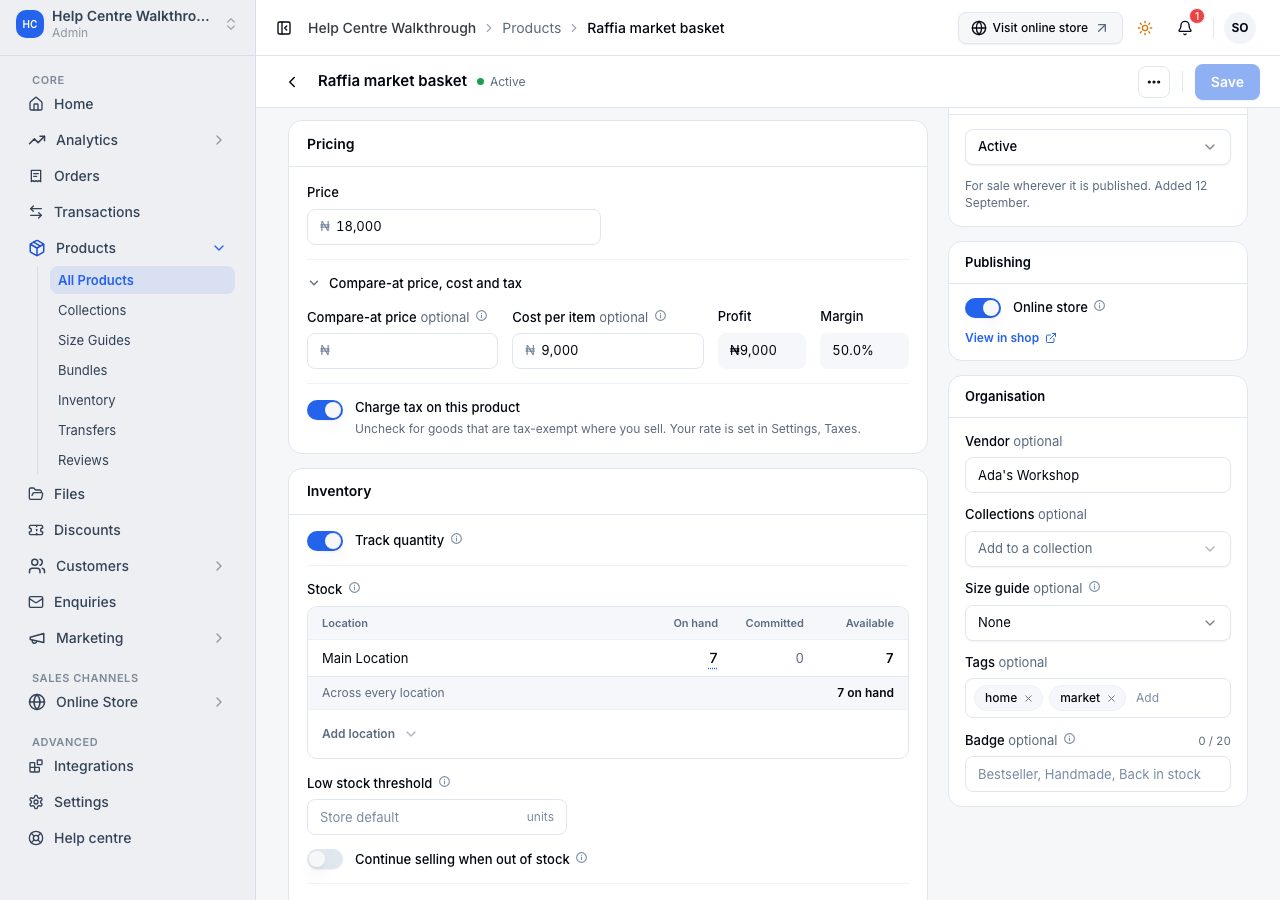
Once a product has options, the Pricing section goes: each variant carries its own price in the grid below, and the product's own price becomes the lowest of them, which is what the catalogue shows as From.
Stock
Track quantity keeps a count. Off, the product can always be bought and no quantity is kept, which is right for a service or anything you never run out of. On, the section shows a row per location with what is on hand, what open orders have committed, and what is available.
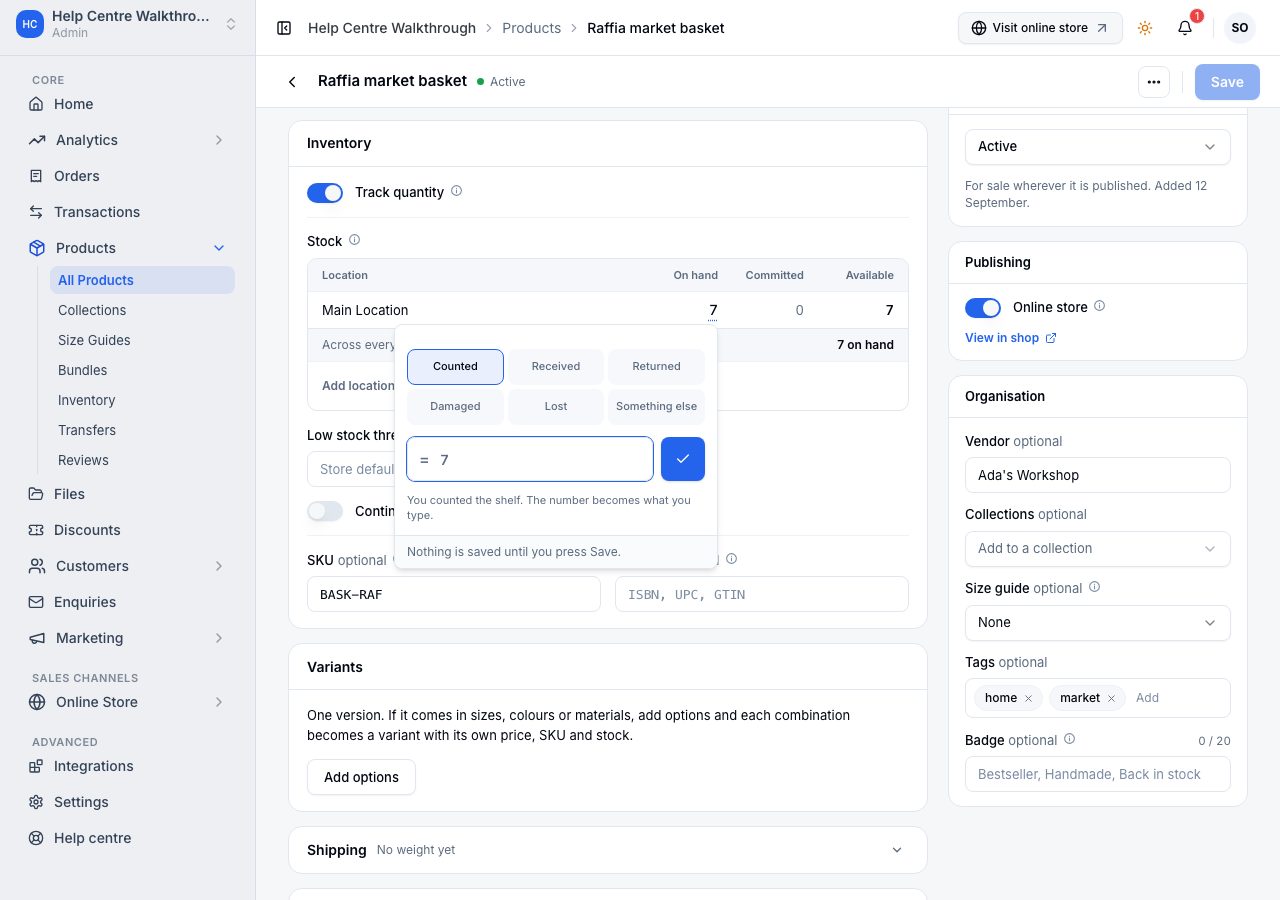
On a new product you type the opening stock straight into the row. On a product that already exists, the on-hand figure opens a small editor that asks what happened: Counted (the number becomes what you type), Received, Returned, Damaged, Lost. Each becomes one stock adjustment with its reason when you save, and appears in the inventory page. If the figure moved under you since the page opened, that adjustment is refused rather than written over what someone else counted.
On a new product the table starts with your default location; Add location brings in the others. The locations in this table are where the product is supplied from, whether or not you count it there: a branch, a pickup point or an order can only take it from one of them, and adding a location later never touches a count someone made there since you opened the page. Low stock threshold is blank to use your store's own number. Continue selling when out of stock lets shoppers order past zero, which is what you want for a pre-order and not much else.
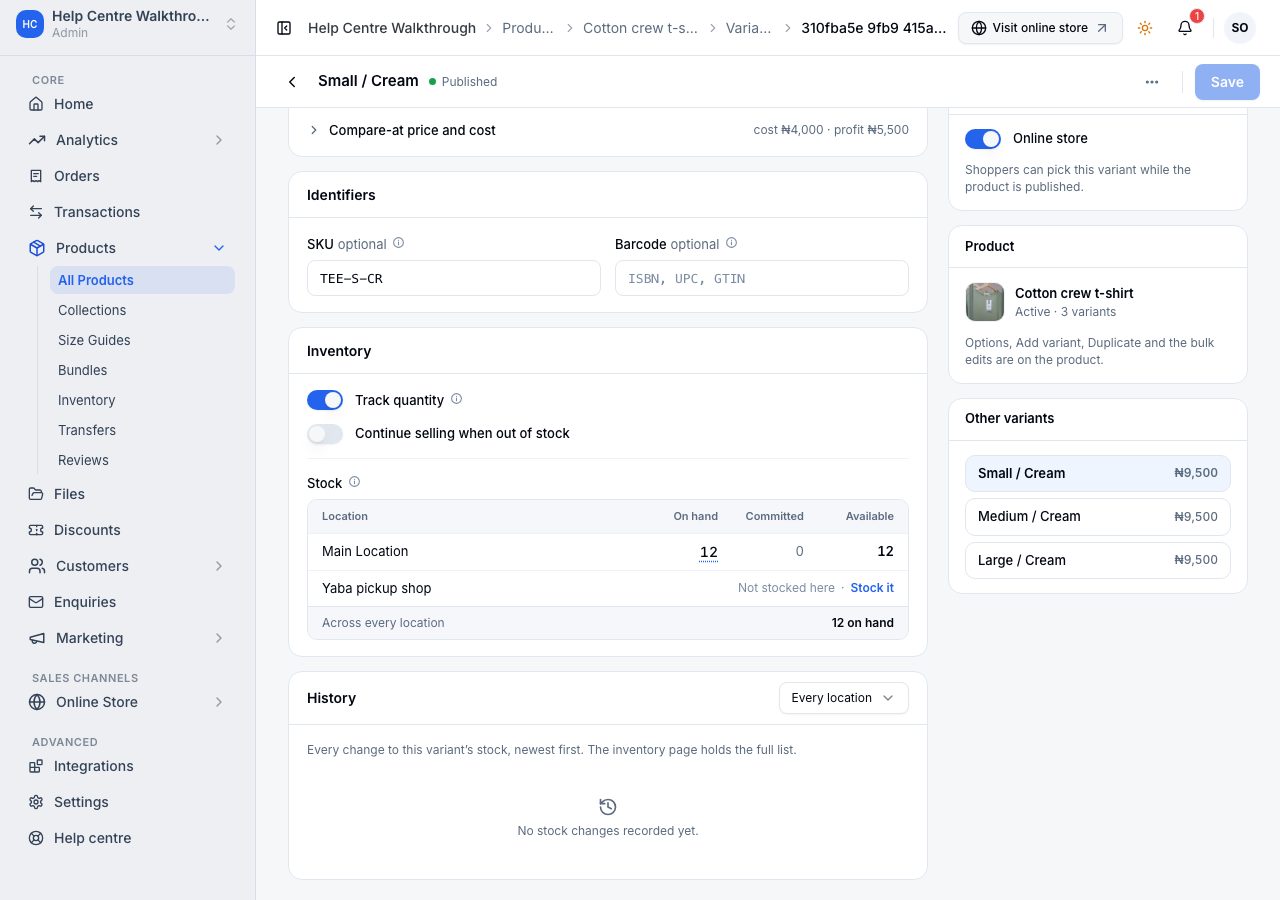
On a product with variants, Track quantity and Continue selling belong to each variant, the way its SKU and its stock do: a made-to-order size can sit beside sizes you count. The two switches in the Inventory section set every variant at once, and when the variants differ the switch says so, "On for 2 of 6 variants". One variant is set the other way from its own menu, Barcode, cost and stock, and a variant that is not tracked shows Not tracked in the grid instead of a quantity.
SKU is your own code for the product, the one you and your suppliers use; imports and the till match on it. Two products cannot share a SKU: the field says which product already holds it. Barcode is the number under the bars on the packet; a scanner types it for you, and a number that does not check out is flagged under the field but saved as typed. Once a product has options, its SKUs, barcodes and quantities move to the variants below and the Inventory section keeps only the three settings.
Products that come in choices
A product that comes in sizes, colours or materials has options. On a new product switch on Has variants at the top; on a saved one, under Variants, choose Add options. Give the option a name (type your own, or take one the form suggests for your category), then type its values one under another: each value has its own line, the next line appears as you type, and the bin beside a value removes it. Done closes the option to a row of its values, and Edit reopens it. Up to three options, and up to 500 variants on one product.
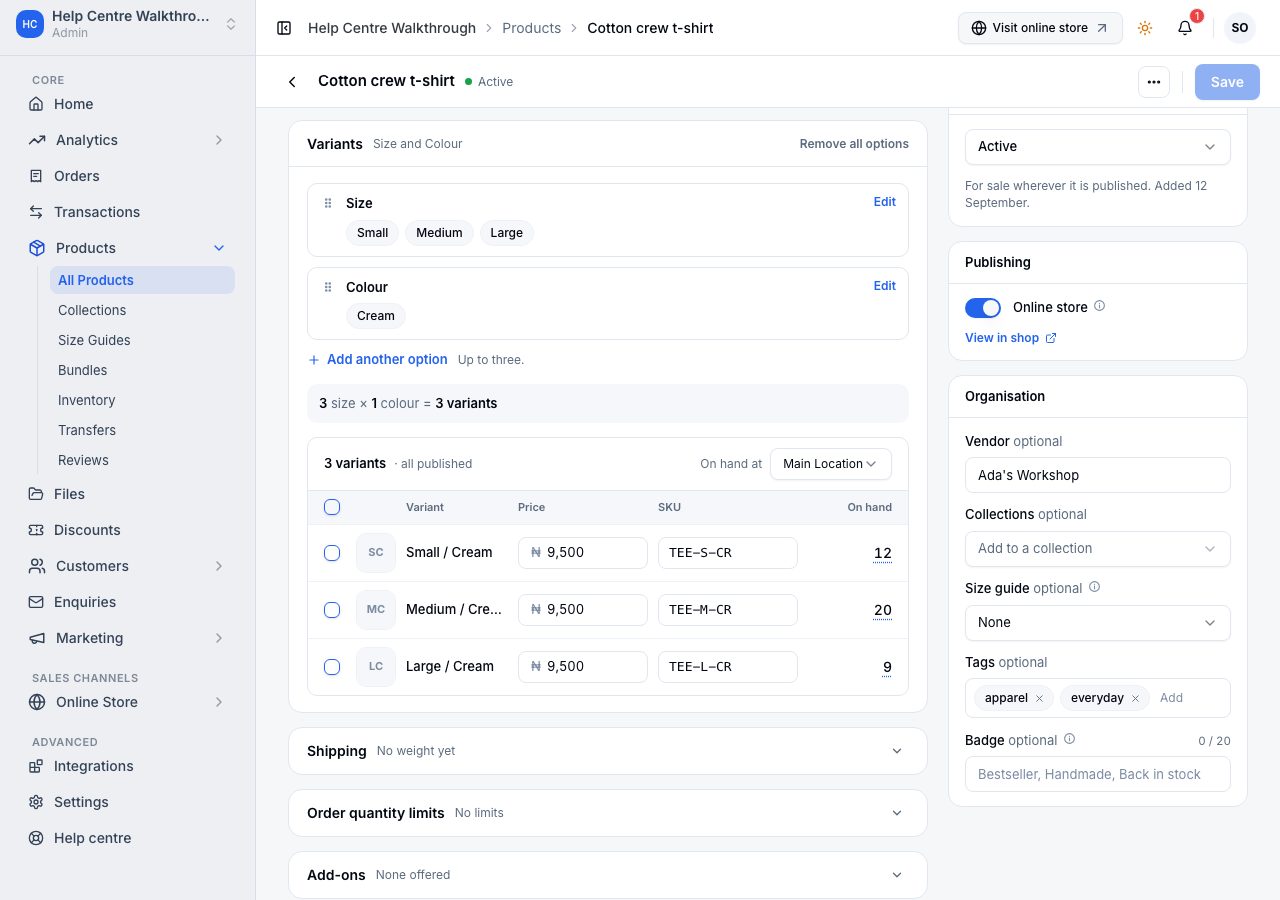
Every combination appears in the grid below as you type, with its own price, SKU and stock, and the line above the grid says the arithmetic: 3 sizes × 2 colours = 6 variants. Compare-at prices and cost are set from Bulk edit or on a variant's own page. With more than one location, On hand at chooses which location's figure the grid shows. Nothing is saved until you press Save.
Adding a value later adds only its new combinations, marked New until you save and priced like their neighbours; a combination you deleted before stays deleted. Adding a whole new option keeps every variant, gives each its first value, and adds rows only for the other values. Renaming a value or an option renames its variants; reordering options only changes the order of the names. Removing a value removes its variants from the draft; the header counts the change and Discard puts them back. Remove all options asks one thing, which variant becomes the product's single version, showing its price, SKU and stock; Apply to draft puts that in the draft, and nothing changes in the shop until you save. Tick one row and More on the bar holds its page, its barcode, cost and stock, Duplicate and its picture (preview, replace or remove it); a new row's name opens the same sheet.
Every saved variant has a page of its own: choose its name in the grid, or Open its page from its menu. The page holds everything that is the variant's: its option values, which you can change there (a combination another variant already holds is refused), its price, compare-at price and cost, its SKU and barcode, its own image, whether it is counted and whether it keeps selling past zero, its stock at every location with the same editor, the history of every change to that stock, and under Publishing whether shoppers can pick it in the Online store. The other variants are listed beside it, so you can move from one to the next without going back. Adding, renaming or removing an option itself, adding and duplicating variants, and the bulk edits stay on the product. On a phone the grid is the same table with the same checkboxes and bar, without the picture and the SKU; a variant's SKU is on its page.
Tick several rows and the bar above the grid offers them together: Bulk edit (prices, compare-at prices, SKUs with a fill from a prefix and the option values for the empty ones, barcodes, cost per item), Inventory settings (track or stop tracking quantity, continue or stop selling when out of stock, publish or unpublish from the Online store), and Delete. Deleting takes the rows out of the draft with an Undo, and the message says what stock they hold. A variant on open orders can go too: the orders keep what they sold and are fulfilled or cancelled as before. Nothing is deleted until you save.
Shipping, limits and add-ons
Three sections sit closed further down, each with a line in its header saying what is inside; open one to change it. Shipping takes a weight and whether the product requires special packaging. Order quantity limits set the minimum and maximum of the product one order may take: see order quantity limits. Add-ons offers other products of yours with this one, on the Scale plan: see product add-ons.
How it appears in a search result
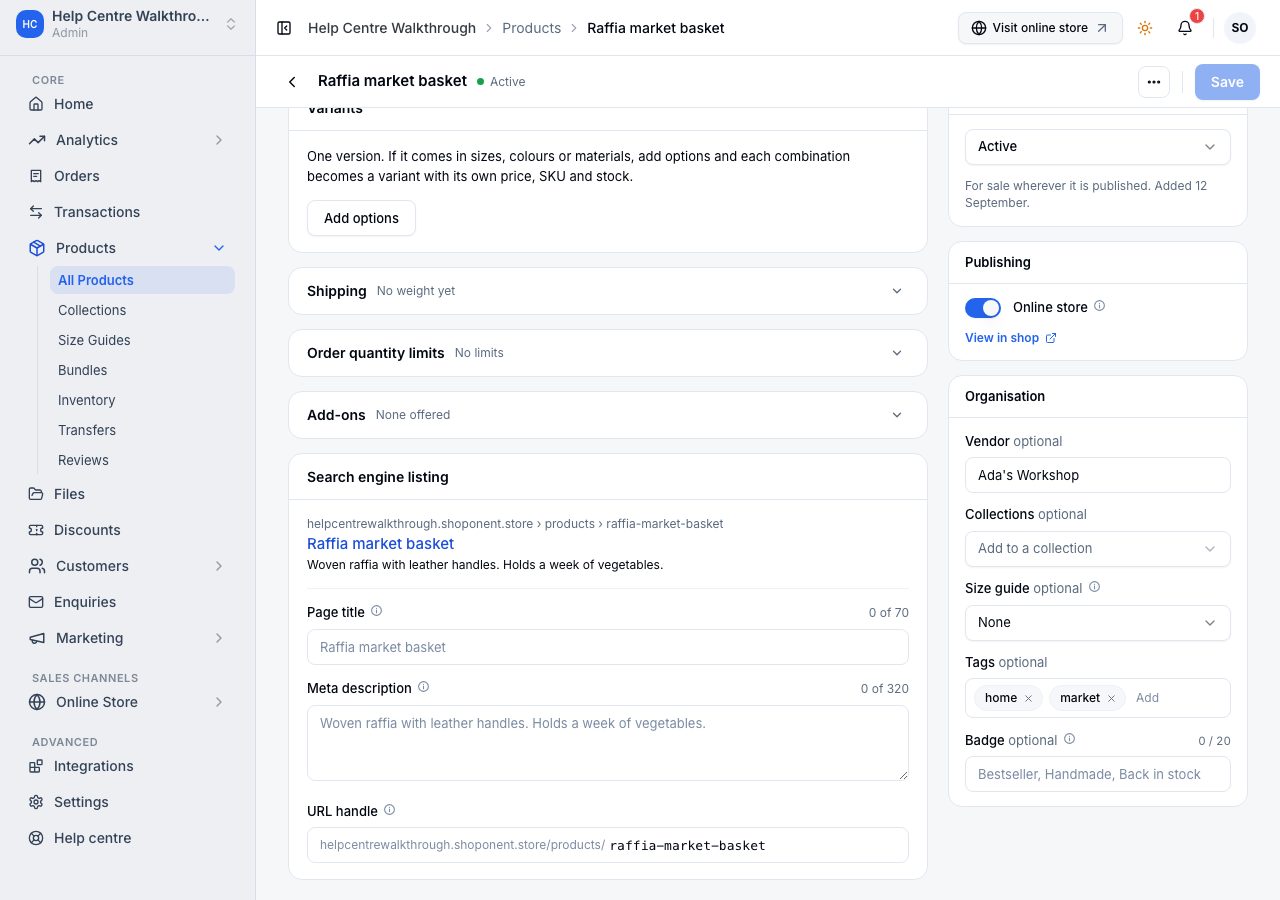
Search engine listing, last in the column, shows what a search engine will show for the product: the address, the title and the first lines of the description. Edit opens three fields. Page title and Meta description replace the title and description in the listing only; blank means the product's own are used. URL handle is the last part of the product's address, made from the title when the product was created. Changing it changes the address, and links you have already shared stop working, so change it only with reason.
Status, and where it is sold
In the column on the right, Status is Draft until you choose Active. A draft is saved, listed under Drafts in your catalogue and invisible to shoppers. Archived takes it off sale and keeps its history, and you can put it back on sale later. Publishing lists where the product is sold: Online store is on by default, and View in shop opens the product's page once it is saved.
Delete, in the More menu at the top and on the catalogue list, takes the product out of your catalogue and off every channel for good. The confirmation says what it gives up, for example "12 on hand and 5 in transit will be removed from your inventory totals", and what it keeps: existing orders, transfers and returns can still be completed, and your reports keep its sales under its name, marked deleted. Its name, handle and SKUs are free for a new product, which starts with no stock and no history. To keep a product for later, archive it or unpublish it instead.
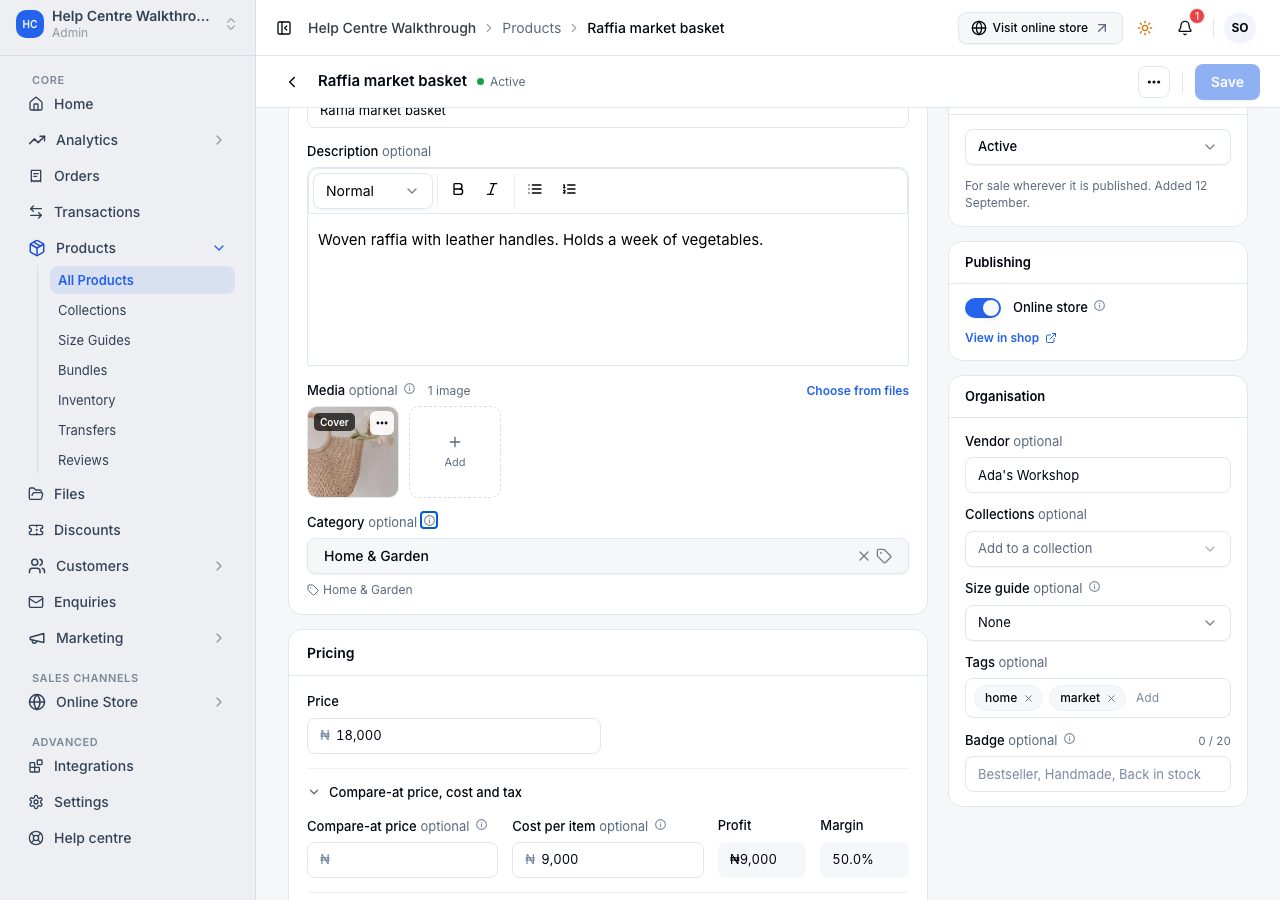
Organisation takes a vendor, collections, a size guide and tags, all optional. Size guide is None, one of your guides, or Create size guide, which makes one and chooses it for this product. See Size guides. Badge is a short word or two on the product's card in your online store, such as Bestseller or Back in stock, up to 20 characters. Universal shows it after Sold out or Sale, and a card shows two badges at most; other themes do not show it yet.
Saving
While something is unsaved the header shows a count, "3 changes"; open it to see the fields and stock adjustments by name. Save on a new product creates it and opens it. Save on an existing product stays on the page and says Saved just now. Discard puts everything back. On a phone, Discard and Save sit in a bar at the bottom of the screen with the changes named above them. If you leave the page with changes waiting, through the back arrow, the menu or the browser, the form asks first and names them.
What a shopper sees
An active product on the online store has its own page with your photographs, description and price, and appears in listings, search and any collection it belongs to. A product with options shows a picker for each; a hidden variant is never offered.
If it does not work
- A price is needed before it can be saved: fill in the price. Zero is fine for a free item. The field that stops a save says so in red under itself, and the header names it.
- You already have a product with this name: two products cannot share a name, and that includes a product you archived. The field offers to open the other one.
- Another product already uses this SKU: the field names the product. Change one of them.
- Another product already uses this URL handle: two products cannot share an address. Choose a different handle.
- A figure moved under you: someone counted or sold that stock since the page opened. The adjustment was refused; look at the number again and re-enter it.
- The product is not on the online store: it is still a draft, or Online store under Publishing is off.
- Save is greyed out: nothing has changed yet.
Email support@shoponent.com with your store name if anything here does not match what you see. We read and answer every message.