Available on every plan · Updated 13 October 2026
Also asked as: “upload product photos” · “where are my images” · “storage full” · “what file types can I upload” · “image too large” · “where is this picture used” · “safe to delete a file”
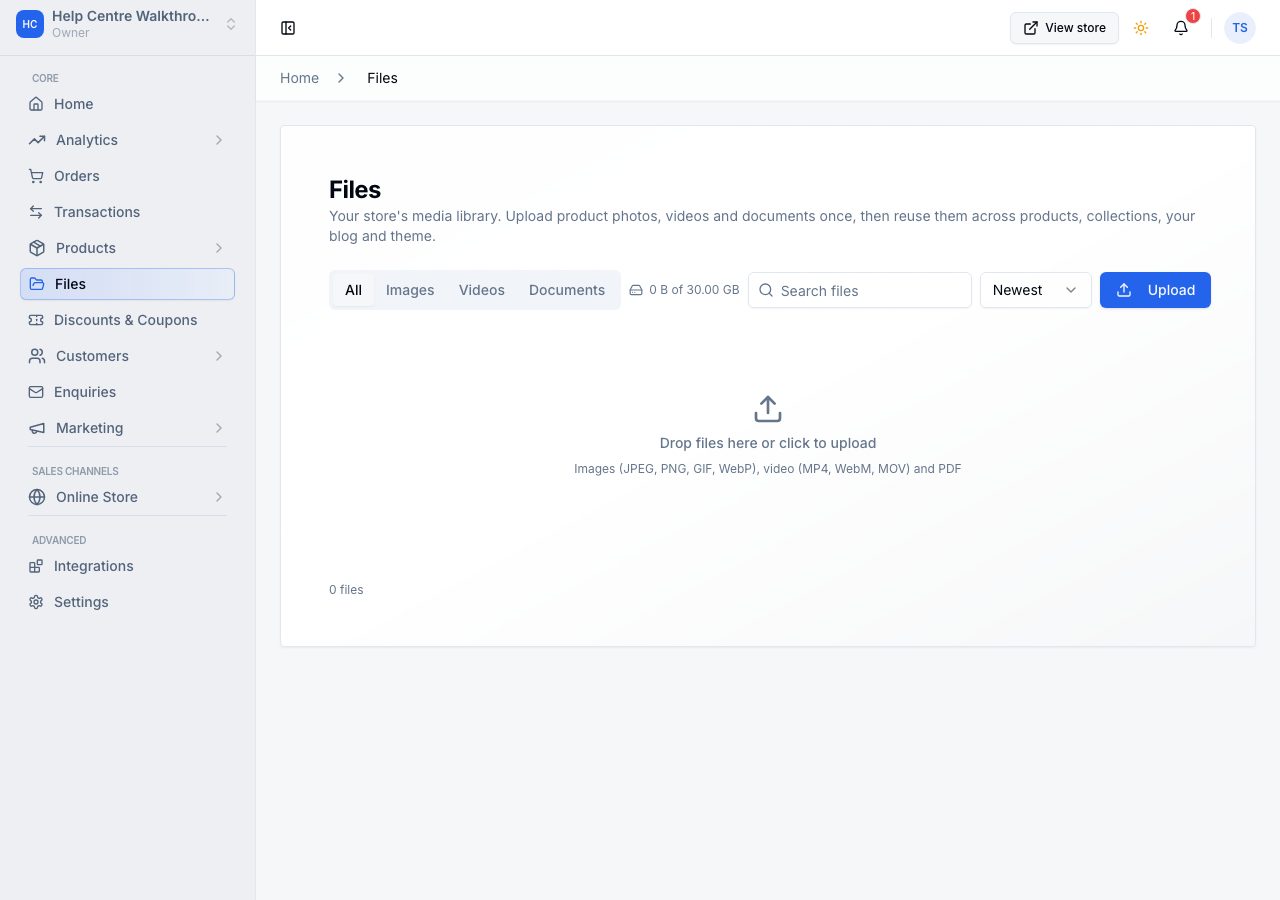
Files in the sidebar is your store's media library: upload a photo once, then reuse it on products, collections, your blog and your theme. A new store's is empty.
Each row shows the picture, its name, what it is and how large, where it is used, and the day it arrived. A row also tells you when an image has no alt text, which is the short description that helps shoppers using a screen reader and helps search engines.
Upload
Upload, or drop files onto the page. It takes images (JPEG, PNG, GIF, WebP), video (MP4, WebM, MOV) and PDF. An image may be up to ten megabytes.
Large images are processed after they arrive: we strip the camera's hidden data, cap very large photographs to a sensible size and make the small version used in lists. A file being processed says so, and is ready a moment later.
Where a file is used
The Used in column answers the question you have before deleting anything. A file that is used says how many places, and the count opens them.
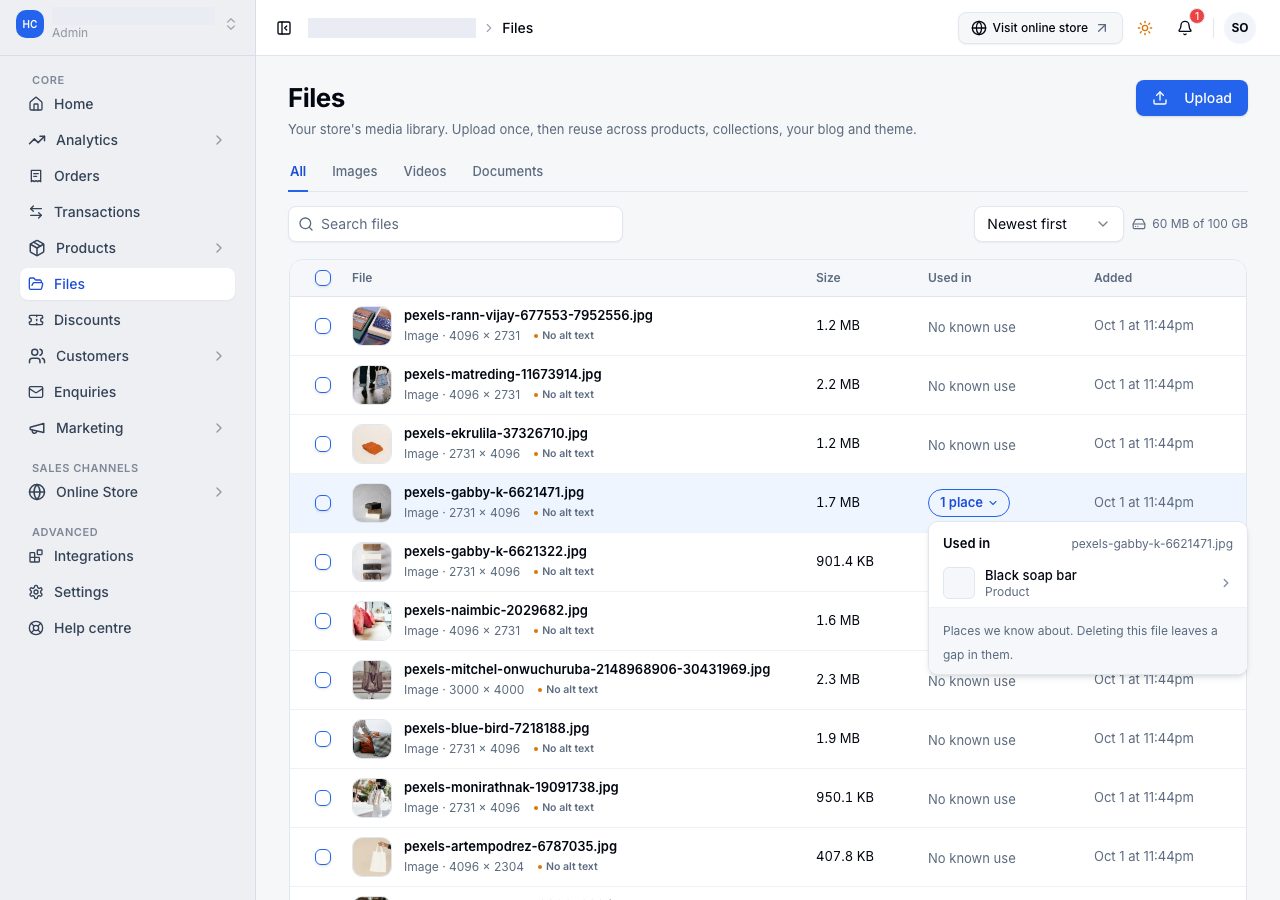
Each place is named and links to it, so you can go straight to the product, collection or post and change the picture there. The panel also says plainly what deleting would do: those places are left with a gap.
A file nothing points at reads No known use. That is worded carefully. It means we have no record of it being used, not that it is definitely unused, so a file you are unsure about is worth opening before you delete it.
Finding things
The views across the top narrow the list to Images, Videos or Documents, and the search box matches file names. The sort control puts the newest first by default.
To work on several at once, tick them in the first column and the actions appear for the whole selection.
Your storage
Beside the sort control is how much you have used of what your plan includes. Plans differ in storage; the amounts are on the pricing page, and what your own plan allows is the figure on this line.
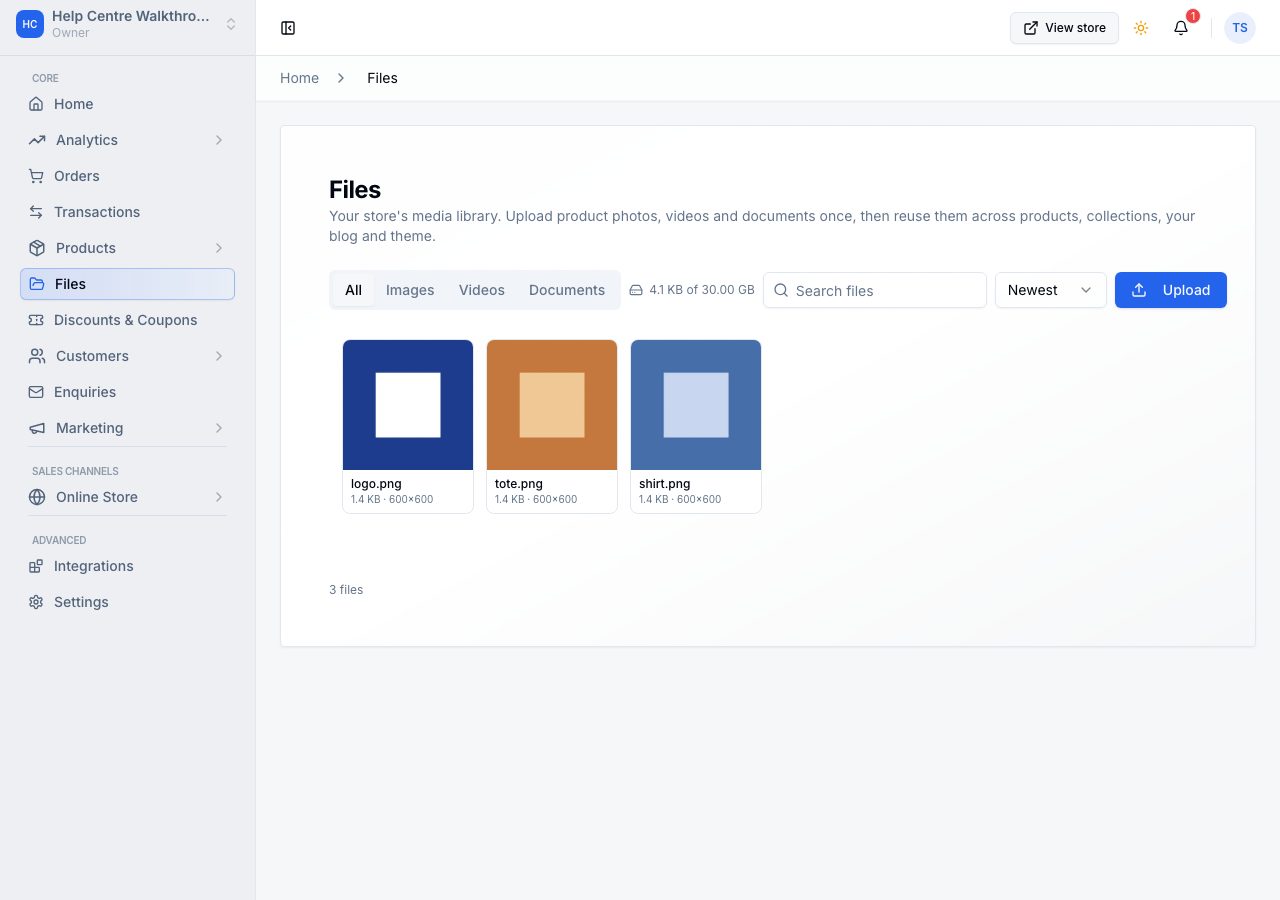
Deleting a file frees its space. Check the Used in column first, because deleting a file that is in use leaves a gap wherever it was showing.
The transfer receipts your customers send count toward your storage too, but they are not in Files: a receipt belongs to its order, and you open it there. Receipts are kept privately, so only you, your team and the customer who sent one can see it, each through a link that works for a few minutes.
Choosing a file somewhere else
Anywhere the dashboard asks for a picture, Choose from files opens your library without leaving the form.
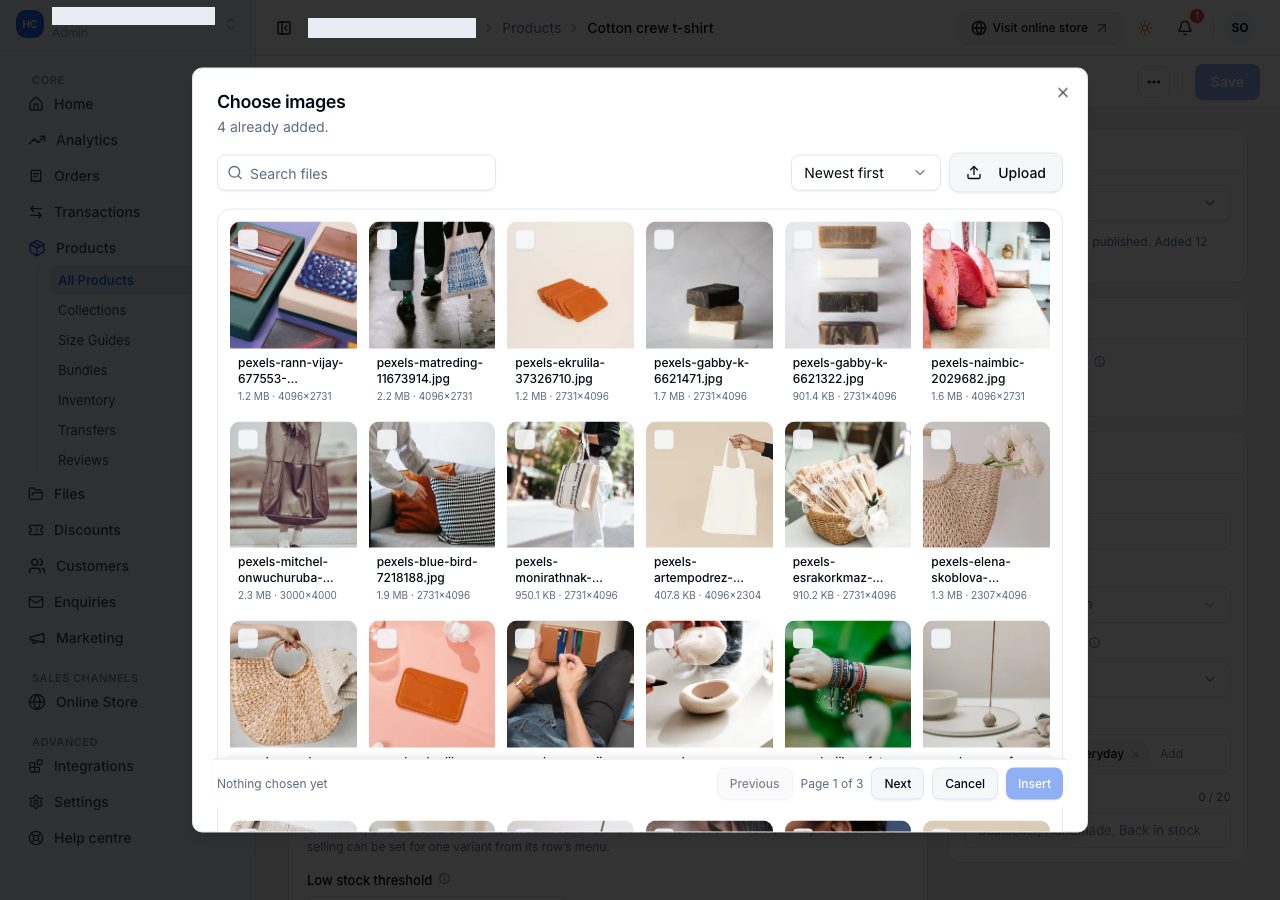
Pick one or several, then Insert. Anything the form already holds is marked Already added, so you cannot add the same picture twice by accident, and you can upload a new file from here without going to the Files page first. The product form, the collection form, the blog editor and the theme's logo all read from the same library.
What cannot be uploaded
SVG is not accepted, on purpose: it can carry code. Export a PNG instead. The product form's media box takes images only, even though the library itself also holds video and PDF.
If it does not work
- The upload was refused: the file is not one of the accepted types, or an image is over ten megabytes. Export a smaller copy and try again.
- A file says it failed: the upload arrived but processing did not finish. Delete it and upload it again.
- You are out of storage: delete what you no longer use, starting with anything that reads No known use, or move to a plan with more.
- An image looks wrong on the storefront: open its Used in panel to see every place it appears, then change it where it is wrong. The first image in a product's media is the one shown in listings.
Email support@shoponent.com with your store name if anything here does not match what you see. We read and answer every message.