Available on every plan · Updated 30 October 2026
Also asked as: “bulk upload products” · “move my products from shopify” · “csv template for products” · “export my catalogue” · “import did not work”
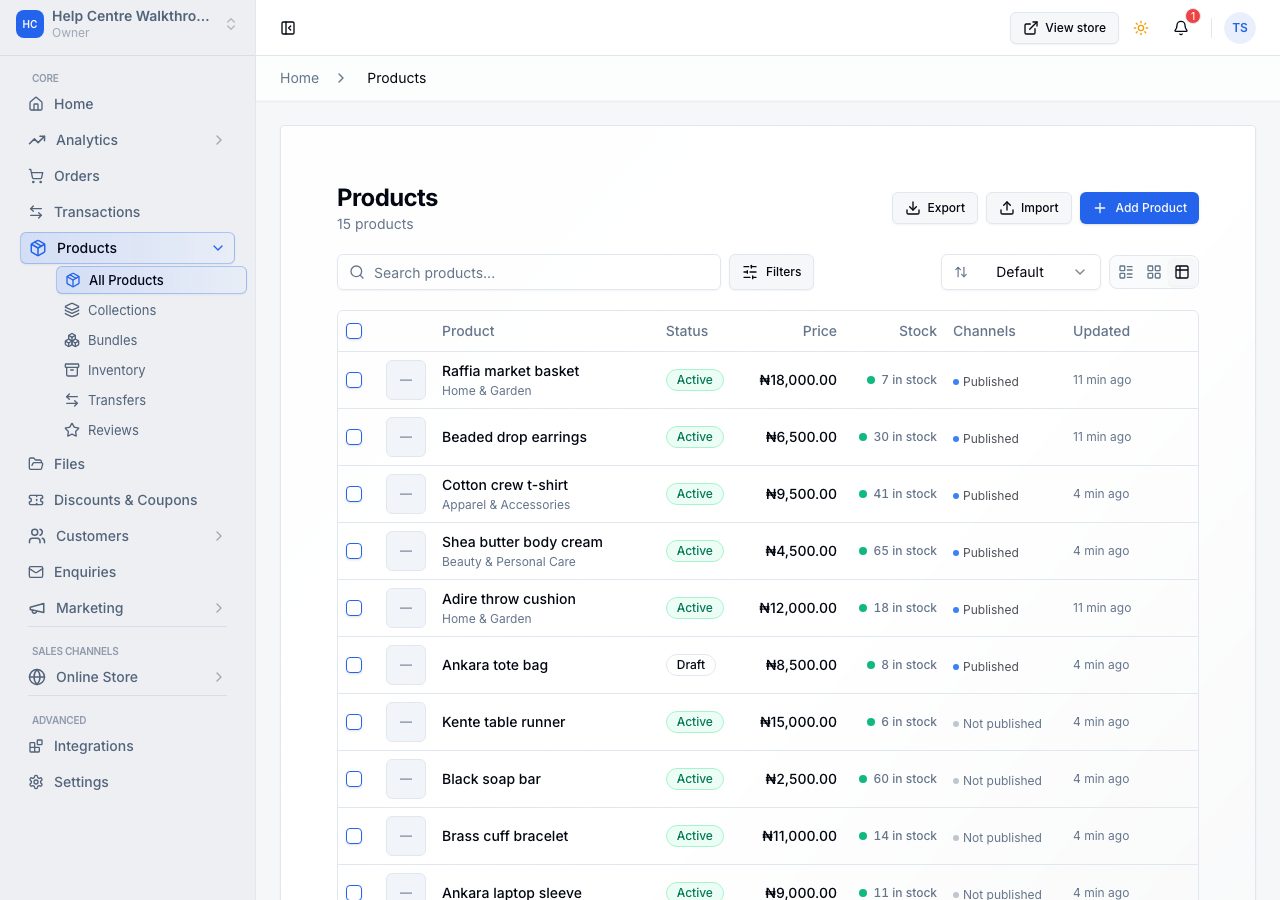
Typing a hundred products one at a time is nobody's idea of a morning. Products → All Products has Import and Export beside Add product, and both work on a spreadsheet saved as CSV.
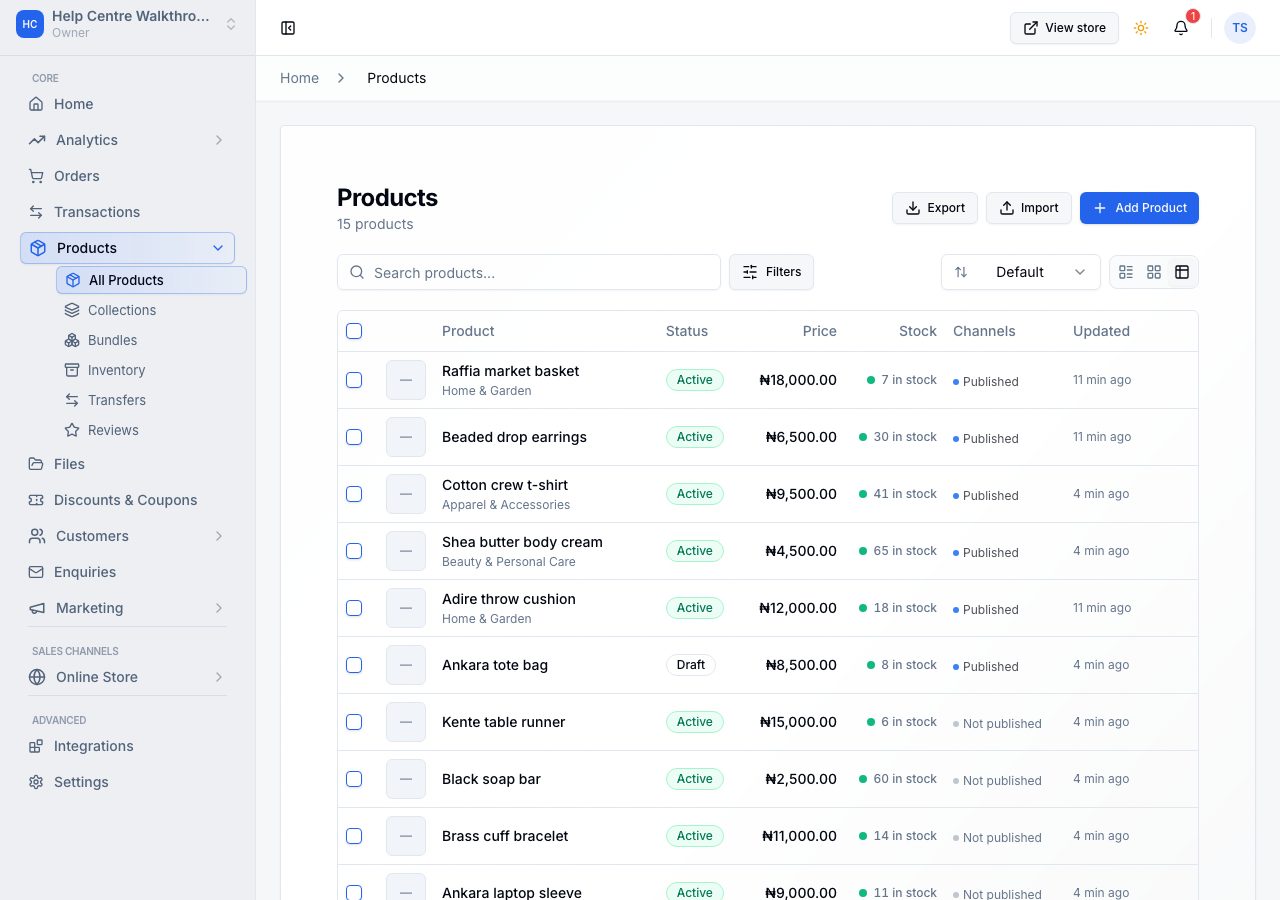
Import
Choose Import. The dialog explains itself: upload a CSV to add or update products in bulk.
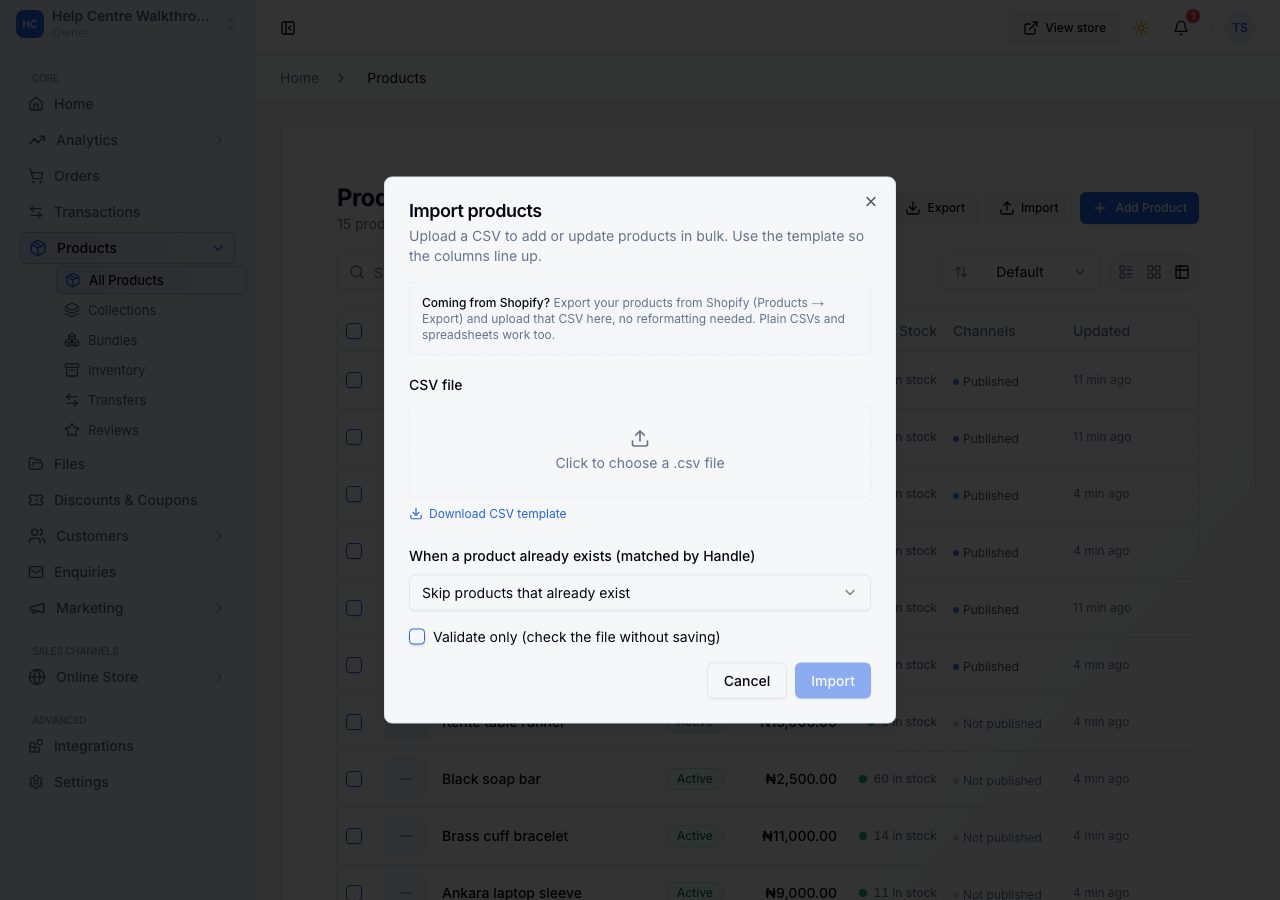
- Coming from Shopify? Export your products there and upload that file here. No reformatting: we read Shopify's own columns, both the older export and the current one.
- Download CSV template gives you the columns we read, with three example rows: a simple product, and a product with two variants written as two rows.
- Existing products decides what happens to a product whose handle is already in your store: Skip products that already exist, or Also update products that already exist.
- Validate only checks the file and saves nothing, which is the safe way to try a file you are unsure of.
Choose the file and the dialog names it back to you.
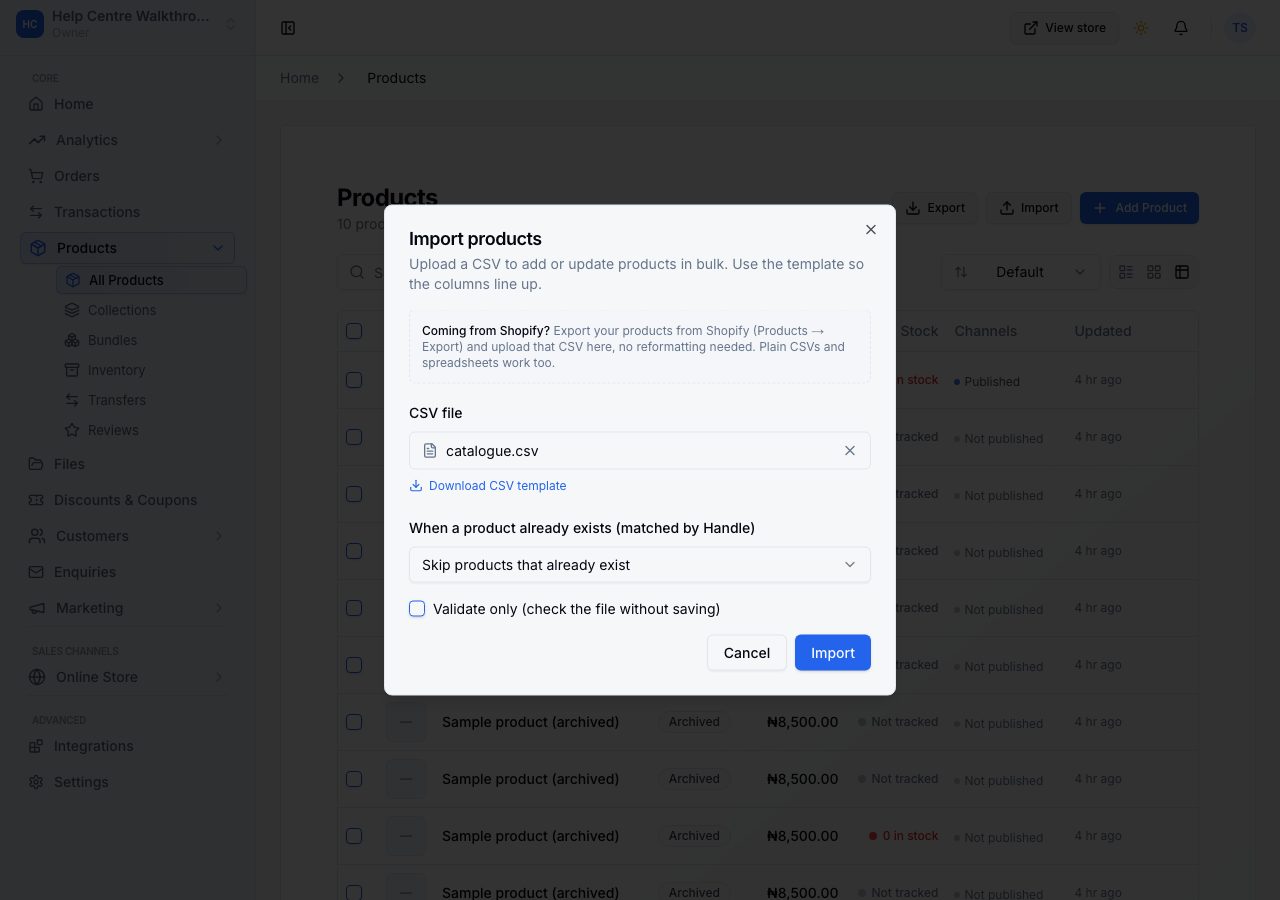
Choose Import. Large files run in the background: the page says so, you can keep working, and we email you when it finishes.
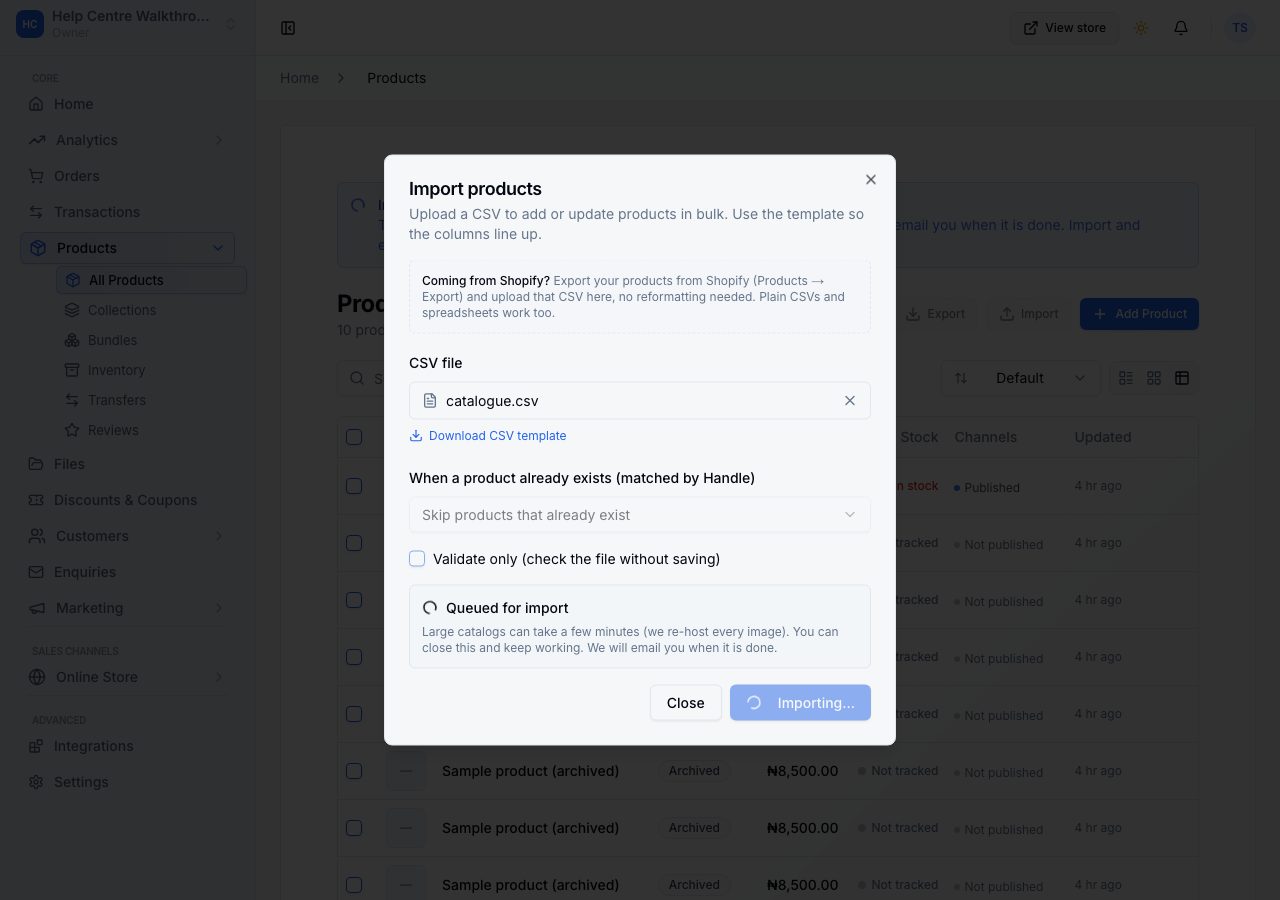
Your products are in the list when it finishes.
How the file is read
- One row is one variant. Rows that share a handle are one product. A plain product is one row. A t-shirt in three sizes is three rows with the same handle, each carrying its own option value, price, reference and quantity.
- The handle is the match key. It is also the product's address on your online store. Leave it blank and we make one from the title.
- Product-level fields come from the first row of the group: the title, the description, the vendor, the tags, the images.
- Images are fetched and stored in your library, so the file can point at photos hosted anywhere and you end up owning the copies.
- Collections are not a column. Assign products to collections in the dashboard after the import, the way Shopify does it too.
Export
Choose Export. The dialog offers what to include: the products you selected, the page you are looking at, or all of them, with the count beside each.
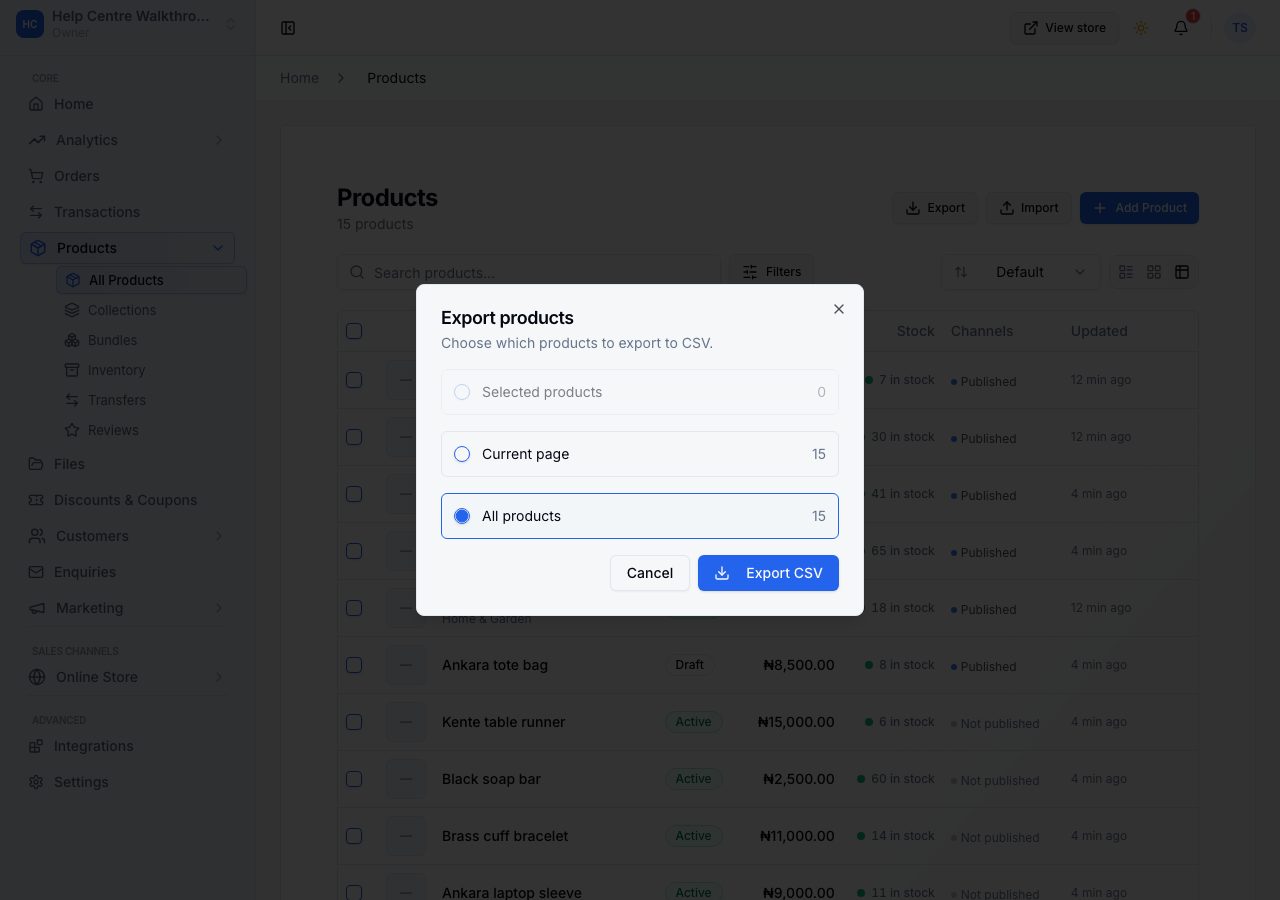
Export CSV downloads the file. It carries the same columns the import reads, so an export is also a backup you can edit and upload again.
If it does not work
- The file was rejected: it must be a CSV. Save your spreadsheet as CSV, not as an Excel workbook.
- Products were skipped: their handles already exist and the dialog was set to skip. Run it again with the update option.
- A price or a quantity is wrong: check that column on the row. Numbers must be plain, with no currency symbol and no thousands separator.
- Images did not arrive: the address in the image column must be reachable by us without a password. Upload the photos under Files and attach them instead.
- The import is still running: large files finish in the background and we email you. Import and export are paused until it is done.
Email support@shoponent.com with your store name if anything here does not match what you see. We read and answer every message.