Available on every plan · Updated 30 September 2026
Also asked as: “move stock between shops” · “send stock to my warehouse” · “incoming stock” · “transfer not showing”
When you carry six cushions from the warehouse to the shop, both counts change. A transfer is how you record that so neither is wrong while the box is in the van. Products → Transfers lists them, newest first, with the location each came From and went To, how many items, how many were received, its Status and when it was created. All is the first tab; Draft, In transit, Partially received, Received and Cancelled show one status each, with a count. The search box matches a reference or a location name, and Filters narrows to a location it came from or went to.
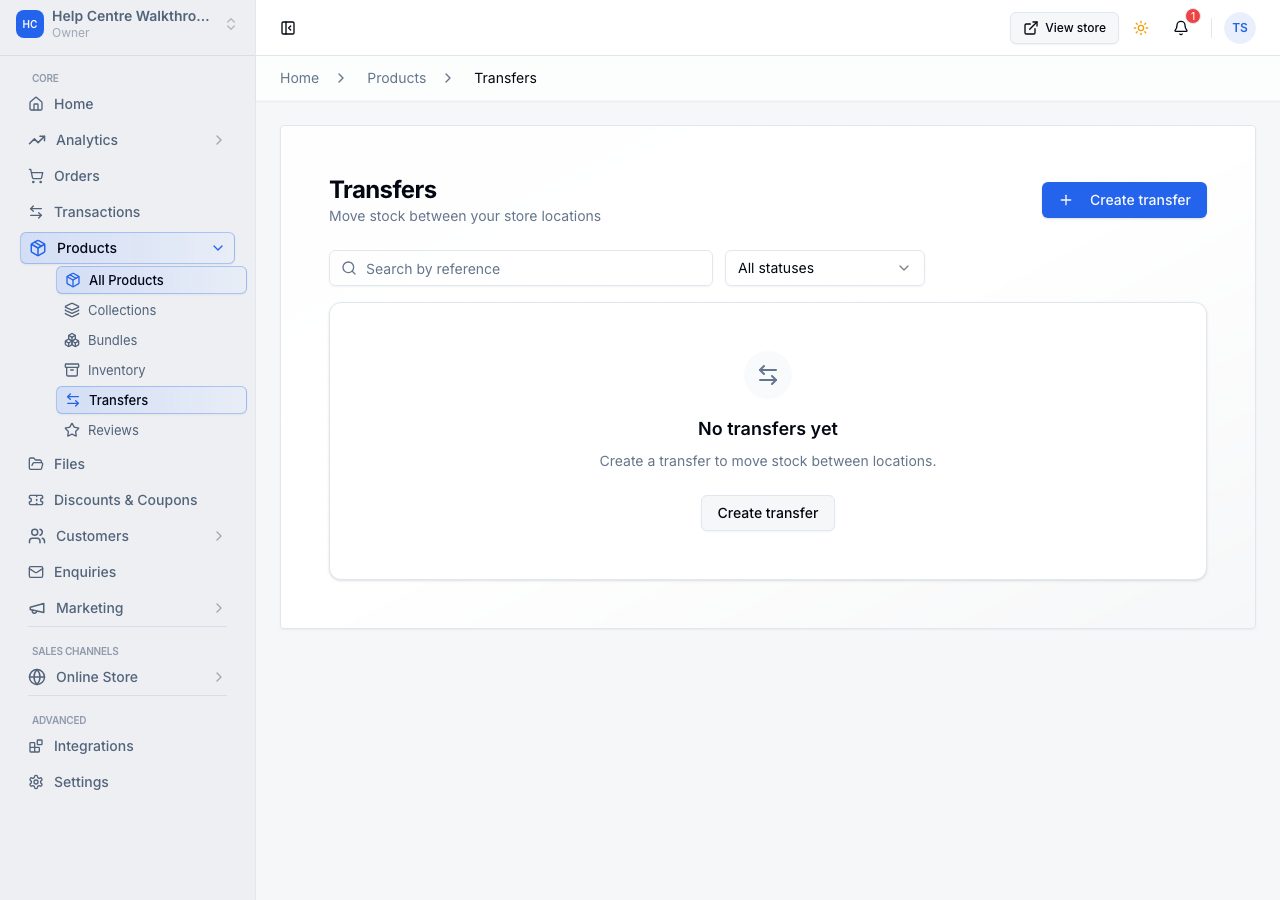
Create transfer is greyed out until you have two locations, because there is nowhere to move stock to. See locations.
Create one
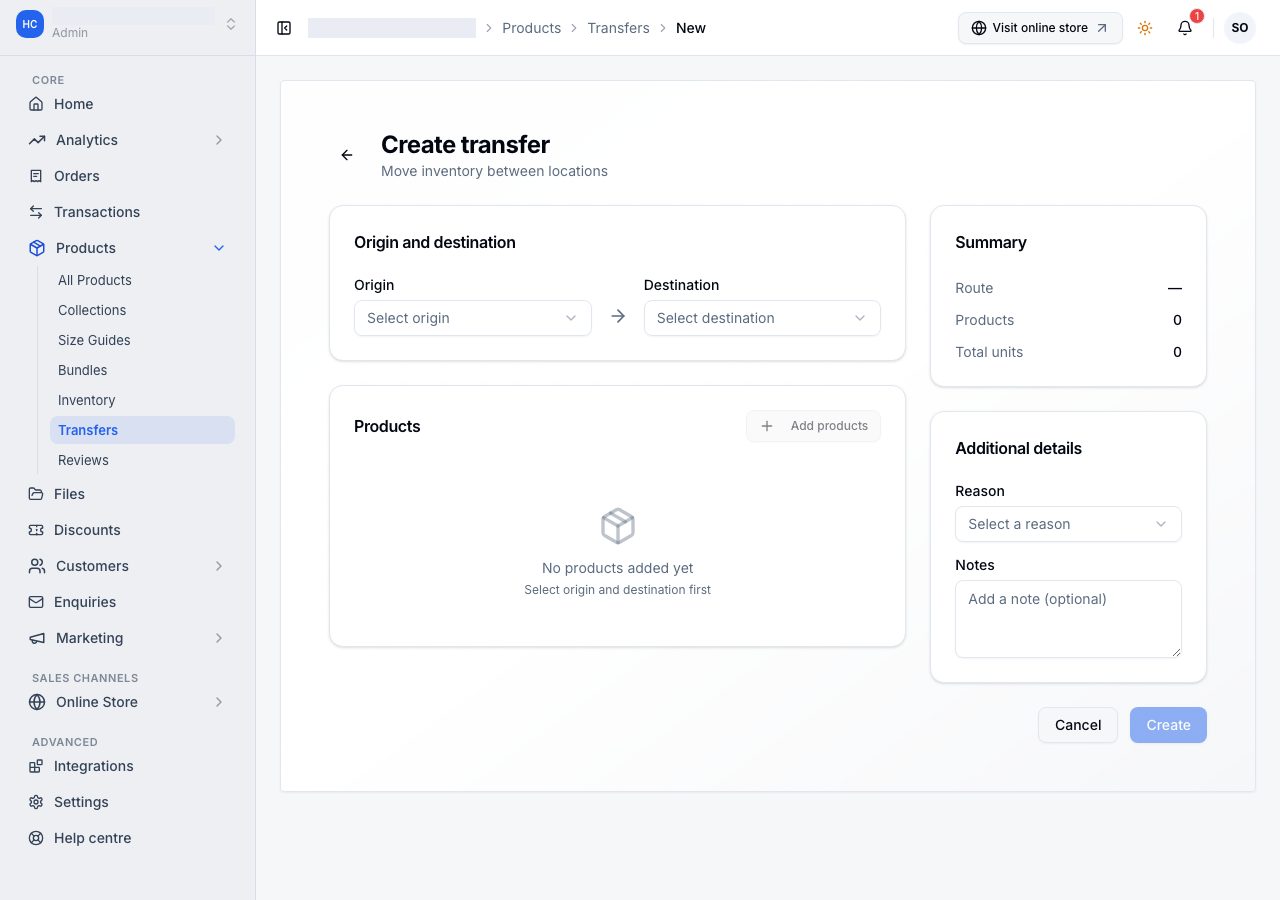
- Origin and Destination are the two locations. Choose them first: the product list stays empty until you do, because what can be sent depends on what the origin holds.
- Products: Add products picks what is going and how many of each. Search by name or SKU: it looks across your whole catalogue, not just the first page, and it offers anything whose stock you count, whether or not it is for sale. A product you have stopped selling still has stock to move. Something you do not count has no number to move, so it is not offered.
- Reason and Notes are for the people at both ends.
- Summary on the right keeps a running count of the route, the products and the total units.
Create saves it as a draft you can still change.
One transfer, opened
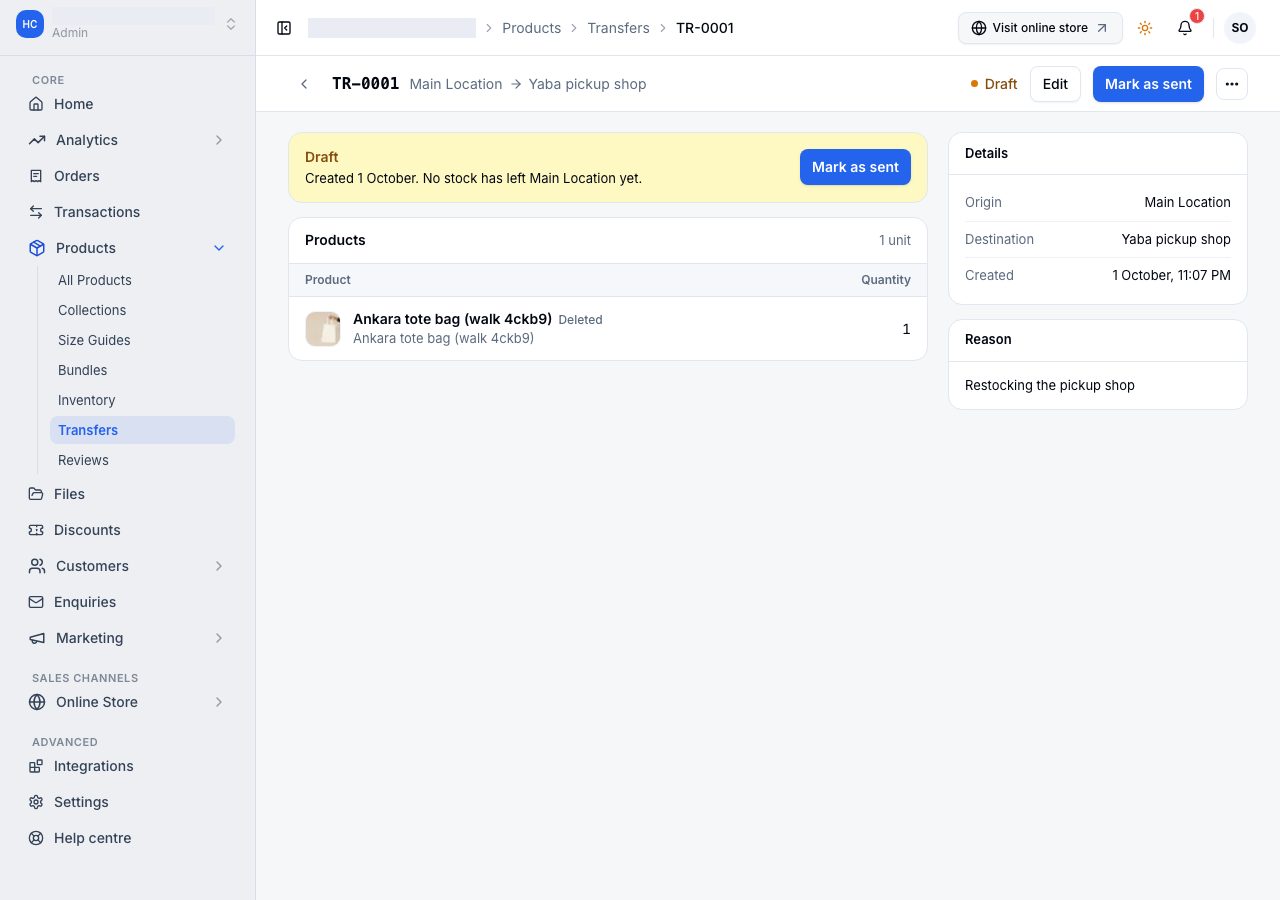
Its page carries the reference, the origin and destination with an arrow between them, and its status. While it is open, a band at the top states where it stands and holds the next step: Mark as sent on a draft, Receive once it is on its way, and Reject remaining beside Receive once part of it has arrived. Products lists each line with what was Sent, Received, Rejected and is Remaining; a line still short is marked. On the right, Details holds the origin, destination, when it was created, sent and received, the carrier and tracking number, and Reason holds the reason and notes.
Send and receive
A transfer moves through four states, and each does something to your counts:
- Draft: nothing has moved. Edit or delete it freely.
- In transit, once you send it: the units come off the origin's stock and appear as Incoming at the destination. Neither location is overstated while the box is on the road.
- Received, when the destination confirms what arrived: the incoming units become real stock there. You record what actually arrived, line by line, and anything short or broken is recorded as rejected rather than quietly lost, and every receipt, even one that rejects everything, is written to the stock history at the destination. A receipt has to record something: one with every line at zero is refused.
- Cancelled, if it never goes: whatever was taken from the origin goes back.
A partly received transfer stays open with the rest still incoming, which is what you want when a delivery arrives in two vans. When the rest never turns up, the transfer's page offers two actions: Receive, if they did arrive after all, or Reject remaining, which records them as rejected so they come off what is incoming without being added back anywhere.
Cancelling
Cancel transfer returns the units not yet received to the origin's stock, exactly as if the box had come back. The confirmation says how many are returned and how many already received stay at the destination, and while any are still in transit it asks you to confirm they are back at the origin before it will cancel. If they were lost, use Reject remaining instead, so the origin's stock does not include them.
Each transfer carries a reference of its own, so a person at either end can name it in a message.
If it does not work
- Create transfer is greyed out: the store has one location.
- No products to add: choose the origin and destination first; the list comes from what the origin holds.
- The destination shows Incoming that never arrives: the transfer was sent and not received. Open it and receive what came.
- You received too many: record what actually arrived. The count is the count, and the difference is visible on the transfer afterwards.
Email support@shoponent.com with your store name if anything here does not match what you see. We read and answer every message.