Available on every plan · Updated 30 October 2026
Also asked as: “change my logo” · “upload a logo” · “favicon” · “change my brand colour” · “my colours are wrong” · “remove powered by shoponent” · “hide shoponent branding” · “add my instagram” · “social media links”
Two things make an online store look like yours rather than like a template: the logo across the top, and the colour on its buttons and links. Both live on one tab.
The Brand tab
Go to Settings → General and choose the Brand tab. It has four cards: Logo and favicon, Brand colour, Social links and Online store footer. General's two tabs share one Save at the top, and Discard puts back what was saved.
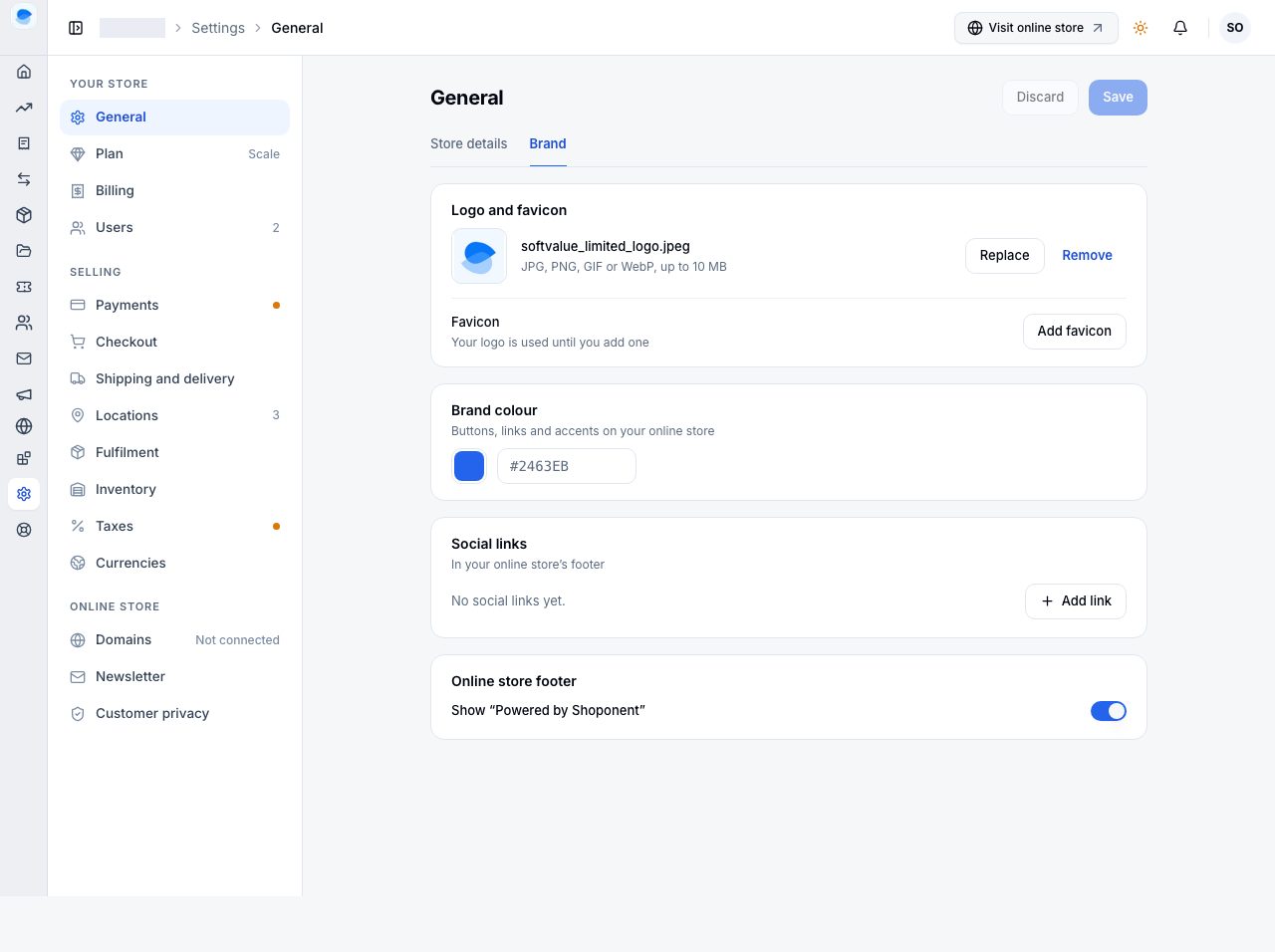
Your logo and browser icon
Under Logo and favicon:
- Logo is shown as your brand across your online store and in emails to customers. Replace chooses another picture, from your Files or uploaded, and Remove takes it away. A wide file with a transparent background works best, because it sits on your header rather than in a box.
- Favicon is the small icon in a browser tab. Until you add one, your logo is used. It is shown very small, so a single letter or a mark reads better than a full logo.
- Both accept JPG, PNG, GIF or WebP, up to 10 MB.
Choose Save. Your online store picks the new logo up within a few seconds.
On Professional and above you can change it from the storefront editor too: Change on Store logo, under Header → Branding, picks a picture from your Files and saves it here straight away. It is the same logo, not a copy for one theme, so it does not wait for you to publish.
Your brand colour
Brand colour drives the buttons, links and accents on your online store. Type a colour code, or pick one with the colour swatch beside it, and choose Save.
One colour is all you set. Your theme builds its whole palette from it: buttons, links, accents and the shades around them are worked out for you, and the contrast is checked so text stays readable on every one of them. Fonts come from the theme, or from the type pairing chosen in the storefront editor, and spacing from the theme; neither changes with the colour.
The field shows the colour your store has now. Save publishes a new colour to your live online store straight away, with no further step. It recolours the theme you are on and changes nothing else: your sections, your menus, your policy pages, your About and Contact pages' words, your home page hero's words, image and buttons, your "Powered by Shoponent" choice and your logo all stay as they are. On Professional and above, the note under the control adds the one thing worth knowing: a draft you have open in the storefront editor takes the new colour too, and stays unpublished until you publish it.
The colour can also be set from the Set up your branding step on your Home page, while that row of the setup checklist is still open; both write your store's colour. See Set up your branding.
A theme in Draft themes follows your store's colour unless it was given one of its own when it was added. That colour is for that theme only while it is a draft, and becomes your store's colour when you publish the theme.
"Powered by Shoponent"
Your online store shows a small Powered by Shoponent line at the very bottom of every page. Whether it does is up to you, on every plan: Online store footer has one switch, Show “Powered by Shoponent”, saved with the rest of the page. The same switch is in the storefront editor, under Footer → Footer bar, on Professional and above. Applying a theme or saving your brand colour keeps your choice.
Your social links
Your Instagram, TikTok and the rest belong to your store, not to a theme, so every theme shows the same ones and changing theme never loses them. Under Social links, choose Add link for each one: pick the platform and paste the full address of your page, starting with https://. One link per platform. Save puts them on your online store within a few seconds.
The storefront editor has the same form: Edit on Social links, under Footer → Social links, saves here straight away. Whether a theme's footer shows them at all is the theme's setting, Footer → Social links in the storefront editor.
If it does not work
- The logo uploaded but the online store still shows the old one. Refresh once; a page is cached for a few seconds. If it persists, check you chose Save at the top of the page.
- The file is rejected. It is not one of the types above, or it is over 10 MB. Export a smaller PNG or JPG.
- The logo looks cramped or sits in a white box. The image has its own background. Export it with a transparent background, or with the same colour as your header.
- You wanted to clear the colour rather than change it. There is no way to clear it: leaving it empty keeps the colour you already have, which is what makes previewing a theme safe. Set it to the colour you want instead.
- You changed the colour and some parts of the online store did not change. The colour drives buttons, links and accents. Fonts, spacing and any colour you typed into a section by hand in the storefront editor are separate, and stay as you set them.
Email support@shoponent.com with your store name if anything here does not match what you see. We read and answer every message.