Available on every plan · Updated 22 October 2026
Also asked as: “newsletter signup” · “email list” · “popup on my storefront” · “export my subscribers” · “send a campaign”
Your online store can collect email addresses from shoppers who want to hear from you, with their consent recorded. It is on every plan.
Read this first, because it decides whether the feature is useful to you. Today this builds and keeps your list. It does not send newsletters yet: Marketing → Campaigns, where you will, says Coming soon until it opens. Until then, export the list and send from an email tool of your own. Anything you read below is about collecting, not sending.
1. Turn signups on
Go to Settings → Newsletter (or choose Newsletter settings on Marketing → Subscribers, which opens the same page), then turn on Enable newsletter signups.
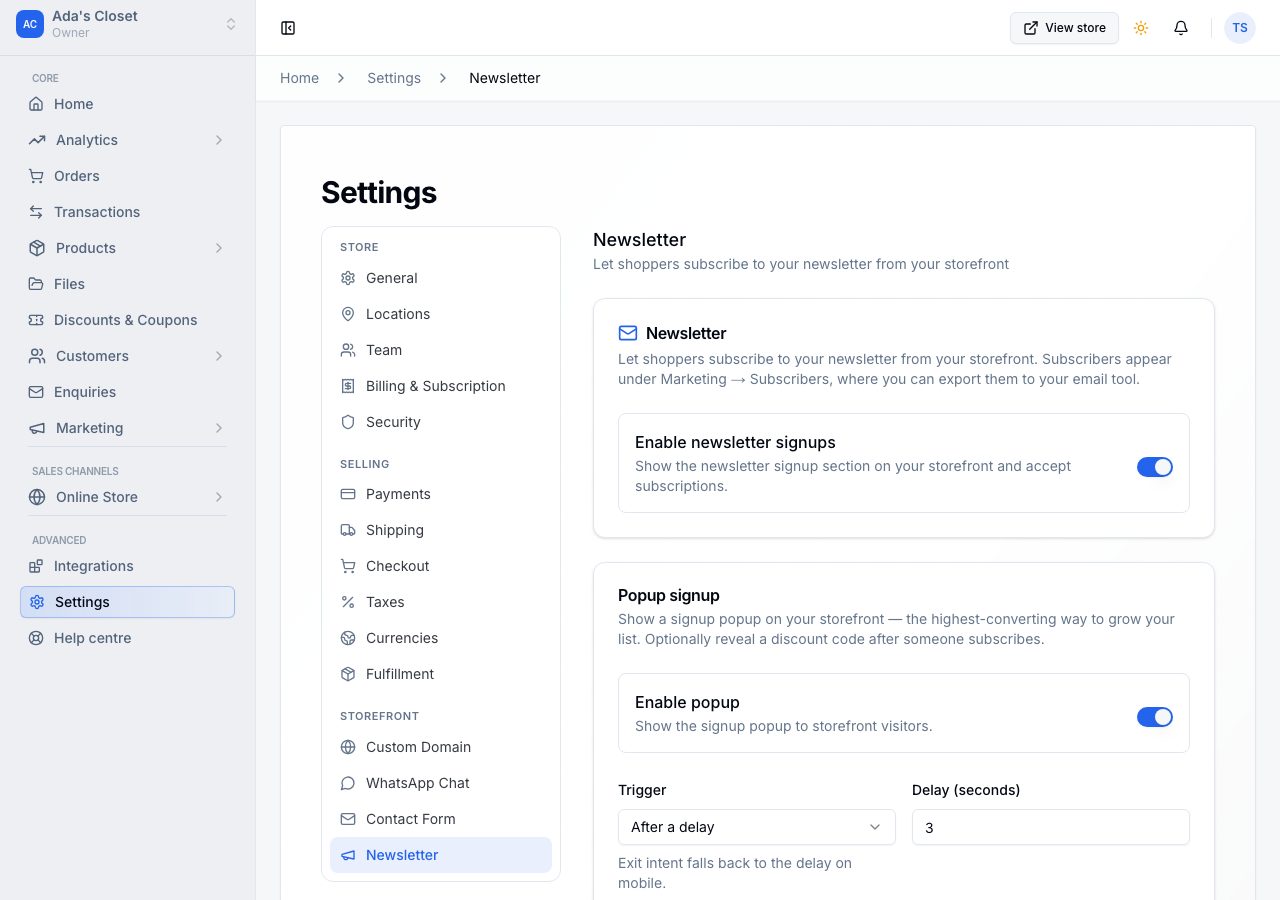
That one switch controls every place a shopper can join from:
- the newsletter section on a page, when your theme has one,
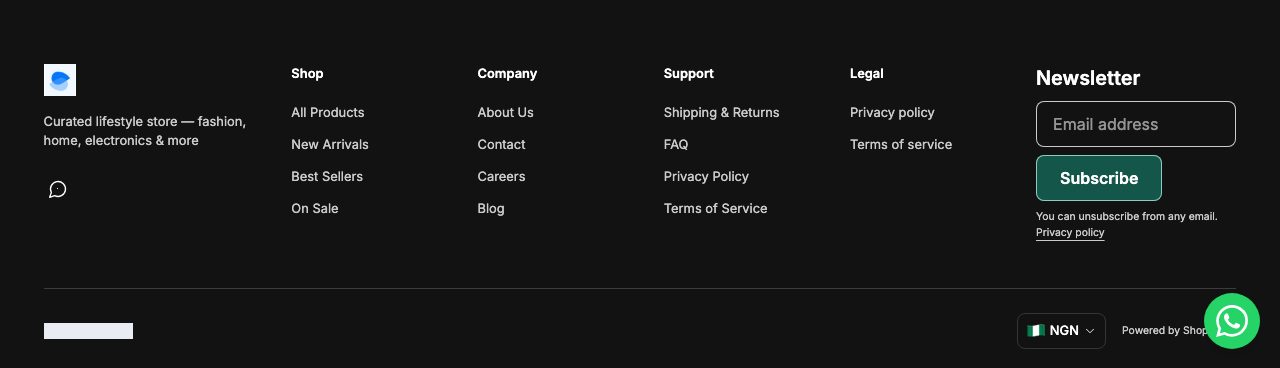
- the subscribe box in your footer,
- the popup, if you turn it on below,
- Email me news and offers at checkout, beside their email (a signed-in customer already on your list is not asked again),
- the same tick box when a shopper makes an account: after ordering, and the first time they sign in,
- News and offers on their account's Profile, where they can also stop at any time.
Every tick box starts unticked, so nobody joins without choosing to.
With the switch off, none of them appear.
2. Set up the popup, if you want one
A popup is the single most effective of these, and also the most easily overdone. Its settings are on the same page, under the signups switch, and they grey out while signups are off, because the popup cannot show then.
- Show signup popup turns it on.
- Show it: after a number of seconds, or When they are about to leave. A phone has no "about to leave", so there it waits the seconds instead.
- Show again after: once someone closes it, how long before they see it again. Their own browser remembers, so it follows them between visits on that device.
- Pages and Subscribers are not settings, they are said: it never shows at checkout or in a shopper's account, and never to someone who is subscribed or has signed up in that browser.
- Heading, Text and Button: its words. The consent line under the button is fixed and cannot be removed.
- After signing up is fixed too: Check your email, because the email is the step that counts (below).
The Preview beside them shows it as a shopper sees it, on Desktop or Phone. Choose Save: it saves the signups switch and the popup together.
3. What a shopper sees, and the email they confirm
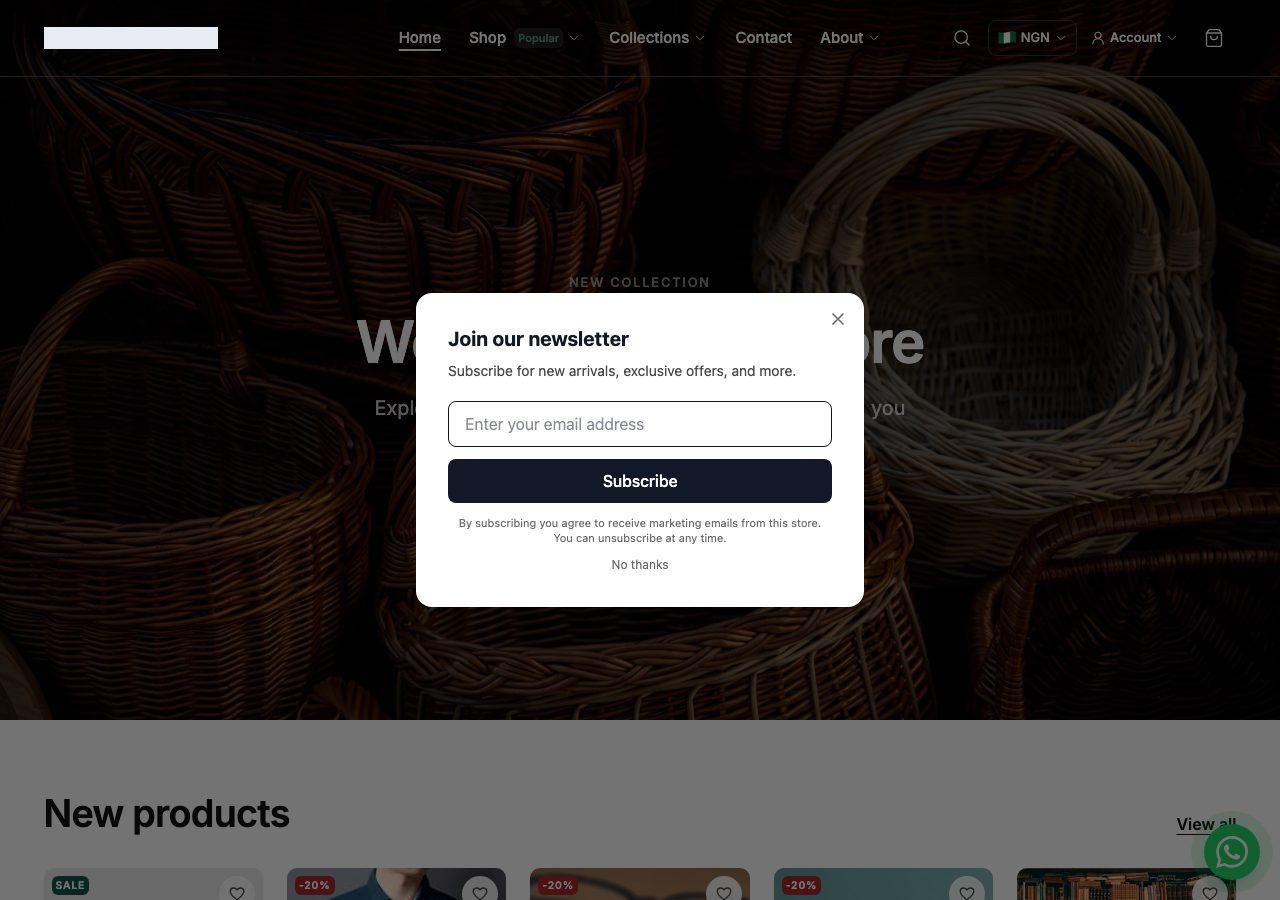
They type an email address and choose Subscribe, and the popup says Check your email, with the address the link went to. Your store emails them a link; pressing it opens Subscription confirmed on your online store, and only then are they on your list. Until they press it they are Pending: nothing is sent to them, and their customer record does not say they get your emails. This is double opt-in, and it is always on, so nobody is on your list because someone else typed their address.
A signed-in customer whose address was confirmed by a sign-in code is subscribed at once, with no email to press: the code already proved the address is theirs. The signup section on a page and the subscribe box in your footer say Check your email the same way.
4. Your list
Everyone on your list is one of your customers. Marketing → Subscribers shows them, each with where they joined, when, and whether they are subscribed, paused, pending or unsubscribed: see Subscribers and export.
- A shopper who signs up becomes a customer once they confirm. Until then they show under Pending.
- Unsubscribed keeps who left: nothing is deleted when someone leaves, which is the record you want if anyone ever asks.
- Pausing, unsubscribing and adding someone who asked you for your emails happen on the customer, in Customers: see Subscribers and export.
- Export downloads the list. This is the export you feed into your email tool.
- A customer who later buys or makes an account keeps the subscription they had.
If the same person subscribes twice, nothing is duplicated. Someone who unsubscribed and later signs up again gets the email to confirm, like anyone new.
If it does not work
- No signup anywhere on the online store. Enable newsletter signups is off.
- The popup never appears. It is off, or your own browser is still inside the "don't re-show" window from a previous visit. Test in a private window.
- A shopper says they never got the email to confirm. Ask them to check their spam folder. They show under Marketing → Subscribers → Pending. Signing up again sends a new link, once a few minutes have passed, and a link works for 30 days.
- A shopper pressed the link and it says it no longer works. It was used already, or it is more than 30 days old. If they pressed it before, they are on your list; otherwise they sign up again.
- You want to send a campaign from here. You cannot yet. Export the list and send it from your own email tool.
- You want to offer a discount code for subscribing. That is not available either. Create a discount code under Discounts and include it in the email you send from your own tool.
Email support@shoponent.com with your store name if anything here does not match what you see. We read and answer every message.