Available on every plan · Updated 30 October 2026
Also asked as: “change my storefront design” · “pick a theme” · “my store looks plain” · “what happens if I apply a theme” · “will I lose my menus” · “try a theme without changing my store” · “draft themes” · “publish a theme” · “switch back to my old theme”
Your theme decides what your online store looks like: its fonts, its colours, its spacing, and which sections sit on each page. Picking one is on every plan, and so is previewing as many as you like before you commit.
1. Open Themes
Go to Online Store → Themes. Every store starts on a theme: a new one is on Universal, the default theme, already active. So the top of the page is the theme you are on, marked Current theme, with a live picture of your own online store, its address, when the theme was last saved and its version.
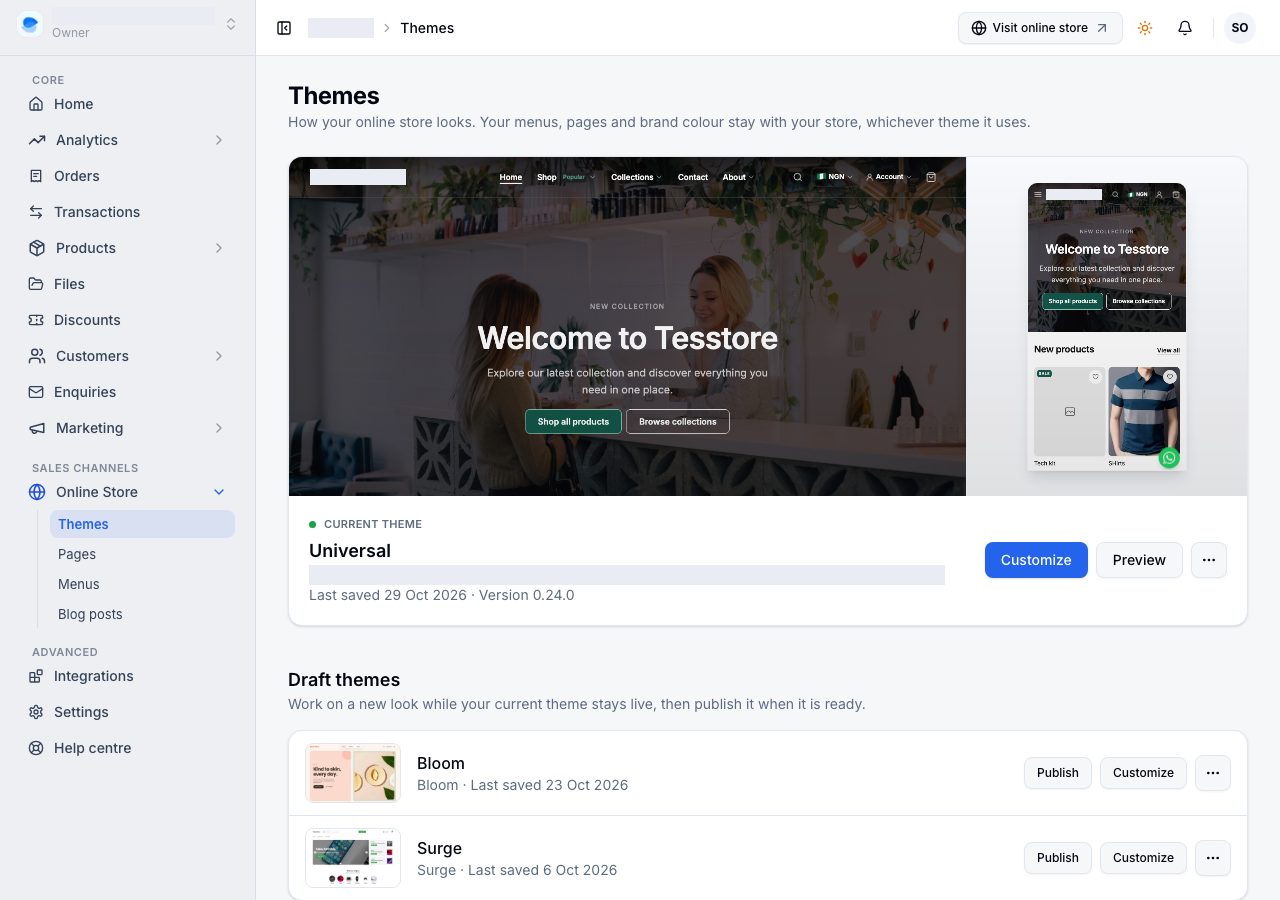
From there, Customize opens the storefront editor to change sections and text, and Preview opens your real online store in a dialog. On Starter that button reads Unlock customizing, because editing sections needs Professional or above; picking a theme, previewing and your brand colour are on every plan. See the pricing page for what each plan includes. The ⋯ button beside them has Rename and Duplicate.
Below it, Standard themes lists the themes released to merchants. Each card shows a picture of the theme's home page as you would start with it, a sentence about the theme and its colours.
2. Preview before you commit
Choose Preview on a card. Your own store opens inside the dialog wearing that theme, and you can switch between Home, Products, Product and Collections and look at it on a desktop, tablet or phone width. Nothing is saved by previewing, and Add theme in the dialog does what the card's button does (step 3).
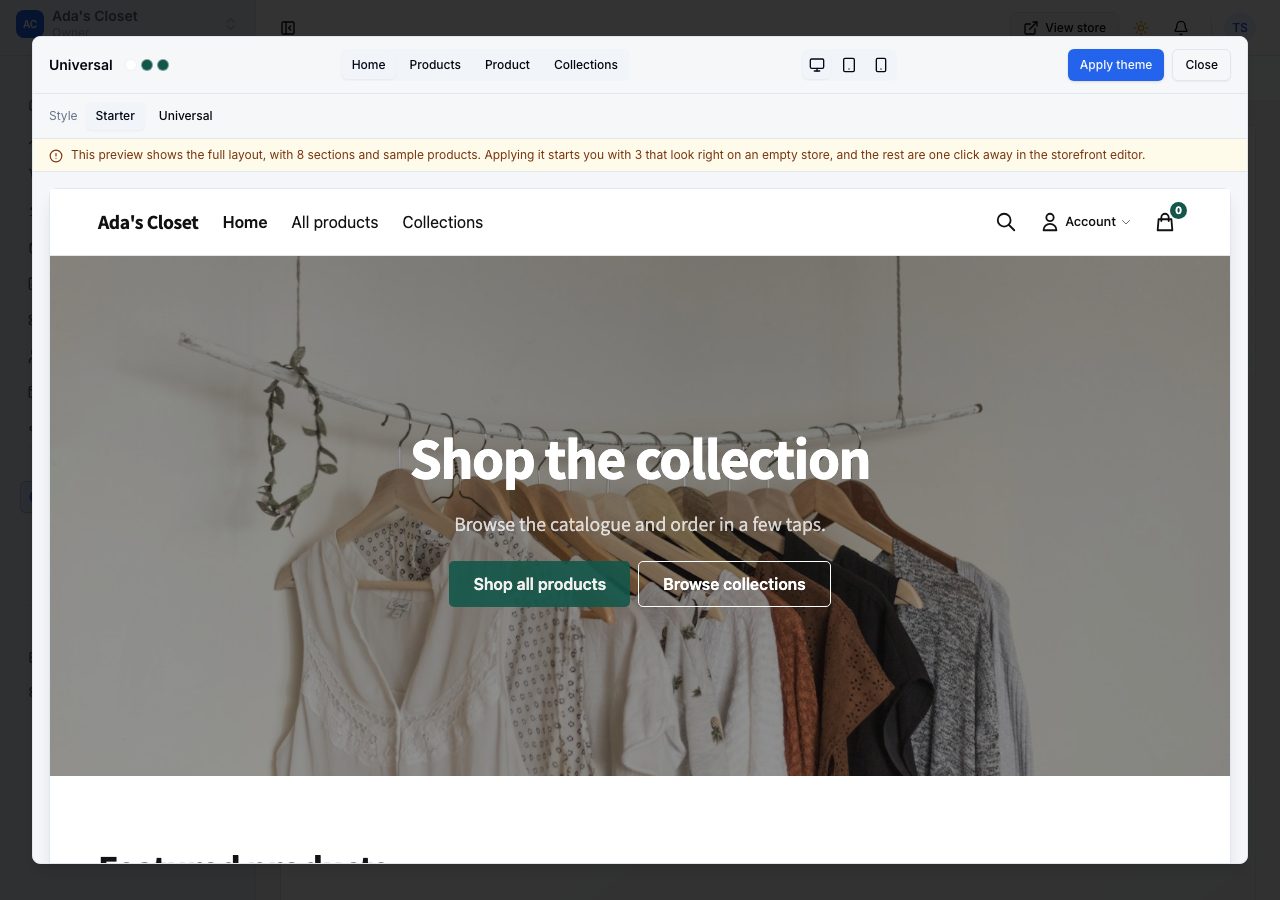
Some themes' previews carry a note across the top saying the preview is a showcase, with more sections than you start with and sample products filling them. Those themes give you the smaller set of sections that look right on a store with nothing in it yet, and the rest are one click away in the storefront editor. So a theme you add can look quieter than such a preview, and that is deliberate.
3. Try another theme without changing your store
The cards under Standard themes read Add theme. Adding a theme puts a copy of it in Draft themes, where you can work on it while shoppers keep seeing your current one.
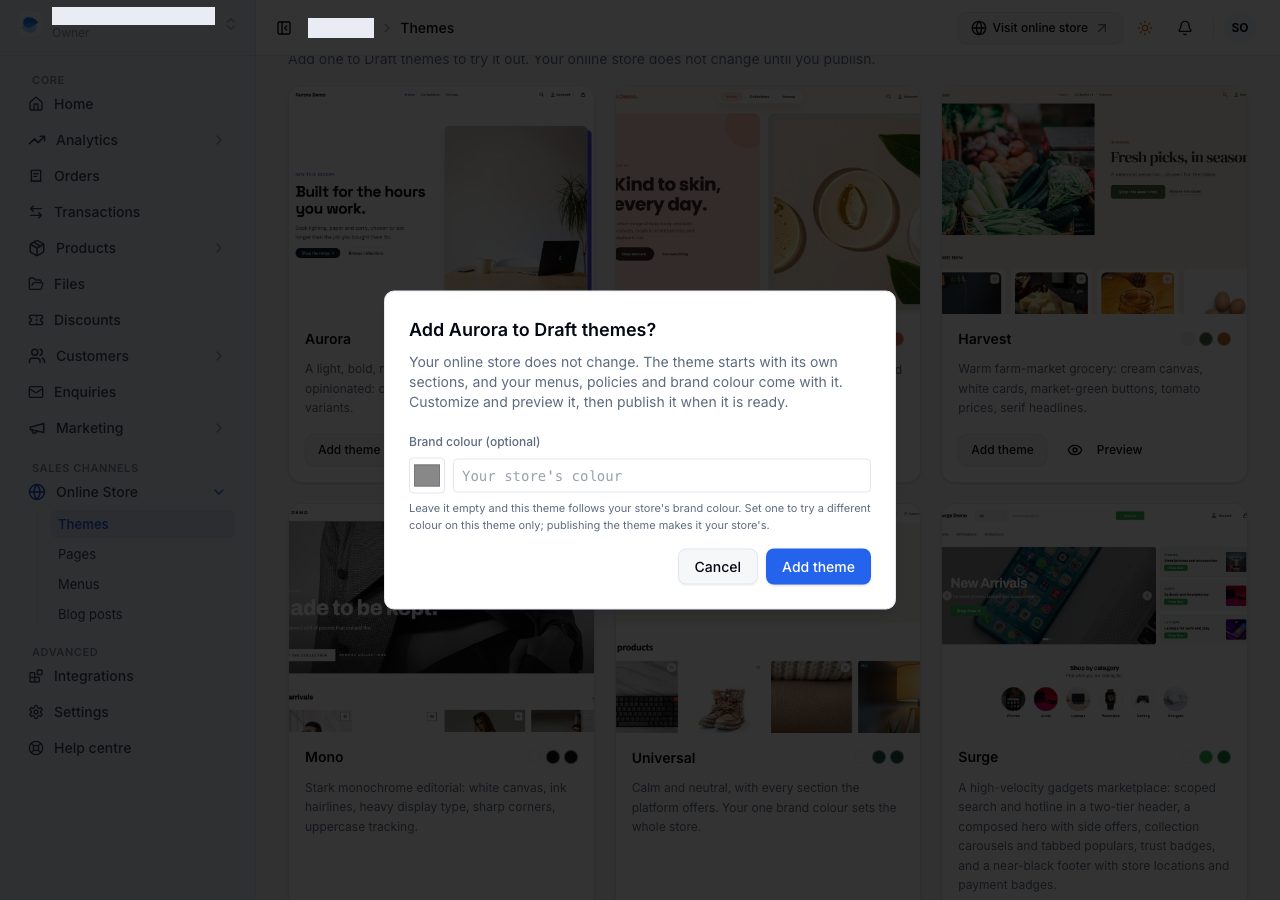
The theme starts with its own sections, its home page hero included, as on Shopify. Its other home sections come with it hidden, so the storefront editor lists what you can add; a hidden section is never shown to shoppers. What comes with it is what belongs to your store: your menus, policy pages, About and Contact pages' words, social links and brand colour. The dialog asks one thing, Brand colour (optional). Leave it empty and the theme follows your store's brand colour. Set one to try a different colour on this theme only; your store's colour does not change until you publish it.
Choose Add theme. It appears under Draft themes, and Duplicate in the current theme's ⋯ menu adds an exact copy of the theme you are on, named "Copy of" and its name.
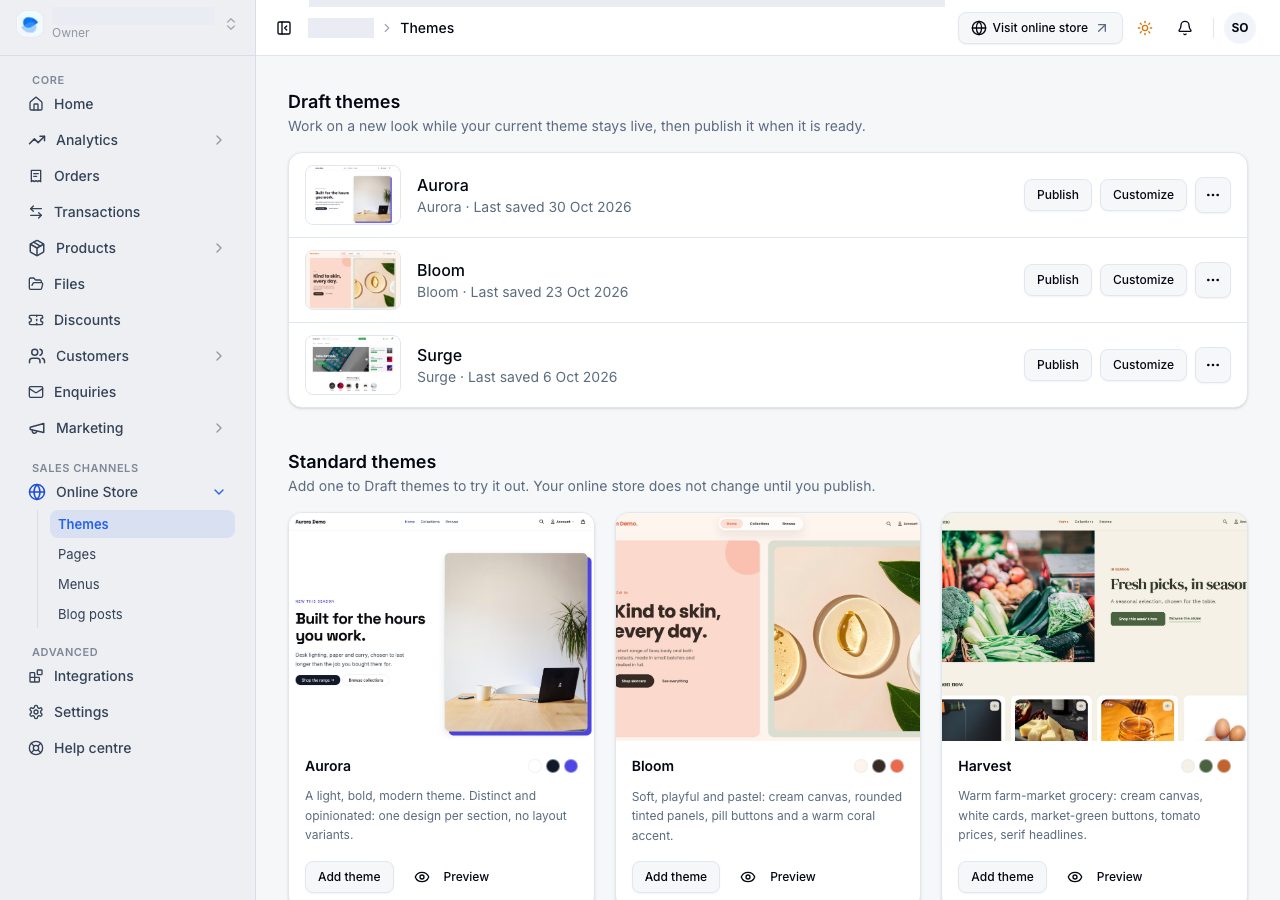
Each draft theme shows its picture and when it was last saved, and has:
- Publish, below.
- Customize, which opens it in the storefront editor. On Starter it reads Unlock customizing.
- ⋯, with Preview (your online store wearing that theme, in a new tab; your shoppers do not see it), Rename, Duplicate and Remove. Removing deletes the draft theme and its changes; it never touches your current theme.
On a phone, Publish and Customize are in the ⋯ menu too. A store keeps up to 20 themes, the current one counted; you are told when you reach that.
4. Publish a draft theme
Publish on a draft theme asks first, because it changes what your shoppers see:
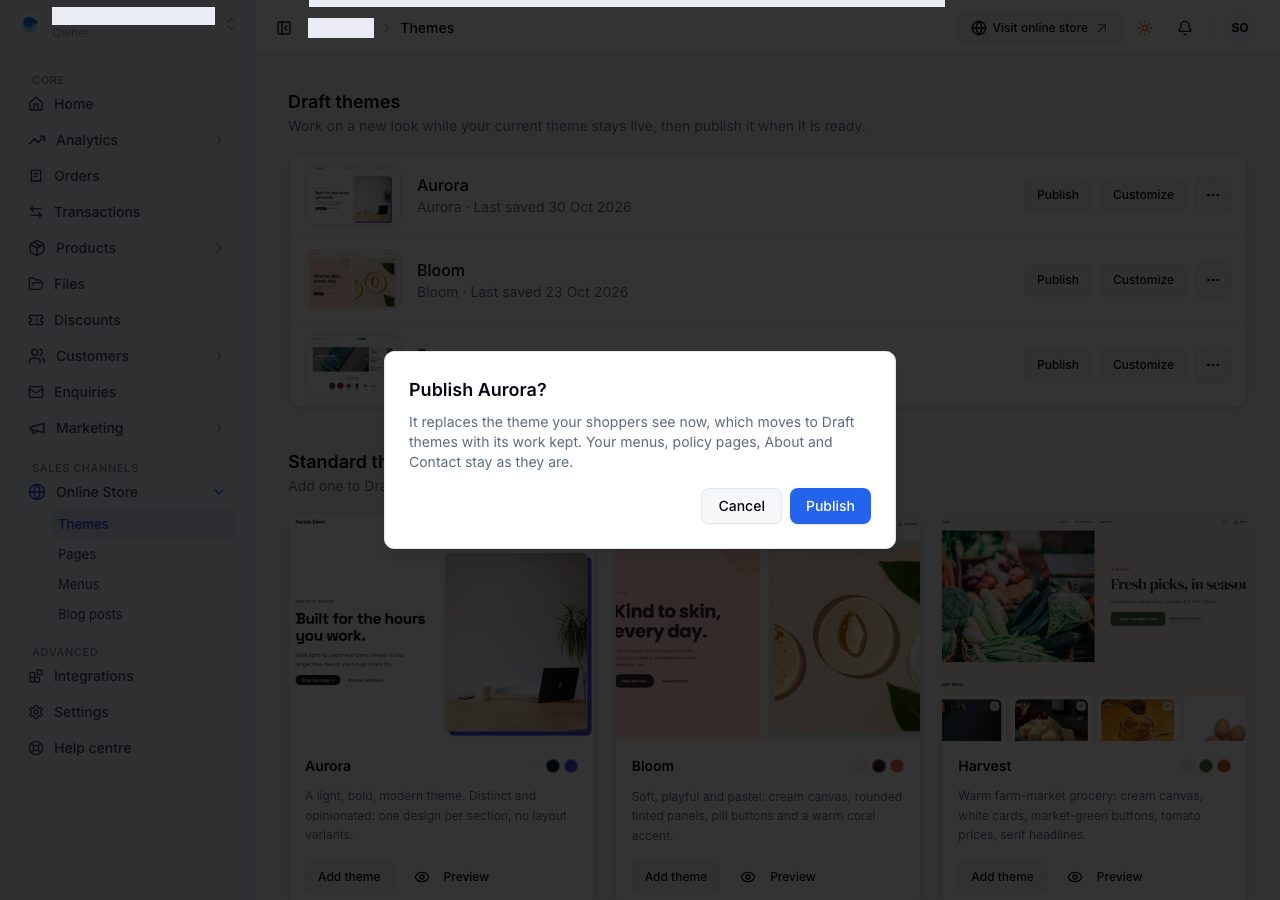
Choose Publish and the draft theme goes live at once. The theme you were on moves to Draft themes with all its work kept, so going back is Publish on it.
Whichever theme is live, these stay your store's and carry across: your menus, your privacy, terms and shipping pages, your About page's text, your Contact page's words and details, and whether your online store shows "Powered by Shoponent". A draft theme always shows the current ones, so a theme you worked on for weeks never brings back old wording. Your home page hero belongs to each theme: the one in a draft theme is the one that goes live with it.
If it does not work
- The theme you want is not listed. Only themes released to merchants appear here, and the list grows as more are released.
- You cannot add another theme. A store keeps at most 20 themes, the current one counted. Remove a draft theme you no longer need.
- A change to your About, Contact or policy pages in a draft theme did not stick. Those pages are your store's, and every theme shows the current wording. Change them under Online Store → Pages.
- Your online store looks emptier than the preview. That is the showcase difference above. Add the sections you want in the storefront editor, or add products and collections so the sections that need them have something to show.
- Nothing changed after publishing. Refresh your online store once. The page a shopper sees is cached for a few seconds after a change.
- Publish does nothing and an error appears. Your subscription may have lapsed. Check your Billing page, then try again.
Email support@shoponent.com with your store name if anything here does not match what you see. We read and answer every message.