Available on Professional and Scale · Updated 30 October 2026
Also asked as: “edit my storefront” · “change the hero text” · “add a section” · “reorder sections” · “publish my changes” · “unlock customizing” · “edit a draft theme” · “change my fonts” · “make the header stay at the top” · “add an announcement bar” · “change the footer layout” · “make a mega menu” · “change the corners of buttons” · “add shadows to my storefront” · “add a video to the hero” · “show a different picture on phones” · “show my store name instead of my logo” · “change my logo in the editor” · “edit my social links in the editor” · “write my own contact details in the footer” · “hide locations in the footer”
Your theme decides what your online store looks like. The editor is where you change it: which blocks each page has, in what order, and what they say. It is on Professional and above; see the pricing page.
Open it from Online Store → Themes, with Customize on the theme you are on or on a theme in Draft themes.
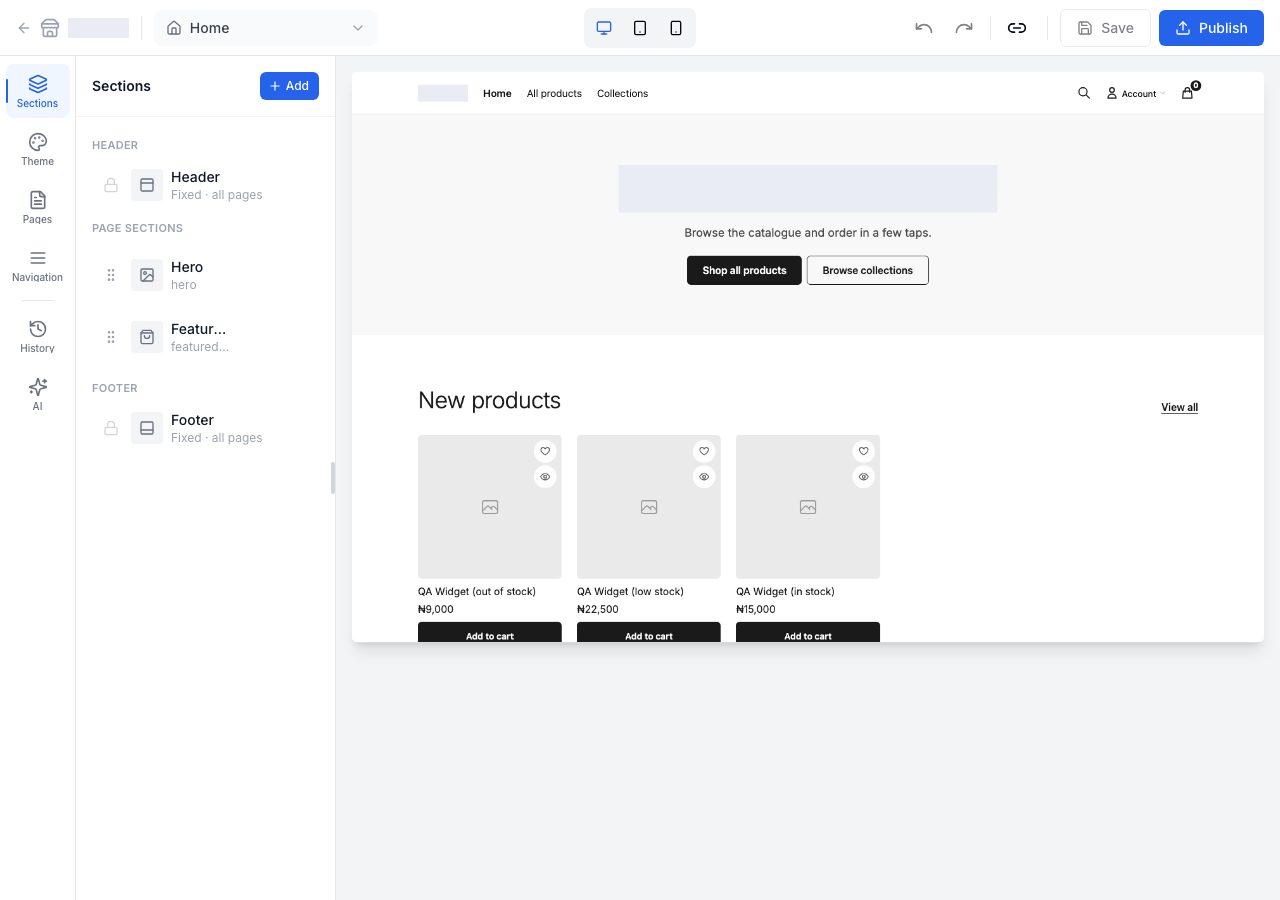
How it is laid out
- The column of modes down the left: Sections and Theme, then the tools History and AI.
- The panel beside it, showing whichever mode you are in.
- The preview, which is your real storefront with your real products, not a mock-up. The three icons at the top centre switch it between desktop, tablet and phone widths. Check the phone width before you publish: most of your shoppers are on one.
- The toolbar: the page you are editing (a list, starting at Home, grouped into your online store's pages, your store pages and the pages you added, with Find a page and Add page, which makes a hidden page and opens it here to lay out; the product page, collection page, blog post and flash sale page are each laid out once for every product, collection, post or sale, and open on a real one), undo and redo, the link button that shares a preview, Save, and Publish. See Pages on your online store.
Sections
A page is a stack of sections. The list opens with what is On every page, the Announcement bar and the Header, then This page, the sections of the page you are editing, and ends with the Footer, on every page too. The three on every page are fixed; everything under This page is yours to arrange.
Add opens the palette of sections the theme provides, grouped as Content, Commerce, Marketing and Layout, with a picture of each and a line saying what it is for.
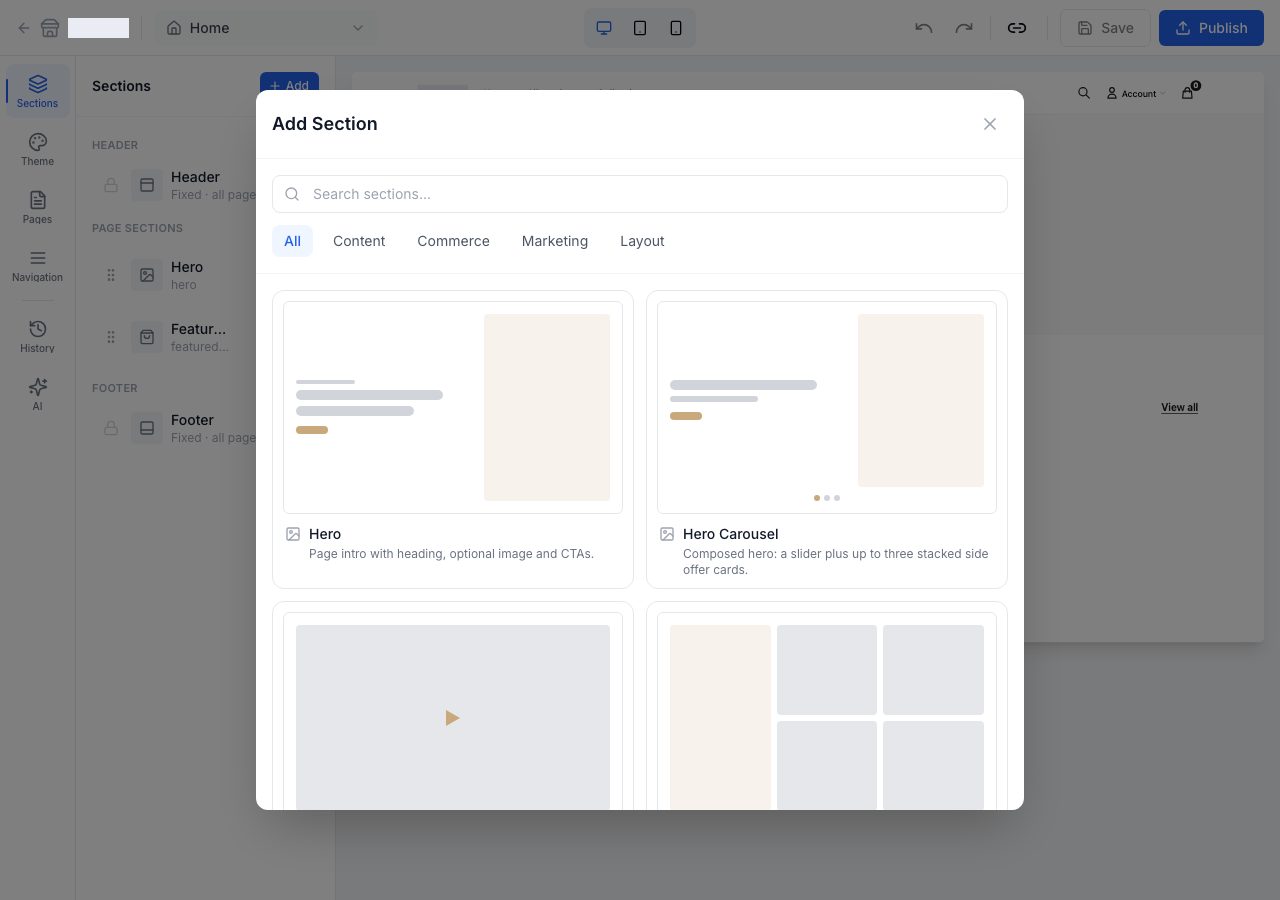
Drag a section by the handle at its left to reorder it.
Click a section to open its settings: its text, its images and its links. They come in groups you can fold away, with the first two open, and the small i beside a setting explains it. A choice that is easier seen than named, such as a layout, where the words sit or a colour scheme, is a dropdown that draws each option. A picture or video field opens your Files, where you pick one you have uploaded or upload a new one. Two groups are on every section:
- Appearance, with Color scheme: Default (the page itself), Surface (a quiet band that separates two sections), Tinted (a soft wash of your brand colour), Inverse (a dark band) or Brand (your brand colour, edge to edge). Text on each is worked out to stay readable. On a dark band your buttons keep your brand colour exactly, and a dark brand colour gets a light edge so the button still stands out.
- Layout, with Top padding and Bottom padding in pixels, 0 to 100. Leave them empty to keep the theme's spacing; a phone shows three quarters of what you set. Sections that look different edge to edge, such as a hero, a video, a gallery, a row of products, a text block or a banner, also have Width: Page keeps them to the page's width and Full runs them edge to edge.
The cart and your customers' account pages (sign in, orders, profile, saved items) are the exception: they take your theme's colours, fonts and corners and nothing else, so they have neither group. They are the same on every theme, and a section's colour scheme could make them hard to read.
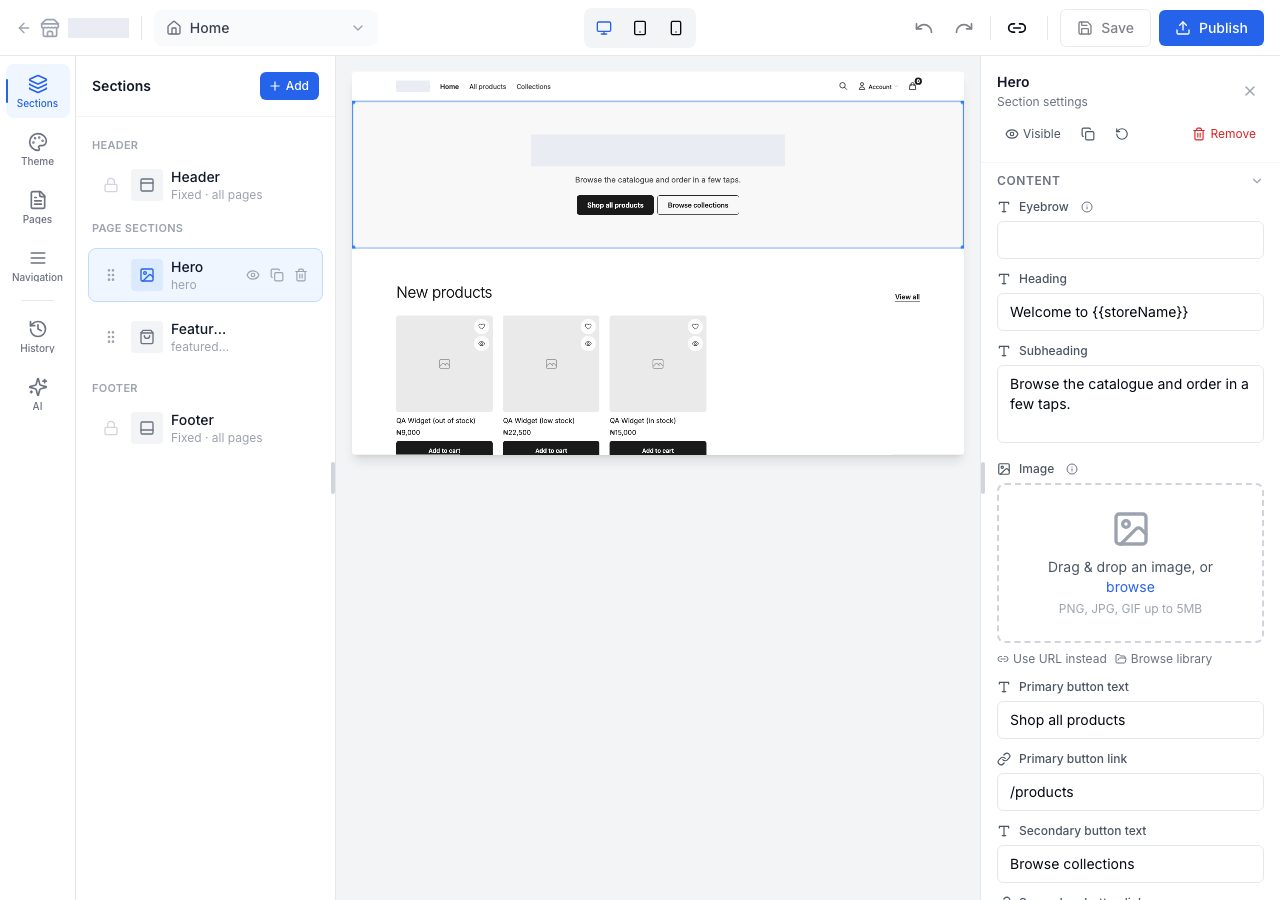
The eye hides a section without deleting it, the two-page icon duplicates it, and the bin removes it. Shoppers never see a hidden section. A theme's home page starts with some of its sections hidden, so the list shows what you can add: open one, write in it, and show it with the eye.
Announcement bar, Header and Footer open their own settings, from the list or by clicking them in the preview; see The header, footer and announcement bar below.
The Hero, the large opening section, has four starting points in Add: Hero, with your words over a picture that runs edge to edge, Hero: Split, with the picture beside them, Hero: Editorial, a large heading above a wide picture, and Hero: Search, with a product search in it. They are one section, so its Layout setting, low in its settings, switches between Full bleed, Split and Editorial at any time without retyping a word (Media position picks the side of a split).
- Media: Type is Image or Video. A video is a link: to YouTube, to Vimeo, or to an MP4 or WebM file hosted elsewhere. It plays by itself, silent and on a loop, behind your words, and shoppers get a pause button. After the link comes the Cover image, which is optional: it is shown until the video plays and whenever it cannot, so set one; shoppers whose device asks for less motion see it. Vimeo plays without its own controls only when the video's owner is on a paid Vimeo plan. Show different media on mobile gives phones their own picture or video, such as a portrait crop.
- Height, Content position and Content alignment (with its own setting for phones) place the words, and Overlay opacity darkens the picture so white words stay readable. On a phone the words stay on the picture; Stack text below image on mobile moves them under it instead. Show search bar puts a product search in it.
- Header over this picture, on a full-bleed hero, says whether your header sits over it. That is the header's See-through over an image setting, so every full-bleed hero follows it, and Change opens the header's settings.
A Hero Carousel is the same picture and words, several times over: each slide has its own content position, Pagination shows the slides as Numbers with their headings, Dots, or a Counter, and Change slides every sets how long each one stays while it rotates.
The sections that list products, Featured products, the Product grid on your collection pages and the Flash sale, share one Product card group, so a product looks the same wherever it appears: Card layout (Standard, Minimal, Framed or Editorial), Image ratio, the shape every picture is cut to so the rows line up (Portrait, the default, Square or Landscape), Show second image on hover, Show vendor and Quick add. Quick add is a button under each card on a laptop, and its words say what it does: Add to cart puts a product that has nothing to choose straight into the cart and says Added; Choose options opens the product's sizes and colours over the page, so the shopper picks one and adds it without leaving the list; a bundle says Choose items and opens its own page; a sold-out product has no button. On a phone the card itself opens the product, unless Quick add on mobile is on, which puts a small round button on the corner of each picture. A Framed card always shows its button.
The Flash sale and Countdown sections choose the sale they show, under Flash sale: Ending soonest, whichever sale is live and ends first, or one sale by name. A page can hold several, each with its own sale, and a section with no sale to show is hidden from shoppers and says why in the editor. See Show sales on your online store.
- Featured products has Products to show, Layout (Grid or Carousel, one row that scrolls sideways), Columns on desktop, Columns on mobile and Carousel on mobile, which turns the grid into one sideways row on a phone only.
- The Product grid on a collection page has Products per page, Columns on desktop and Columns on mobile, and Filtering: Show filters, Filter layout (Sidebar, beside the products, or Drawer, a Filter button that opens them over the page; a phone always opens them in a sheet), Show count per option, Filters to show and Show sorting. Page heading has Show breadcrumbs and Show collection description. The preview keeps your published number of products per page until you publish.
- Collections list has Layout: Cards, each collection's picture with its name below, Tiles, the name on the picture, or Circles, round pictures in one row that scrolls sideways on a phone. Columns on desktop, Columns on mobile and Image ratio size them, Show product count adds the number of products, and Show View all link adds a link to all your collections beside the heading.
Three things in those settings are worth knowing. Text fields sometimes contain {{storeName}}, which is replaced by your store's name when the page is served, so you can leave it in place and it stays right if you ever rename your store. A section with nothing in it yet, such as questions with no answers or a blog section before your first post, shows one line here saying what to add, and is hidden from shoppers until it has something to show. And a section that rotates, such as a slideshow, only turns by itself when you switch its auto rotate setting on; shoppers then get a pause button.
The header, footer and announcement bar
Click Announcement bar, Header or Footer in the section list, or click it in the preview. Each offers only the settings your theme draws, so a setting missing here is one your theme does not have.
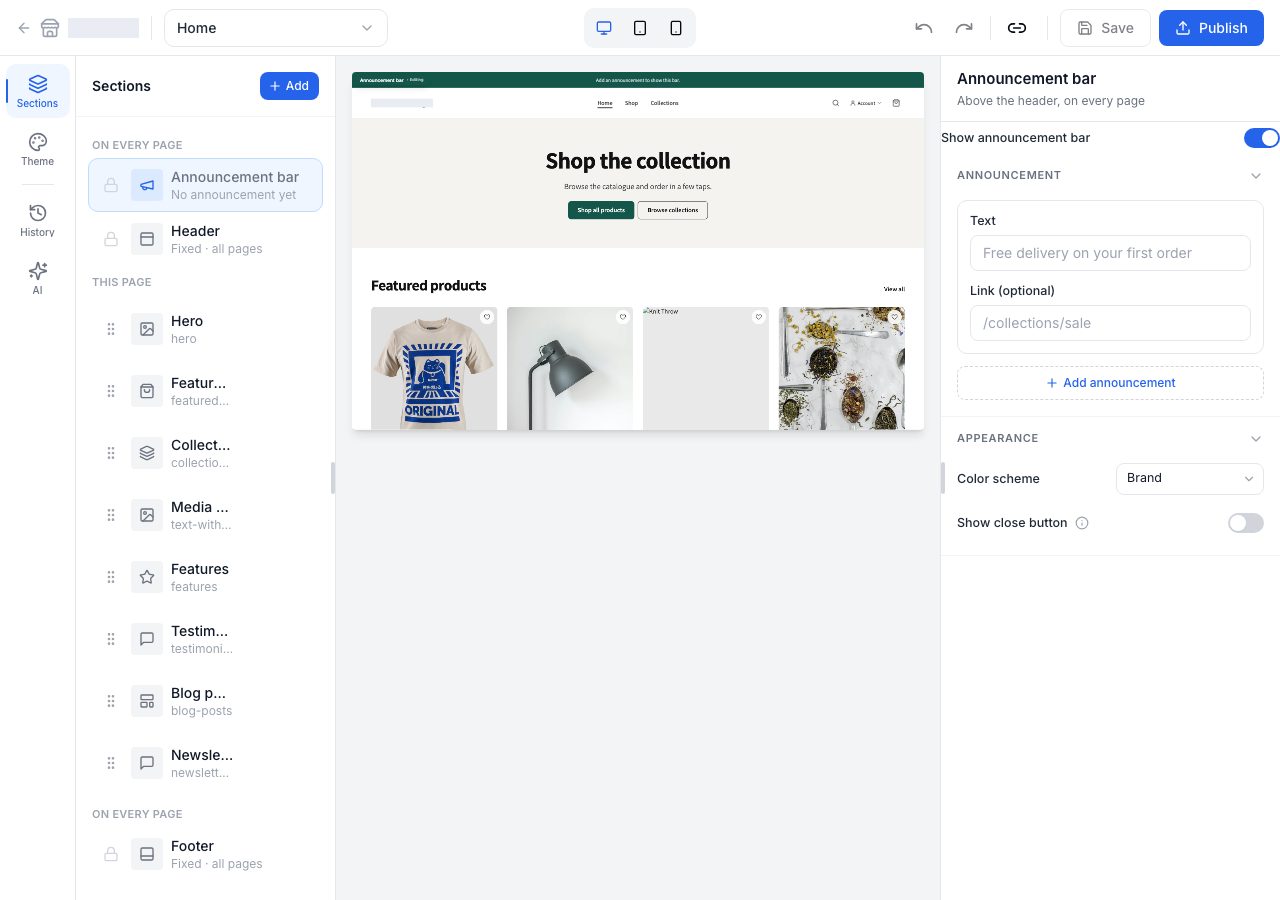
- Announcement bar is the line above your header on every page. Add up to five announcements, each with its own text, an optional link and the words for that link (Shop now, say; leave them empty and the whole announcement is the link). With two or more, Auto rotate moves through them on its own, every three to ten seconds, and shoppers always get a pause button. Color scheme picks its ground, and Show close button, off unless you turn it on, lets shoppers hide it for the rest of their visit; a new message shows it again. In the section list it says No announcement yet until you type one, and Off when you switch it off.
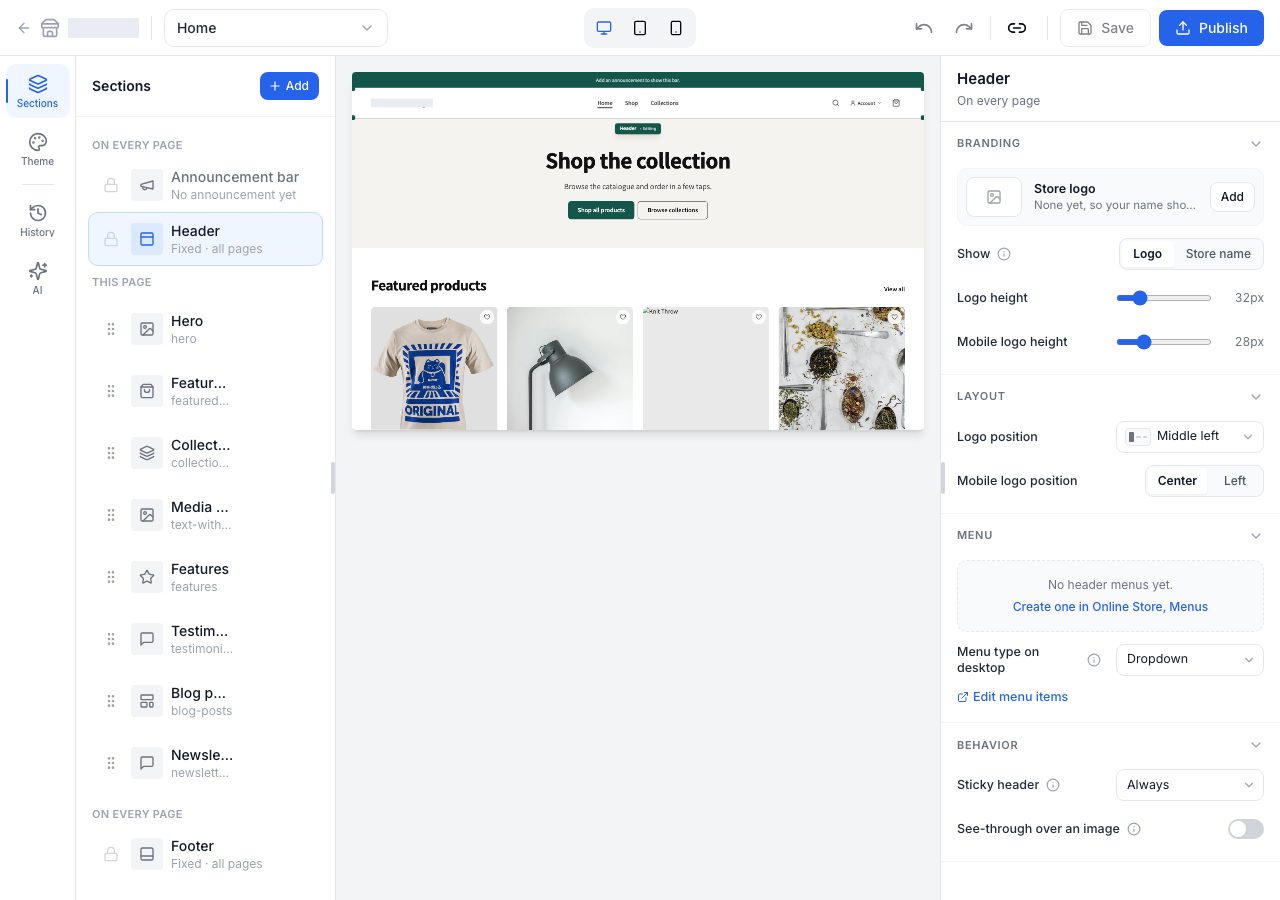
- Header → Branding shows your Store logo, the one in Settings → General, so every theme and every page shows the same one. Change (Add before you have one) picks a picture from your Files and saves it as your store's logo straight away, exactly as changing it in Settings does: it is not part of your draft, and it changes your logo everywhere it appears. Team members who cannot change settings see the logo without the button. Show chooses Logo or Store name, so a store with a logo can still show its name, set in your fonts; until you add a logo, the header shows your name either way. Logo height and Mobile logo height size the logo. A header that still has a logo of its own shows it as This header's own logo, with Use the store's logo to go back to the one in Settings.
- Header → Layout has Logo position (on Universal, Middle left, with the menu beside the logo, or Top center, with the menu on a row below it) and Mobile logo position, Center or Left.
- Header → Menu has Active menu, the menu across your header (a store with no header menu yet sees a link to make one in Online Store → Menus), and Menu type on desktop: Dropdown opens a link's own links as a short list under it, and Mega menu opens a full-width panel with those links as columns and up to two pictures. The pictures and the short line under each come from the menu itself, which Edit menu items opens under Online Store → Menus; see The links in your header and footer.
- Header → Behavior has Sticky header: None lets the header scroll away with the page, On scroll up slides it away as shoppers scroll down and brings it back the moment they scroll up, and Always keeps it at the top of the screen. See-through over an image lets a page that opens on a full-width picture show through the header until the shopper scrolls; on a page that opens on anything else the header stays solid. It is off until you switch it on.
- Search, the cart and sign-in are always in the header, and so is the location picker while your store sells by location (Shop by location, under Settings → Fulfilment). They are how a shopper buys, so no theme hides them. On a phone, when shoppers do not choose a location, the currency picker sits in the top bar beside the account and cart; when they do, the location and currency pickers share a row under it.
- Footer → Branding has Show, Logo or Store name, as in the header, and your Tagline, the short line under it.
- Footer → Layout has Layout, Columns or One line on Universal, and Color scheme. On a phone, Columns puts your menu's columns two to a row.
- Footer → Menu has Active menu and Edit menu items, and Footer → Newsletter shows the signup form with its Title and Description.
- Footer → Social links: Show social links shows or hides them in the footer. The links belong to your store, so every theme shows the same ones. Edit opens the same form as Settings → General and saves them to your store straight away, not with your draft. See Your brand colour and logo.
- Footer → Contact and locations: Show contact info shows a phone, an email and an address. Contact details chooses From your store, the ones in Settings → General, so the footer always matches your Contact page and your invoices, or Write your own, for this footer only. Locations chooses Shoppers can choose, the locations in your location picker (Settings → Fulfillment), Write your own, a list you type here, or Off. A footer that had its own details before keeps them, as Write your own.
- Footer → Footer bar has Show Powered by Shoponent, the small credit line at the very bottom of every page (any plan can also switch it under Settings → General), and Copyright text: leave it blank for an automatic notice, and
{year}becomes the current year.
On a laptop, Universal's header shows its full layout only while your menu fits beside the logo, the location and currency pickers and the icons; when it does not, shoppers get the phone header, with the menu behind its button, so nothing ever overlaps. A long menu or a long location name reaches that point on a smaller laptop. Tablets and phones always get the phone header.
Theme
Theme opens Theme settings, the look rather than the content: what applies on every page and to every section.
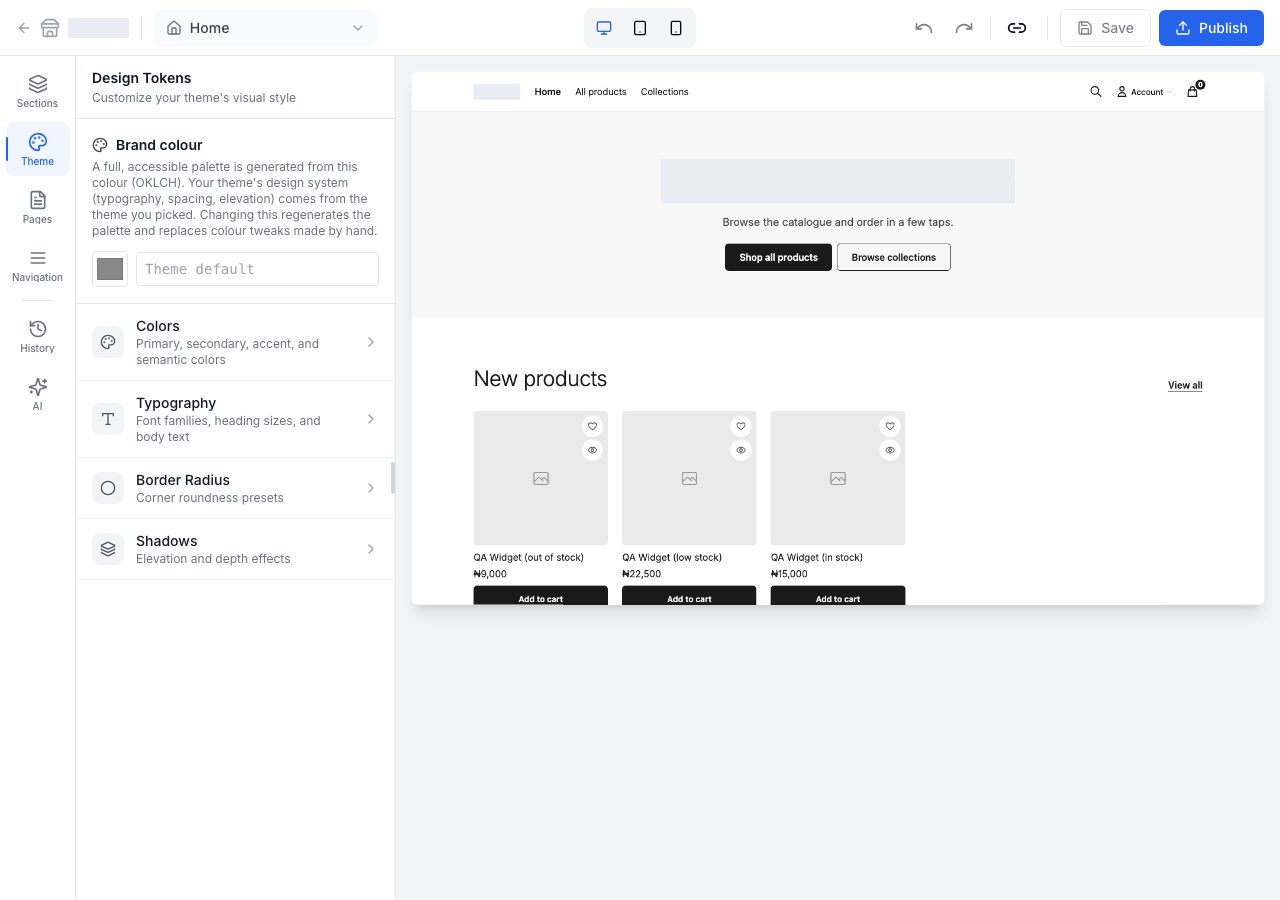
- Brand colour is the one that matters. Type its hex, or choose the swatch beside it for eight colours to start from, Pick any colour, or Use the theme's own colours. Buttons use it exactly, with text that reads on it, and every other colour on your online store is worked out from it so text stays readable everywhere. Contrast says whether it does: Passes AA when buttons, links and every colour scheme keep text readable, and the i beside it says how your Buttons and Links read. Leave the colour empty to use the theme's own colours. Changing it here is part of your draft and reaches shoppers when you publish; the same colour on Settings → General goes live straight away, keeps your sections, and gives a draft you have open here the new colour without publishing it. See Your brand colour and logo.
- Prefer light text on buttons deepens a light brand colour until white text reads on it, for when you want white button text on a pale colour.
- Greys chooses Tinted greys, with a trace of your brand colour in them, or Pure grey.
- Typography has Type pairing: Theme's own, as the theme was designed, one of four pairings, Modern, Editorial, Classic and Bold, or Custom. The dropdown shows each in its own font and names its fonts. A pairing sets the fonts for headings and text together, and every one of the four draws every alphabet and currency symbol a store can sell in. Custom adds a Heading font and a Body font, each from a list of about fifty; not every one of them draws every alphabet, so check the languages your store writes in. Text sizes, a group of its own below, holds the sizes of headings and text.
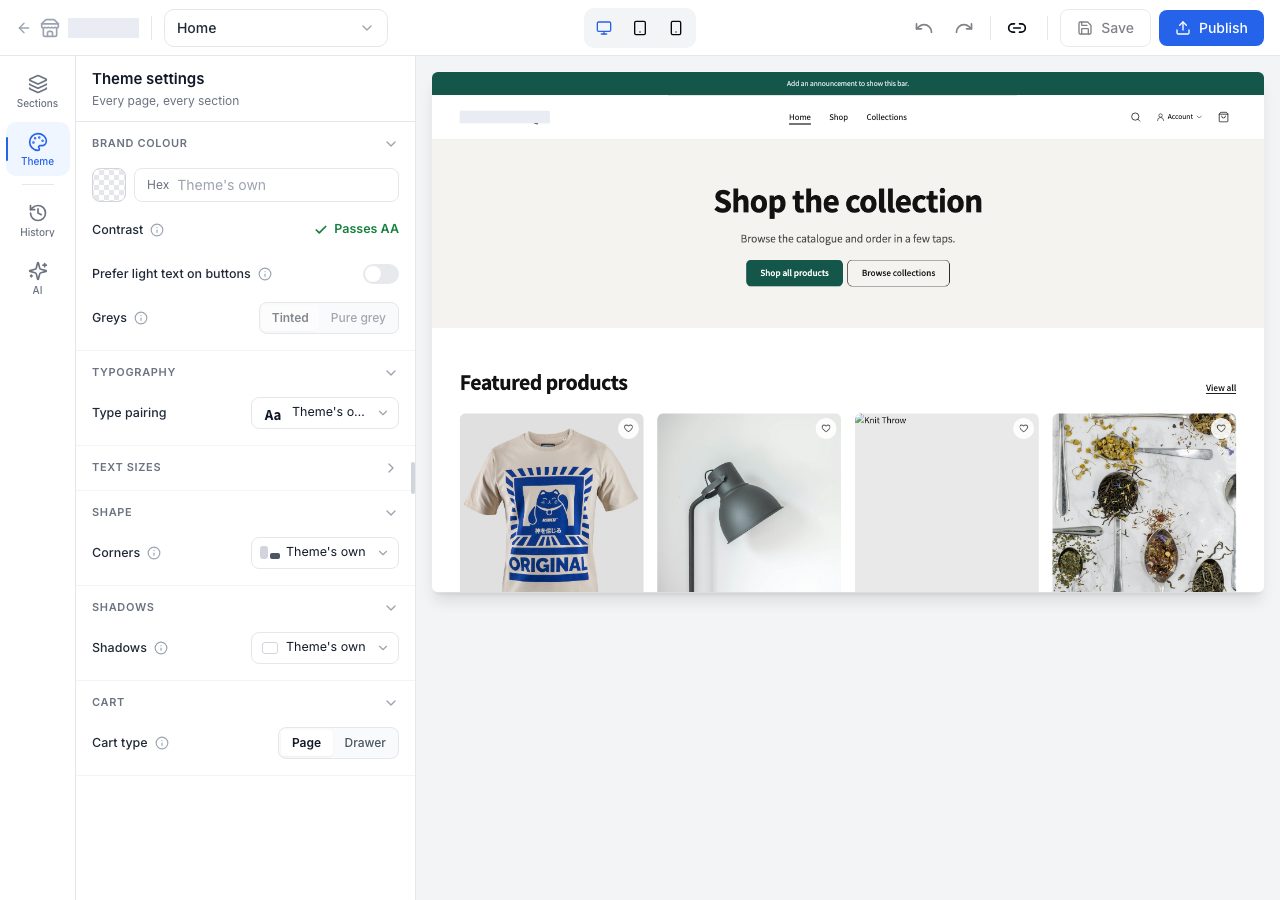
Shape has Corners, which sets the corners of cards and images, buttons, fields and badges together: Theme's own, Soft, gently rounded, Sharp, square, or Round, with large corners and fully round buttons. Custom sets each of the four, and buttons and badges can be fully round.
Shadows sets how cards and menus lift off the page: Theme's own, Flat, with no shadows, only fine lines, Soft, a faint shadow under cards and a clear one under menus and dialogs, or Raised, deeper ones. Custom has Opacity, Vertical offset and Blur, for menus and dialogs; cards take a lighter version of the same shadow.
Cart has Cart type: Page, the default, takes a shopper to your cart page from the cart icon, and adding something shows a small note with View cart and Check out. Drawer opens the cart beside the page instead, both from the icon and every time something is added. The preview follows your choice, so adding to the cart there shows what shoppers will see once you publish.
Shape and Shadows appear when your theme draws them, as Universal does. Prefer light text and Greys only do something once a brand colour is set, and the i beside them says so. There is no picker for each individual colour: your colours are worked out again from these three every time you publish, so they always read, and a colour picked by hand would not survive that.
Pages and menus
The page list in the toolbar holds every page you can lay out, including About, Contact and any page you add yourself. A page's words, whether shoppers see it, and how it appears in search are written under Online Store → Pages on every plan, and Customize this page on a page's screen there opens this editor on that page. See Pages on your online store and Your policy pages.
On the product page, the product section's Size guide group has Show size guide and Link label. The guide itself is made in Products → Size Guides and chosen on each product. See Size guides.
Your header and footer menus are not part of a draft: a saved menu reaches shoppers as soon as you save it. So they are edited under Online Store → Menus, and the Header and Footer settings here link there, opening it beside the editor so your draft stays put. See The links in your header and footer.
Saving, sharing and publishing
This is the part to get right, because the three buttons do different things.
- Save keeps your work as a draft. Shoppers do not see it. You can close the editor and come back to it.
- The link button shares a preview of the saved draft with someone else, without publishing it. It needs a saved draft first.
- Publish puts the draft on your online store. That is the only step that changes what shoppers see.
- Revert appears once you have a draft over a published version, and throws the draft away, returning to what is live.
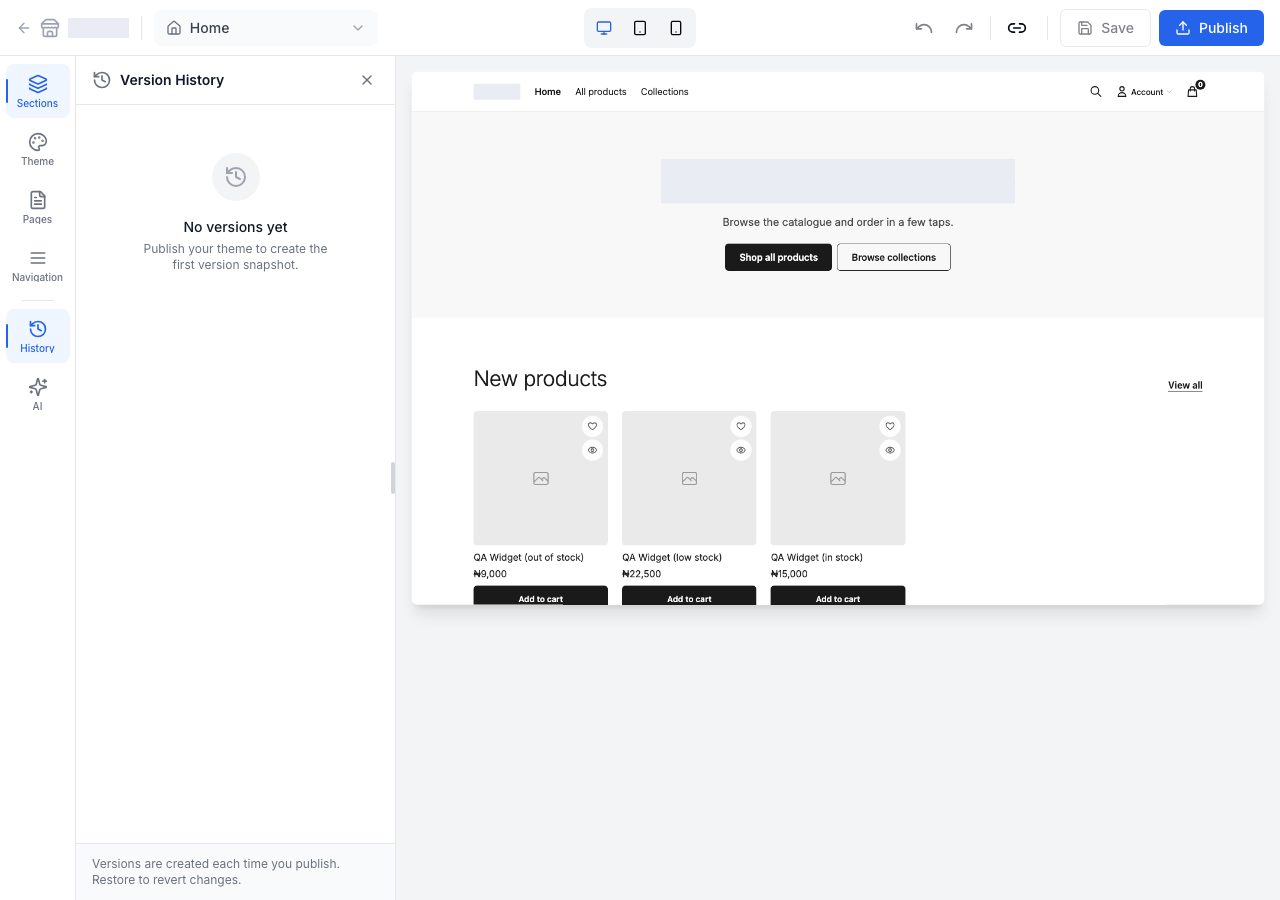
History lists the versions publishing has created, and lets you restore one. A store that has never published has nothing there yet.
Editing a draft theme
Customize on a theme under Draft themes opens the same editor on that theme instead of the one your shoppers see. The toolbar names it, after Draft theme, so you always know which one you are changing.
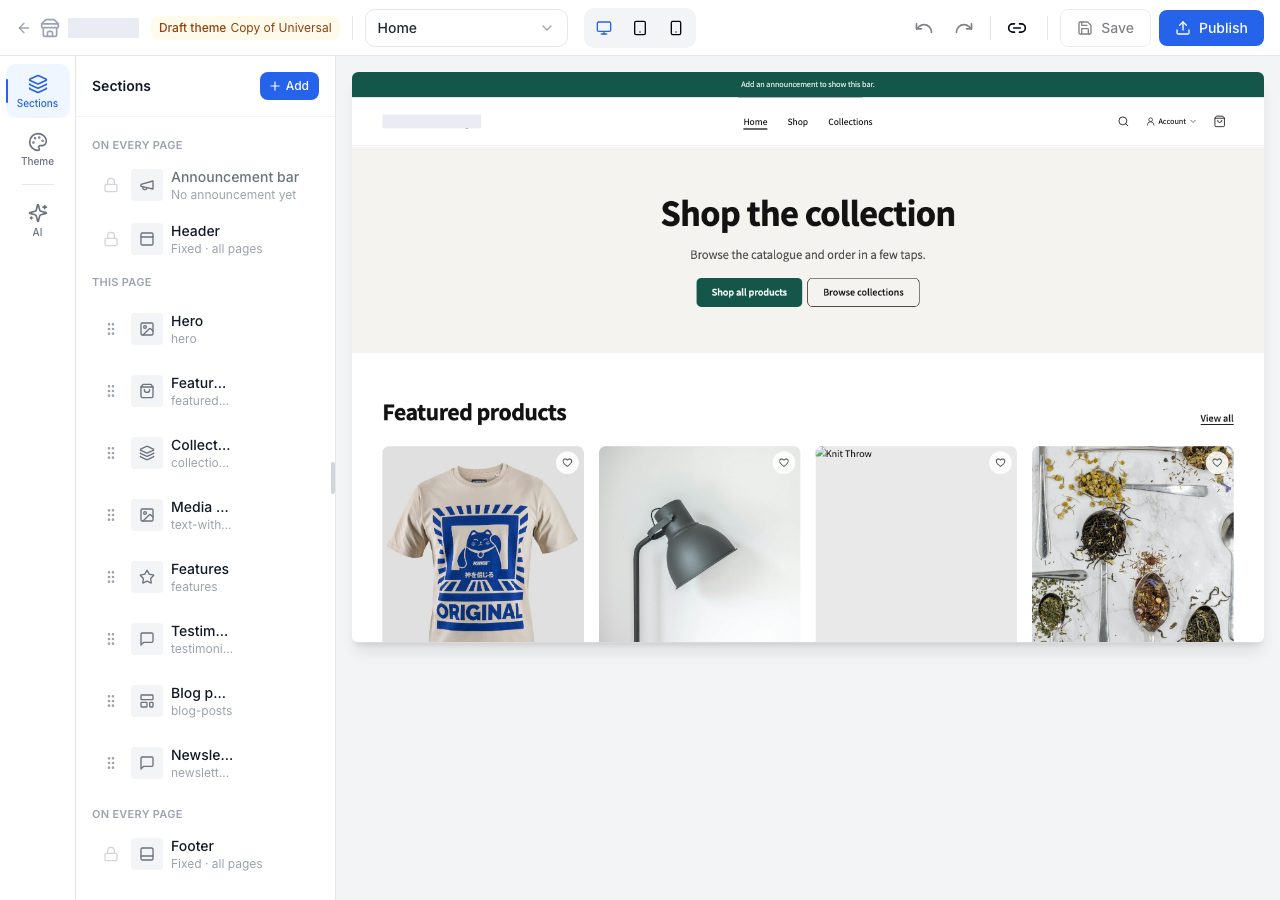
- Save keeps your work in the draft theme. Your online store does not change.
- Publish asks first, then makes this theme the one your shoppers see. The theme that was live moves to Draft themes with its work kept. See Choose a theme.
- History is not offered on a draft theme: it begins once a theme is published. The AI assistant works on the draft theme you have open.
- Your store's own words are read-only here: the policy pages, About's title and text, the Contact page's words and details, and the footer's Powered by Shoponent. They are your store's, the same in every theme, so a draft theme shows them as they are, with a link to where you change them under Online Store → Pages (or Settings).
Your About, Contact and policy pages show their current wording in every theme, because they are your store's rather than the theme's. Change their words under Online Store → Pages, not in a draft theme.
On Starter
Opening the editor on Starter shows this instead, and Customize on the Themes page reads Unlock customizing:
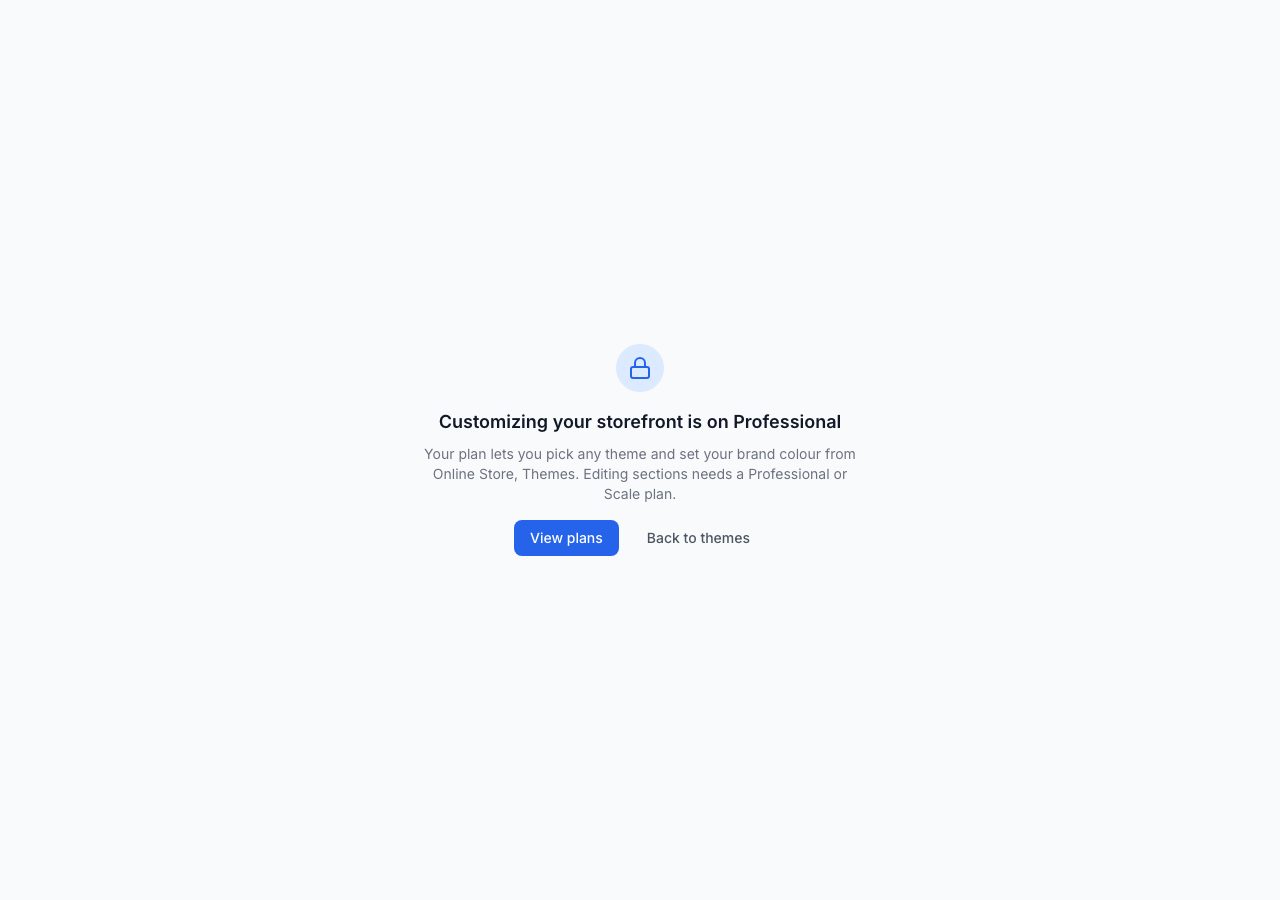
Picking a theme, previewing themes and editing your header and footer menus are all on Starter. Editing sections is not.
If it does not work
- The preview is blank or stuck loading. Reload the editor. It renders your real storefront, so if your online store itself is offline the preview has nothing to show.
- You published and the online store looks the same. Refresh it once; an online store page is cached for a few seconds.
- You lost changes. Anything not saved is not kept when you leave. Save often; saving is free and shoppers never see a draft.
- You changed theme and your sections are different. Each theme brings its own sections, its home page hero included, as on Shopify: what moves between themes is what belongs to your store, your menus, brand colour, policy pages, About's text, Contact's words and details, social links and your "Powered by Shoponent" choice. To try a theme without touching your online store, add it to Draft themes and edit it there. See Choose a theme.
- The hero's video does not play in the editor. The editor shows the hero's image so you can work around it. Open the shared preview or your online store to see it play. If it does not play there either, check that the link opens the video on its own (a YouTube or Vimeo page, or an address ending in .mp4 or .webm) and that its owner allows it to be embedded.
- The logo or social links changed on your online store before you published. They are your store's, not your draft's: Change and Edit save them straight away, as Settings does.
- A section says what to add instead of showing anything. It has no content yet, and shoppers do not see it until it does. Add what the line names, or hide or remove the section.
Email support@shoponent.com with your store name if anything here does not match what you see. We read and answer every message.