Available on every plan · Updated 22 October 2026
Also asked as: “accept bank transfer” · “customers pay into my account” · “manual bank transfer will not switch on” · “where do customers see my account number” · “order says payment to review” · “check the transfer” · “cancel unpaid transfer orders automatically” · “customer cancelled their order”
Manual bank transfer is the simplest way to get paid. There is no provider, no keys and no fees to anyone but your own bank: the customer sees your account details at checkout, transfers the money, uploads proof, and you confirm the order once you see it land. It is on every plan.
The trade is your time. Nothing is confirmed automatically, so every order waits on you looking at your bank app.
1. Add your bank account
The account a customer transfers to is your store's bank account, under Settings → Payments → Bank account; see Your bank account. If you have not added one, Activate on the method's page asks for it first.
2. Open Manual bank transfer
Go to Settings → Payments. Manual bank transfer is the first row under Direct payments, with its state; choose Manage to open its own page.
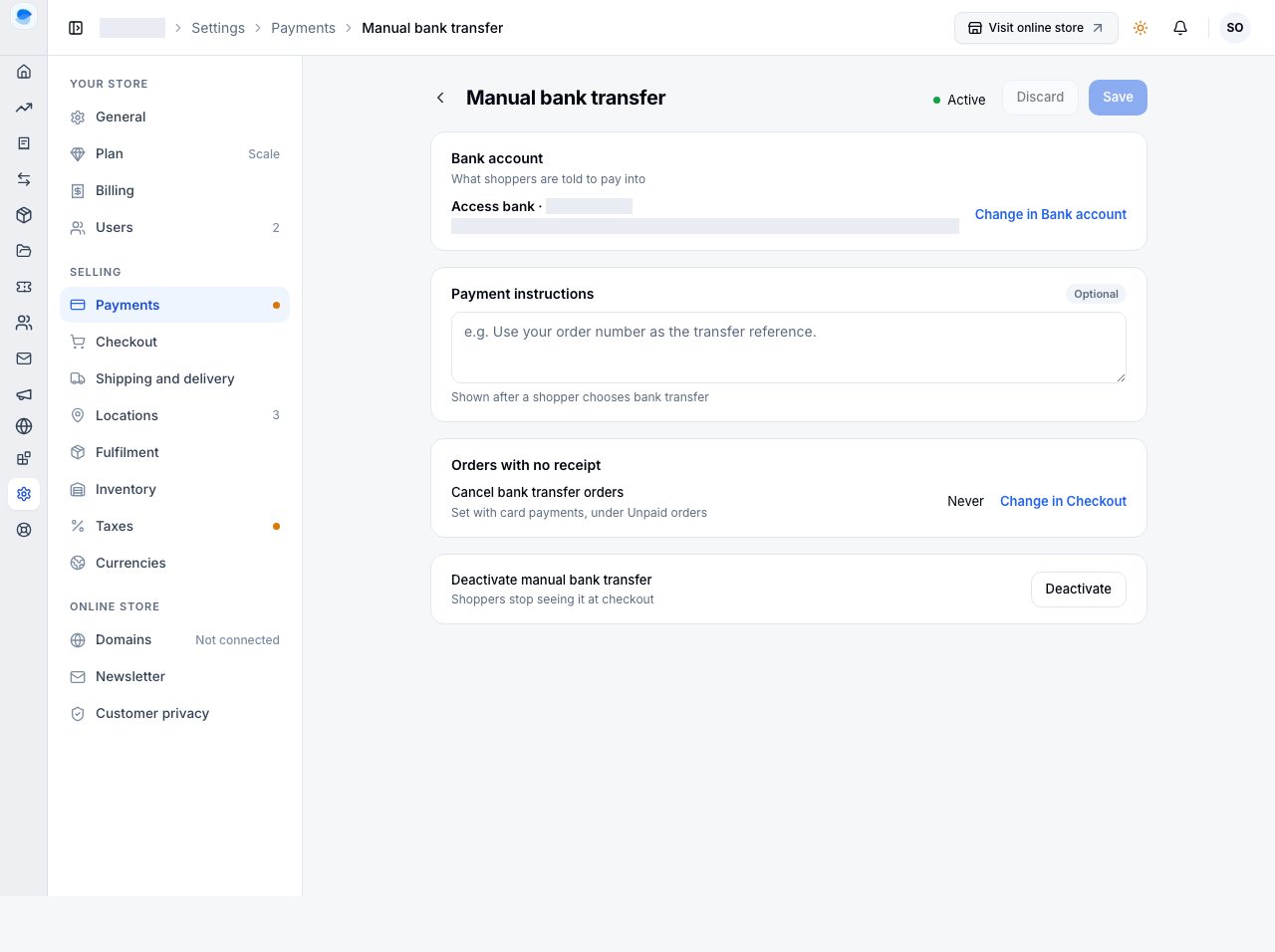
- Bank account shows the account customers are told to pay into, with Change in Bank account.
- Payment instructions (optional) are shown to the customer on the transfer page, under your account details. It is the place for "use your order number as the reference" or "we confirm transfers between 9am and 6pm". Choose Save.
- Orders with no receipt says how long an order waits for its receipt, set under Settings → Checkout (below).
- Activate manual bank transfer, or Deactivate, is the last card: the method's only switch.
What the customer sees
At checkout the method reads Manual Bank Transfer, described as transferring to your account and uploading proof. Choosing it places the order and opens the transfer page: your Bank, Account name and Account number, the exact amount to transfer, with copy buttons for the number and the amount, the order number to quote as the reference, and your instructions if you wrote any. The order sits beside it. The amount is always shown in naira, even for a customer browsing in another currency, because that is what they have to send.
The customer takes a photo of the receipt or chooses a file, can add a Note (the account they paid from, say, or a number to reach them on), and chooses Send receipt. The order then arrives with you. The page is theirs alone, reached through their checkout or their account, and they can come back to it from the order in their account with Pay/send proof.
It also offers two quieter choices. Pay another way appears when you take Paystack or Monnify, and pays the same order. Cancel order appears until a receipt is sent, after a warning that cancelling does not send back a transfer already made. A customer who cancels puts the stock back, the order's timeline says it was cancelled by the customer, and you are notified.
Their confirmation email waits for the receipt: it goes when the receipt arrives, or 30 minutes after the order if none has, with a line linking to where they can still send it.
Confirming the payment yourself
This is the part no one else does for you. A transfer order arrives Unpaid, and once the proof is uploaded it appears under Payment to review on the orders list, and the order's own page says Check the transfer as its next step. The proof is on the order's Payment card. When you can see the money in your account, open the order and choose Review: the proof sits beside the amount, the reference the customer gave and their note, with a note field of your own below them, and Confirm payment marks the order paid in your name. With Email the customer ticked, they are told their payment was received, with their receipt attached. If the money never arrived, the same dialog takes you to cancelling the order. See Open and fulfil an order.
How long an order waits for its receipt
You choose, under Settings → Checkout, in Unpaid orders: Bank transfers with no receipt, Never (the default) or a time. It waits for the receipt, not for you: once a receipt is sent, the order waits for your check however long that takes.
With a time set, the customer sees it counted down on the transfer page and on the order's link, and their email says when it is due. When it runs out with no receipt, the order is cancelled, its items go back on sale, and the customer is emailed that it was cancelled, with a reply to you if they have paid.
With Never, nothing is automatic. A transfer the customer never made looks exactly like one you have not checked yet, so the order stays with you until you say otherwise. Card payments not completed, beside it, never cancels a transfer order: it is for card payments that were never finished.
If it does not work
- Activate asks for a bank account: the store has none yet. Choose your bank, type the account number, and choose Save and activate once the bank returns the account's name.
- A customer says they were not told where to transfer: the details come from your bank account, not from anything you typed.
- You cannot find the proof: it is on the order itself, with the customer's reference.
- The customer sent the wrong receipt: they can replace it once, from the order in their account, until you confirm the payment. You are told, and Check the transfer shows the Latest and the Replaced one.
- A customer cancelled their order: they did it from the transfer page before sending a receipt, and the timeline says so. If they tell you they had already paid, refund the transfer from your bank; cancelling sends nothing back.
- An order you confirmed still reads unpaid: Confirm payment is on the order's page, not in Settings.
Email support@shoponent.com with your store name if anything here does not match what you see. We read and answer every message.