Available on every plan · Updated 22 October 2026
Also asked as: “add my bank account” · “change my bank account” · “change my payout account” · “account number not verifying” · “where does my money go”
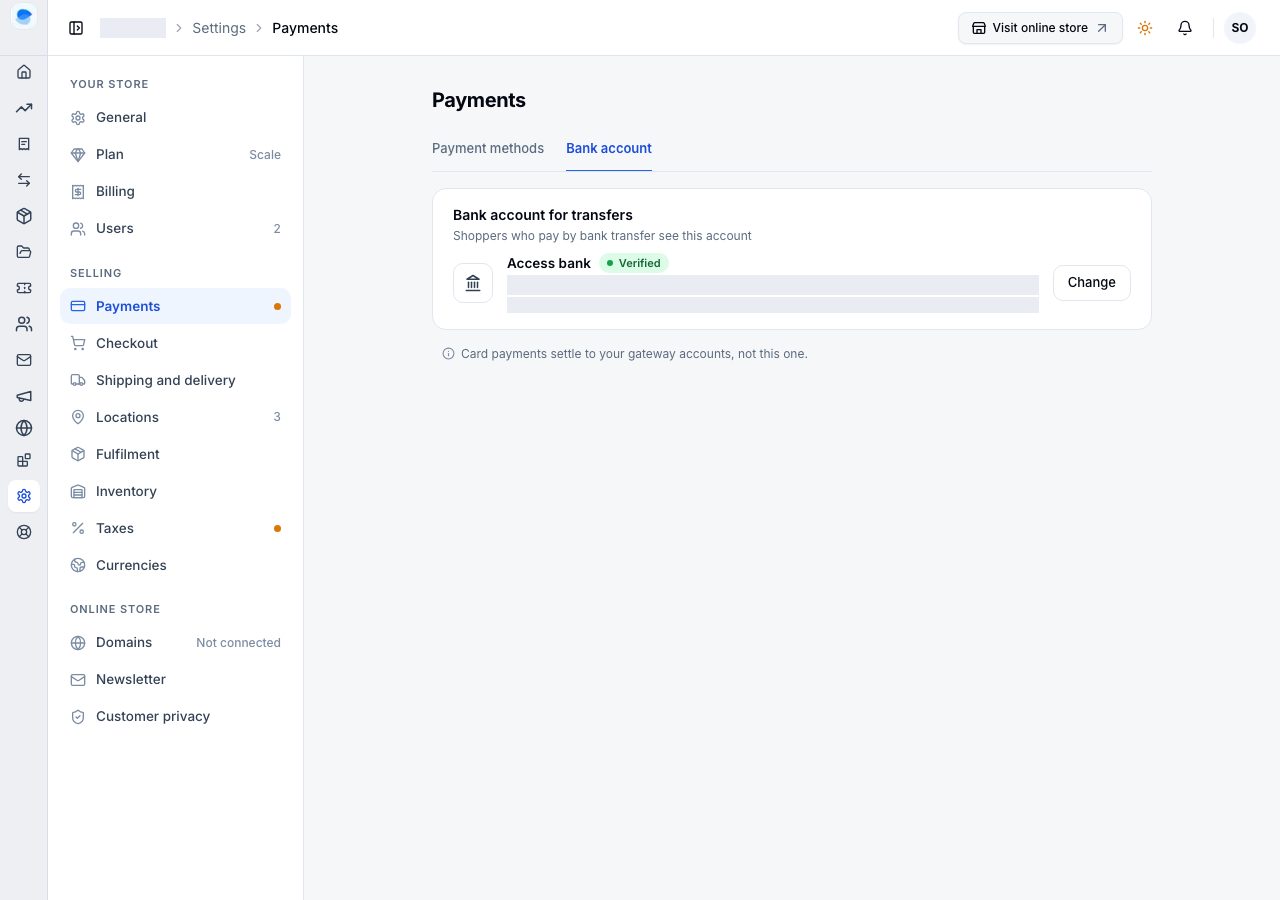
Your store's bank account is the account customers transfer to when they pay by bank transfer. It lives under Settings → Payments → Bank account.
Card payments do not settle here: Paystack, Monnify and Stripe pay into the accounts you hold with them.
Add it
On a store with no bank account, the tab shows the form:
- Bank: choose your bank.
- Account number: the ten digits. The name on the account is looked up from the bank and shown back to you, so a mistyped number is caught here rather than by a customer.
- Choose Save bank account.
The account is marked Verified with the date it was checked. If you were activating bank transfer when you added it, the same form says Save and activate, and the method switches on with it.
Change it
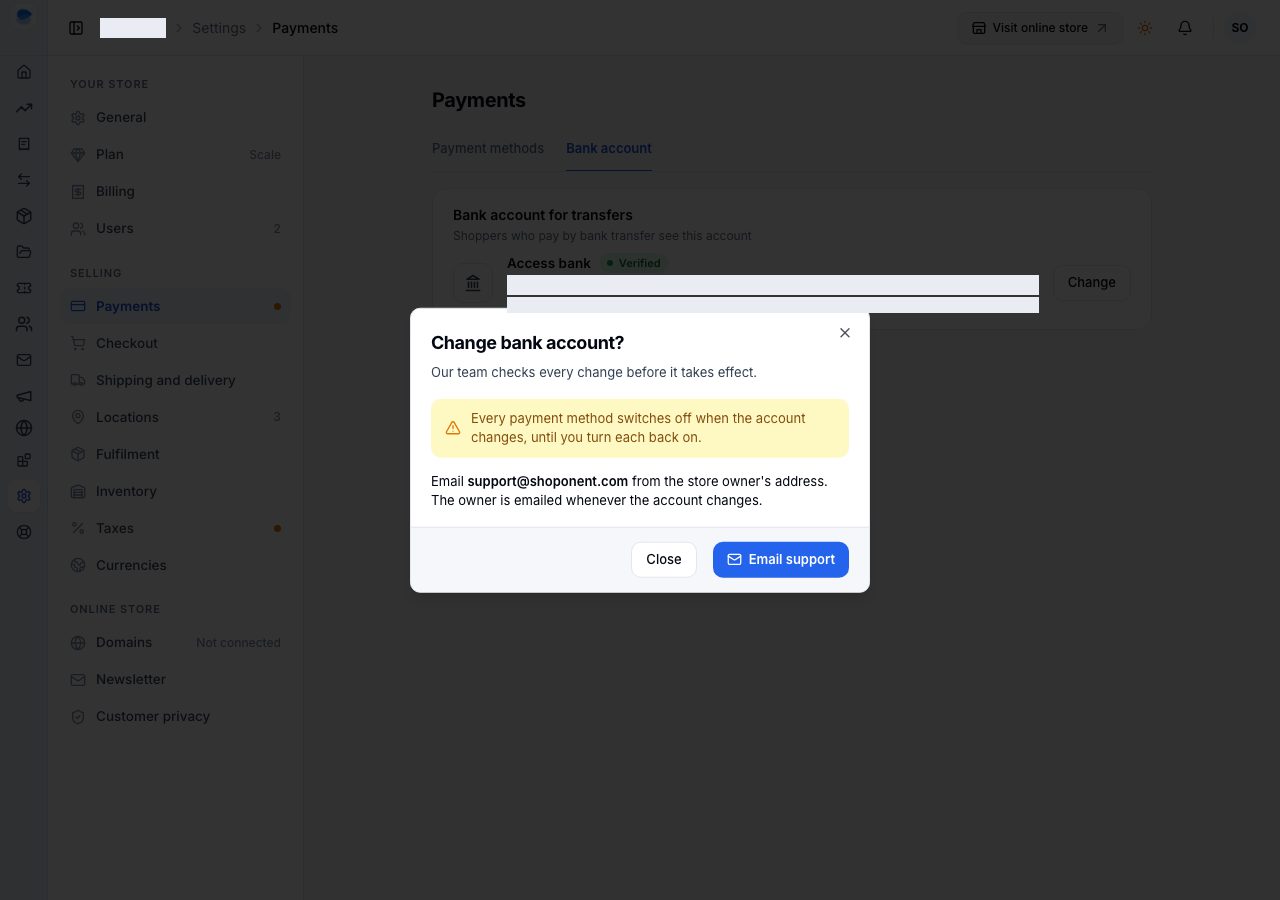
Choose Change. A change of bank account is checked by our team before it takes effect, because changing where money is sent is the step fraud takes:
- Email support from the store owner's address. Email support in the dialog opens an email to us.
- When the account changes, every payment method switches off until you turn each back on, and the owner is emailed.
If it does not work
- The account name does not come back: the bank and the number do not match an account. Check both.
- You need to change the account urgently: email us from the owner's address and say so. Until it changes, customers who pay by transfer are shown the current account, so you can also deactivate bank transfer in the meantime.
Email support@shoponent.com with your store name if anything here does not match what you see. We read and answer every message.