Available on every plan · Updated 12 September 2026
Also asked as: “connect monnify” · “monnify contract code” · “monnify keys” · “monnify webhook url” · “monnify switch is greyed out”
Monnify is a payment gateway you hold an account with. Connecting it here means your checkout can take cards, bank transfers and USSD, and that every charge runs on your Monnify account. The money settles to you on Monnify's terms, and we hold none of it. It is on every plan.
You need a Monnify account of your own first, with a contract code issued to you.
1. Find the card
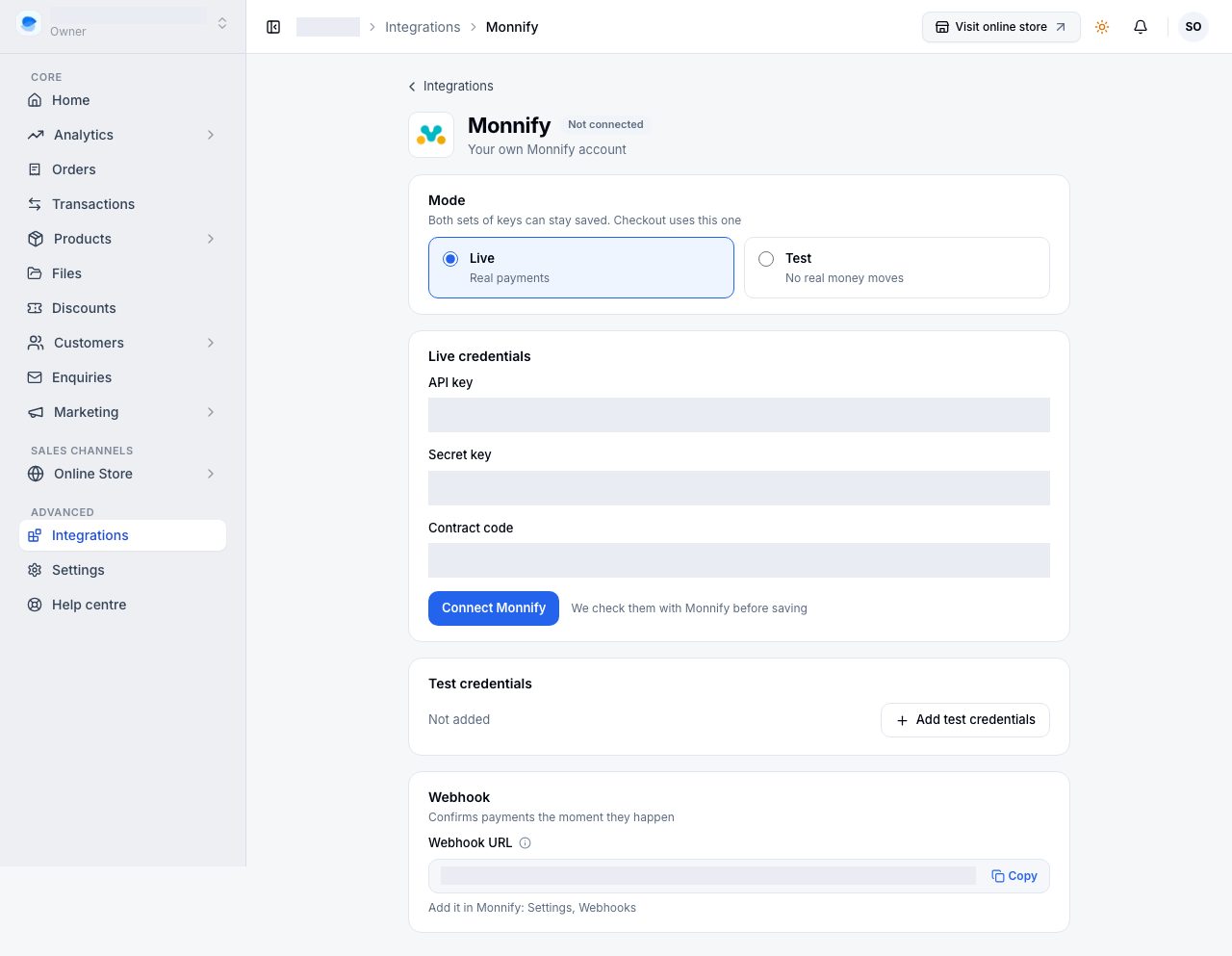
Go to Settings → Payments → Payment Methods and scroll to Your payment gateways. The Monnify card reads No keys connected, and its switch will not move until it does. Choose Connect keys.

2. Choose Live or Test


- Live (real payments) is what a real shop runs on.
- Test (sandbox, no real money) lets you place an order end to end against Monnify's sandbox before you open.
Both sets can be saved at once and the Mode is a pure toggle between them, so trying the sandbox never means retyping your live credentials. Orders taken in test mode are marked Test in your order list and are left out of your takings.
3. Paste your credentials
Monnify asks for three things per mode, all from your Monnify dashboard: an API key, a secret key and a contract code. Each is checked as you type, so a sandbox credential in a live field is reported before anything is saved. Your secret key is encrypted and never shown back to you.
The three belong together. Entering two of them and leaving the third empty is an error rather than a partly connected gateway.
4. Copy the webhook URL into Monnify
The Webhook URL field holds an address that belongs to your store alone. Copy it with the button beside it and add it in your Monnify dashboard.
This is how we hear about a payment when the customer closes the window before coming back to your shop. It is optional and worth two minutes. Whatever the webhook says, the payment is always checked back against Monnify with your own credentials before an order is marked paid, so a fake message cannot settle an order.
5. Connect, then test
Choose Connect Monnify, then Test connection. The test signs in to Monnify with the credentials you saved, against the live or sandbox address that matches the mode. A wrong or truncated value is reported here rather than by a customer at checkout.
6. Switch it on at checkout
Back on Settings → Payments → Payment Methods, the Monnify switch now moves. Turning it on confirms that payments will settle directly to your own Monnify account. At checkout the method reads Pay with Monnify.
Monnify's transfer flow shows the customer an account to pay into and a I have transferred button that checks with Monnify there and then, so most transfers confirm while the customer is still on the page.
Turning it off
Disconnecting your credentials switches the method off by itself, so a checkout never offers a gateway that cannot take a payment. Switching the method off leaves the credentials saved.
If it does not work
- The switch is greyed out: no credentials are connected yet. Choose Connect keys first.
- Test connection fails: one of the three values is from the other mode, or was regenerated in your Monnify dashboard. Paste all three again.
- It says to enter the whole set: a mode needs its API key, secret key and contract code together, or all three left empty.
- A customer paid and the order still reads unpaid: it settles when they return or when the webhook arrives, and a check on our side picks up the rest shortly after. If it has not settled by the time you expect, email us the order number.
- You switched mode after taking orders: nothing is orphaned. A payment is checked against the account and mode it was taken on, not the one you are in now.
Email support@shoponent.com with your store name if anything here does not match what you see. We read and answer every message.