Available on every plan · Updated 30 October 2026
Also asked as: “charge international customers” · “stripe restricted key” · “stripe does not show at checkout” · “sell in dollars” · “sk key not accepted”
Stripe here does one job: charging a customer in the currency they are shopping in. Everything else on your checkout charges in naira. So Stripe is worth connecting when you sell abroad and want the card statement to read in dollars, pounds or euros rather than a naira amount the customer's bank converted.
Like the other gateways it is bring your own account: the charge runs on your Stripe account, settles to you on Stripe's terms, and we hold none of it. It is on every plan.
It only appears when two things are true
This is the part worth reading twice. Stripe is offered at checkout only when both are true:
- Your keys are connected here.
- The customer is paying in a currency you have enabled under Settings → Currencies, and it is not your store currency.
A customer paying in naira never sees Stripe, however it is configured. If you have not added a second currency, nobody sees it at all.
1. Open Stripe in Integrations
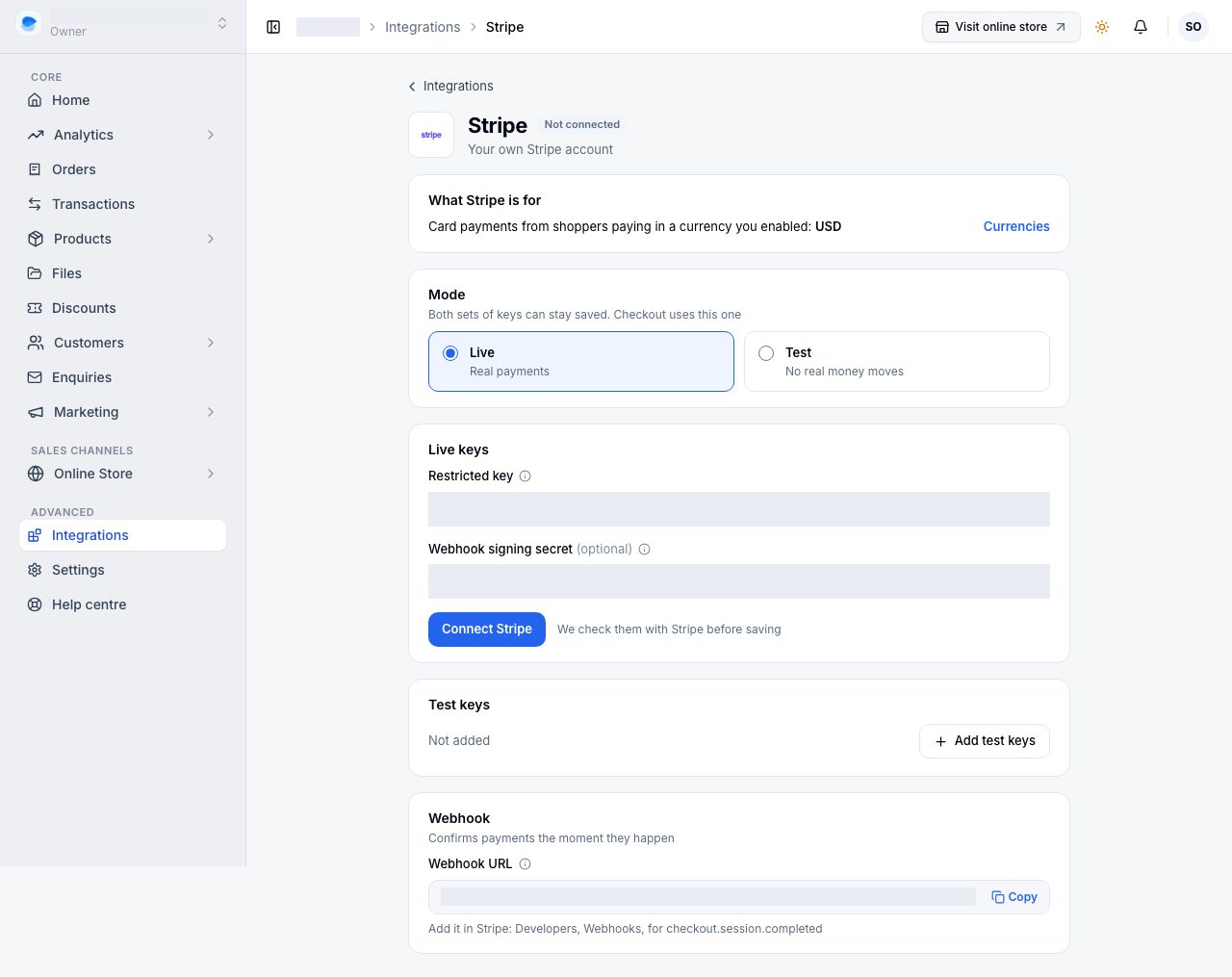
Payment gateways are connected and switched on in Integrations. Open Integrations and choose Stripe, or choose Connect beside Stripe under Settings → Payments. What Stripe is for names the currencies you have enabled that it would charge in.
2. Create a restricted key in Stripe
The key field takes a Restricted key and nothing else. In your Stripe Dashboard, create a restricted key with one permission: Checkout Sessions: write.
A standard secret key is refused, and the refusal is deliberate rather than fussy. A standard key can do anything your Stripe account can do, including moving money and reading every customer you have ever had. Taking a payment needs one narrow permission, so that is all we ask for and all we will accept. You are never asked for a publishable key either: the payment page is hosted by Stripe and needs nothing in the customer's browser.
Mode works as it does for the other gateways: live and test keys can both be saved, and the mode decides which checkout uses.
3. Connect
Paste the key under Live keys (or Test keys) and choose Connect Stripe. We check it with Stripe before saving.
4. Add the webhook, if you want instant confirmation
Webhook URL holds an address for your store alone. In Stripe, under Developers → Webhooks, add it as an endpoint for checkout.session.completed, then paste the signing secret Stripe gives you into Webhook signing secret (optional). Without it, a payment is confirmed when the customer comes back, and by a check that runs afterwards.
5. Your currencies
Settings → Currencies lists the currencies shoppers can browse in, with each one's rate and adjustment. Until Stripe is connected it warns that shoppers in those currencies pay in naira, with Connect Stripe.
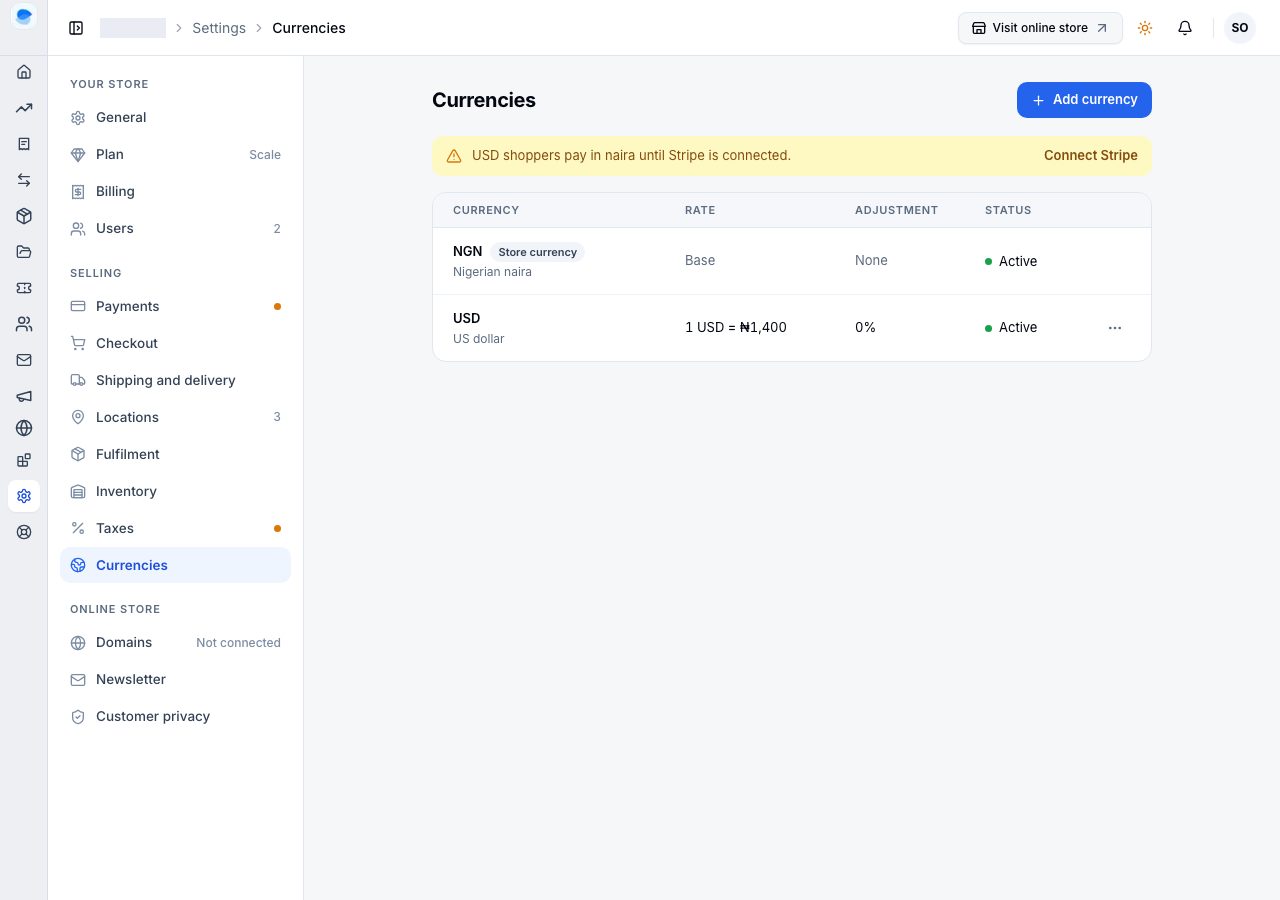
Once connected, At checkout on Stripe's page in Integrations says whether it is offered to shoppers, and switches it.
What the customer sees
A customer browsing in a currency you enabled sees an extra option at the top of the payment list, named for the currency they are in: Pay by card (charged in USD), for example. Choosing it takes them to a payment page hosted by Stripe and brings them back when it is done.
The order records the amount actually charged in that currency, rounded to whatever that currency uses, so the figure charged and the figure shown are the same figure. Your reporting still totals in naira, so a month of mixed sales adds up.
If it does not work
- Stripe never appears at checkout: the customer is paying in your store currency. Add and enable another currency under Settings → Currencies, and remember the switcher only shows on your online store once more than one currency is enabled.
- The key is refused: it starts with the standard secret prefix. Create a restricted key instead, with Checkout Sessions: write.
- The key looks right and is still refused: a live key was pasted into the test field or the other way round. The fields are per mode.
- Connect Stripe is refused although the key is restricted: check it has Checkout Sessions: write, and that it has not been rolled in your Stripe dashboard.
- Naira payments stopped working: they are unrelated. Naira always goes through Paystack, Monnify or a direct method, never Stripe.
Email support@shoponent.com with your store name if anything here does not match what you see. We read and answer every message.