Available on every plan · Updated 22 October 2026
Also asked as: “how do customers pay me” · “store is not accepting online orders” · “bank transfer needs a bank account” · “enable pay on delivery” · “connect paystack”
A store with no payment method turned on tells shoppers it is not accepting online orders. Set up payment methods is the row on Home's setup list that fixes that; choosing it opens Settings → Payments.
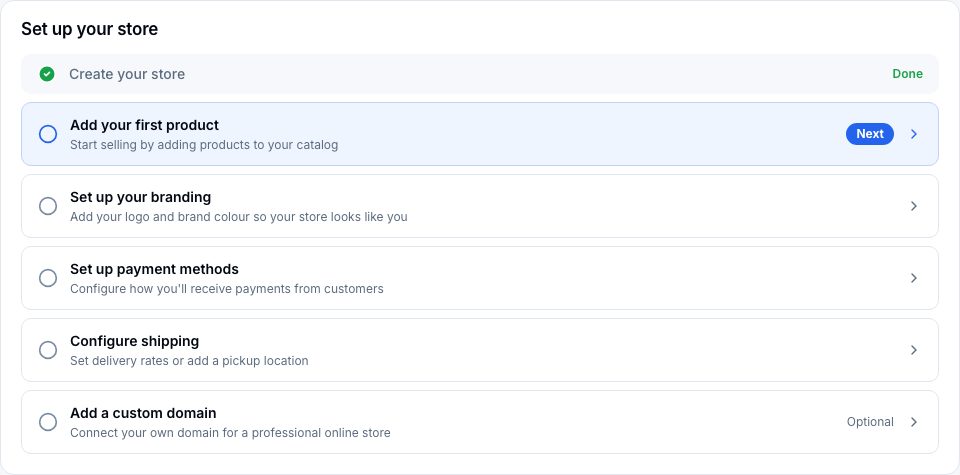
Where payment methods live
Settings → Payments → Payment methods lists every way a shopper can pay, each with its state and one action:
- Direct payments, which you collect yourself: Manual bank transfer and Pay on delivery. Each opens its own page with Manage, where it is activated or deactivated.
- Payment gateways, which pay into your own accounts with them: Paystack, Monnify and Stripe. Their keys are kept in Integrations, where each is connected and offered at checkout; Connect or Manage opens it there.
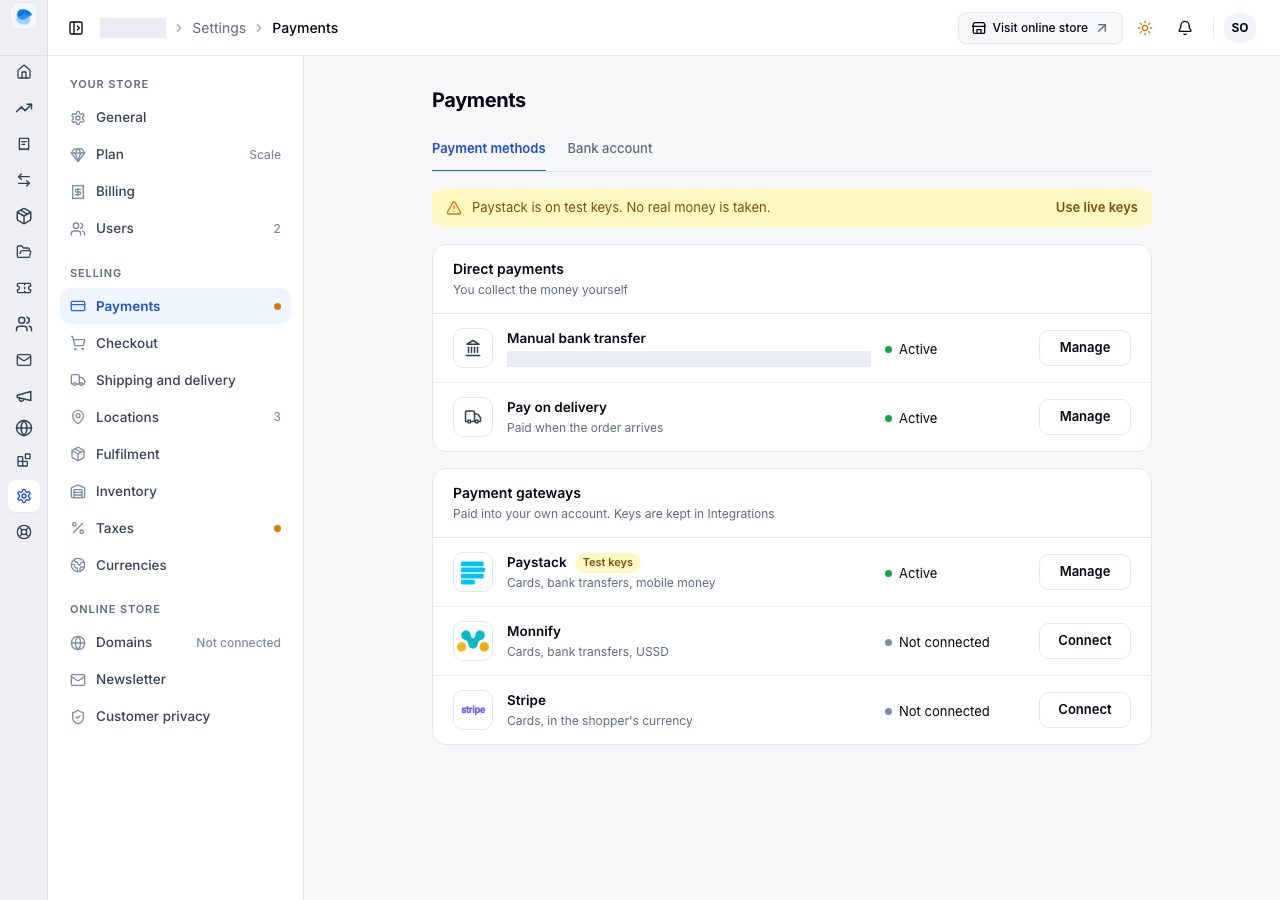
A notice at the top, and a dot beside Payments in the Settings list, say when a gateway takes payments on test keys, with Use live keys.
The quickest start
Pay on delivery needs nothing: open it, and choose Activate pay on delivery. Shoppers can choose it at their next checkout.
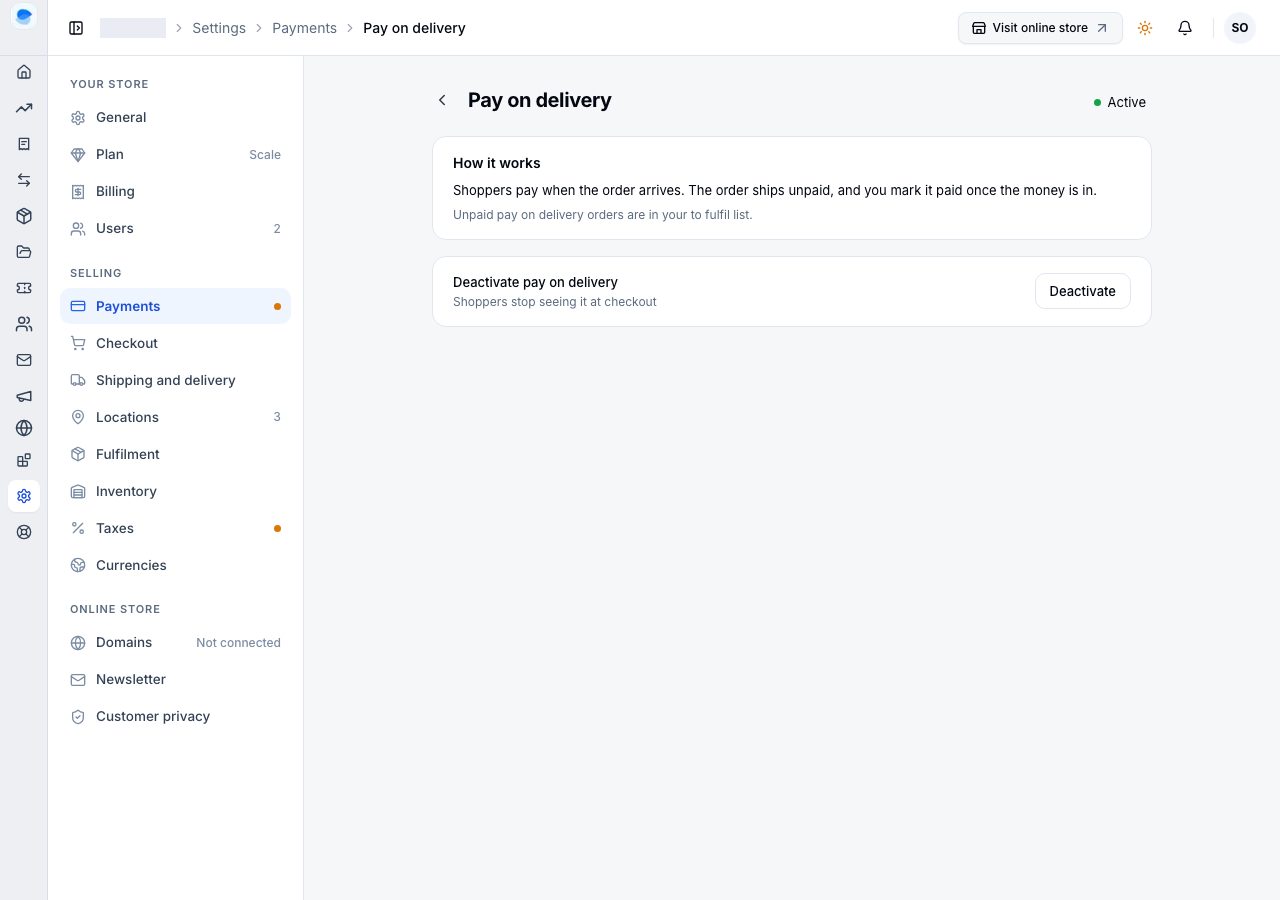
Then add the others when you are ready:
- Bank transfer: customers transfer to your bank account and upload proof; you confirm each one. It needs your bank account. See Accept manual bank transfers.
- Cards, by Paystack or Monnify: see Connect Paystack and Connect Monnify.
- Cards in another currency, by Stripe: see Charge foreign cards with Stripe.
The row on Home ticks once a payment method is active.
If it does not work
- The store says it is not accepting online orders: no method is active. Activate one.
- Bank transfer asks for a bank account: add it when asked, or under Settings → Payments → Bank account.
- A gateway reads Not connected: connect it in Integrations first.
Email support@shoponent.com with your store name if anything here does not match what you see. We read and answer every message.