Available on every plan · Updated 30 October 2026
Also asked as: “checklist will not tick” · “percentage complete stuck” · “hide the setup checklist” · “what does set up do” · “home says your store is live” · “online store visits” · “needs attention”
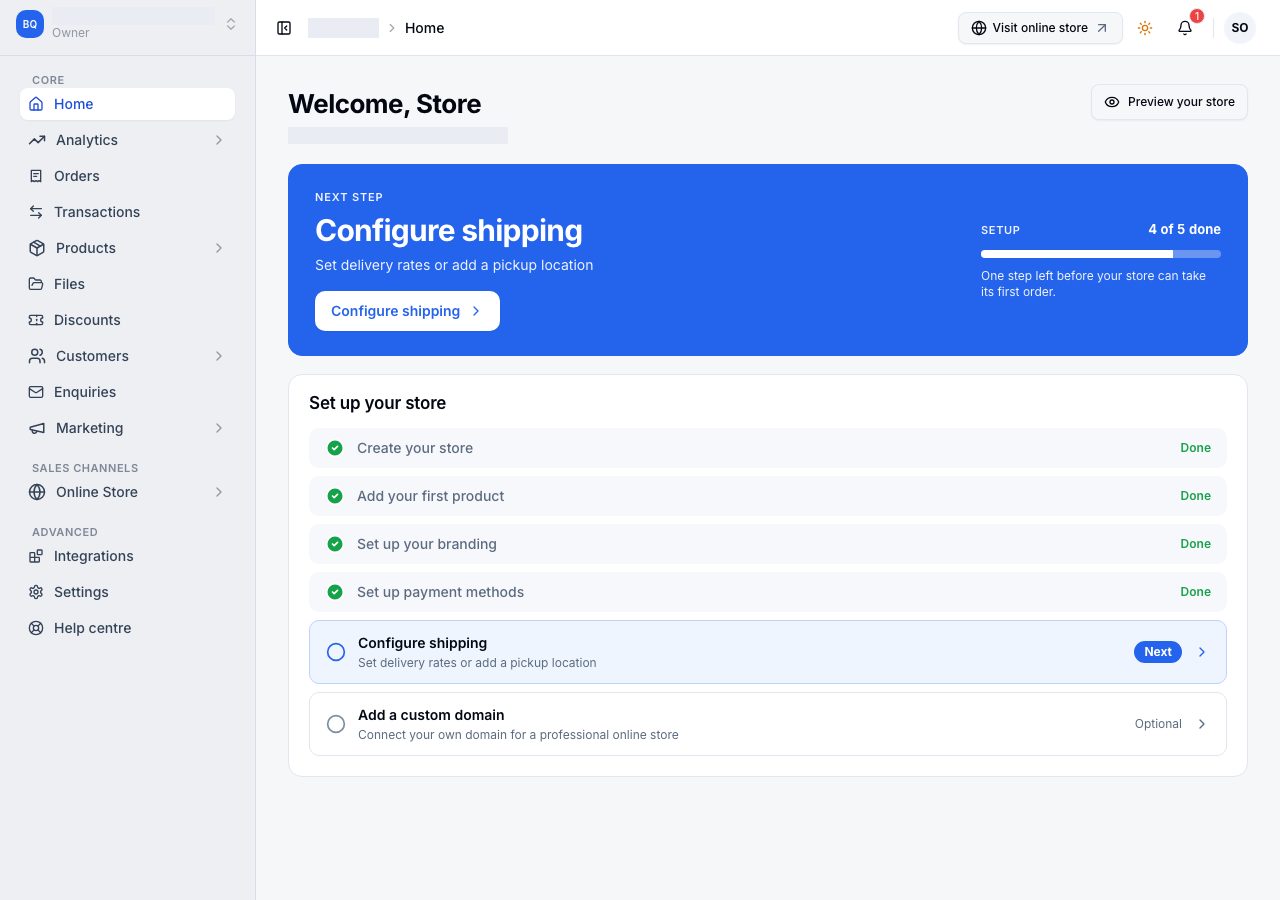
Home is the first page after you sign in, and it answers one question: what matters most right now. It always has the same shape: a greeting, one blue panel with that answer in it, then what needs you, then what happened. What fills them depends on where your store is, and there are four answers:
| Your store | What the blue panel holds |
|---|---|
| Is still being set up, and has never taken an order | your next setup step, with the checklist under it |
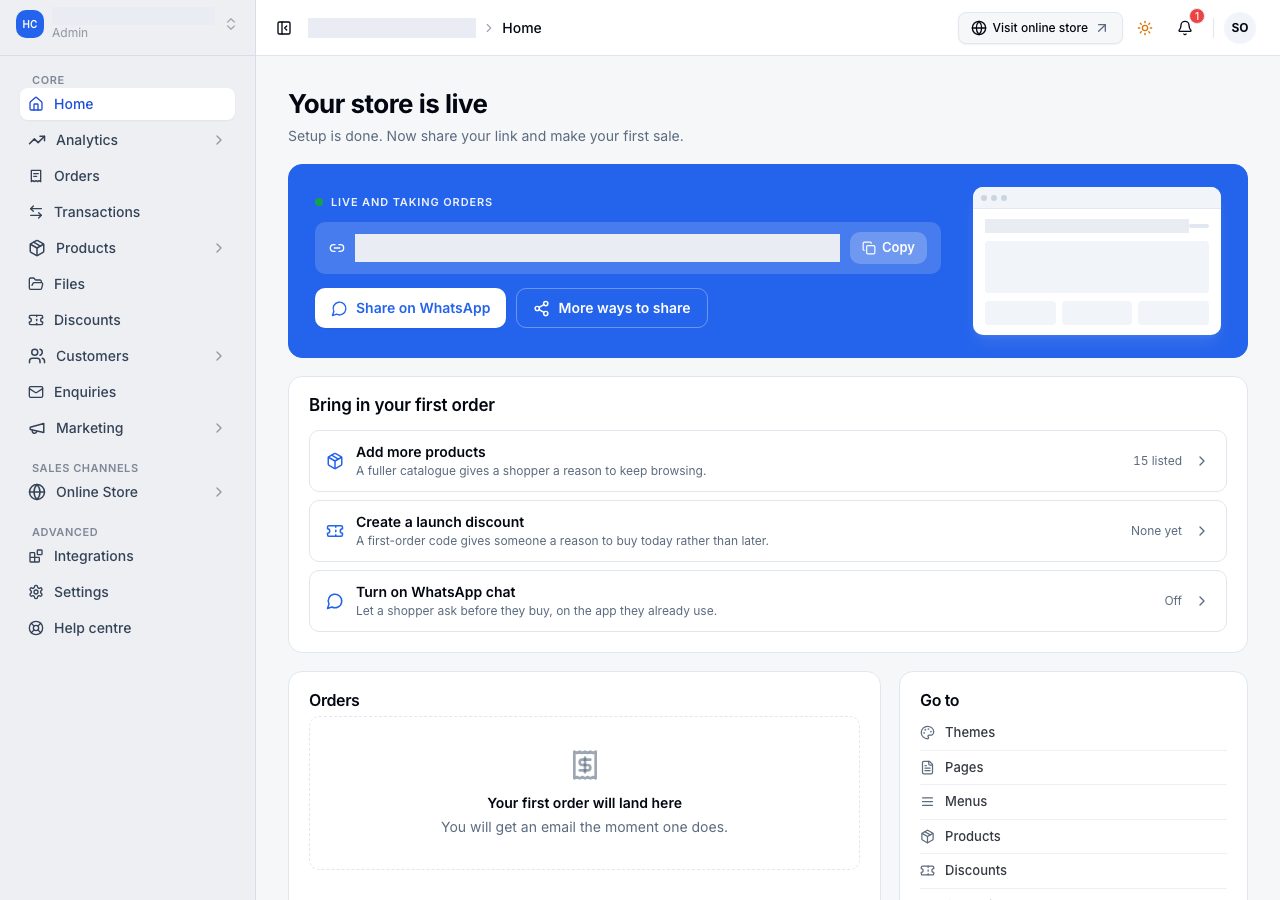
| Is set up, and waiting for its first order | your store's link, ready to share |
| Has sold before, but not today | today's sales so far, and the last 14 days |
| Has sold today | the same, with today's figures in it |
While you set up
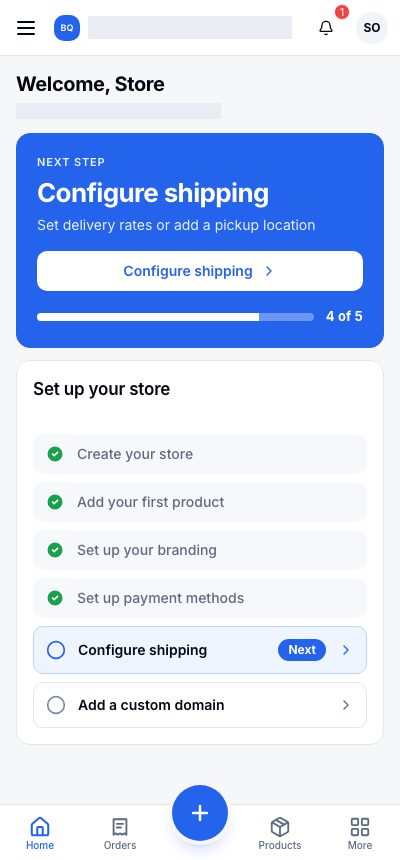
The blue panel names your Next step with a button that opens it, and counts how far along you are, for example 4 of 5 done. Preview your store beside the greeting shows your online store as a shopper will see it.
The checklist
Set up your store has six rows. The first, Create your store, is done from the start: your store and its plan exist. Add a custom domain says Optional, because you can sell without one, using the free Shoponent address your store already has, so it counts in neither number: the panel counts five. Only one row is ever marked Next, and it is the first required one you have not done, whatever order you do them in. Rows you have finished say Done.
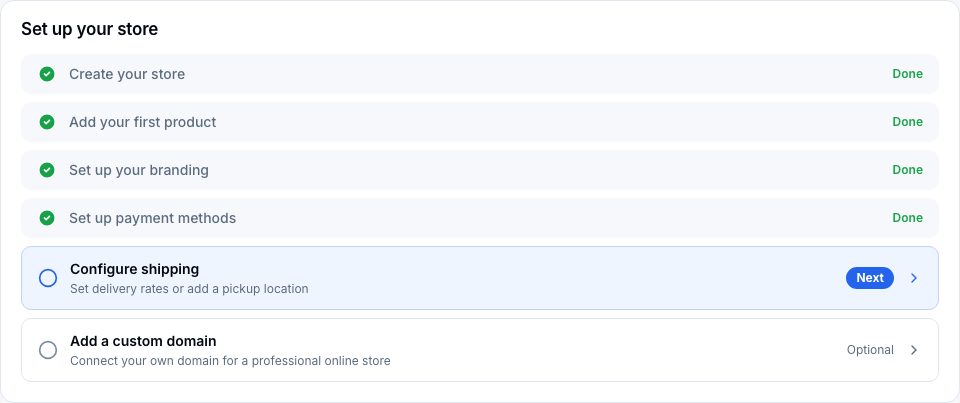
| Row | What the row opens | What ticks it |
|---|---|---|
| Add your first product | the product form, and brings you back here after saving | a product exists |
| Set up your branding | a three-step dialog on this page: what you sell, a colour, a logo | you choose Apply branding |
| Set up payment methods | Settings, then Payments | a payment method is active |
| Configure shipping | Settings, then Shipping and delivery | a delivery rate or a pickup location is saved |
| Add a custom domain | Settings, then Domains | a domain is added |
Choose anywhere on a row to open it. The whole row is the button.
A row ticks when the thing exists, not when you open it. Opening the product form and closing it leaves the row as it was; saving a product ticks it, even if you saved it from the Products page without going through Home. There is no way to tick a row by hand, and none is needed.
Each row has its own page here: Add your first product, Set up your branding, Set up payment methods, Configure shipping and Connect a domain you already own.
Once setup is done
When the five required rows are done and no order has come in yet, Home says Your store is live. The blue panel holds your online store's address with Copy, Share on WhatsApp and More ways to share, because what stands between you and a first order now is people seeing your store.
Under it, Bring in your first order suggests three things, each with where it stands: Add more products (how many shoppers can see now), Create a launch discount, and Turn on WhatsApp chat. Orders shows where your first order will land, and you are emailed the moment one does.
Once you are selling
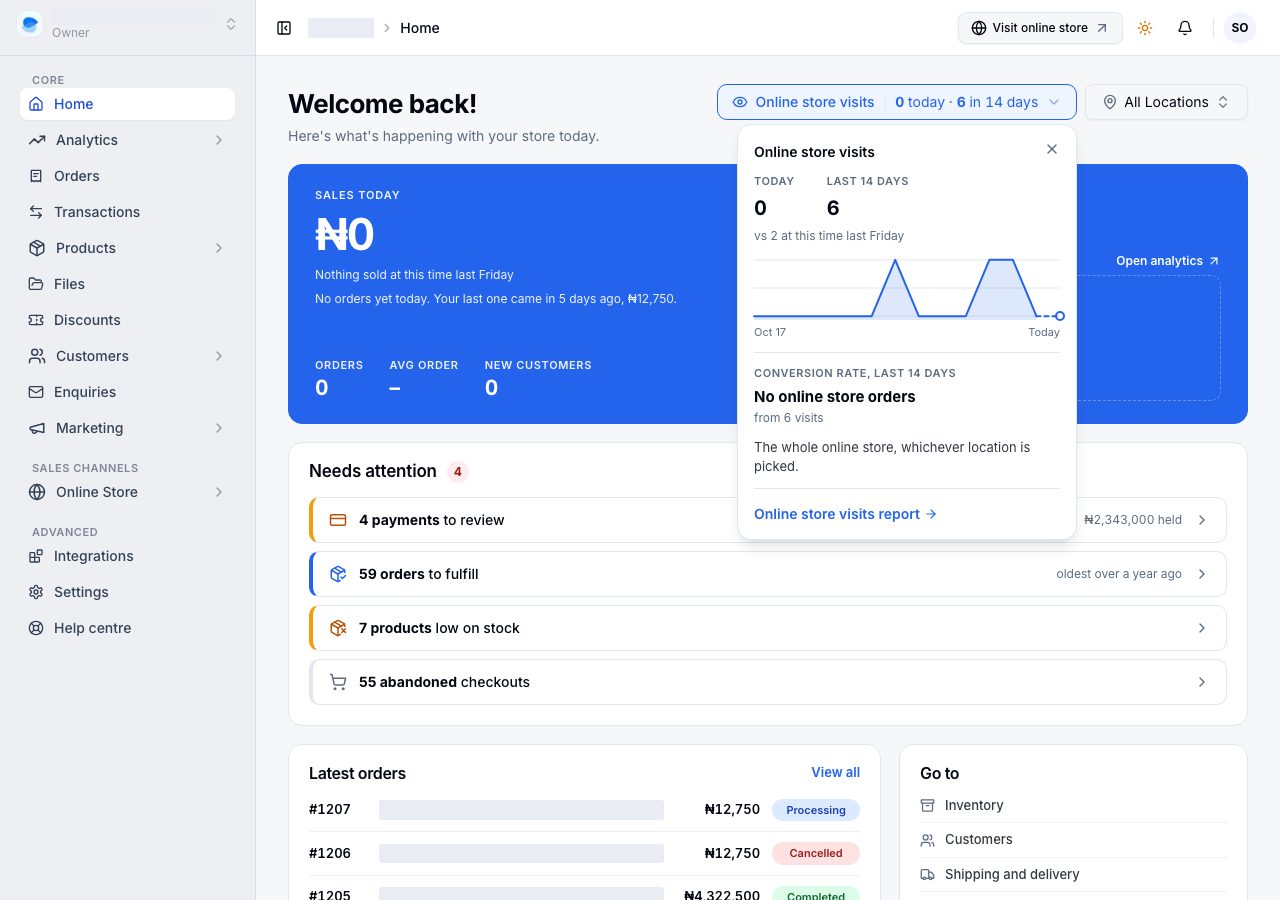
After your first order, Home leads with Sales today: what you have taken since midnight, set against the same time last week ("Nothing sold at this time last Friday" when last week had nothing to compare), then today's Orders, Avg order and New customers, with the last 14 days beside them and Open analytics for more. On a day with sales the panel fills with today's figures; nothing else on the page moves.
Below it:
- Needs attention lists what wants you, most urgent first: a problem with your plan's payment, payments to review, orders to fulfil, products low on stock, new enquiries, and abandoned checkouts (on plans that track them). Each row says how many and, beside it, what decides whether to deal with it now: how much money is held, how long the oldest order has waited. A row with nothing in it is not shown.
- Latest orders: your most recent orders, what each is worth and where it has got to, with View all.
- Go to: shortcuts to the pages merchants open most.
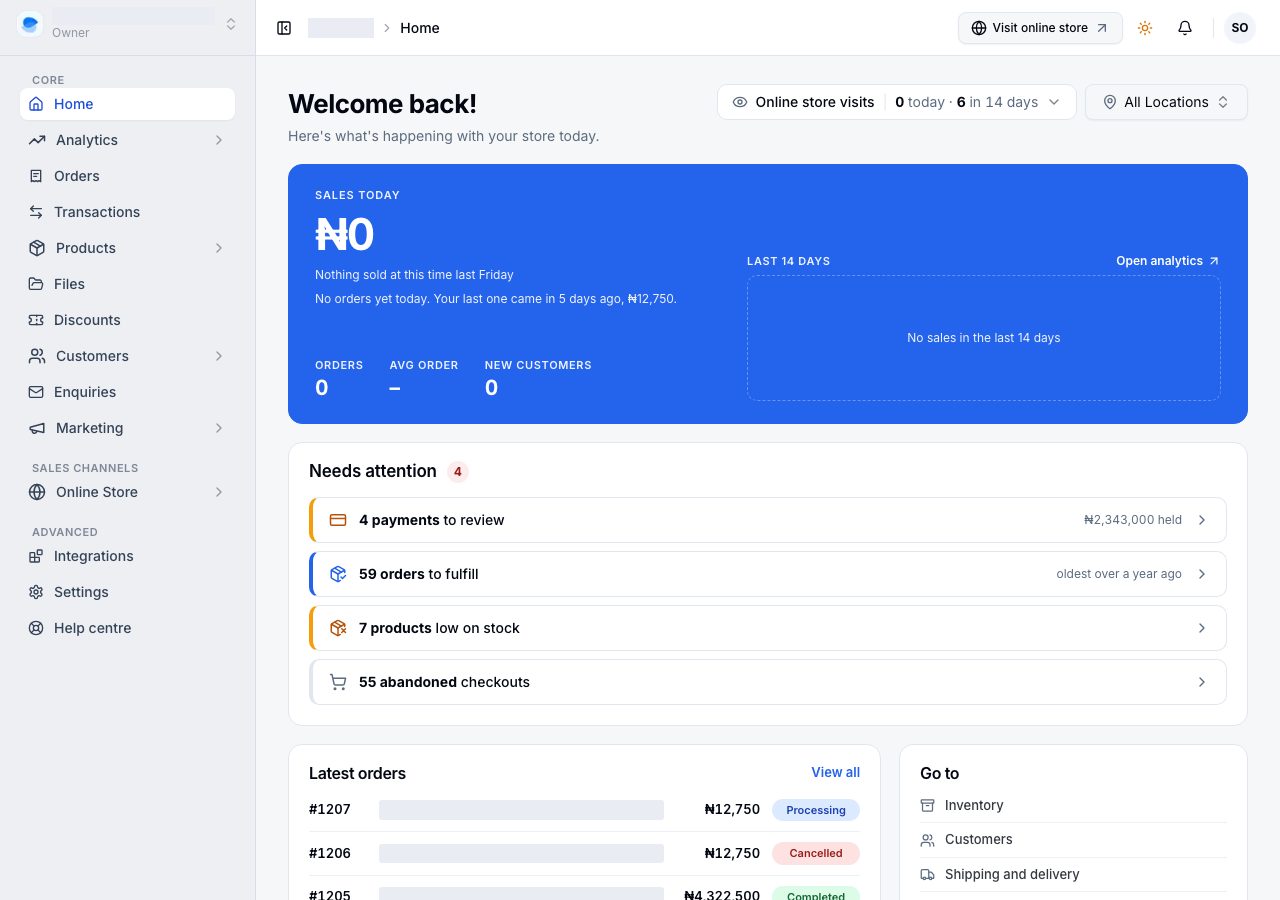
Online store visits, at the top beside the location selector, shows how many visits your online store has had today and over the last 14 days. Choose it for today against the same time last week, the 14 days as a line, how many of those visits ordered, and a link to the full report. It always counts your whole online store, whichever location is picked. See The analytics overview.
On a phone
Home works the same on a phone. The checklist rows open with a tap, and the bottom bar holds Home, Orders, Products and More, with the round button in the middle to add a product, an order or a customer from anywhere.
If it does not work
- A row will not tick even though you did the thing: make sure it saved. A product left as a draft still counts, but a product form you left without saving does not. Refresh Home; the list is read fresh each time the page opens.
- Home says your store is live, but you have not added a domain: a custom domain is optional, so it does not hold setup back.
- The checklist is gone but you wanted to open a row: use the sidebar or Settings. The rows are only shortcuts to pages that are always there.
- The count does not move after several rows: refresh the page. If it stays put, email us with your store name.
Email support@shoponent.com with your store name if anything here does not match what you see. We read and answer every message.