Available on every plan · Updated 30 October 2026
Also asked as: “store url already taken” · “not available store url” · “change my store address” · “store is created but not paid for” · “payment received but could not be verified” · “free trial or pay now”
Once your account exists you are taken straight to this. Two screens: the store's name and address, then its plan. Nothing here is permanent: the name and the address can both be changed later.
1. Name your store
The page is headed Create your store (or Add a store, when your account already has one). Two fields:
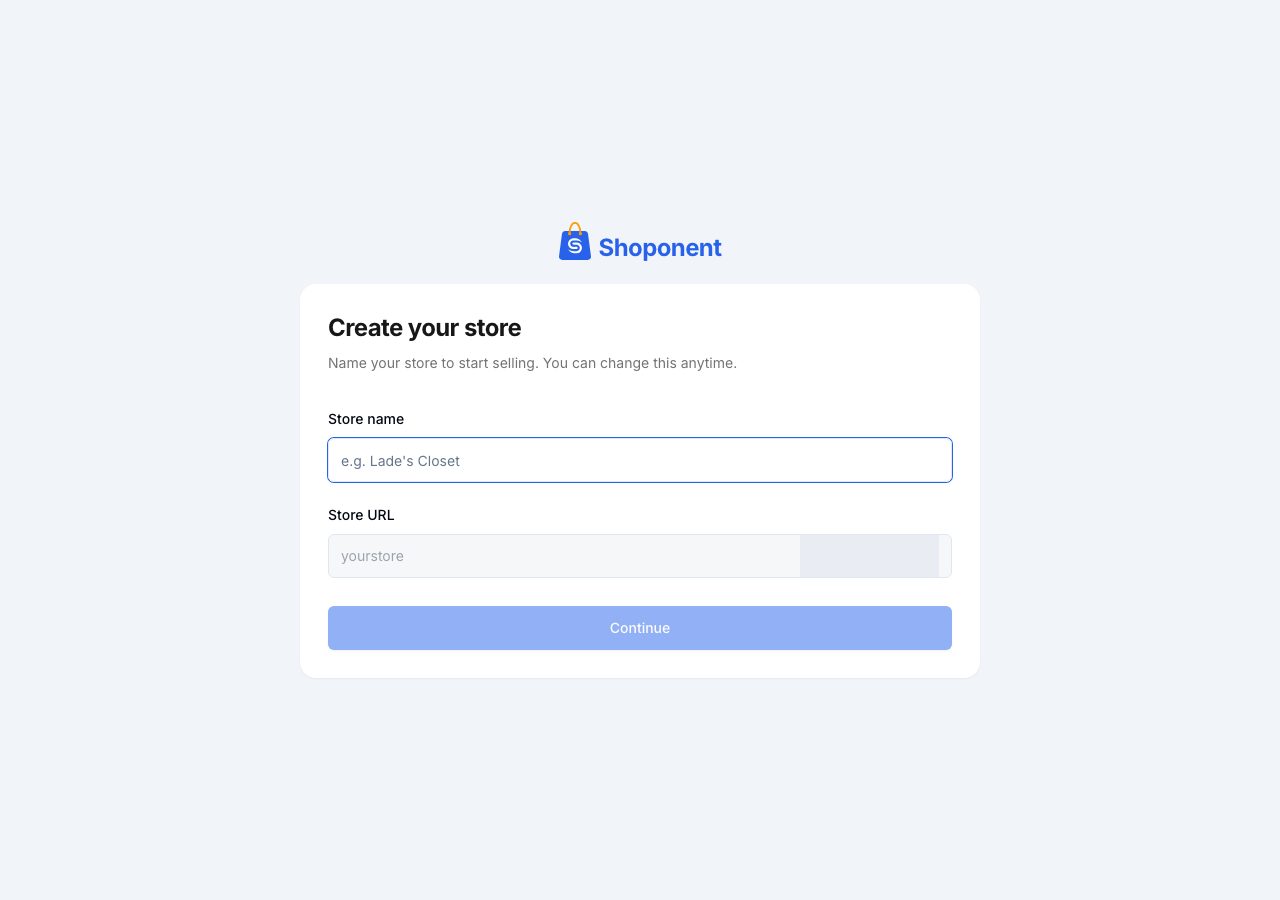
- Store name is what shoppers see: on your online store, on receipts, and in the emails we send them. You can change it any time under Settings → General.
- Store URL is the first part of your Shoponent address, the free web address your online store opens on: letters, numbers and hyphens, never a hyphen at the start or end. We fill it in from the store name as you type, and you can edit it.
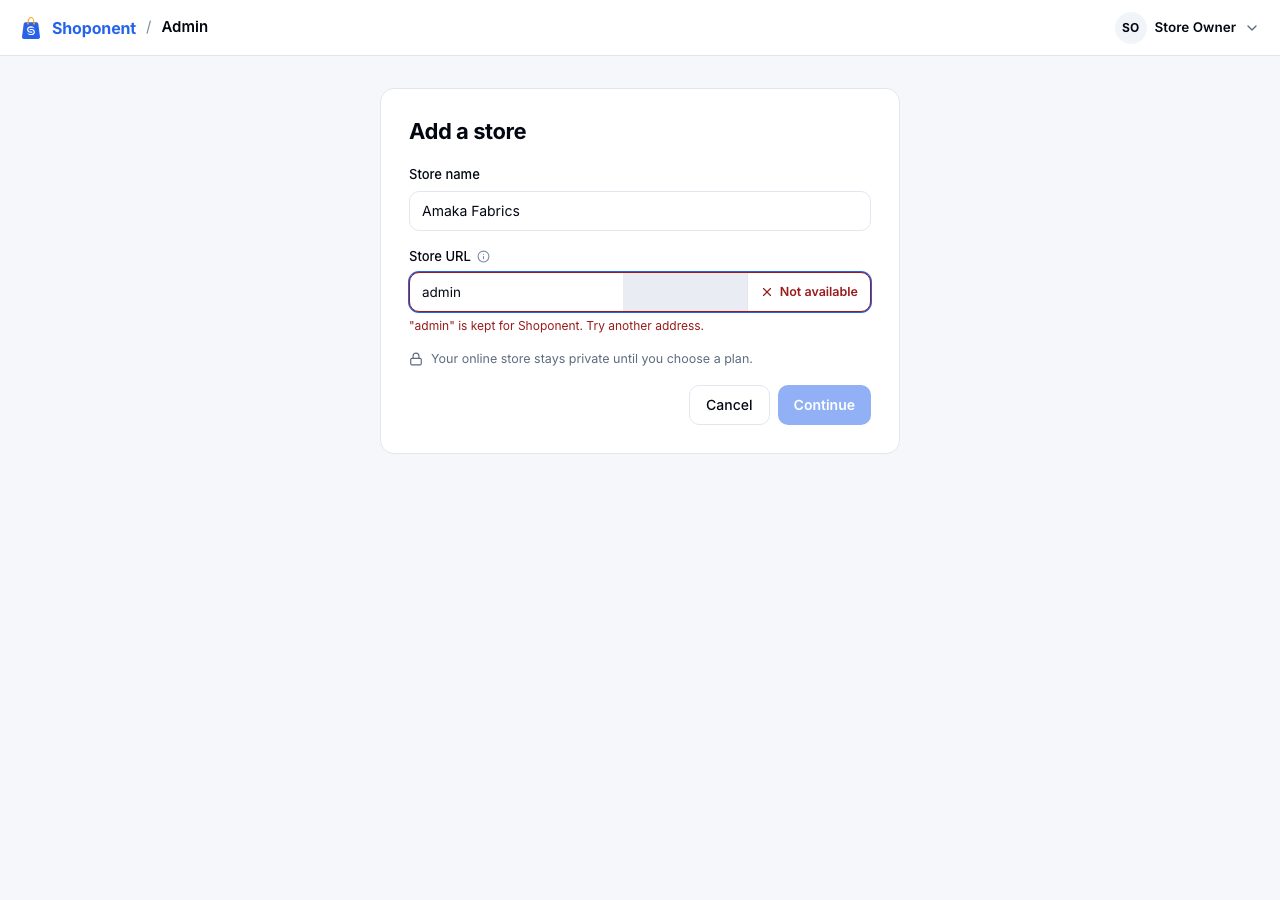
The address is checked as you type: Available means you can continue, Not available means choose another, with a line saying why. An address someone else has is taken, and a few words are kept for Shoponent.
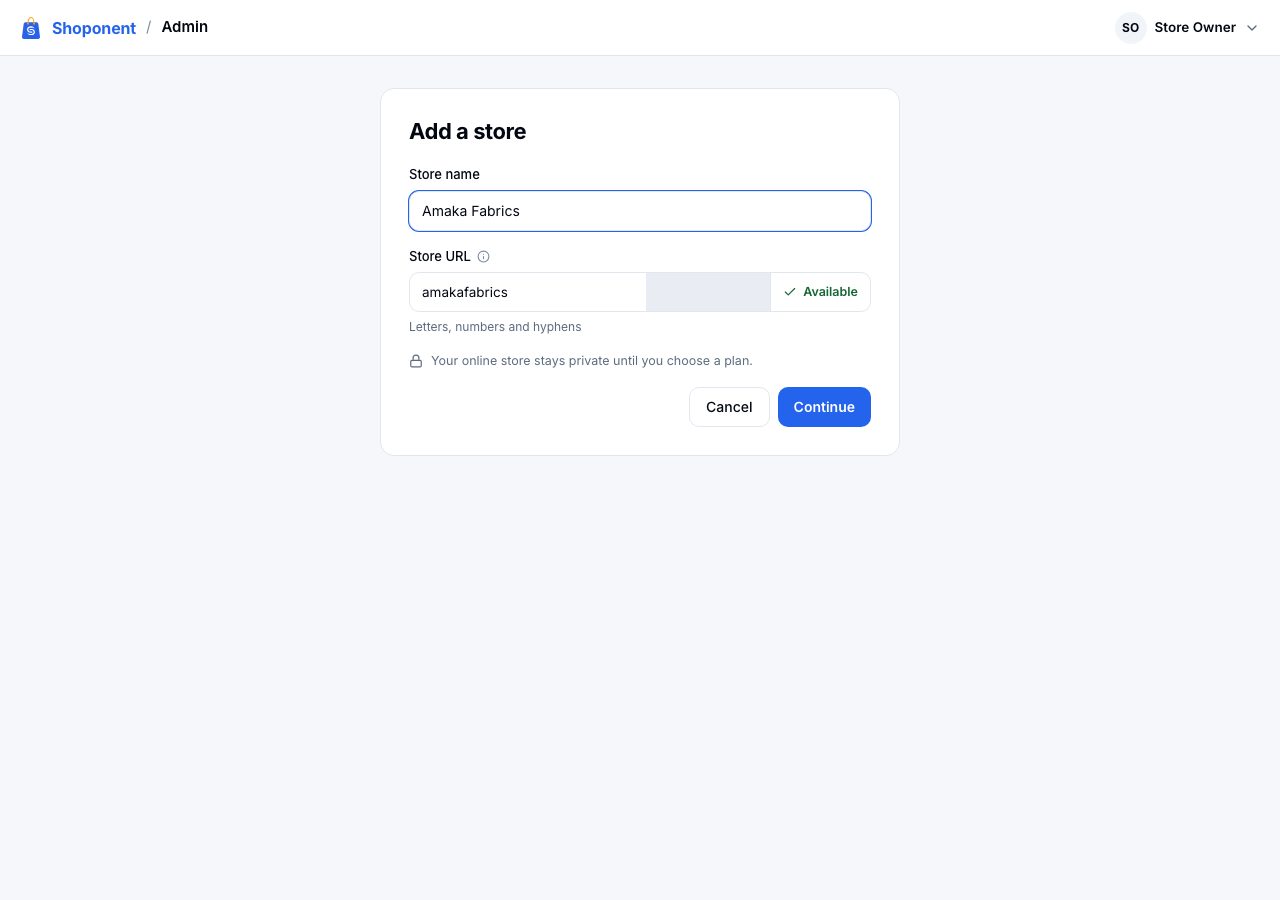
Choose Continue. The store exists from this point, but your online store stays private until you choose a plan.
2. Choose a plan
Choose a plan shows the three plans: Starter, Professional and Scale, with Professional chosen for you. Choose any plan to choose it instead; the chosen plan opens to list what it includes. The Monthly / Yearly switch at the top changes every price; yearly is chosen by default and costs less over the year. While founder pricing is open, a note at the top says so, and each plan shows its founding-merchant price beside the standard one; see Founder pricing.
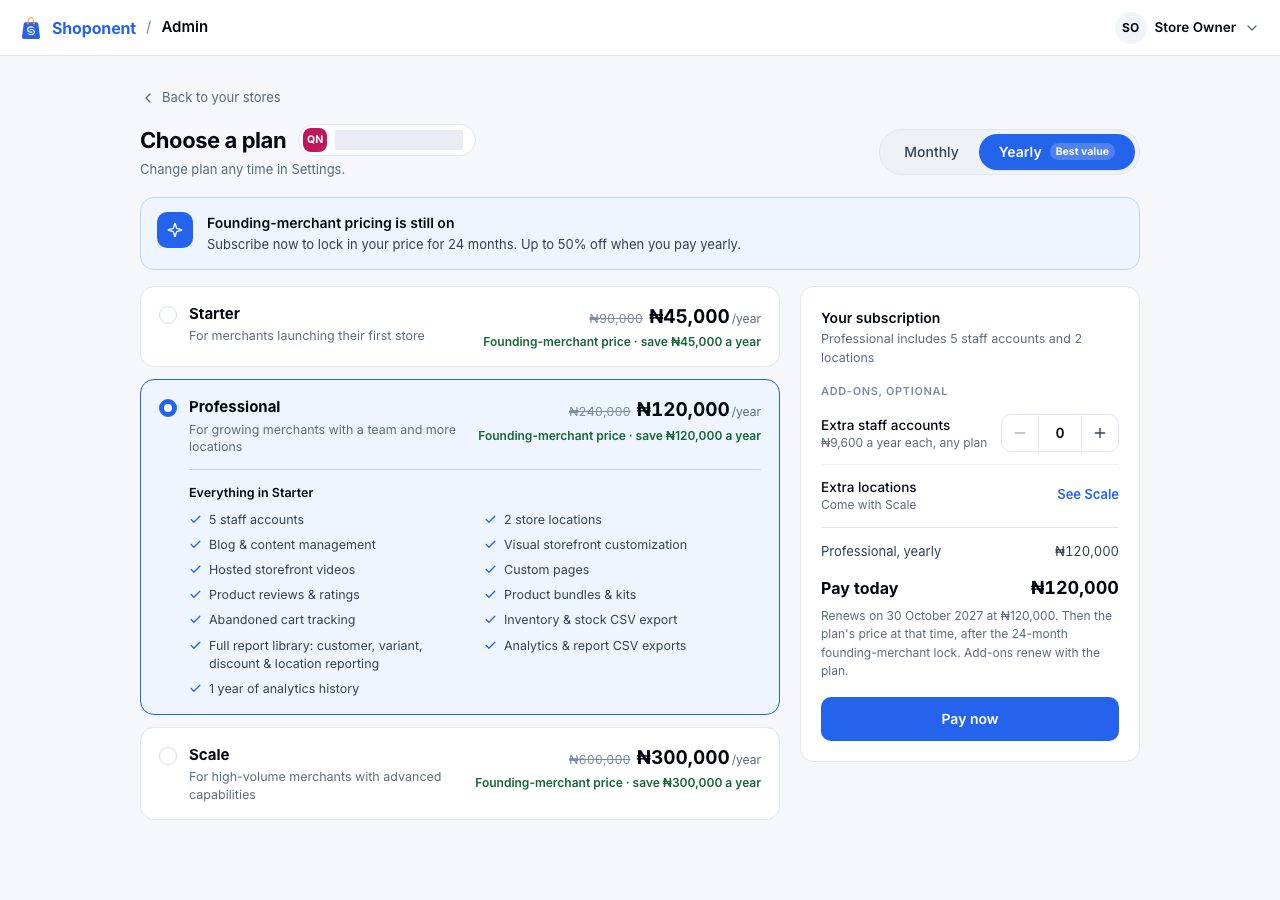
The summary beside the plans says what the plan includes, lets you add extra staff accounts (and, on Scale, extra locations), and shows Pay today with the date it renews and what it renews at.
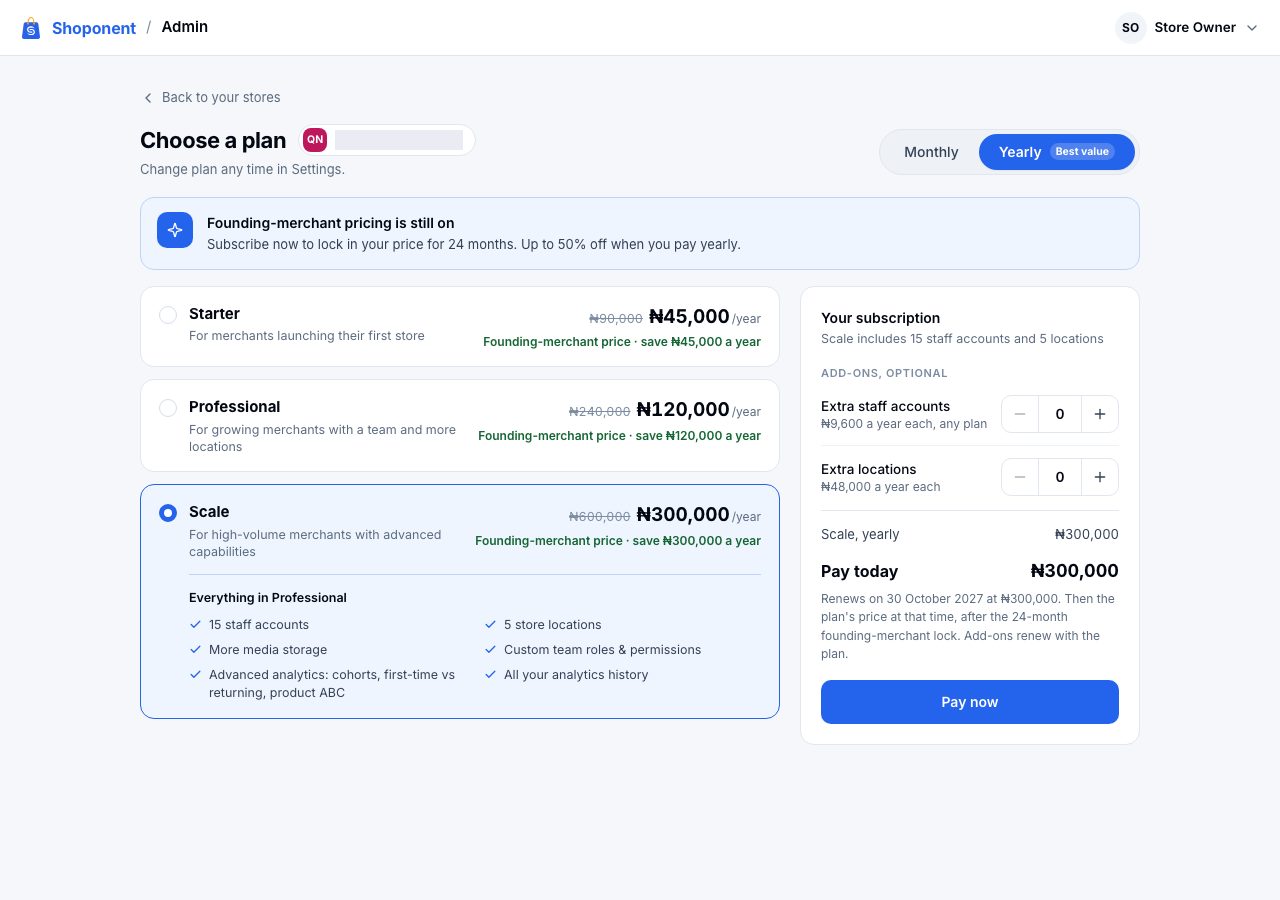
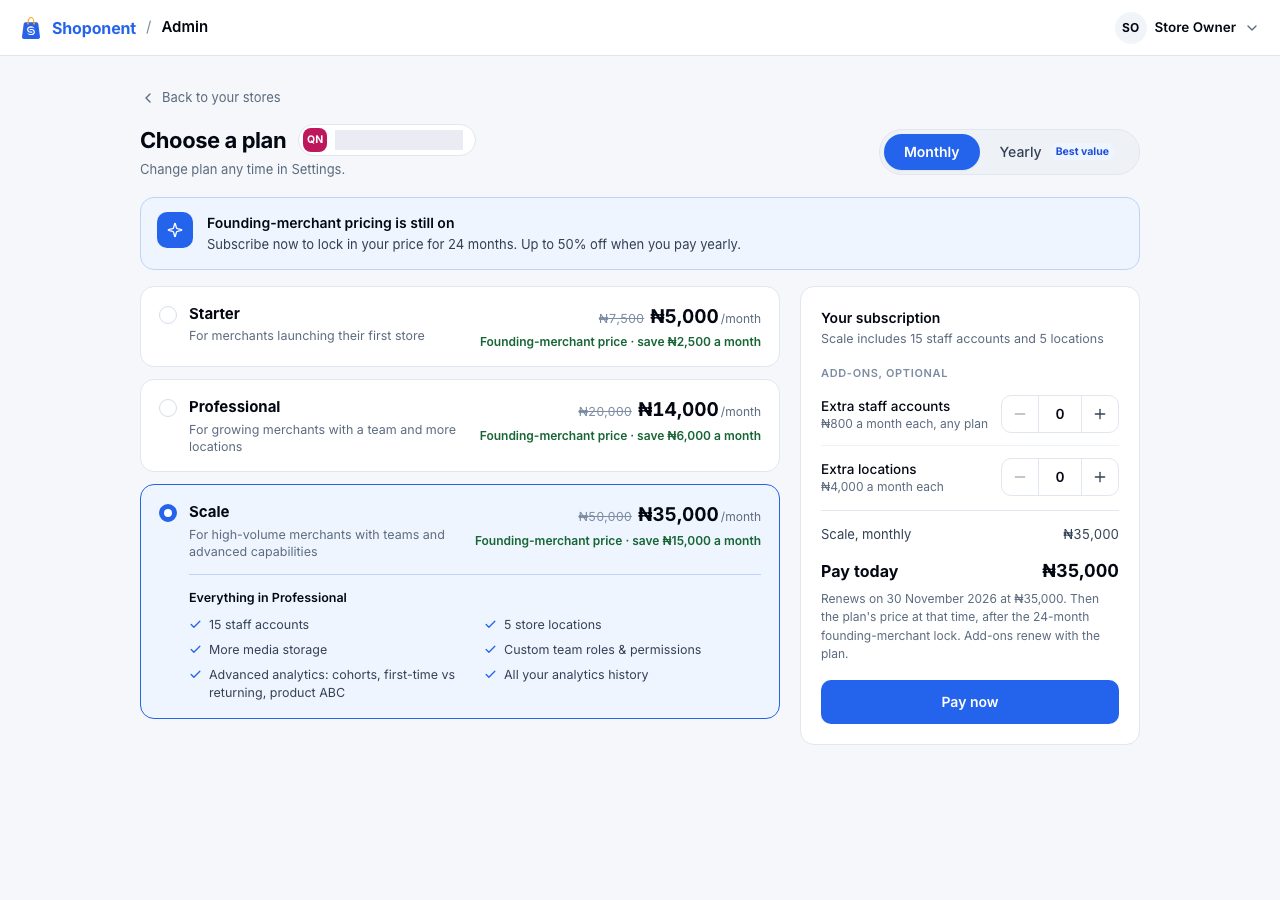
What each plan costs, and what is in each, are also on the pricing page. Both read from the same place.
3. Pay
Choose Pay now. The payment window opens on the same page; pay by card or bank transfer. While it is confirmed, the page says Confirming your payment; you can close it, because we finish it either way. Then it says Subscription successful, a receipt is emailed to you, and Go to Home opens your store.
While founder pricing is open there is no free trial: the price is paid from the start. When it has closed, Choose a plan may offer a free trial instead.
What you land on
Home opens with Set up your store, a list of what is left before your store can take an order: your first product, your branding, how you get paid, delivery or collection, and a custom domain if you want one. Create your store is already done. Your Home page and the setup checklist explains each one.
Changing your Store URL later
Change the first part of your Shoponent address any time under Settings → Domains, with the same check as you type. Links you have already shared to the old address stop working when you do, so change it before you start sharing. See Your Shoponent domain.
If a store is created but not paid for
A store without a plan waits. Opening it takes you back to Choose a plan until a payment is confirmed, and shoppers cannot reach its online store. Nothing is lost: the name and address you chose are kept.
If it does not work
- Not available on the Store URL: choose another. The store name can stay the same.
- Nothing was paid: you closed the payment window before paying. Your plan choice is kept; choose Pay now again, or another plan.
- The payment did not go through: nothing was taken. Try again, or use another card.
- Waiting for your bank: the payment has not been confirmed yet. Do not pay again; your plan switches on the moment it is, and we email you.
- Reopen your store instead of Choose a plan: the store had a plan before, and it was cancelled. See Renew or reactivate your subscription.
If none of that resolves it, email support@shoponent.com with the store name you chose. We read and answer every message.