Available on every plan · Updated 22 October 2026
Also asked as: “did not get the verification code” · “verification code has expired” · “too many tries” · “email already exists” · “I typed the wrong email address when signing up”
Your account is you, not your store. One account can own or work in several stores, and it is the email and password you sign in with everywhere on Shoponent. Creating one takes a minute: your email address first, then a code, then your name and a password.
1. Choose Get Started
Choose Get Started at the top of the website. It opens Create your account.

2. Give your email address
Type the address you want the account to use and choose Continue. We email a six-digit code to it.
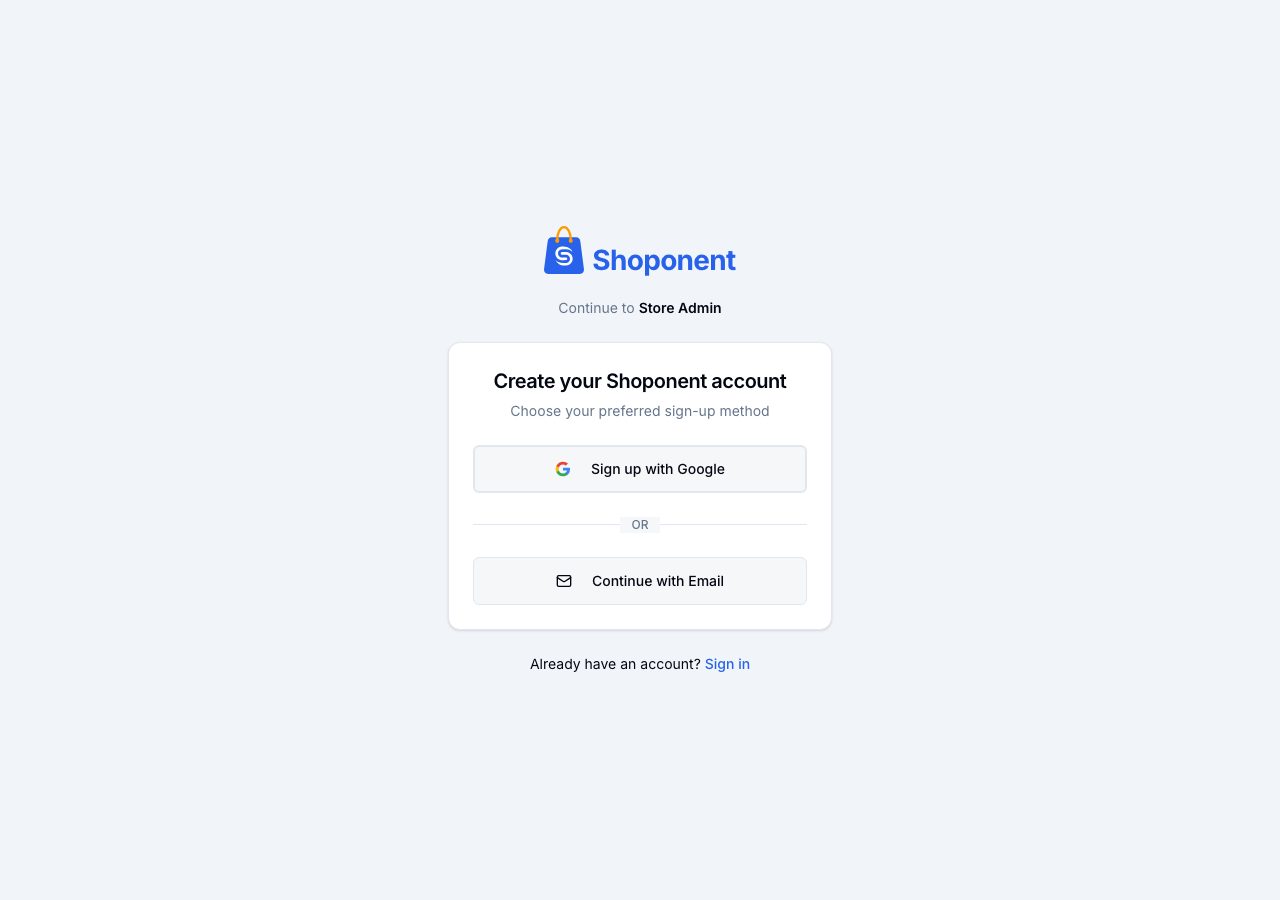
The address comes first on purpose. It is what you sign in with, it is where your bills and receipts go, and it cannot be changed afterwards, so it is worth a second look before anything is created.
Or choose Continue with Google instead: Google has already confirmed the address, so there is no code to enter and no password to pick, and you come back signed in.
3. Enter the code
Check your email shows the address the code went to, with Change beside it if it is wrong; nothing exists yet, so changing it undoes nothing. Type the six digits; the page carries on by itself once all six are in.
Send a new code counts down after each code and becomes a link when you can ask for another, so check your spam folder while you wait. After too many wrong tries, wait a few minutes before trying again.
4. About you
Once the code is accepted, About you shows your address as confirmed and asks for your first name, your last name and a password. Choose Create account, and you are signed in straight away. Creating an account means you agree to the Terms and Privacy policy linked under the button.
What happens next
You are taken to Create your store, where you name your store and pick its Store URL. That is the next page: Create your store and choose a plan.
If it does not work
- This address already has an account: the page says so instead of sending a code, with Sign in and Reset password.
- The address does not look like it can receive email: the part after the @ has no mail service we can find. It is almost always a typo, so check it and try again.
- That code didn't work, or it has expired: ask for a new one with Send a new code once its countdown has finished.
- The code never arrives: check spam, then check the address under Code sent to. If it is not the one you meant, choose Change.
- Continue with Google did not bring you back: allow pop-ups for the site and try again, or sign up with the same address and a code.
If none of that resolves it, email support@shoponent.com with the address you signed up with. We read and answer every message.