Available on every plan · Updated 30 October 2026
Also asked as: “buy more staff accounts” · “add another location” · “staff limit reached” · “add-ons billed when” · “stop paying for an extra location”
Two of a plan's limits can be raised without changing plan: how many people can sign in to your store (staff accounts) and how many locations you hold stock at. Each extra staff account or location is an add-on with a price of its own, paid on the same bill as your plan.
- Extra staff accounts can be bought on every plan.
- Extra locations can be bought on Scale only. Below Scale, more locations come with a higher plan; see Change your plan.
Only the store owner can buy add-ons, and only while the plan is paid up.
Where add-ons live
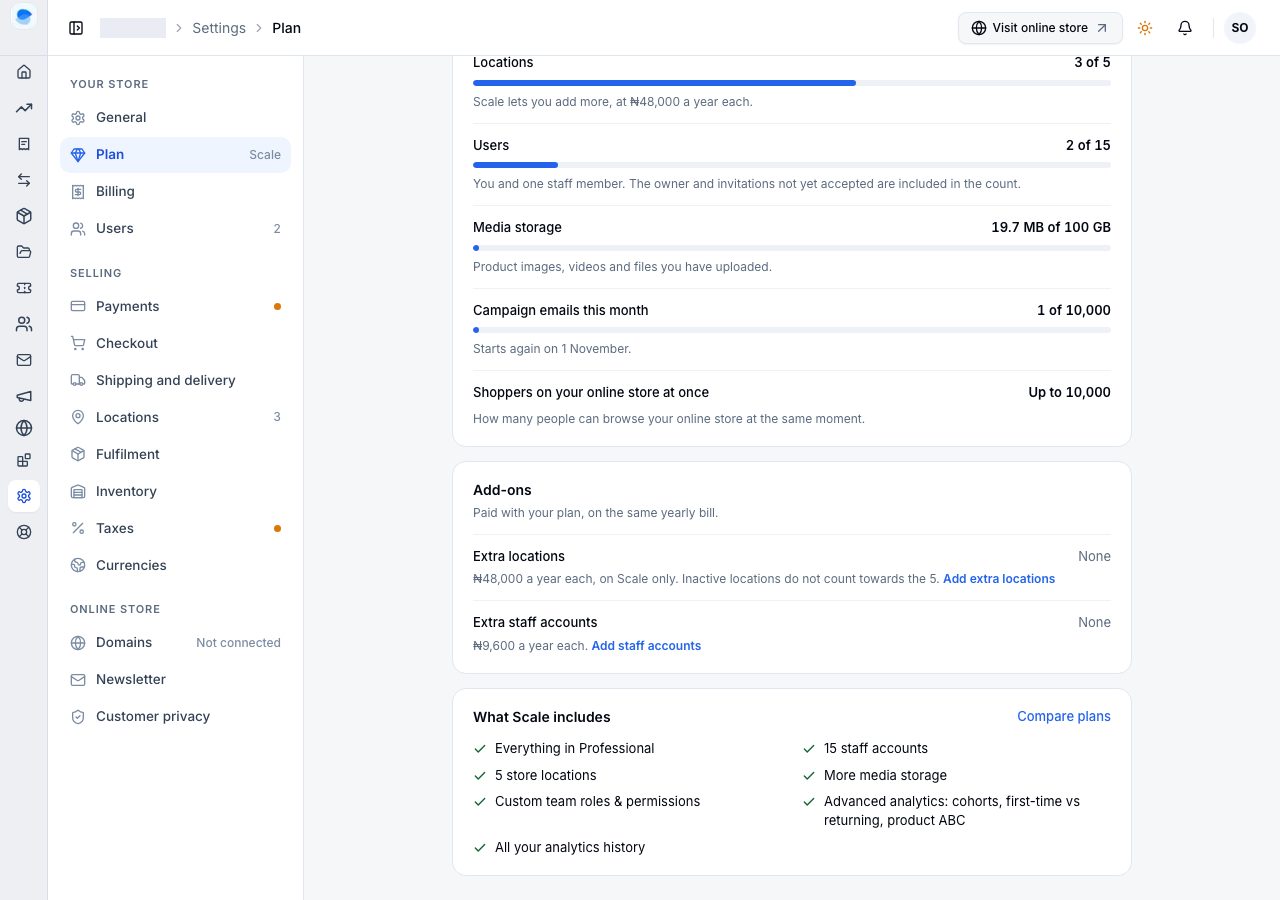
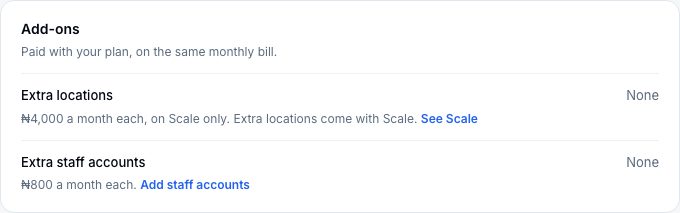
Settings → Plan has an Add-ons card: how many of each you have, what each costs on your billing cycle, and a link to buy more.
Below Scale, the card says extra locations come with Scale and links to it instead.
Buy extra staff accounts
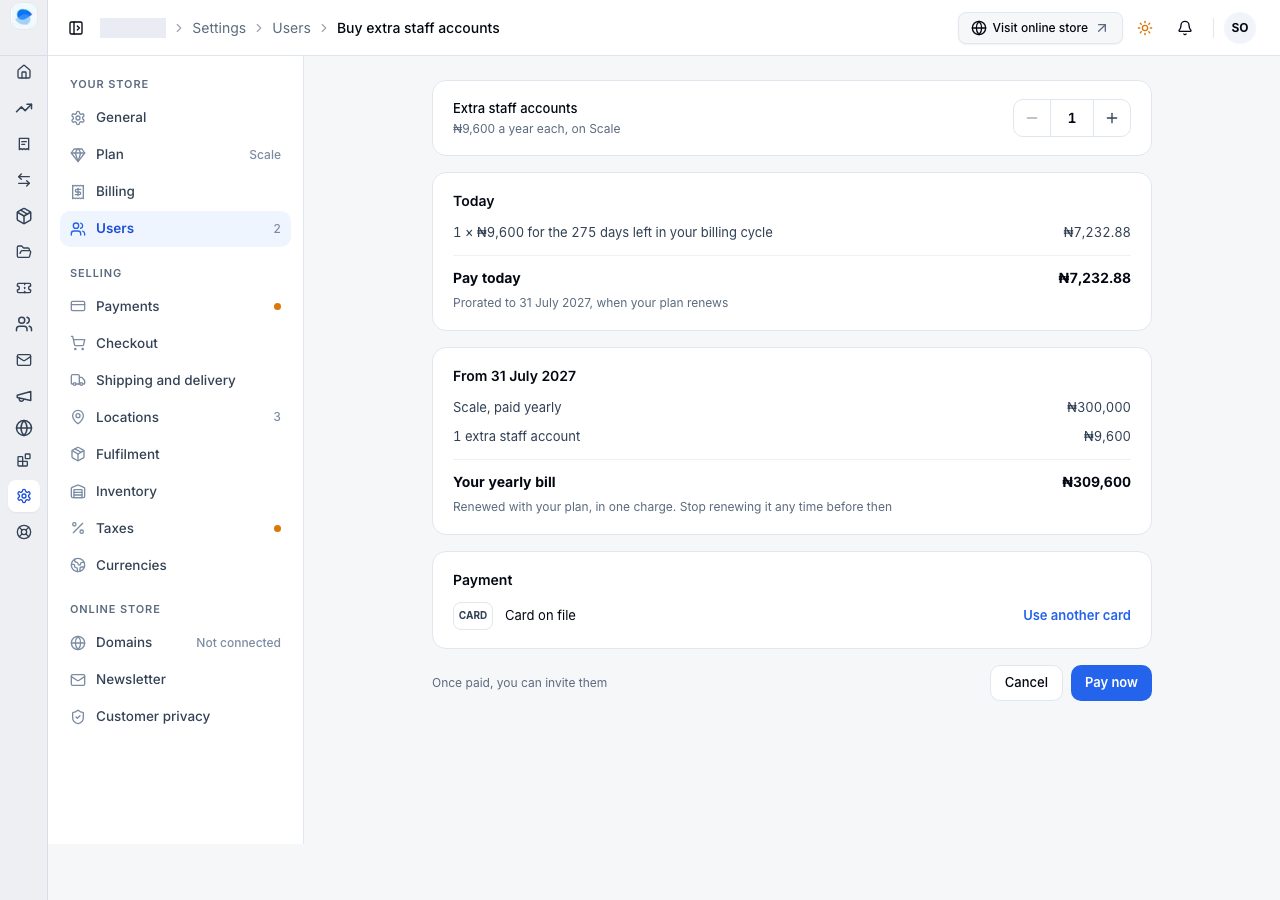
- Choose Add staff accounts. The page opens with one extra account; change the number with the minus and plus buttons.
- Read the two totals. Today is what you pay now, only for the days left in your billing cycle. From the renewal date shows your plan and the extra accounts together, as your next bill.
- Under Payment, the card on file is used; choose Use another card to pay with a different one.
- Choose Pay now. With the card on file, the charge is made straight away; with another card, the payment window opens. Once paid, you can invite the extra people from Settings → Users.
Buy extra locations
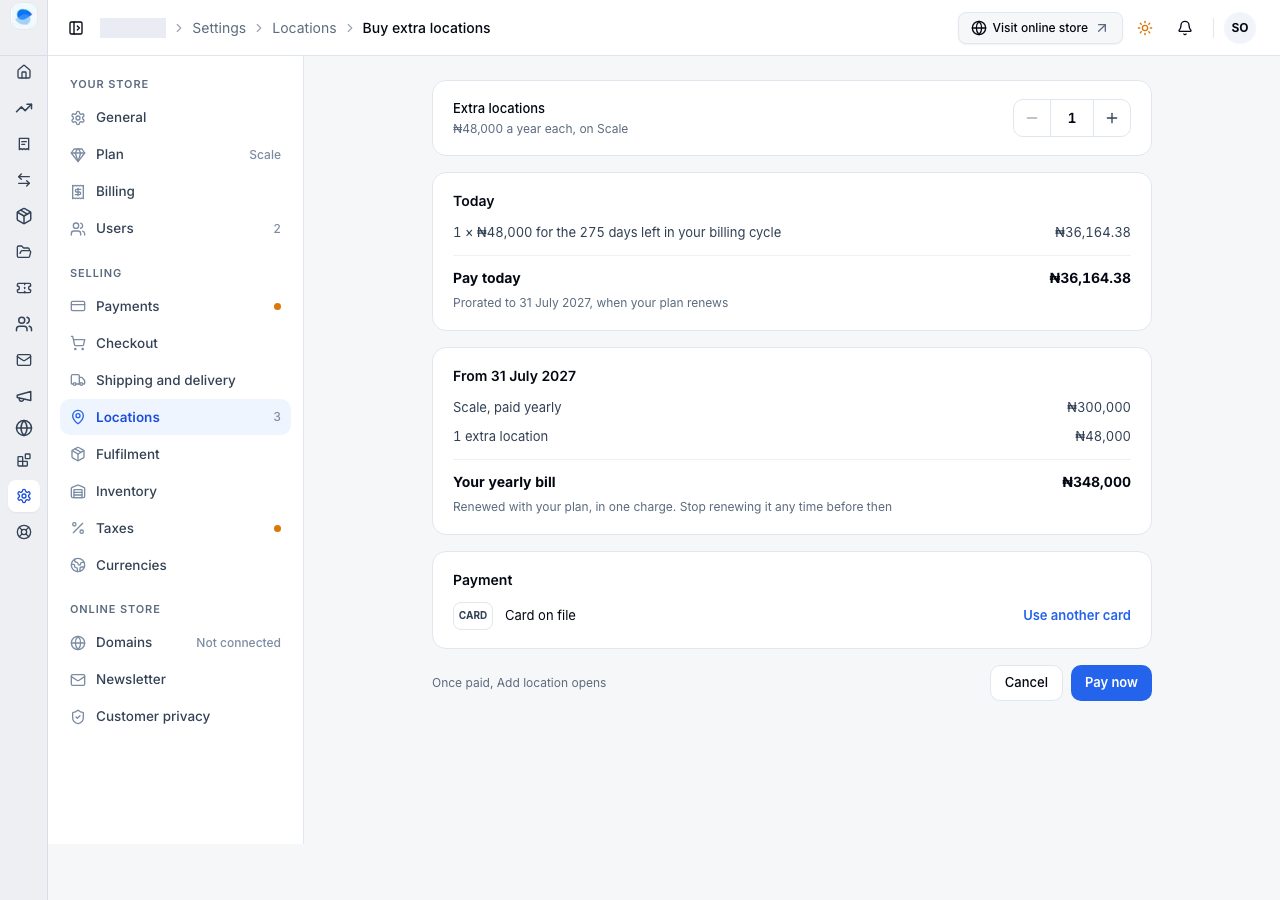
On Scale, choose Add extra locations and follow the same steps. Once paid, Add location opens on Settings → Locations. Inactive locations do not count towards your plan's locations, so making one inactive frees its place without buying anything.
How add-ons are billed
- When you buy them, you pay for the rest of the current billing cycle only.
- From then on, they renew with your plan, in the same charge, at the add-on's price for your billing cycle (monthly or yearly).
- Stop renewing beside an add-on on the Add-ons card stops it at the end of the billing cycle. Nothing is refunded, it keeps working until then, and Renew again undoes it before that date.
- On a downgrade below Scale, extra locations end when the downgrade starts, with nothing refunded.
If it does not work
- You need another staff account on Starter: you can buy extra staff accounts without upgrading. See How many staff your plan allows.
- Add extra locations is not offered: your store is below Scale. Extra locations come with Scale.
- The payment window did not open: allow pop-ups for the site and try again. Nothing is charged until the payment completes.
Email support@shoponent.com with your store name if anything here does not match what you see. We read and answer every message.