Available on every plan · Updated 30 October 2026
Also asked as: “stock from which location” · “sales channel” · “record a phone order” · “whatsapp sale” · “counter sale” · “walk-in customer” · “sell something not in my catalogue” · “customer paid by pos card” · “hold stock until they pay” · “order cancelled itself” · “give a discount on an order”
Not every sale comes through your online store. Orders → Create order records the ones that did not: a customer at the counter, an order taken on WhatsApp, a phone call, a marketplace sale.
The page opens for a customer: somebody on your list, delivered to, with the payment still to choose. A counter sale is one click away: choose Walk-in, and it fills in paid, in cash, and already in their hands. The Summary on the right always shows what the order will come to, and the line under Create order says what is still missing.
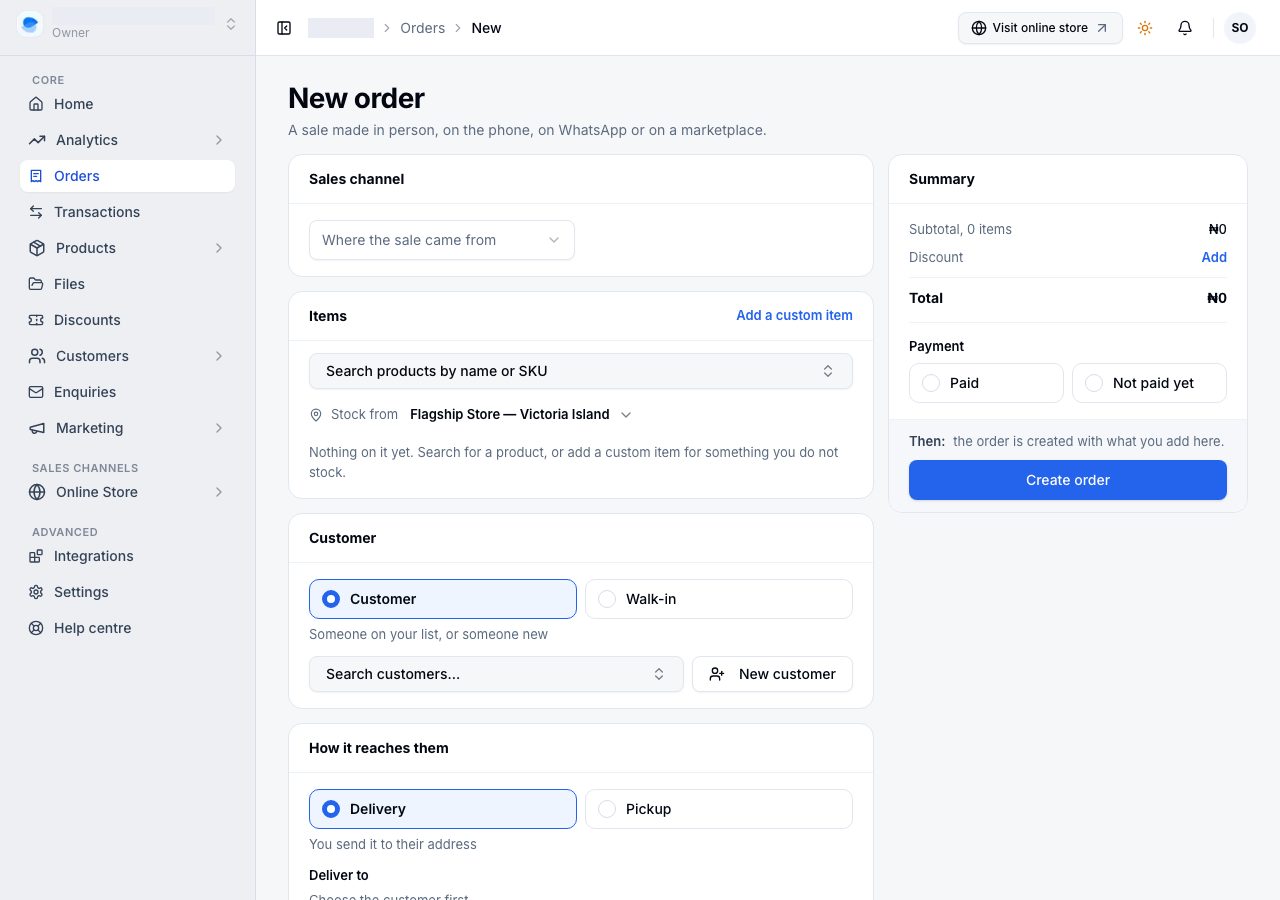
1. Choose the sales channel, and what they bought
Sales channel is the answer to "how are my Instagram sales doing" later on: WhatsApp, Instagram, Facebook, Phone, In store / POS, Marketplace (name which one), Online store or Other. The next time you create an order on the same device, it starts on the channel you chose last.
Search your catalogue by name or SKU and tick what they are buying; the list stays open, so you can add several. What is already on the order is ticked, and choosing it again takes it off. A product you do not track stock for says Not tracked.
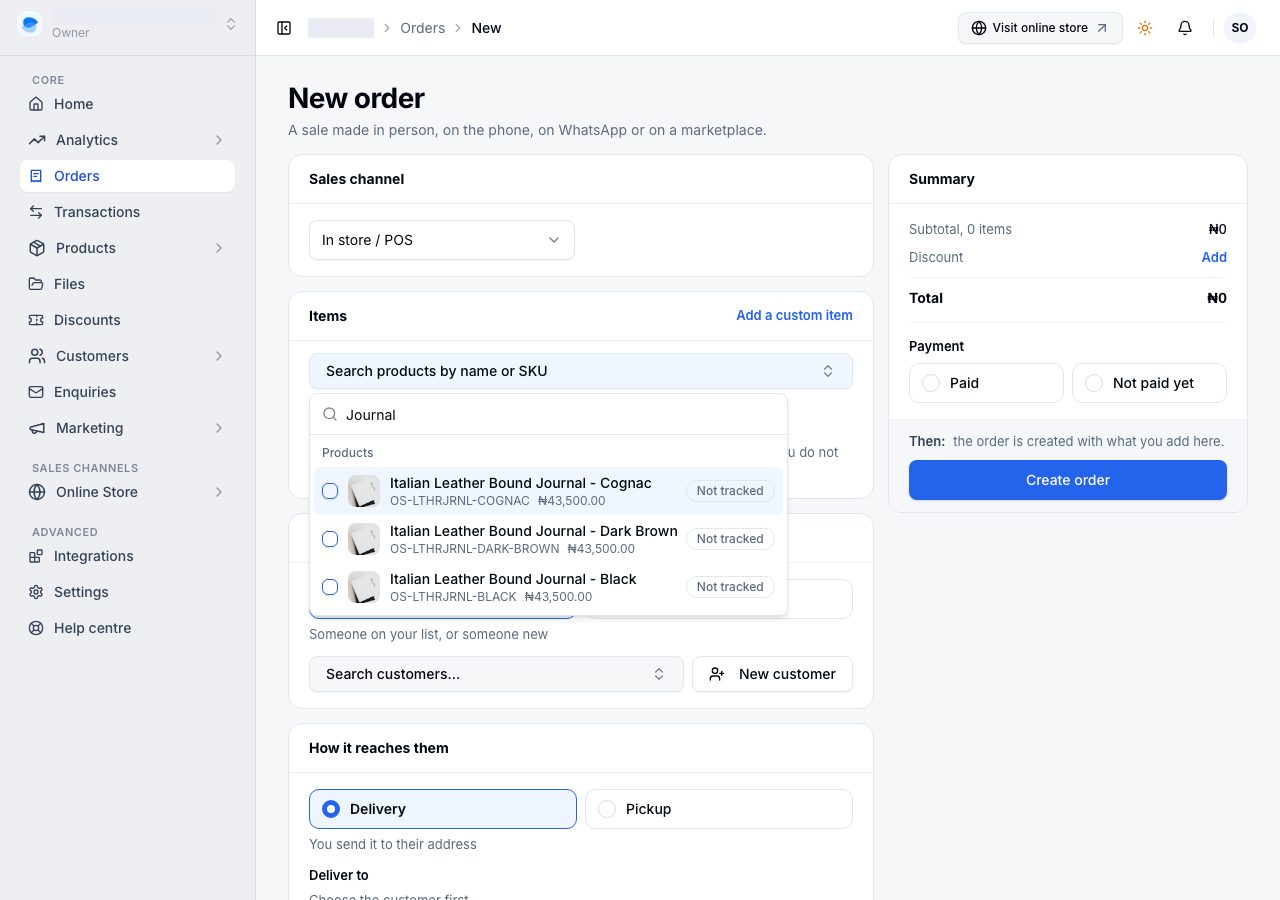
Add a custom item is for something that is not in your catalogue: an installation, a repair, the balance on a bespoke job. Give it a name and a price. Nothing comes off a shelf for it.
Each line is charged at its listed price. To charge less, add a discount (step 4) rather than changing the price.
Stock from, under the search, is the location the items come from: where their stock is counted and taken from. It starts on your own location, or your store's main one, and you can change it if you have more than one. Each tracked line shows how many are left there; if there are not enough, the line says so and the order is not created until you change it.
2. Say who it is for
- Customer is somebody on your list. Search for them, or choose Create new customer to add them without leaving the page.
- Walk-in is somebody you are not keeping a record of, which is a complete answer, not a missing one. Add a name, phone or email for their receipt puts their details on this order only; it does not add them to your customers.
3. Say how it reaches them
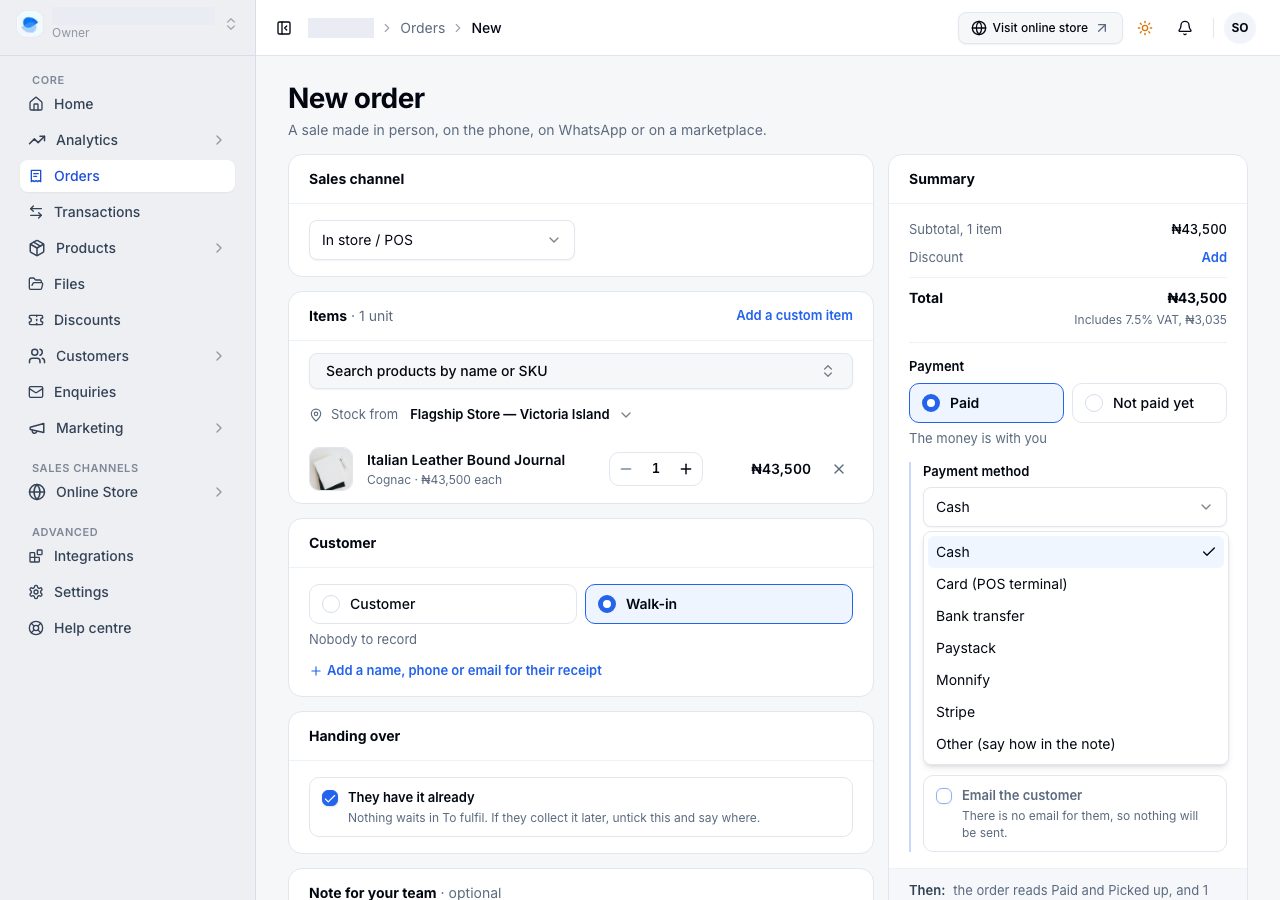
For a walk-in, They have it already is ticked: the goods left with them, so the order is finished and never waits in To fulfil. If they will collect it later, untick it and choose where.
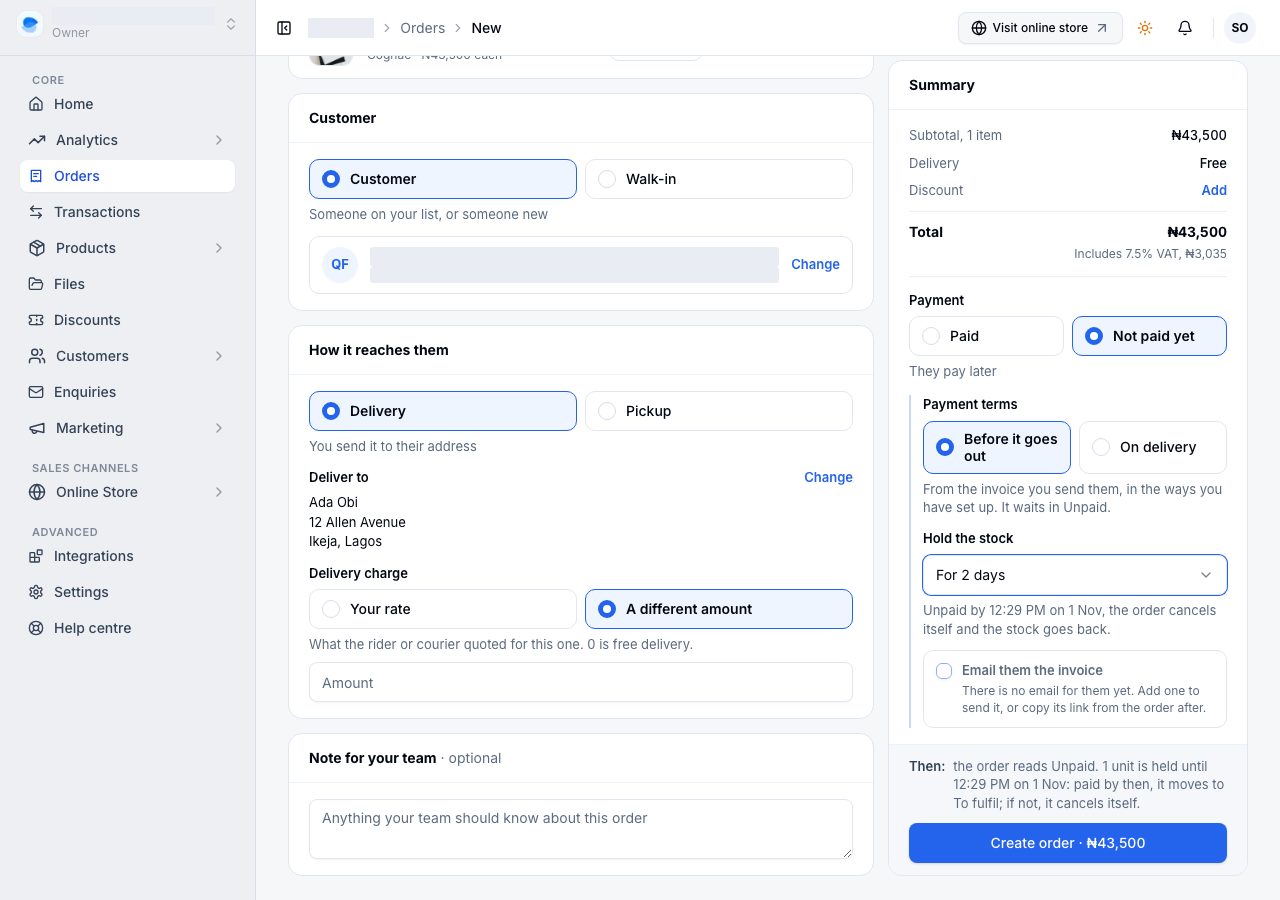
For a customer, choose Delivery or Pickup. A delivery needs an address: their saved one is chosen for you, and Add an address adds one if they have none. The Delivery charge is your rate for that address, or A different amount, such as what the rider quoted; 0 is free delivery.
4. A discount, if you are giving one
In the Summary, Discount → Add takes an amount or a percentage, and a few words on why, which your team sees on the order. It comes off the products, never off the delivery charge.
5. Say what happened with the money
Not paid yet asks for the Payment terms:
- Before it goes out (for a pickup, Before they collect it): the order waits in Unpaid. Hold the stock says for how long: Until you cancel, For 2 days or For 7 days. If it is still unpaid when the time runs out, the order cancels itself and the stock goes back on the shelf. Each choice shows the exact date and time.
- On delivery (for a pickup, On pickup): it goes to To fulfil straight away, and the money is collected at the door or the counter.
Email them the invoice sends it from your store, with a PDF, and a link to a page where they can pay, no sign-in needed. It needs their email address; without one, copy the link from the order once it is created. If you have no way to be paid set up, the page says so here: the invoice still goes, and asks them to get in touch. See Send an invoice and get paid.
Paid means the money is with you, and it is where a walk-in starts. Payment method is what your Transactions will report: Cash, Card (POS terminal), Bank transfer, Paystack, Monnify, Stripe, or Other, where the note must say how.
Proof is optional: drop a receipt or transfer screenshot on the box, or on a phone take a photo of it. The Note is for your team, such as a teller number or who took the cash; the customer never sees it. Email the customer sends them their receipt when you have their email; untick it when they would rather not.
6. Create it
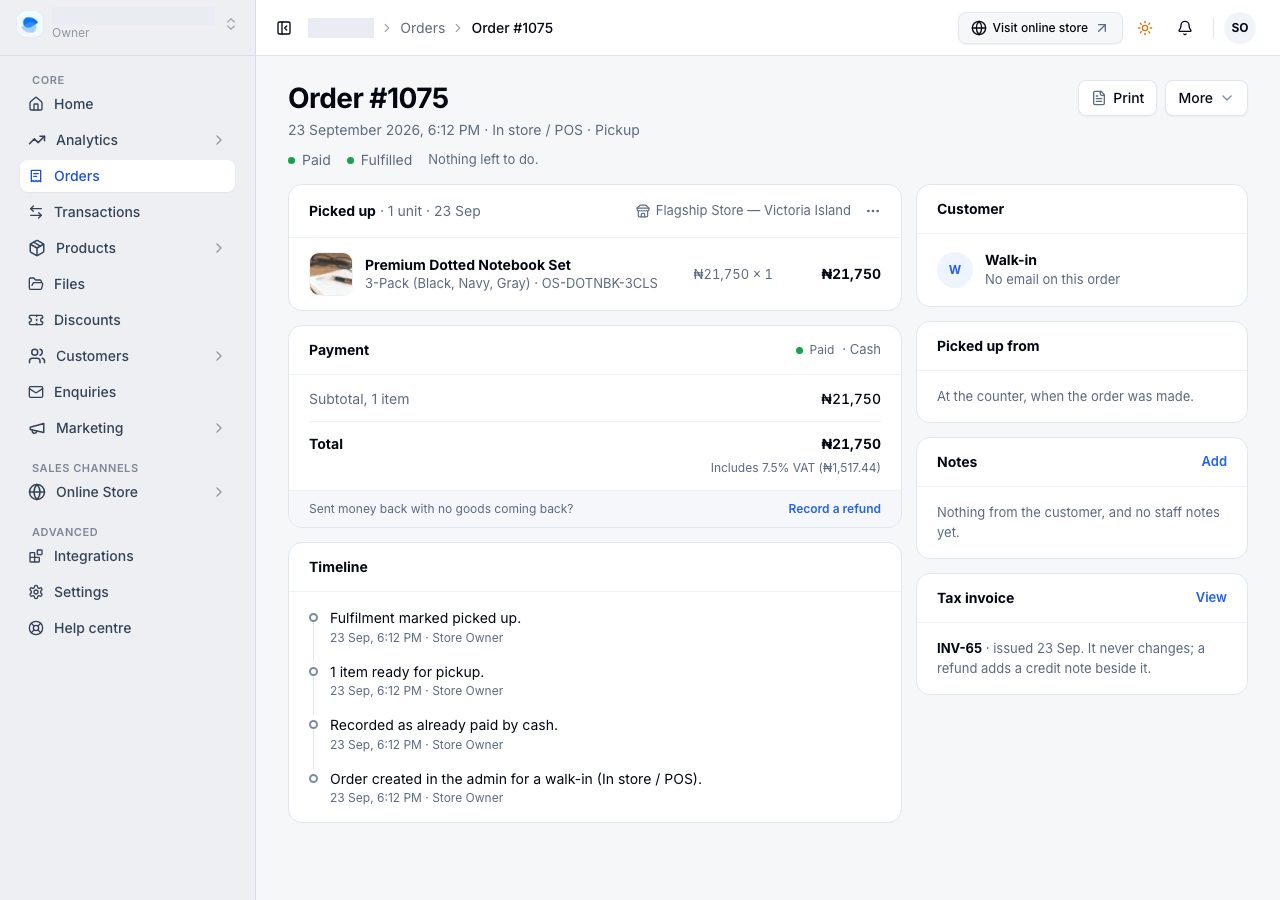
Choose Create order. The order opens. A counter sale opens already Paid and Fulfilled, and its timeline says who recorded it and how it was paid.
If it does not work
- Create order does nothing: the line under the button names what is missing, and the card it belongs to says so too. The usual ones are the sales channel, at least one item, and an address for a delivery.
- "Only 3 of … are left at …" under a line: that location does not have enough. Lower the quantity, or sell it from a location that has it.
- A custom item will not save: it needs a price. There is no default, so nothing is ever billed at nothing by accident.
- Other will not save: say how they paid in the note.
- An unpaid order disappeared from Unpaid: its hold ran out and it cancelled itself; its timeline says "Cancelled automatically: not paid by" the time it was held until. The stock is back. Create it again if they still want it.
- Create order is refused: creating new orders needs a live subscription. Orders you already have stay fully manageable; see When a payment fails.
Email support@shoponent.com with your store name if anything here does not match what you see. We read and answer every message.