Available on every plan · Updated 18 October 2026
Also asked as: “email the customer when i cancel” · “tell customer order cancelled” · “cancel an order” · “cancel order greyed out” · “refund a customer” · “customer returned an item” · “customer refused delivery” · “item came back damaged” · “record a refund” · “refund before the return arrives” · “keep a restocking fee” · “refund part of an item” · “refund the delivery fee” · “return shows no refund step”
Which of these you want depends on one thing: where the goods are.
| The goods are | Do this |
|---|---|
| still with you | Cancel the order |
| back with you after a failed delivery | Cancel the parcel, then the order |
| with the customer | Create a return, then refund it, or exchange it for something else |
Money is separate from goods. Record a refund lives on the order, in More and on the Payment card, and works before or after anything comes back.
Cancel an order
Open the order and choose More → Cancel order.
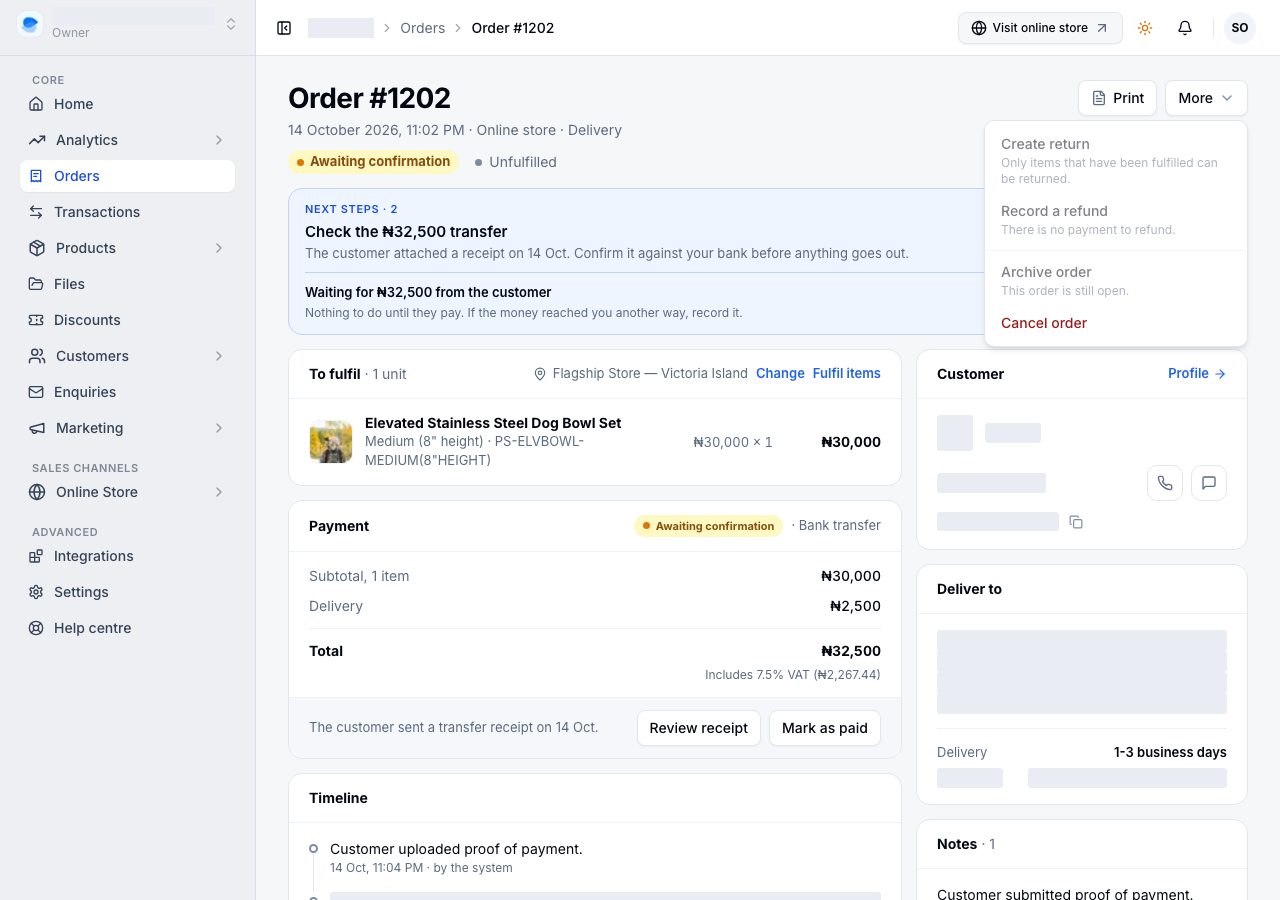
The dialog says what will happen: reserved stock goes back to your shelf and the order stops being worked. Say why, from the list or in your own words; it is kept on the order. If the customer had paid, the dialog also asks whether you have already sent the money back, and records that refund with the cancellation so you do not have to come back for it. It says what that refund covers: every item still on the order, and the delivery.
Email the customer is ticked when the order has an email address, and the line under it says what they will read: that the order is cancelled, and whether their money was sent back, will be refunded, or was never taken. Untick it if you have already told them. It is off, and says why, when the order has no email. Cancelling cannot be undone.
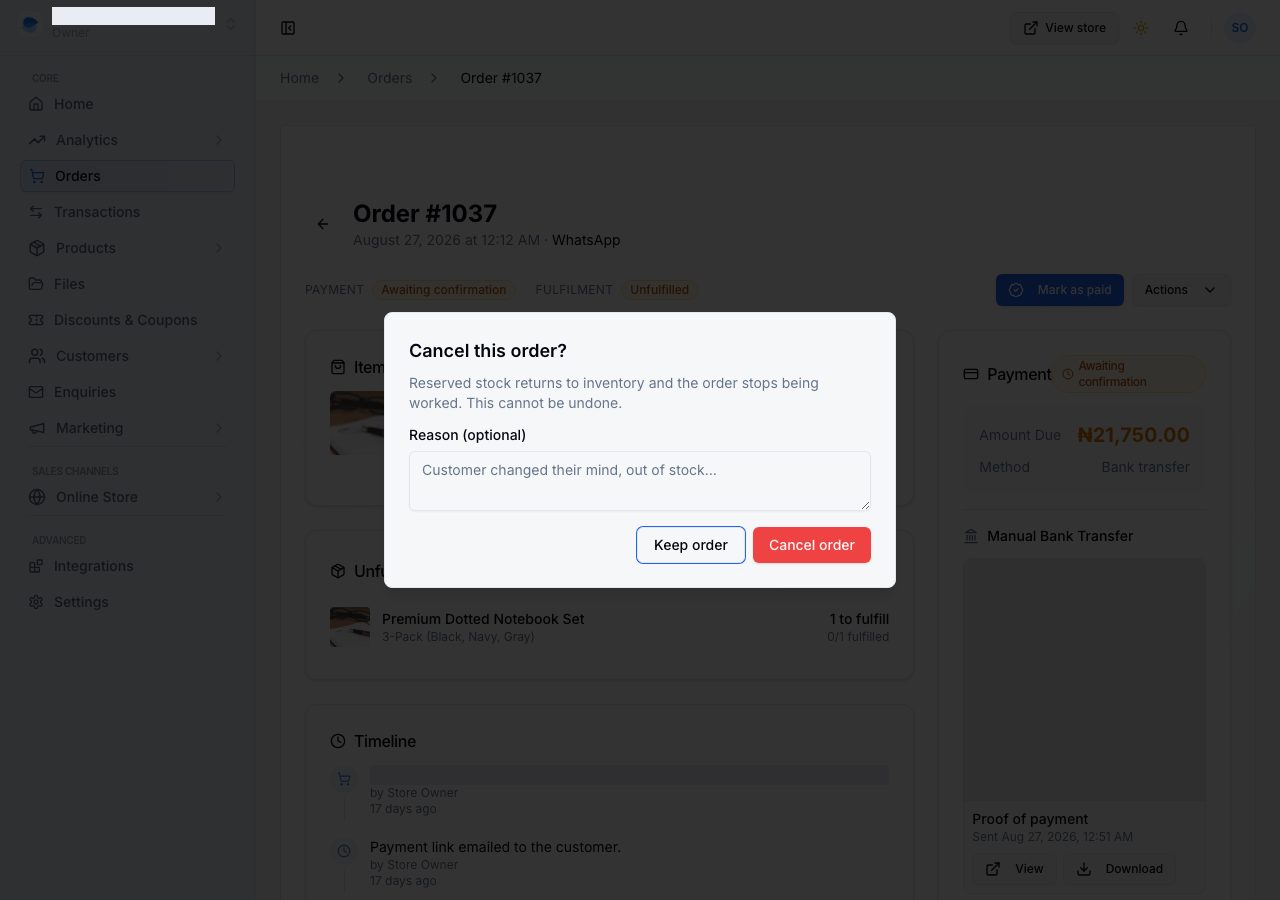
Afterwards the order reads Cancelled under its title, and its cards say nothing more can be done. The line under the title says how many units went back on the shelf, when any did (a product you do not track, or a line you typed in, holds no stock, so there is none to send back), and the timeline records who cancelled it and whether the customer was emailed.
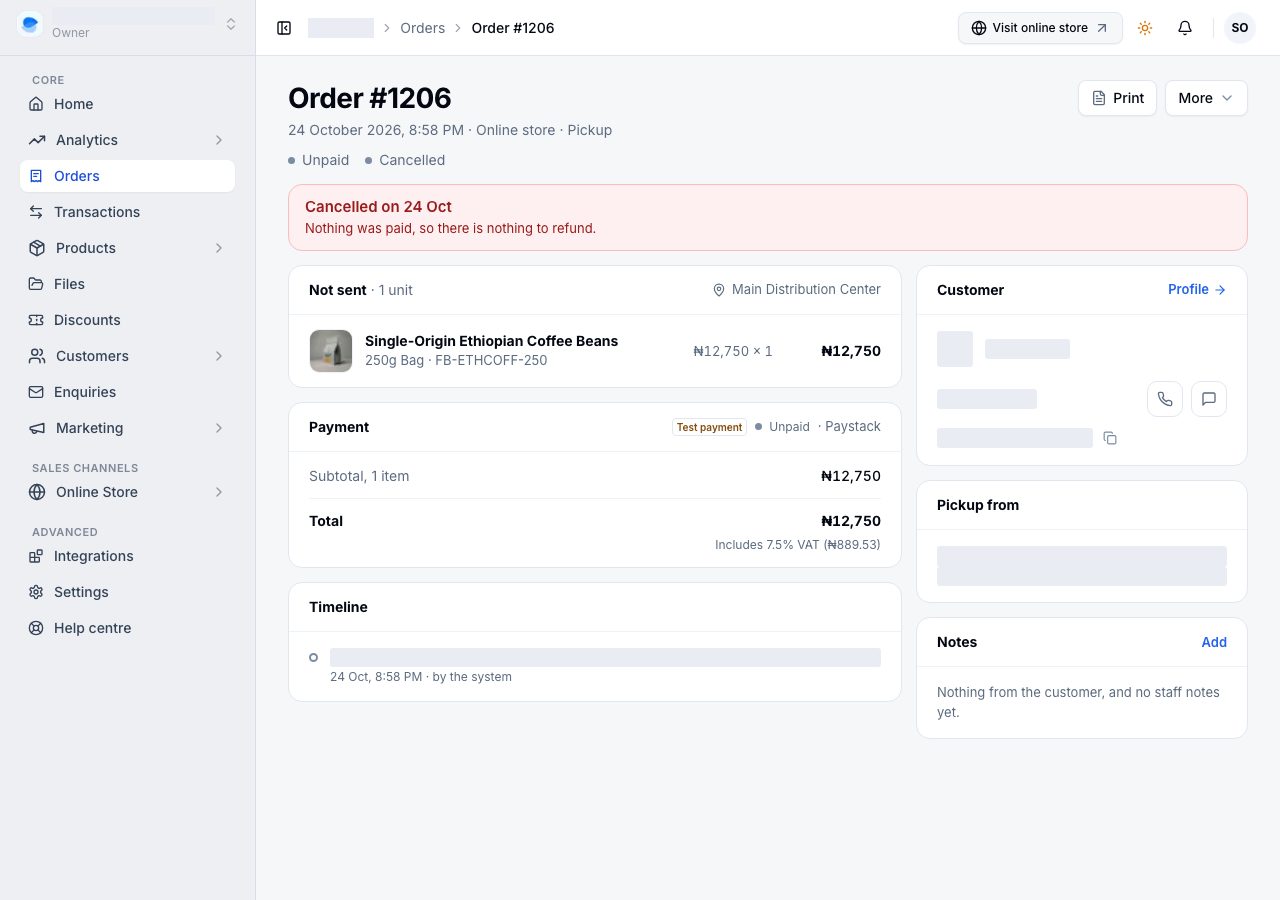
Cancelling stops goods, not money. If the customer had paid and you did not record the refund in the dialog, the Payment card still says what you hold, and Record a refund is the way to send it back.
A card payment can still arrive after you cancel, when the customer had the payment page open. The order records it, its timeline says it was received on a cancelled order, your bell rings under Payments to refund, and the customer's receipt says the order was cancelled and you will refund them. Send it back with Record a refund.
A customer who opened two payment pages can pay both. The second payment is not part of the order: its timeline says Charged twice with the second payment's reference, your bell rings, and you refund that payment in your payment provider's dashboard (Paystack lets you refund all or part of a transaction there; its fee is not returned).
When Cancel is greyed out
Once anything on the order has been packed, Cancel order is refused and says what to do instead, right under it in the menu.
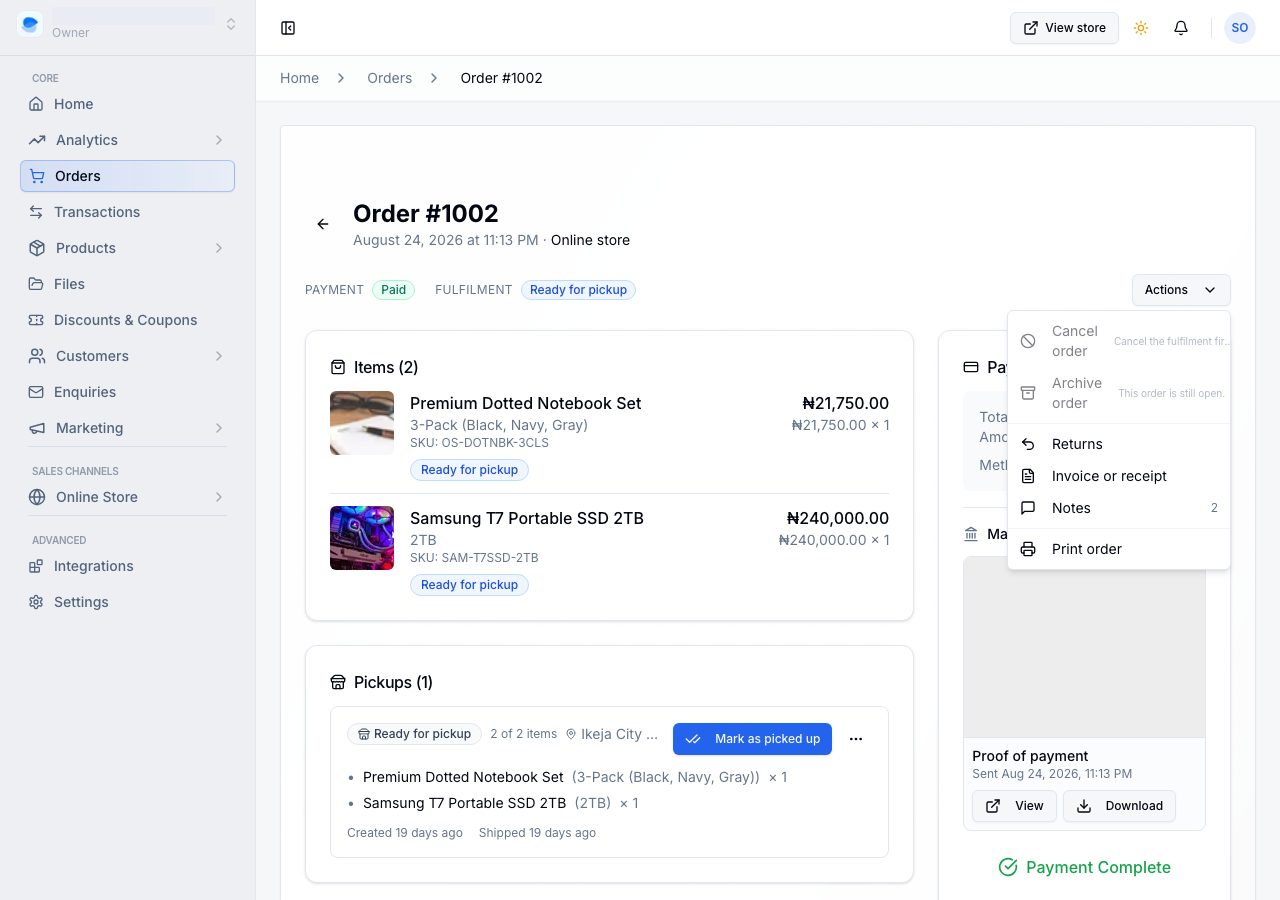
That is the whole rule, and it splits in two:
- The parcel came back (a refused delivery, a customer who was not in): open the parcel's own menu, choose Cancel this fulfilment, which puts the stock back, then cancel the order.
- The customer has the goods: do not cancel. Take a return.
Take a return
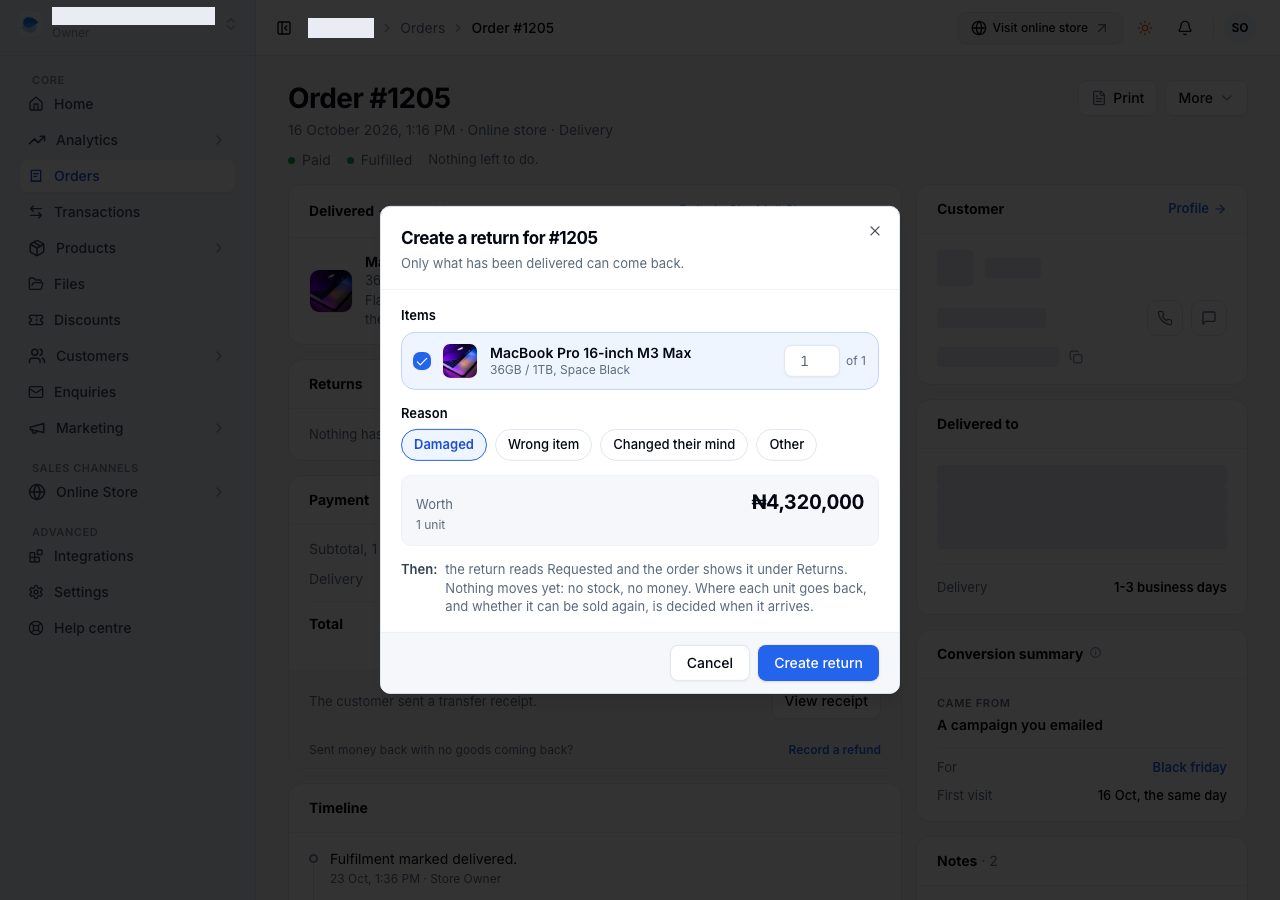
Choose More → Create return. Only items that have actually been handed over can come back, and the menu says so when there are none.
In the dialog, tick what is coming back and how many of each, and say why. What cannot come back is listed too, with the reason. Worth adds up as you tick. Creating the return moves nothing: no stock and no money. It says goods are on their way.
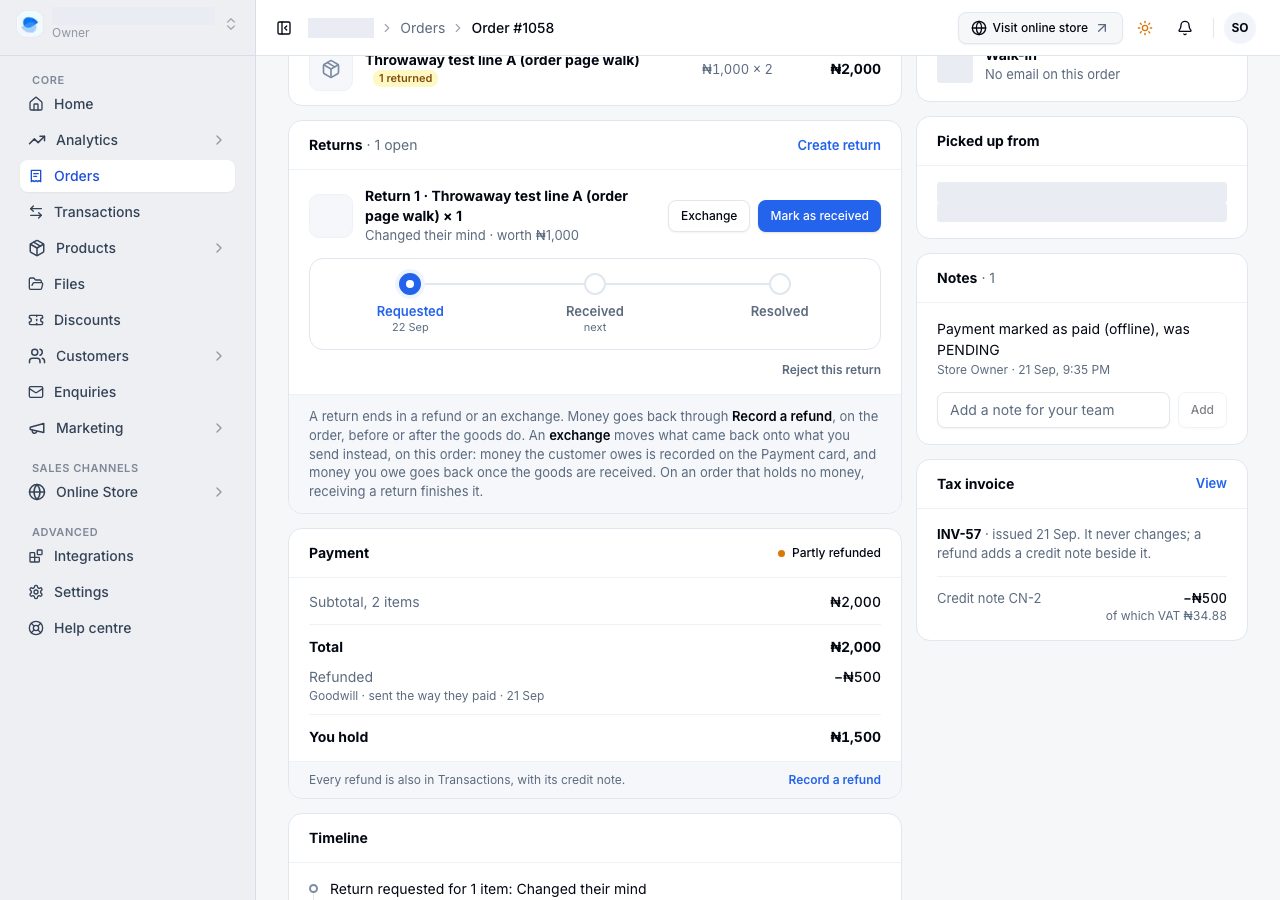
Once a return exists, the order gains a Returns card under the goods. Each return has its own line: what is coming back, product by product, why, what it is worth, and a track from Requested to Received to Resolved, with its next step as a button. Resolved is named for what it became once it is decided: Refunded, or Exchanged (see Exchange a return). On an order that holds no money the track stops at Received; see below. Create return is on the card's heading from then on.
When the goods arrive, choose Mark as received on the return (the strip at the top asks for it too). This is where you say what came back and where:
- Arrived at is the location the goods are now, which is where their stock goes back. It starts as the location the parcel left from; choose another from the list. A store with one location is not asked.
- Each line is Back on the shelf (it can be sold again) or Damaged (it is kept, counted, and not for sale, the same as marking stock damaged on the inventory page, and it can be made sellable again from there). A line you typed in by hand, or a product you do not track, says nothing is recorded for it.
- Then says exactly what will move: how many units go back on the shelf at which location, how many are set aside, and what the next step is.
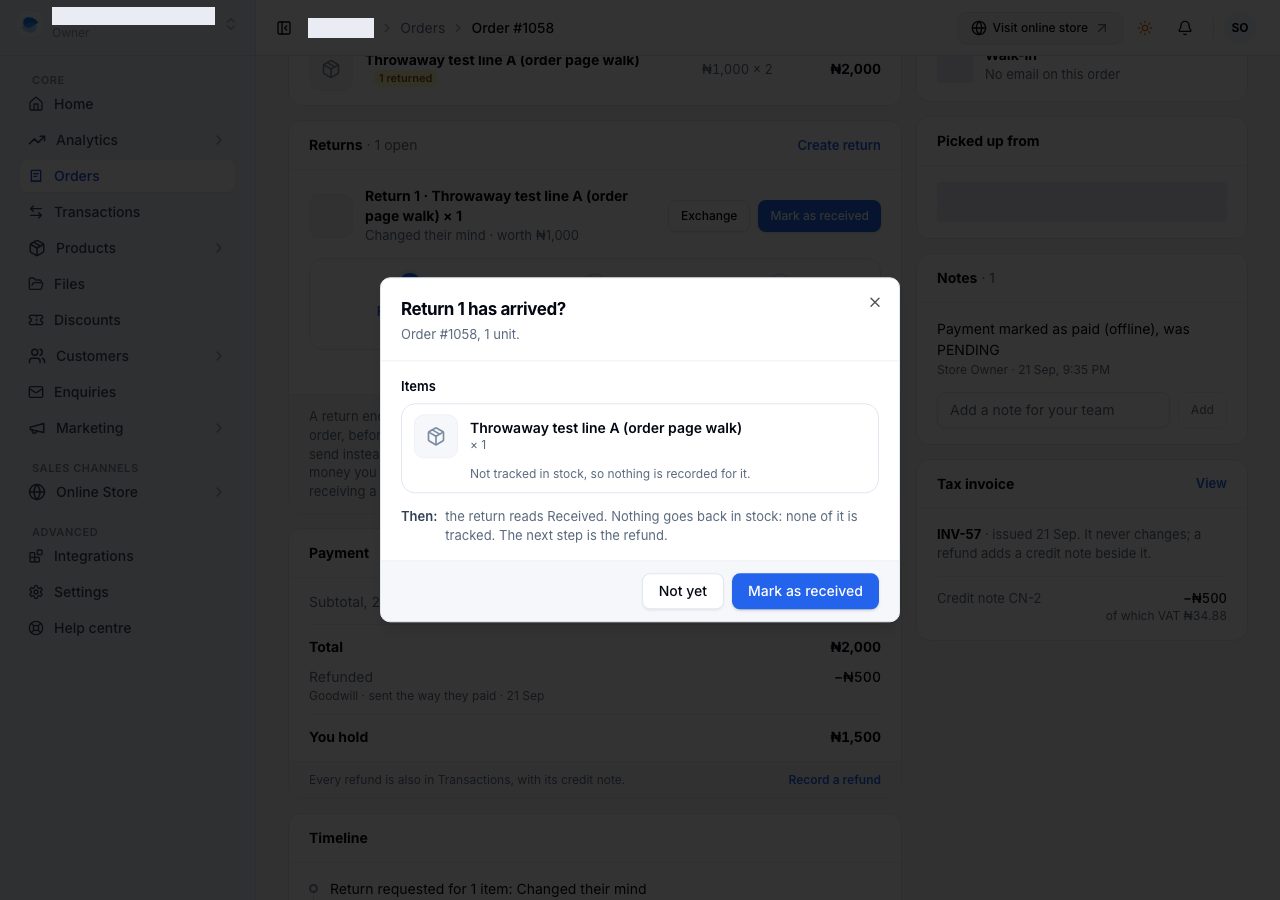
Afterwards the return reads Received, its line on the card says what went back and where, and the timeline records it in your name.
Refund it
A received return's button becomes Record refund. The refund covers what came back: each item at what it sold for, less its share of any discount on the order, and never more of an item than is left to refund. The total is on the button.
To send less, for instance to keep a restocking fee, choose Change amount, type what you are sending, and say why. What you keep is a line of its own on the refund and on the credit note, and the item still counts as fully returned. Say how you are sending the money, add a note if you like, and choose Refund. The return reads Refunded, the order reads Refunded or Partly refunded, and a credit note lists what the refund covers.
On an order that holds no money, receiving a return finishes it. If the order was never paid (pay on delivery, and the goods came back before the money did), or everything paid has already gone back, there is nothing to refund. So there is no refund step: the return's track ends at Received, the line under it says why, and there is nothing to press.
Refunding without a return
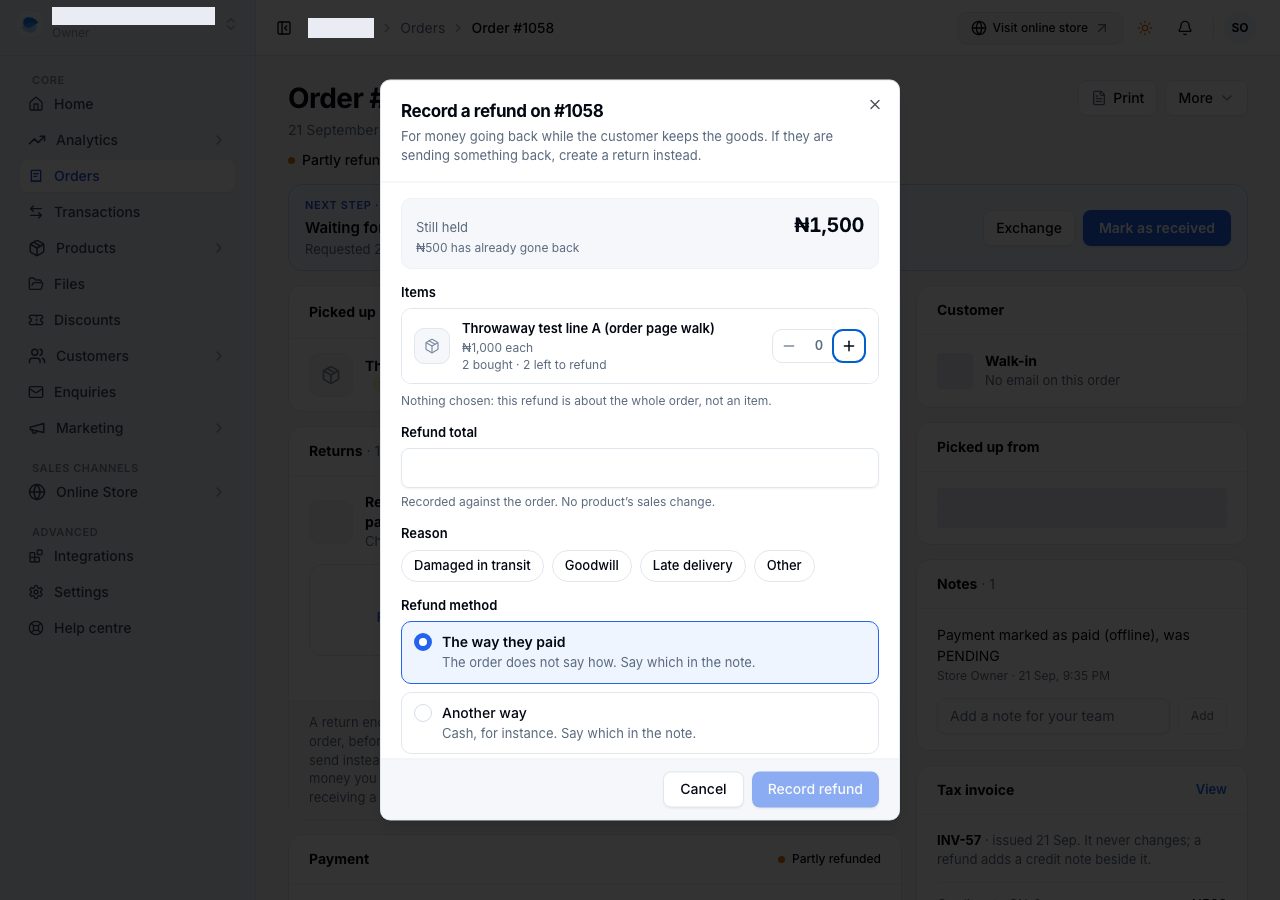
Choose More → Record a refund, or Record a refund on the Payment card, when money is going back and the customer keeps the goods: an item damaged in transit, a late delivery, goodwill, or the money on a cancelled order. The dialog shows what the order still holds, then asks what the refund is for:
- Items: how many of each. Each line says how many were bought and how many are left to refund.
- Delivery: tick Refund it to give back what is left of the delivery charge.
- Nothing: the refund is about the whole order, such as goodwill. Type the amount.
The total adds up as you choose. Change amount sends a different figure and asks why it differs, for instance when you give back part of an item's price. Then say why the refund is being made and how you are sending it. It never lets you record more than the order still holds, and on a cancelled order it opens with everything left on the order already chosen.
Naming the items is what lets your reports take a refund off the right product, and leave one about the whole order off every product: see What counts as revenue.
You can refund first and create the return later. The return then refunds only what is left, and if nothing is, receiving it finishes it.
About the money
We do not move the money. You refund the customer through the provider you took the payment with, or by transfer from your bank, and record it here so the order, your reports, the customer's documents and their account agree: the order in their account says how much went back. Recording a refund adds a credit note against the tax document already issued, rather than changing it; see Invoices and receipts.
Stock and money are decided separately. A refund on its own does not restock anything; receiving a return does, at the location you name, in the condition you give each line.
If it does not work
- Cancel order is greyed out: read the reason under it. Something has been packed, so cancel that parcel first, or take a return if the customer has the goods.
- Create return is greyed in More: nothing has been handed over on this order yet, and the reason under it says so. Cancel it instead.
- Everything delivered has come back: nothing is left to return. The Returns card says so.
- Mark as received asks which location: the goods hold stock and your store has more than one location, so say where they arrived.
- The return has no refund step: the order holds nothing to send back, so receiving the return finished it. The line under the return says whether the order was never paid or already refunded.
- A received return offers Close return: the goods came back while the order still held money, and that money then went back through Record a refund. Nothing is left to refund, so closing it ends the return.
- The refund button is greyed out: say why the refund is being made, and if you changed the amount, why it differs.
- You refunded in your bank and the order still says Paid: record the refund here as well. We have no way of seeing a payment you made outside the platform.
Email support@shoponent.com with the order number if anything here does not match what you see. We read and answer every message.