Available on every plan · Updated 25 September 2026
Also asked as: “send an invoice” · “resend the invoice” · “copy the payment link” · “customer did not get the invoice” · “customer has no email” · “invoice pdf” · “customer paid by transfer from the invoice” · “customer says the card payment failed” · “invoice expired” · “customer paid twice” · “send invoice on whatsapp” · “customer only has a phone number” · “cannot send invoice” · “share invoice” · “pay on delivery pay online” · “rider collect payment with paystack” · “customer wants to pay before delivery”
When you create an order that is Not paid yet, to be paid before it goes out, your customer gets an invoice. It is an email from your store with the invoice attached as a PDF, and a link to a page on your storefront where they can see it and pay. They do not need an account. See Create an order in the dashboard for creating the order.
1. Send it, or copy its link
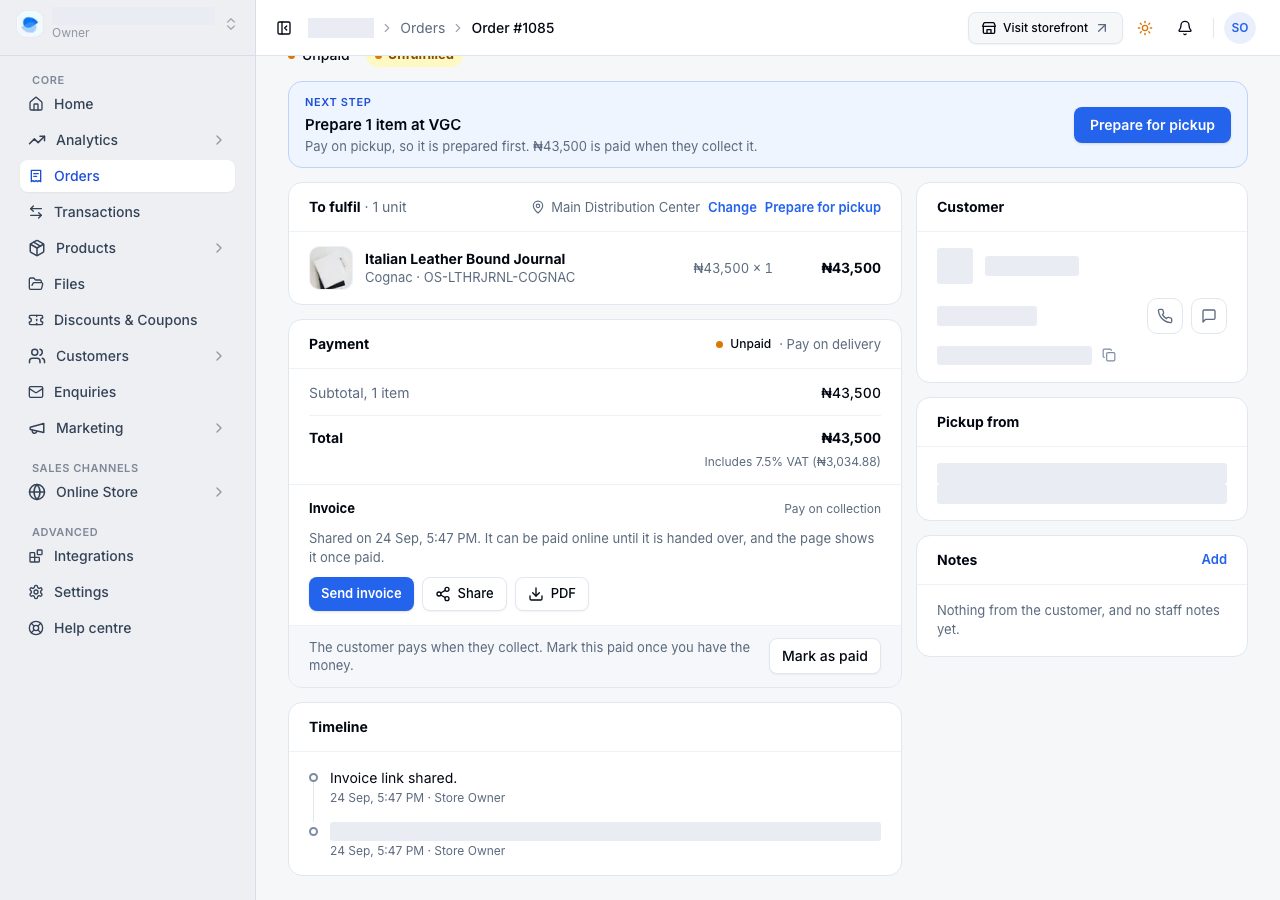
Open the order. The Payment card has an Invoice section: when it is due, and whether it has gone.
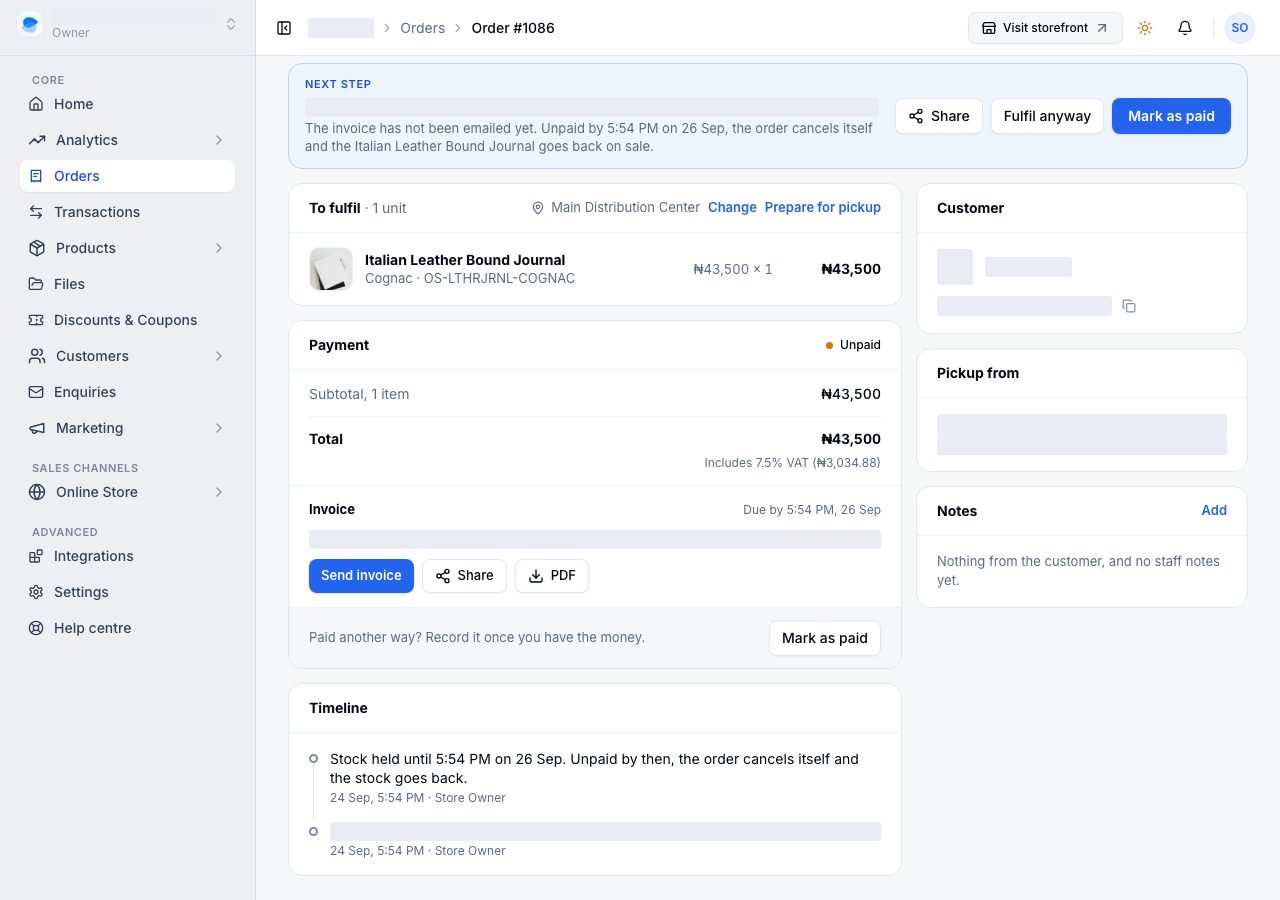
- Send invoice emails it, with the PDF. Once it has gone, the card says who it went to and when, and the button reads Resend.
- Share sends the customer's page anywhere. On a phone it opens your phone's own share sheet; on a laptop it offers WhatsApp (any chat), Email or Copy link.
- PDF downloads the same invoice the email attaches. It has a link to the invoice page and a QR code to it, so a printed copy can be paid too.
- No email on this order: Share it on WhatsApp or anywhere else, or choose Add email to give the order one and send it from here. The email is saved on this order, not on a customer.
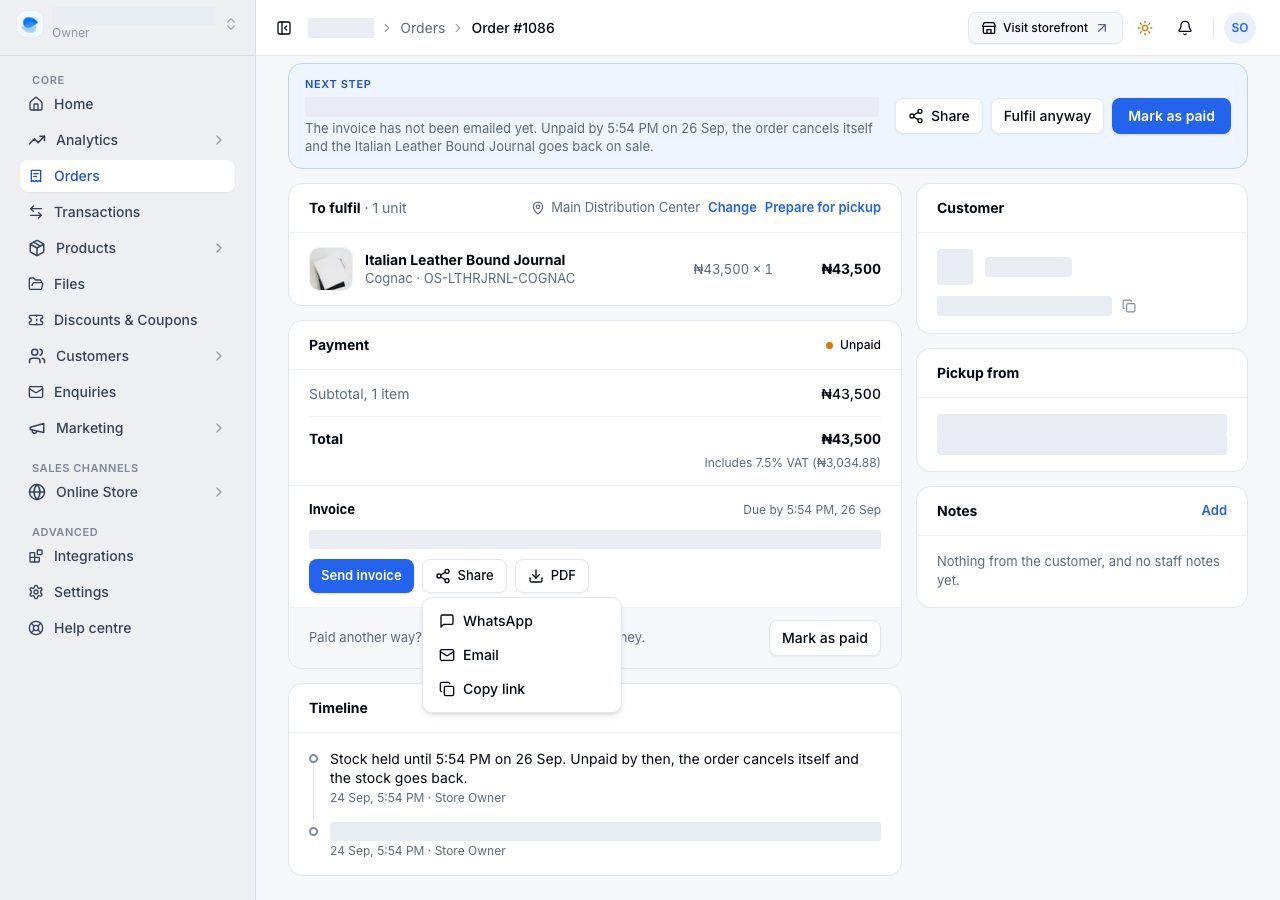
The same are at the top of More, with Copy invoice link for Share. The strip above the order says whether the invoice was emailed and when an unpaid order cancels itself, and keeps the order's own two next steps, Mark as paid and Fulfil anyway, with Share beside them.
Your customer does not need an email to pay by card. If they choose Paystack or Monnify on the page, it asks them for one first, and their receipt goes there.
The invoice carries the order number, not an invoice number. The numbered tax invoice or receipt is issued when it is paid, so one sale never has two invoice numbers. See Invoices and receipts.
2. What your customer sees
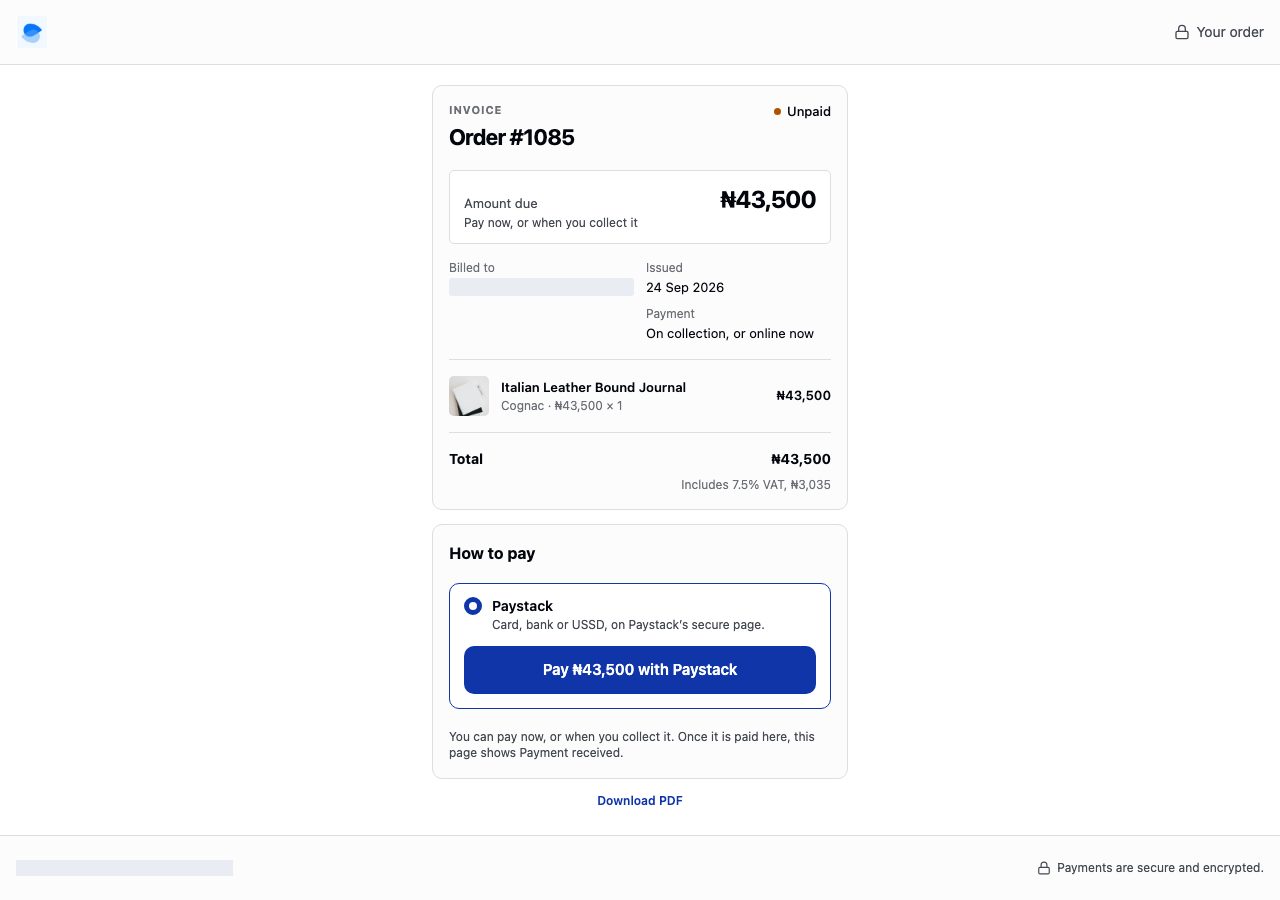
The link opens the invoice: the amount due and when it is due, who it is billed to, what they are buying, and How to pay, listing what you have set up.
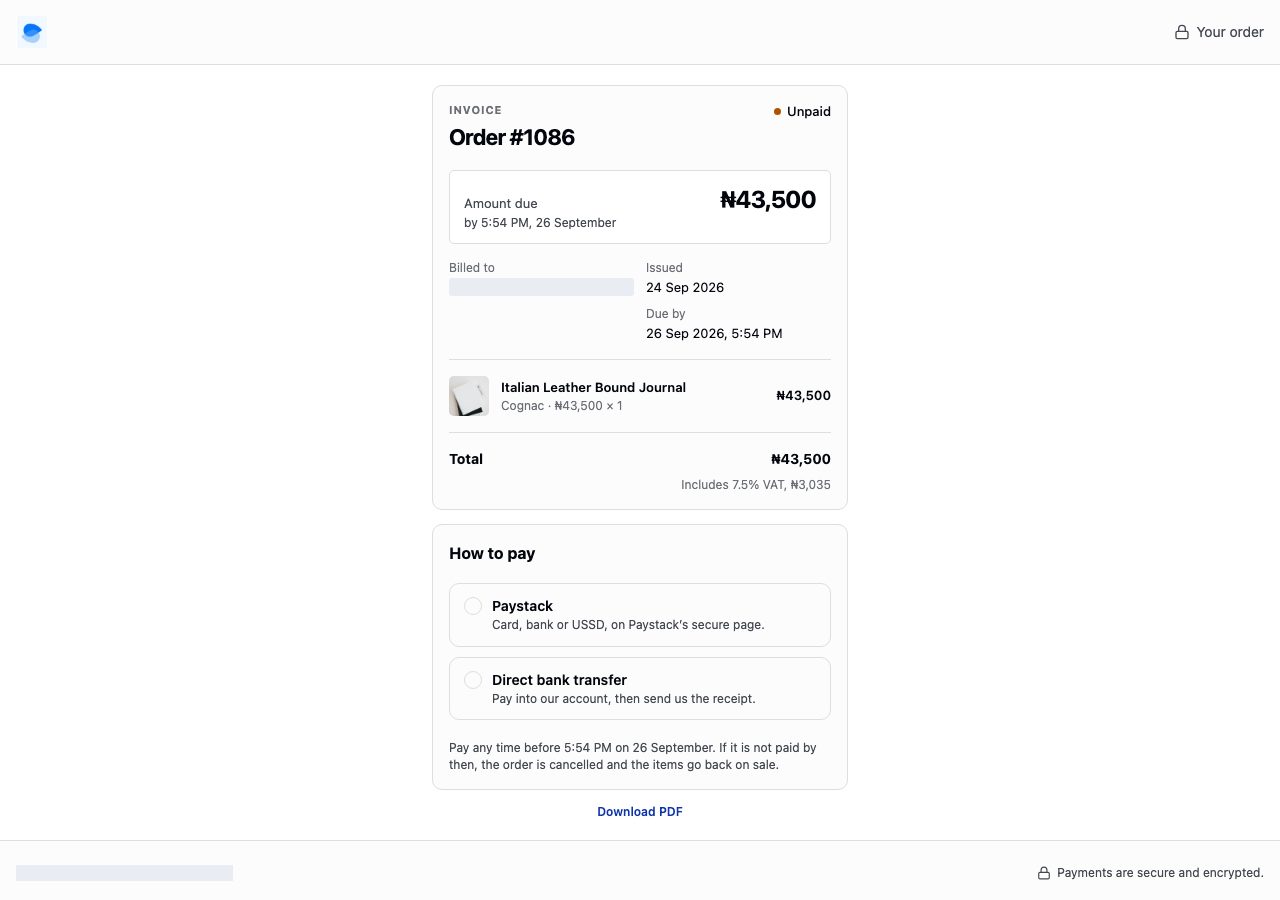
- Paystack or Monnify opens your provider's own secure page and comes back to the invoice. If the payment is slow to confirm, the page checks by itself and asks them not to pay again; once it is confirmed, the page says Payment received.
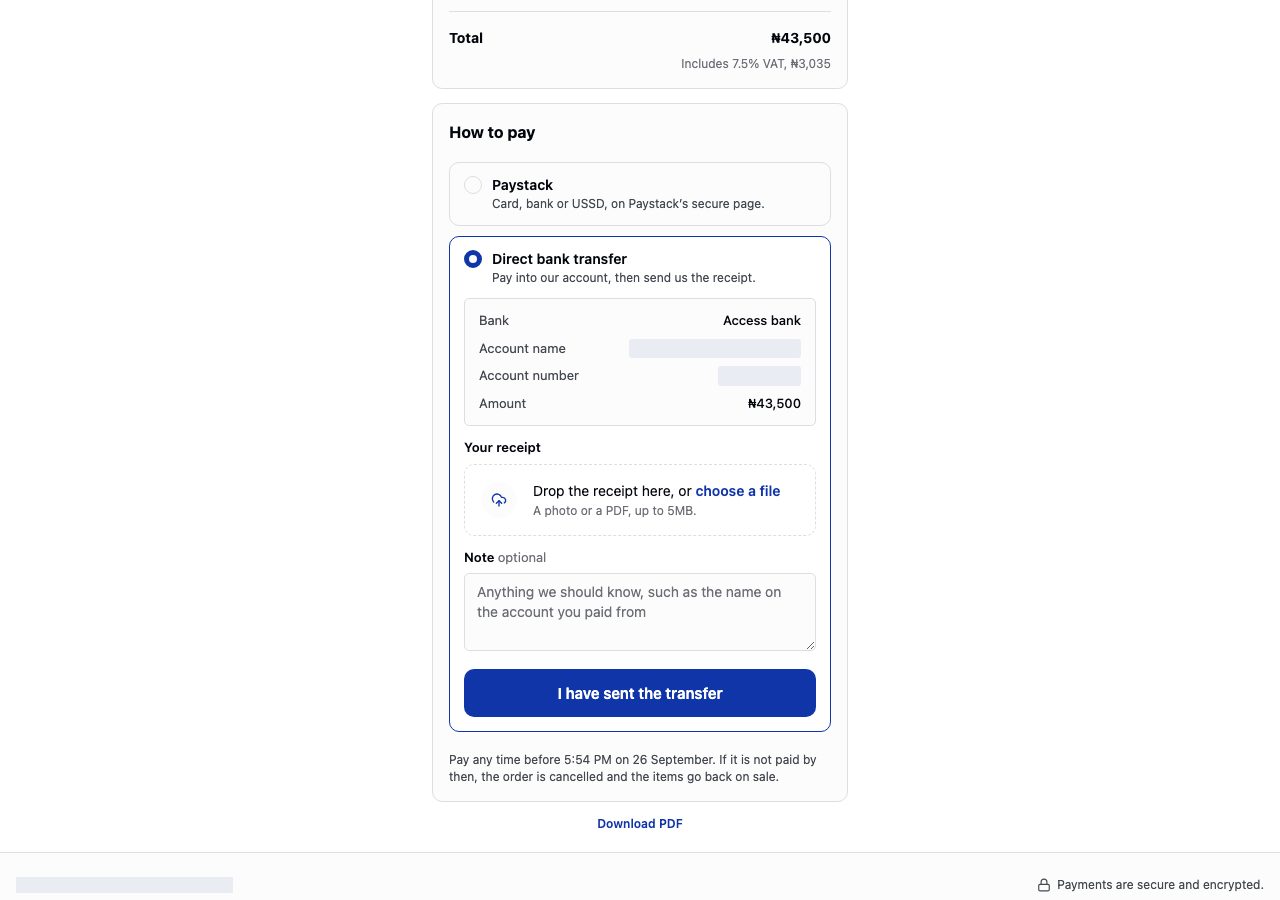
- Direct bank transfer shows your account details. They send the transfer, then attach the receipt, which is required, and can add a note, such as the name on the account they paid from.
If you have no way to be paid set up, the invoice still goes, and asks them to get in touch with you. Create order warns you before you send it.
3. When the money comes in
- Through Paystack or Monnify: the order becomes Paid by itself.
- By transfer: the order's strip reads Check the transfer. Review receipt shows what they sent, with their note, beside the amount it should be; Confirm payment once you see it in your bank. See Open and fulfil an order.
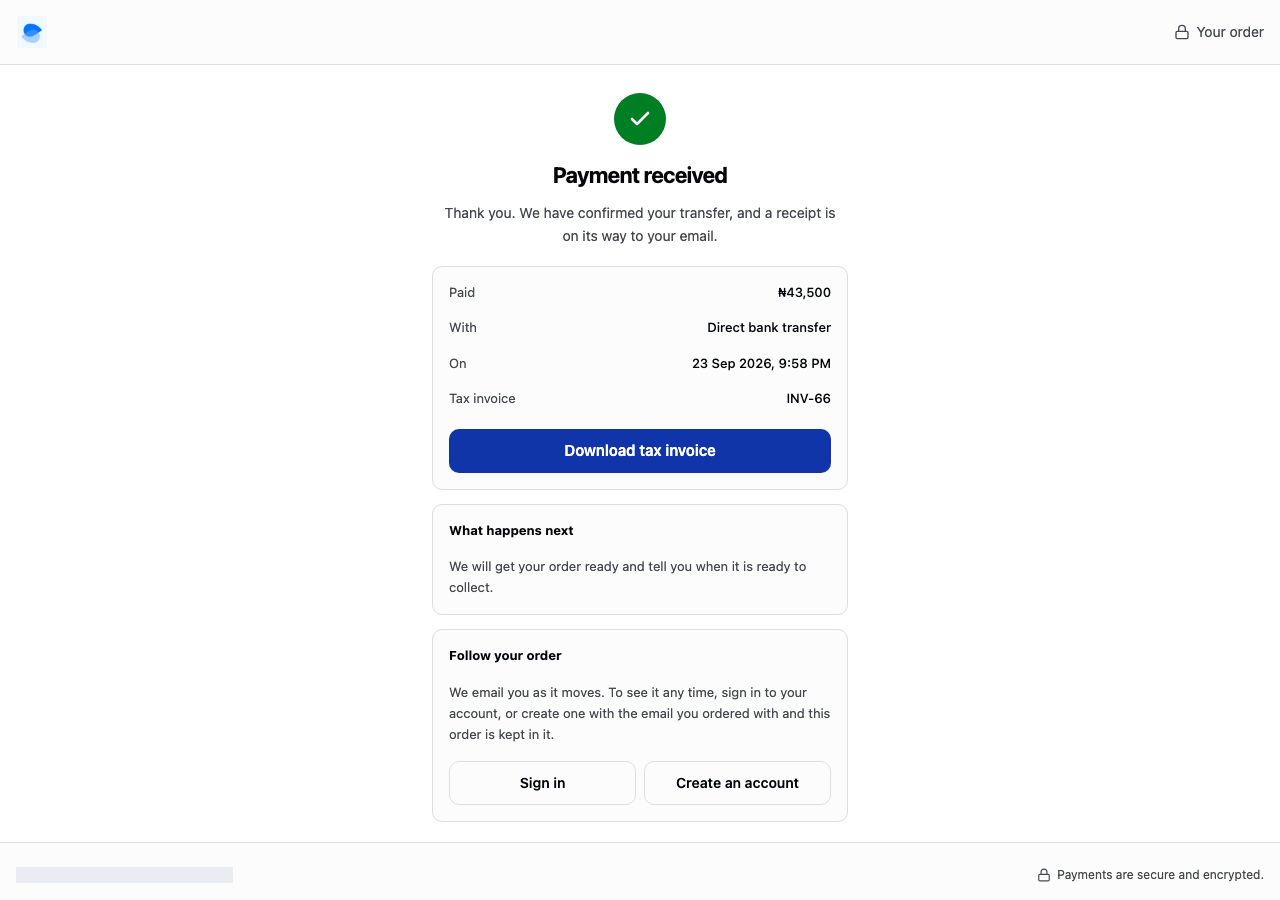
Your customer is emailed that their payment was received, with their receipt or tax invoice attached, and the same link then shows them Payment received, the document to download, and what happens next. The link is for paying: to follow the order, they sign in to their account on your store, or create one with the email on the order and find it there.
Pay on delivery orders
A pay on delivery order has an invoice too, when you have Paystack or Monnify set up. Send it to your customer, or share it with whoever delivers, and it can be paid online before it is handed over: at home before it arrives, or at the door, with the rider watching the page.
- Until you send or share it, the link your customer already has from their order email shows their order, not a bill. Sending, sharing, copying the link or downloading the PDF is what turns it into one.
- It offers Paystack or Monnify only. Monnify's page includes a bank transfer that it confirms by itself; a transfer receipt someone has to check is not offered here.
- It has no due date, and the order stays pay on delivery. If the payment is never made, nothing changes: it is still collected at handover, and you Mark as paid as usual.
- Once the payment is confirmed, the page says Payment received. That is what to check before handing over. Nobody can mark it paid from the link.
When it is not paid in time
If you chose to hold the stock for 2 days or for 7 days, the invoice is due when the hold ends. Unpaid by then, the order cancels itself, the stock goes back, and the link tells your customer the invoice has expired. A card payment they started gets up to a day to confirm before that happens. A receipt they sent stops it: you decide.
If it does not work
- Send invoice is not there: the order has no email. Choose Add email, or Share it yourself. If the order has an email and it is still not there, your role can view orders but not change them; ask the store owner.
- "This invoice has been emailed 5 times in the last day": one invoice can be emailed up to five times a day, so a customer's inbox is not flooded. Share it instead. A store can email up to 200 invoices a day.
- "The invoice could not be sent": nothing went out, and the card does not claim it did. Copy the link and send it another way.
- The customer says their card payment failed: nothing was taken. They can try again from the same link, or pay another way. If they are sure it went through, the page confirms it by itself once the provider tells us.
- The customer paid another way: choose Mark as paid on the order and say how.
- A pay on delivery order has no Invoice section: you have neither Paystack nor Monnify set up, or the order is already paid.
- The invoice asks the customer to get in touch: you have no way to be paid set up. Set up Paystack, Monnify or a bank account in Settings.
Email support@shoponent.com with your store name if anything here does not match what you see. We read and answer every message.