Available on every plan · Updated 30 October 2026
Also asked as: “add a note to a payment” · “where did the payment reference field go” · “how to fulfil an order” · “mark an order as paid” · “customer sent a bank transfer” · “add tracking number” · “mark as shipped” · “ready for pickup” · “change the location an order ships from” · “order has no location” · “stop the customer being emailed” · “view the payment receipt” · “check a bank transfer” · “next step on an order”
An order arrives, you confirm you have the money, you pack it, and you hand it over. This page follows one from the bell to the last parcel. The page itself tells you what comes next: a blue strip under the title names the one thing the order is waiting on, and its button does it.
1. Open it
A new order from your online store appears in the bell at the top of the dashboard as New order with its number, and opens the order when you choose it. Otherwise open Orders and pick the row.
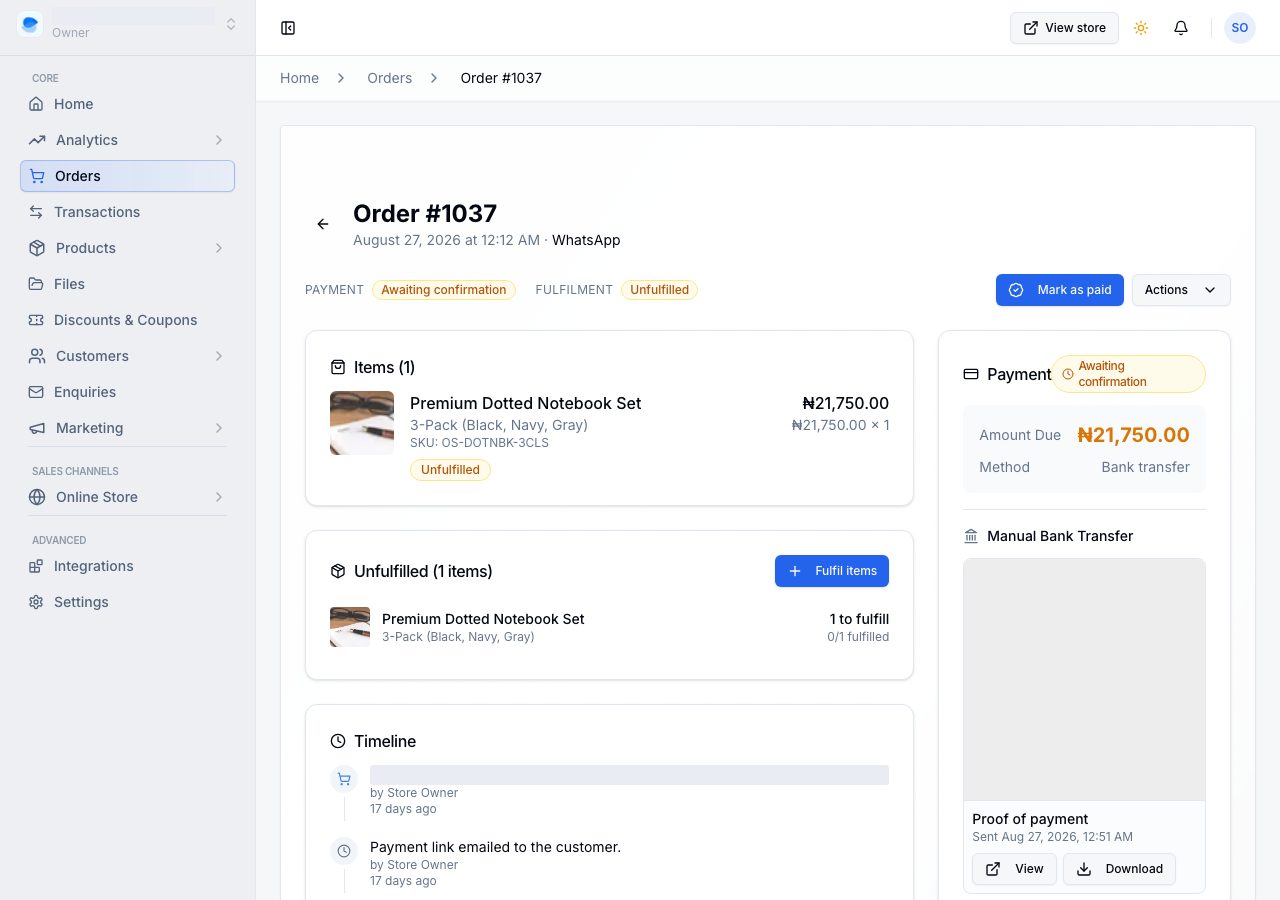
Under the title are the day it was placed, where the sale came from, and how it reaches the customer, then two marks: the payment and the fulfilment.
The Next step strip under them names what to do now, with one button for it. When there is more than one thing to do, such as items still to pack while a return is back and waiting for its refund, it says Next steps with how many: the first keeps the filled button, each other one has its own line and button, and what you are only waiting for (a parcel on its way, a return still coming back) sits last, in grey, with a link. Every one of those buttons is also on its own card, so nothing is ever reachable from the strip alone.
Below the strip, the goods sit on the left, grouped by where they are (still to pack, or in a parcel that has gone), with the payment and the timeline under them. On the right are the customer, the delivery or pickup, your notes, and the receipt once the order is paid.
An order that came through a link you shared, or one a shopper shared, also has a Conversion summary: where it came from (A link you shared on WhatsApp, say), the discount or sale the link was for, and when the shopper first visited. It counts when the order is placed within 7 days of that visit. Any other link with tracking words on it shows those words. An order that came any other way has no card. On a phone the card sits above the timeline.
More, beside Print, holds the order's other verbs: Create return, Record a refund, Archive order and Cancel order. Something you cannot do right now stays in the menu, greyed, with the reason under it. Archive order is for a finished order you want out of the way: it leaves your orders list, and a search or the Include archived orders filter still finds it. An order is never deleted.
2. Confirm the payment
What you do depends on how the customer paid, and the Payment card says which.
- Card or transfer through a payment provider: the order arrives Paid. There is nothing to do: the customer is emailed that their payment was received, with their receipt.
- Bank transfer straight to your account: the order arrives Unpaid, and the strip reads Check the transfer as soon as the customer uploads their proof. The card says when the receipt arrived, and Review receipt opens it.
- Pay on delivery: the order stays Unpaid until the goods change hands, and the card says the customer pays at the door, or at the counter for a collection. Mark as paid when you have the money.
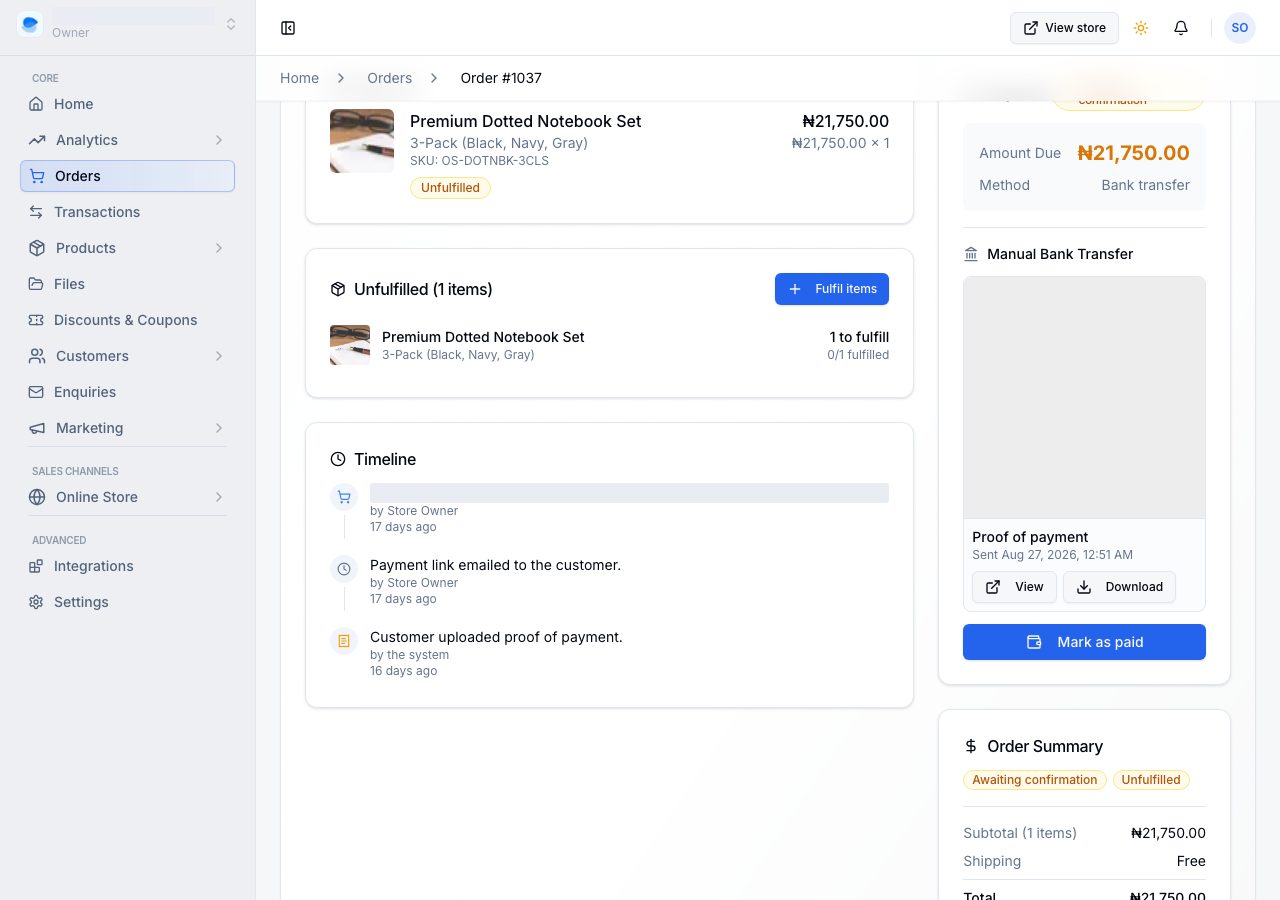
Review receipt opens Check the transfer on the same page, so the proof sits beside the amount the order is claiming. It shows the image (or names the PDF, with Open full size and Download), what the amount should be, who it came from and where it was paid into, and the customer's own transfer reference or note when they gave one. Below it, Note is yours: anything your team should know about this payment. The customer never sees it. Email the customer is ticked: they are told their payment was received, with their receipt attached. When the money is in your account, choose Confirm payment. If it never arrived, The money never arrived at the foot of the dialog takes you to cancelling the order instead.
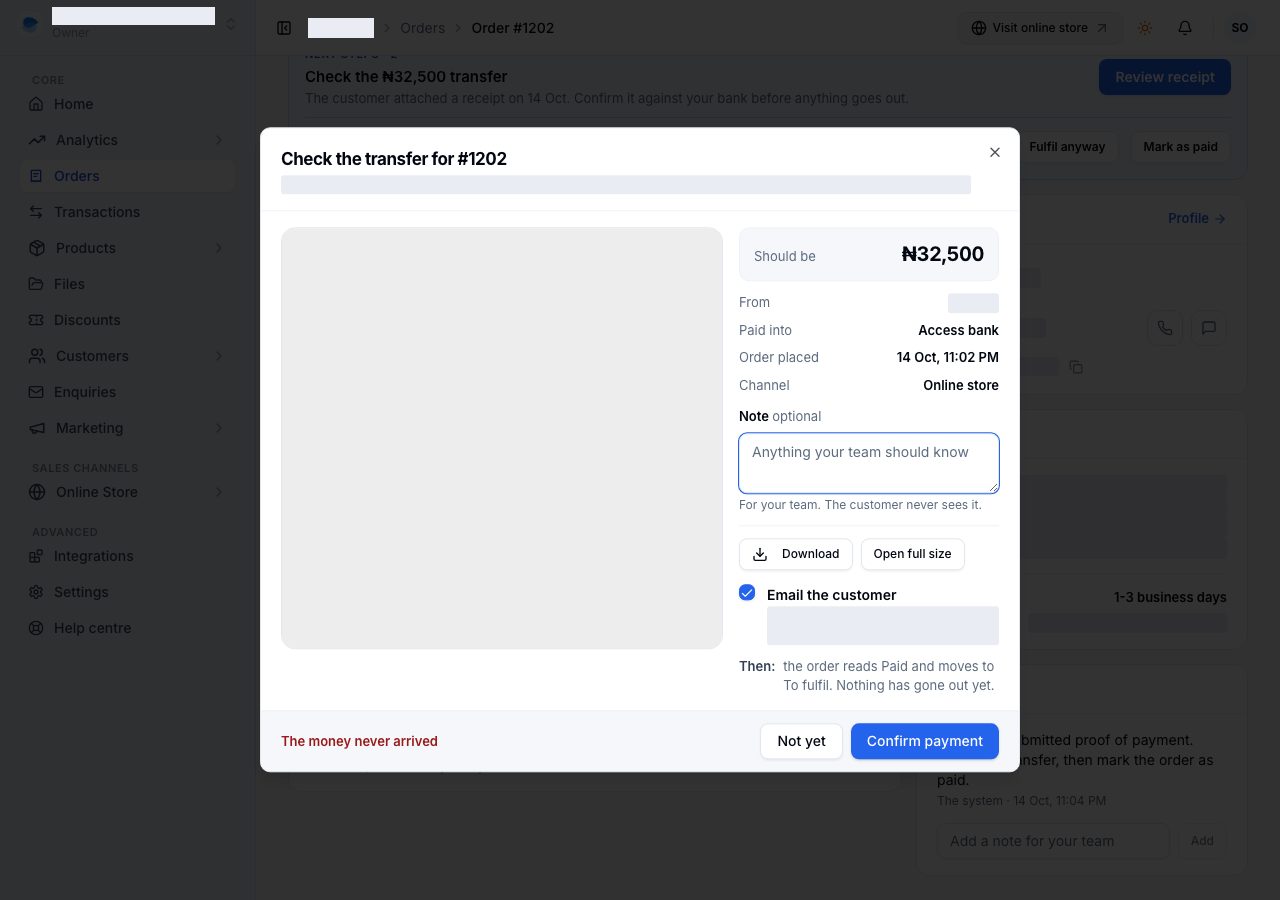
A customer who sent the wrong receipt can replace it once, from the order in their account, until you confirm the payment. You are told (New receipt for the order), and Check the transfer then shows two tabs, Latest and Replaced, so you can see both. There are never more than two, and both stay on the order.
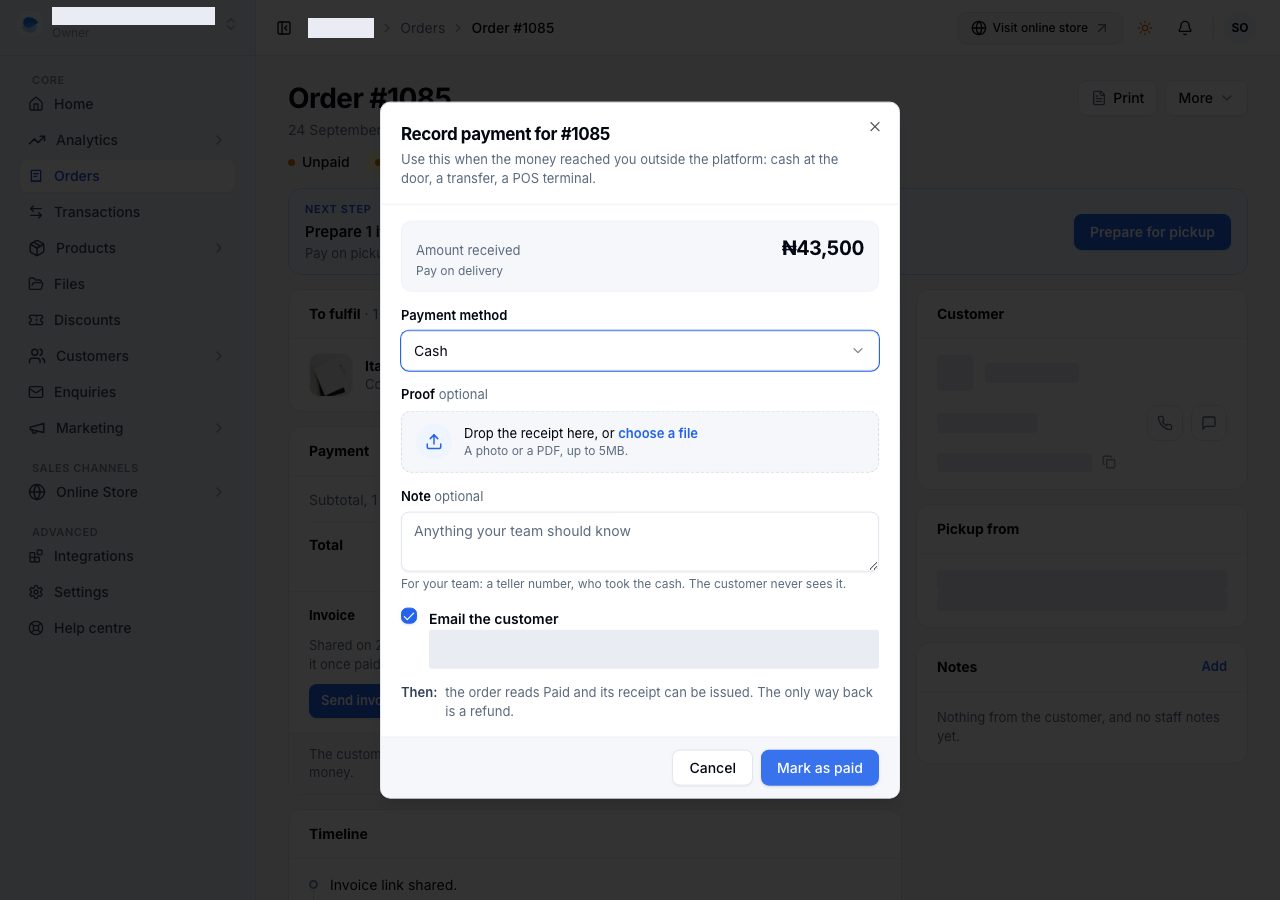
On a pay on delivery order Mark as paid opens Record payment: the amount received, how they paid, an optional proof to attach, an optional Note for your team, such as a teller number or who took the cash, and Email the customer. Untick it when the news would reach nobody, such as a customer standing at your counter. Choose Mark as paid. Either way the timeline records that you did it, in your name, and when the receipt was emailed.
An unpaid order your customer pays from a distance also has its Invoice on the card: send it or resend it, copy its link, or download its PDF. See Send an invoice and get paid.
3. Read the goods, location by location
What is still with you is a To fulfil card, one per location. With one location that is one card. With several, an order whose stock was reserved in two places has two cards, and that is the plan rather than a warning: it will go as two parcels. Every To fulfil card, one location or several, has its own Fulfil items button (Prepare for pickup on a collection); on a phone it is under the card's items. The card's heading names the location and how many units it owes.
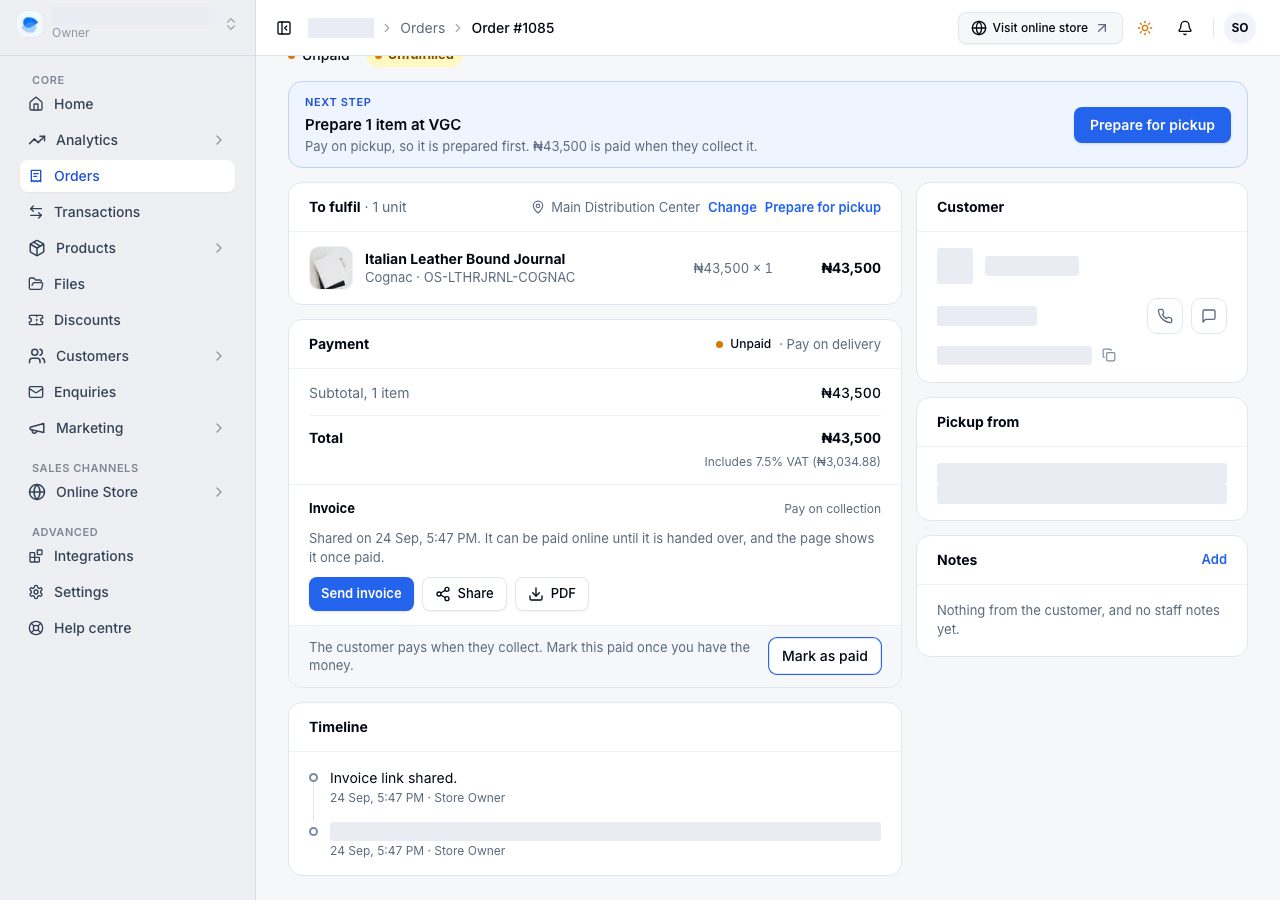
Under each product's name, the grey line says how its price was set when it was ordered: Flash sale with the sale's name and the price before the sale, Add-on price with what the add-on costs on its own, or, on a bundle, what its products cost bought separately. A line at its usual price, or one you typed in yourself, says nothing, and so does an order placed before October 2026. The printed order says the same; the packing slip carries no prices.
A line split across two locations appears on both cards, carrying only that location's units, so the rows still add up to the order. An older order that never recorded a location says so, and its button reads Set location instead of Change.
4. Change the location, if it is the wrong one
Choose Change on the card, then pick the location under Fulfil from, or Prepare at on a collection. What changes is where the items are sent from, and nothing travels: every line starts ticked at its full quantity, and you can untick one or lower its number to move only part of it, whether or not you track its stock. Under each product is what that location holds of it: 7 in stock, or how many would be backordered there. A product you do not track says Not tracked, and changes all the same. Change for confirms it.
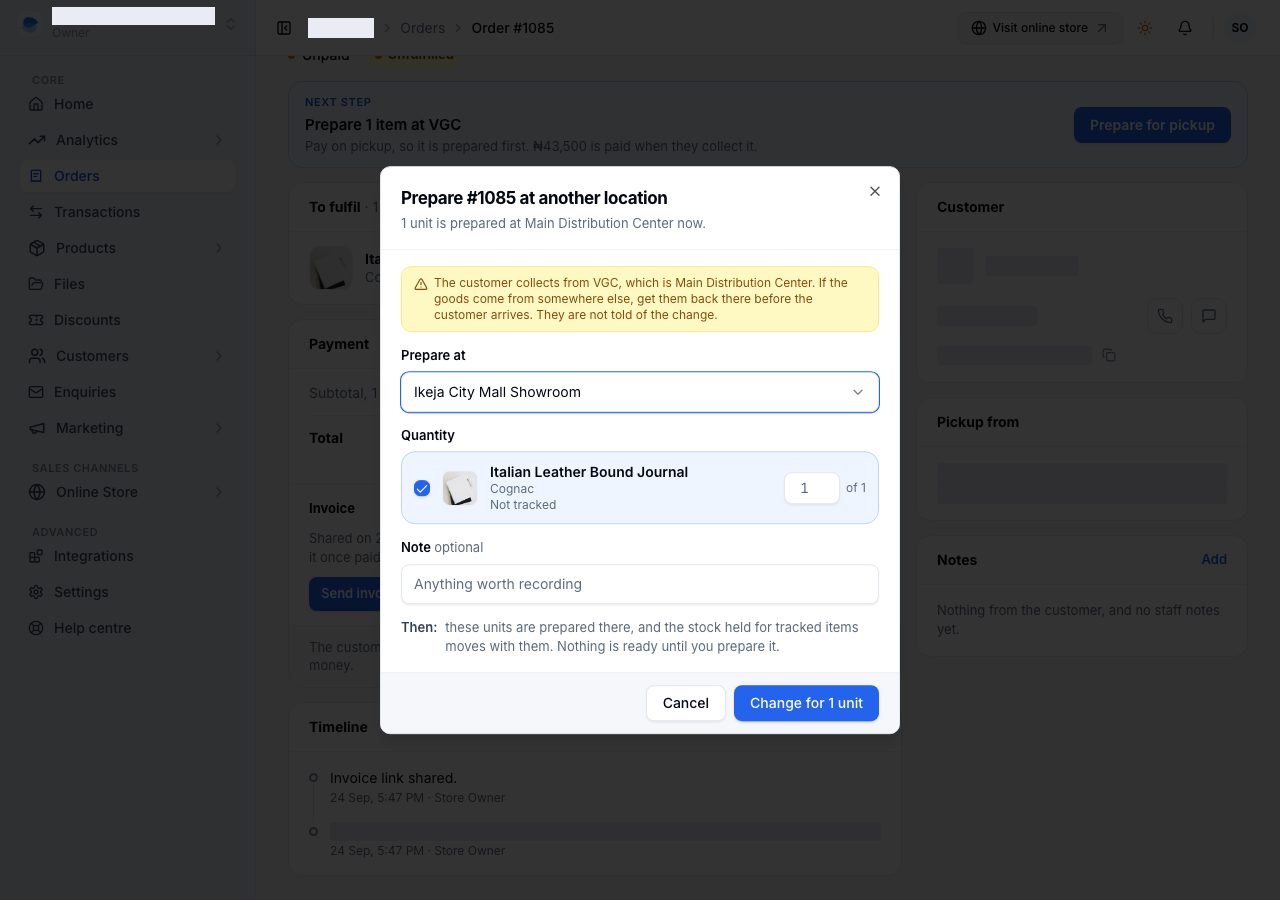
For a product you track, the stock held for this order goes with it. A location short of stock is not refused: the shortfall becomes a backorder there. When the customer collects from a pickup point that is the location the items are leaving, the dialog reminds you to get them back there before the customer arrives.
A location that does not have the stock is not refused. The shortfall becomes a backorder there, which is the record of what you owe, and you can still pack and send it. You can add a note, which is kept with the change.
On a collection, changing it changes where the customer has to go, and it does not tell them. The dialog says so before you commit.
Change it before you pack, not while you pack. That is why the packing dialog names the location instead of asking for one, with Change beside it: there is one answer to where a parcel ships from, and it lives on the order.
5. Pack it
Choose Fulfil items on the strip or on the card, or Prepare for pickup on a collection. The dialog covers that one location, and it names it in bold at the top. In it:
- What is going starts with that location's share ticked, and no more than its share on a split line. Untick a line or lower a number to send part of it now and the rest later.
- How far has it got? is where this parcel already is: Packed (still with you), With the courier or Ready for pickup, or Delivered or Picked up if the customer already has it. It opens on the middle stop, because most parcels are packed and handed over in one go.
- Carrier, Tracking number and Tracking link are yours to type; the customer gets them. They do not appear on a collection, where there is nothing to track.
- Email the customer is ticked, and the line under it says exactly what they will be told. It is off, and says why, when the order has no email.
- Add a note for your team keeps a note on the parcel that the customer never sees.
- Then says what will be true afterwards: this becomes parcel 1, and how many units leave stock at which location.
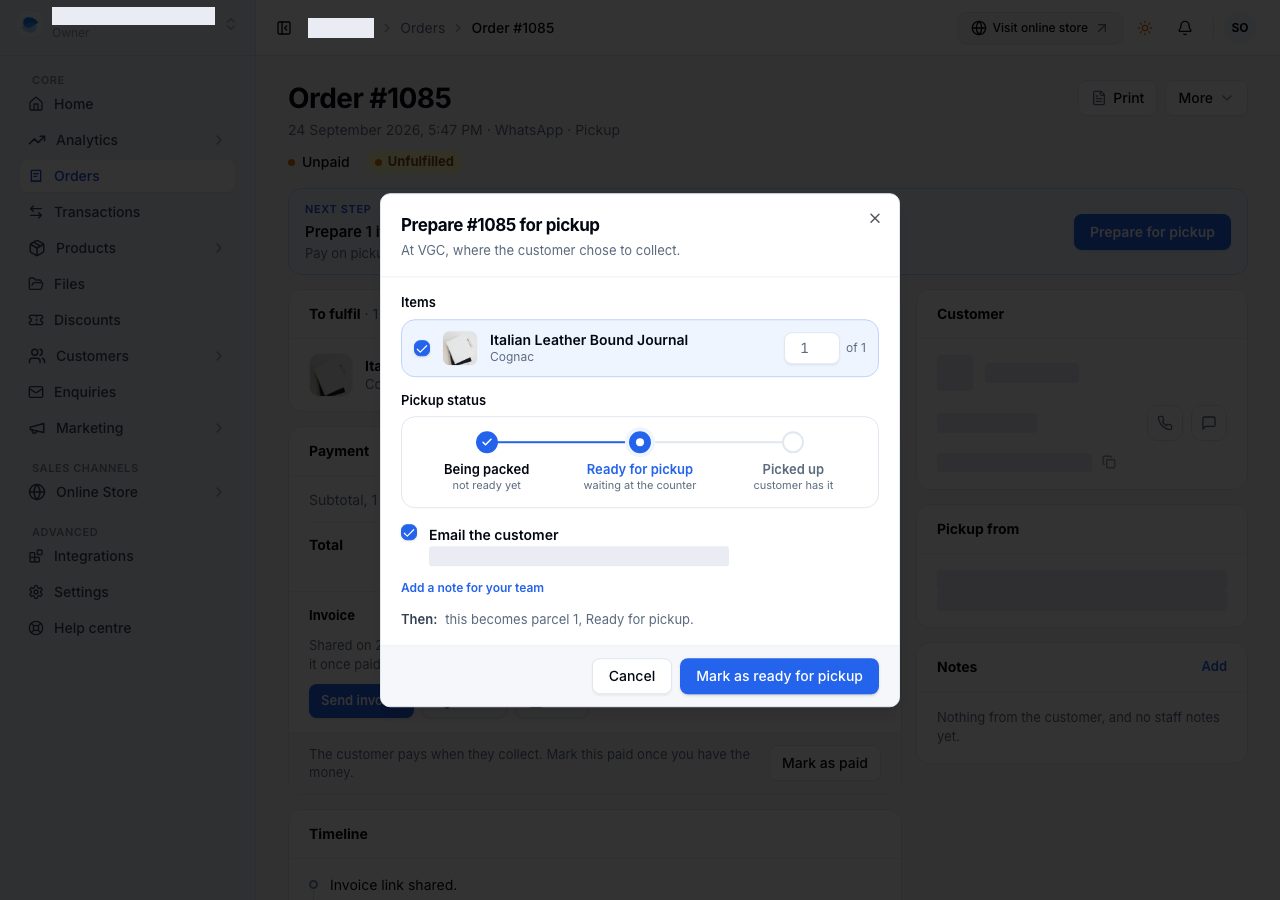
Choose Fulfil items. Stock leaves your count at this point, and unless you unticked it the customer is emailed. On an order nobody has paid for yet, this is also the moment you accept it.
6. Move each parcel along
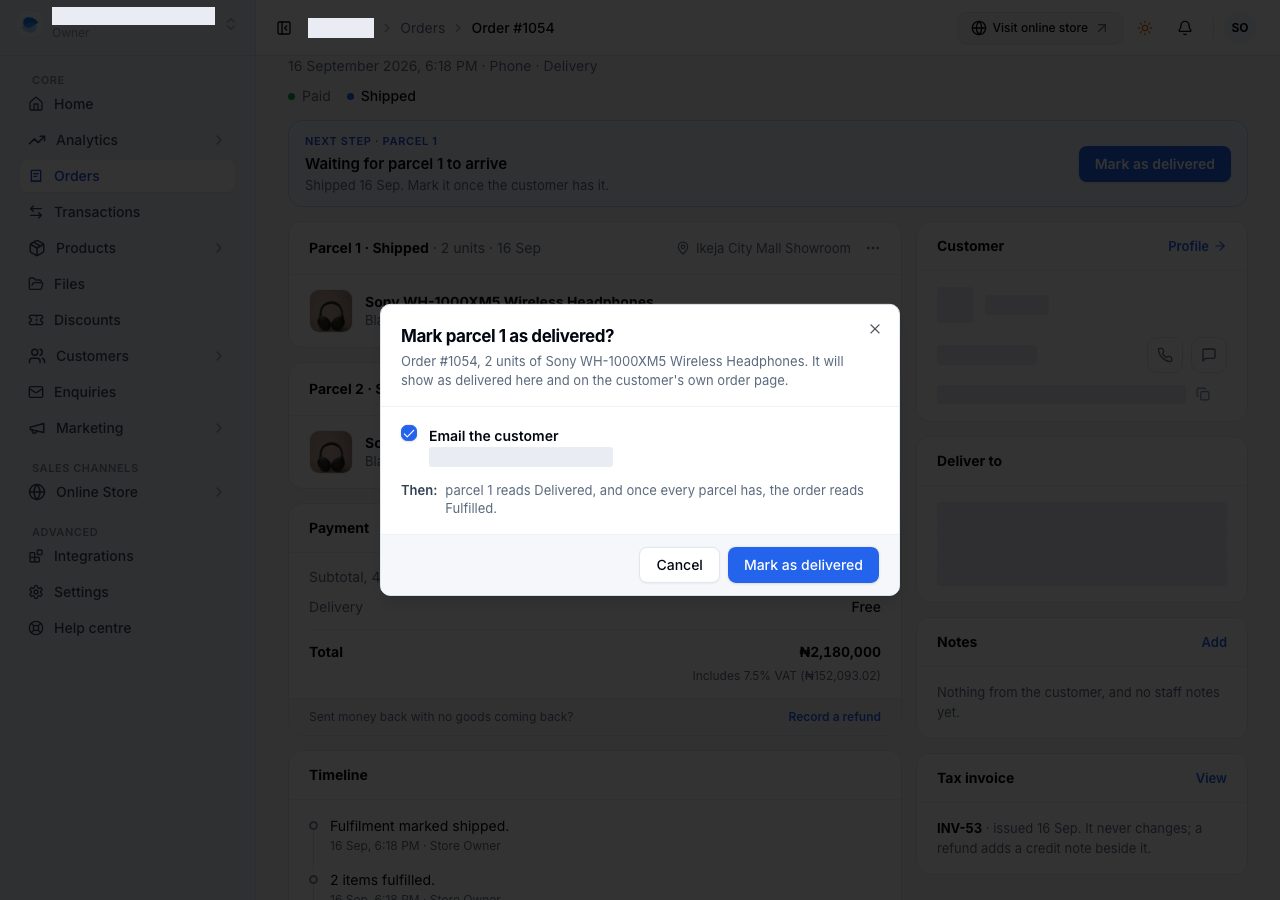
Once goods have gone, each parcel is its own card, named by how far it has got, and its heading carries one button for its next step: Mark as shipped, then Mark as delivered; or for a collection Mark as ready for pickup, then Mark as picked up. The button names the state it produces, so what it says is what will be true afterwards. The strip at the top asks for the same thing, so either works.
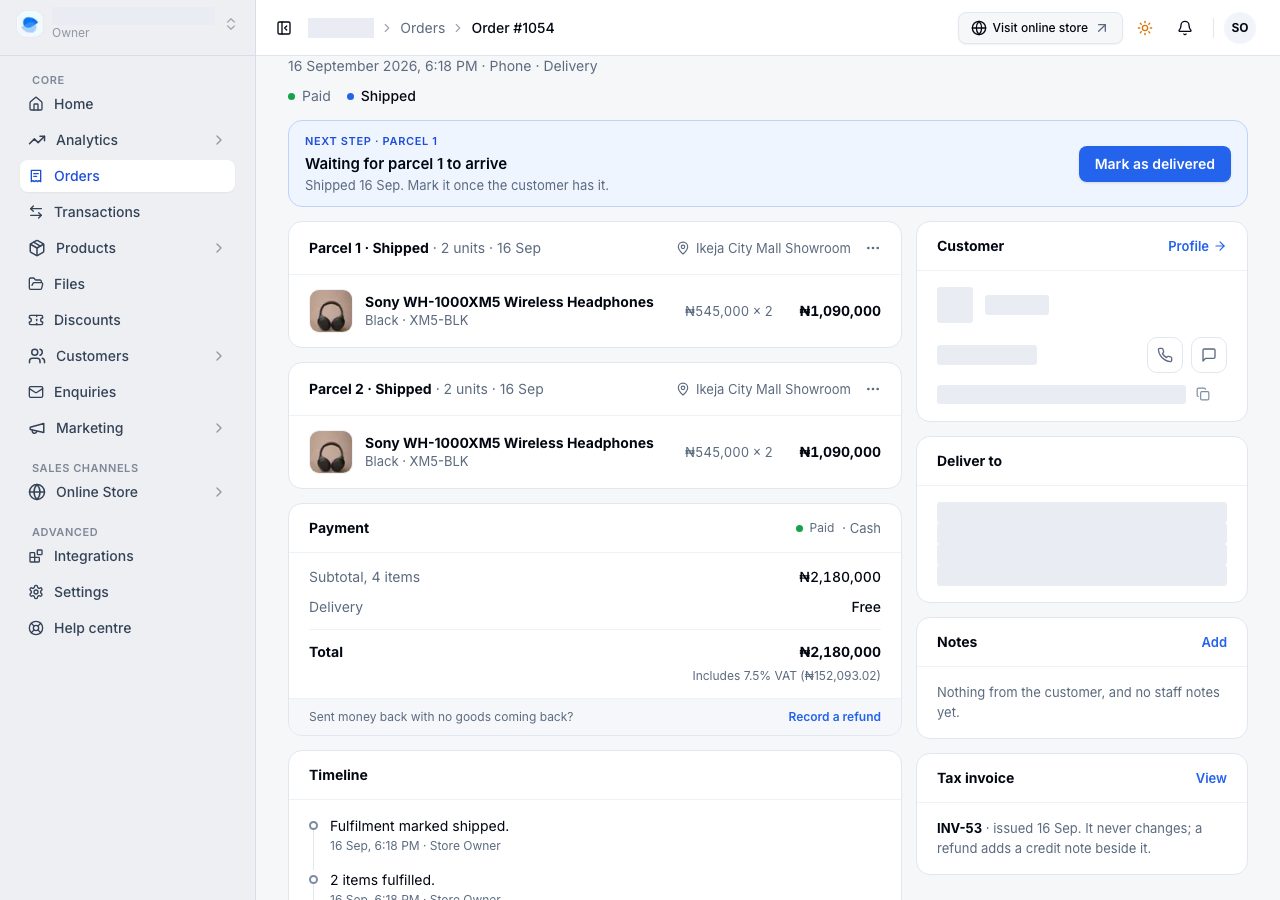
Each of those asks you to confirm first, because the date can be corrected later and the email cannot be unsent. Mark as shipped also asks for the carrier and tracking, if you did not give them when packing. Email the customer is ticked in that box and says who will be told what. Untick it when the news would reach nobody, such as a delivery the customer already confirmed by phone. The order still records the change; only the email is held back.
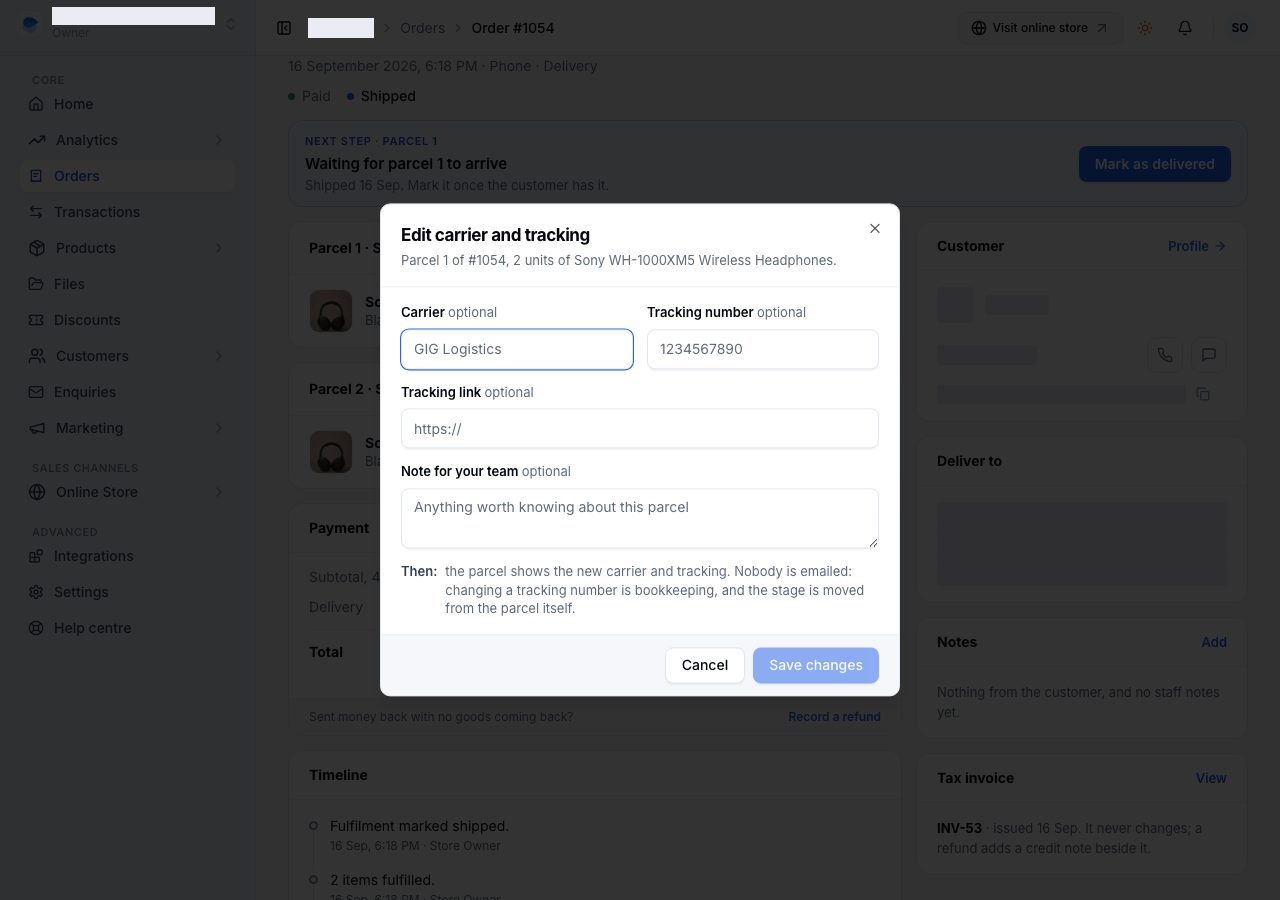
A parcel's own menu (the three dots on its heading) offers Print packing slip, Edit carrier and tracking, Create return once it has arrived, and Cancel this fulfilment, which puts the stock back. Editing the tracking changes what is written on the parcel and emails nobody; moving the parcel along is the heading's button, never the edit.
The order is only as far along as the parcel furthest behind, and the fulfilment mark under the title counts what has actually reached the customer, not what is packed. An order reads Fulfilled when everything has arrived, and once it is paid too, the strip goes and the title says it is finished.
If it does not work
- A customer says they paid and the order still reads Unpaid: for a provider payment we keep checking and it settles when they confirm it. For a bank transfer, ask them to upload their proof, or Mark as paid yourself once you see the money.
- The packing dialog names the wrong location: choose Change beside the name, move the goods, then pack. The dialog always packs the location whose button you pressed.
- A product shows no stock figure: one you do not track stock for has no count anywhere, and can still be fulfilled. A blank is an absent number, not a zero.
- Change offers nowhere to go: you have one active location, so there is nowhere else to send it.
- The parcel's next step is missing: it is on the parcel's own heading, not on the order's buttons. The strip at the top names it too.
- You fulfilled the wrong thing: cancel that parcel from its menu. The stock goes back and the goods return to a To fulfil card.
Email support@shoponent.com with the order number if anything here does not match what you see. We read and answer every message.