Available on every plan · Updated 23 October 2026
Also asked as: “how are refunds counted” · “does a return change my profit” · “my revenue does not match my bank” · “why is this order not counted” · “do unpaid orders count” · “where do refunds show up” · “revenue changed for a past month” · “sales by location do not add up”
Every money figure in your dashboard is built the same way, from the same two rules:
- An order counts when it is marked paid.
- It counts on the day it was placed, not the day the money arrived.
Everything below follows from those two.
Which orders count
Your Orders list carries the answer in its status column, and it is worth reading once with this in mind.
| On the order | Counts as revenue? |
|---|---|
| Paid | Yes, in full. |
| Partly refunded | Yes. It stays a sale, and the part you gave back comes off separately. |
| Refunded | Yes. It stays a sale on the day it was placed, and the whole refund comes off on the day you gave it. |
| Unpaid | No, not yet. A bank transfer you have not confirmed, or a delivery not yet collected, is not money. |
| Marked Test | Never, on any screen. |
| A draft you have not placed | No. It is not an order yet. |
| Cancelled | The cancellation itself changes nothing about the money. |
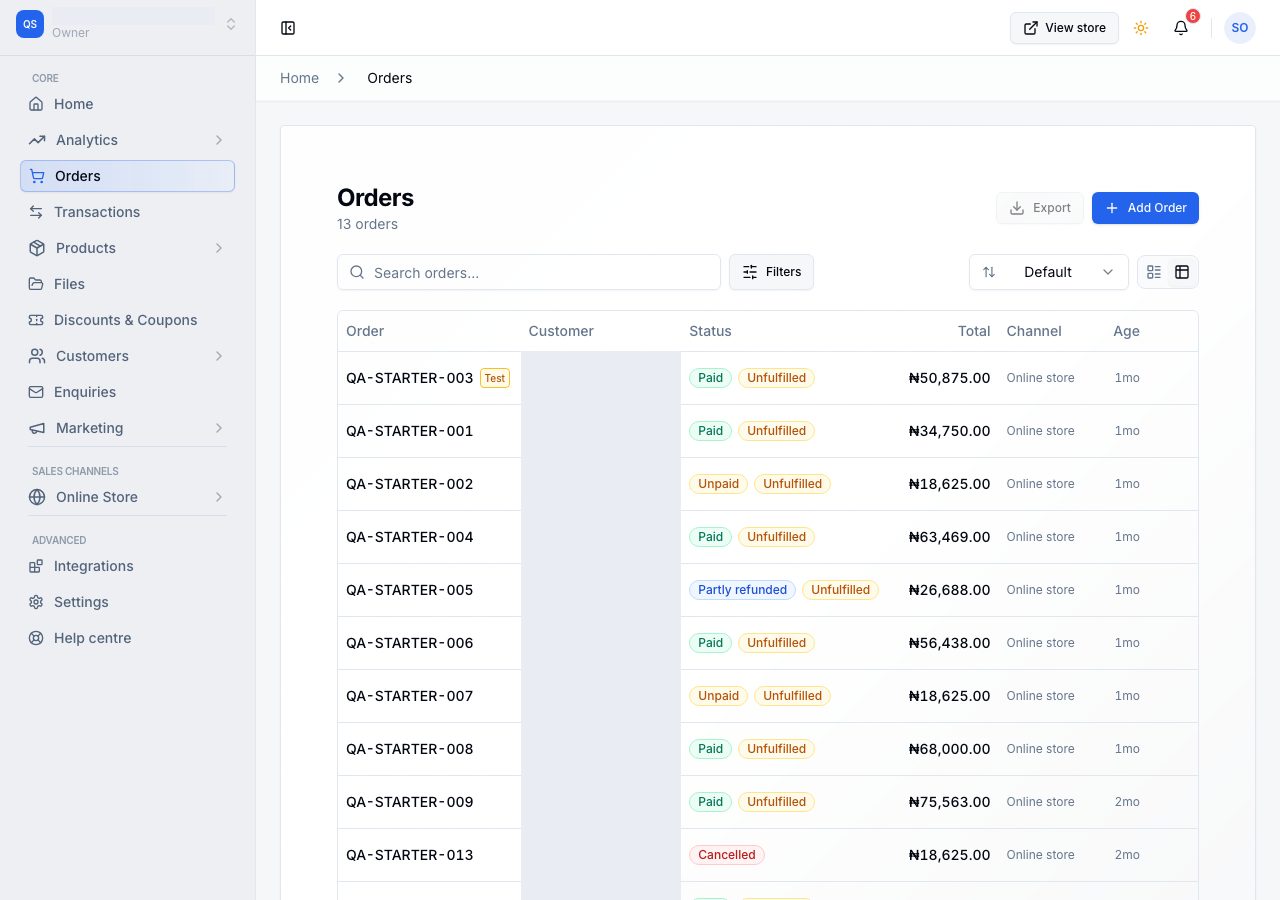
That last row surprises people, so it is worth saying plainly. Cancelling is not refunding. If a shopper paid and you cancelled the order, you are still holding their money and your figures still show it. Refunding is what moves the number, because refunding is what moves the money.
When a sale lands
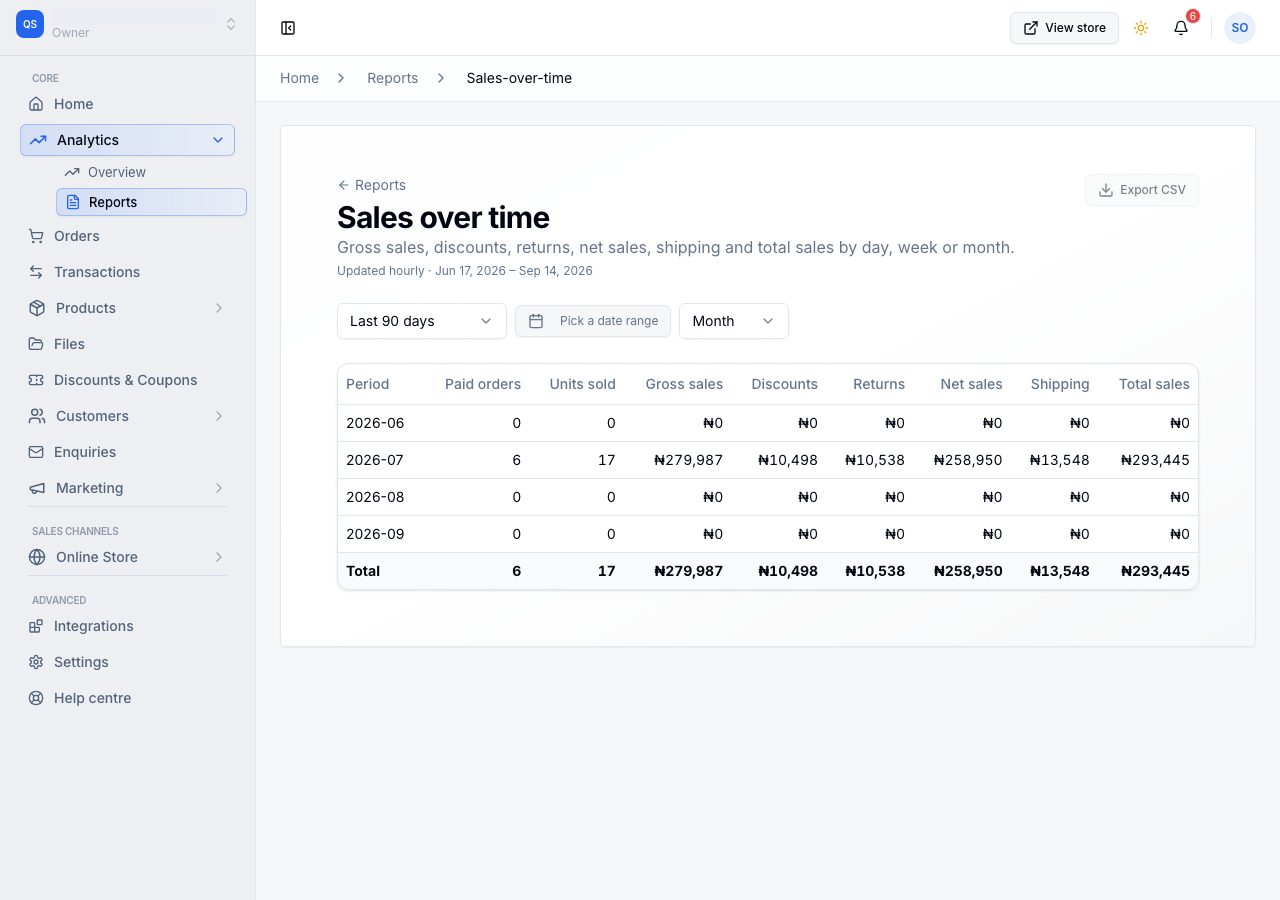
On the day the order was placed. If someone orders on the 31st and pays by transfer on the 2nd, that sale belongs to the 31st, and it appears there the moment you mark it paid.
The useful consequence: marking an old order paid changes a past day's figures. That is deliberate. Your sales happened when your customers bought, not when their bank got round to it.
How sales, refunds and returns are counted
Three things are kept apart, because they are different events:
- A sale is an order that was paid. It counts on the day it was placed, and it stays counted even if you refund it later.
- A refund is money you sent back. It counts on the day you sent it, as its own entry, and it says what it was for: which items and how many, any delivery, and any difference, such as a restocking fee you kept or a goodwill payment on the whole order.
- A return is goods coming back. When you mark it received, what came back in good condition goes back on your shelf and anything damaged is set aside.
A refund on a return is for what came back. Suppose a customer returns a shirt and a pair of shoes from one order, the shirt in good condition and the shoes damaged, and you refund less than they paid because you keep a restocking fee. The refund records both items at what the customer paid for them, and the fee you kept as a separate line. In Profit by product the shirt comes to nothing (the sale and its cost both came back), the shoes show a loss (the sale came back, the cost did not), and the fee you kept is on its own line, not spread over the two products.
When a refund lands
On the day you issued it, not the day of the sale. A July sale that you refund in September comes off September.
A refunded order stays a sale for its full value, whether you gave back part of it or all of it, and the amount you gave back appears on its own line, as Refunds. July keeps its sale, September carries the refund, and neither month is rewritten behind your back. Over the two months together, an order refunded in full comes to nothing, which is what it was worth to you.
A refund is recorded on the order, with the amount you gave back, whether or not goods came back, and the order's payment status follows from it. See Cancel, refund or return an order. The goods themselves, what came back and what went back on the shelf, are the Returns report; each refund, with or without a return and with the tax inside it, is the Refunds report, whose total is the same figure as this line.
What comes off, in order
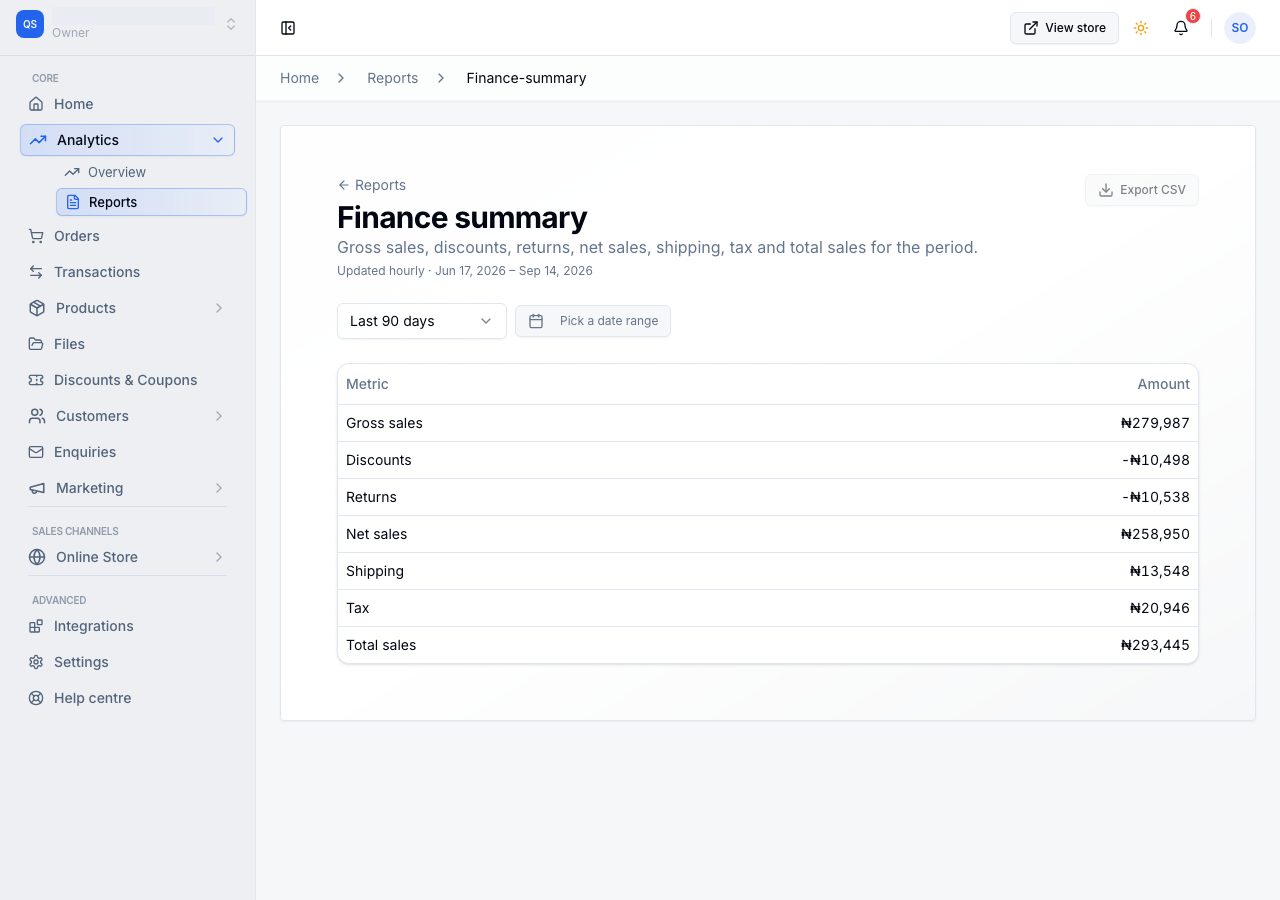
The finance summary is the whole calculation, top to bottom:
- Gross sales: what the goods themselves sold for.
- Discounts: discount codes and automatic discounts, subtracted.
- Refunds: money you gave back in this period, subtracted, less the tax that was inside it.
- Net sales: gross, less those two. What you earned on the goods.
- Shipping: what shoppers paid you to deliver, added.
- Tax: tax collected, added, less the tax inside any refunds. A refund takes its share of the tax off this line and the rest off net sales, so the two lines together come to exactly what you gave back.
- Total sales: what shoppers were actually charged, net of what you gave back.
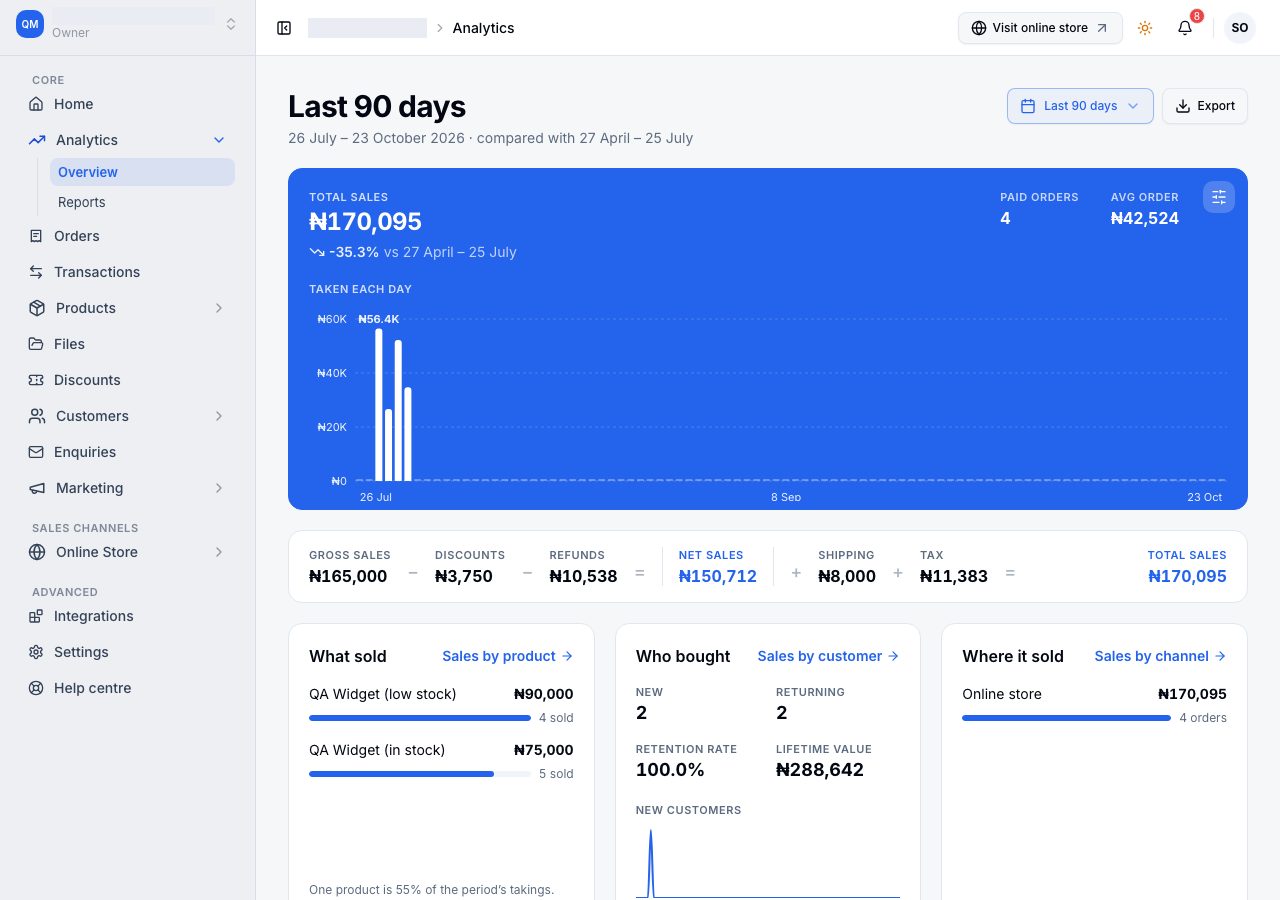
Total sales is the figure that should reconcile, and the Total sales at the top of the Analytics page is the same figure for the same days. Sales by location and Sales by channel, and By location and Where it sold on Analytics, are that same total split by location and by channel, so their rows add up to it. A refund comes off the location and the channel of the order it refunds, on the day you sent it.
Under it, Flash sale markdowns says how far below their usual price your sale items sold, less the part on items refunded. It is there for information and is not taken off anything: gross sales already count each item at the sale price it sold for, so subtracting the markdown as well would count the sale twice. It starts with orders placed from October 2026; earlier orders did not record their usual price, so a period before then shows no markdowns even if you ran a sale.
Checking against your bank
Three differences are normal, and none of them is an error.
- Fees. These figures are what the shopper was charged. Your payment provider takes its fee on its side, so the payout landing in your account is smaller.
- Timing. A sale is dated to the day it was placed; providers settle on their own schedule, usually a day or more later. A week here will not line up with a week on your statement at the edges.
- Currency. Figures are in your store's own currency. When a shopper pays in another one, the order still carries its amount in yours, and that is what is counted.
If those three are accounted for and the figures still disagree, that is worth an email.
How the range is chosen
Days begin and end at midnight in your store's time zone, so a sale just before midnight belongs to that day and not the next. Ranges come from the menu at the top of Analytics or of any report, or from two dates of your own.
"Compared with the previous period" means two different things, deliberately:
- A to date range (This Month, This Year) compares like with like: the 1st to the 15th of this month against the 1st to the 15th of last month, not against a whole month you are only halfway through.
- A rolling or complete range compares the same length of time immediately before it.
Why two screens can show different order counts
Both are right; they answer different questions.
- Orders on Home, and your Orders list, count every order placed, paid or not, so they tell you how busy you were.
- Paid orders on Analytics, and the Paid orders column in the sales reports, count only the paid ones, because those are the orders the money came from. An order you later refunded is still one of them; its refund comes off the money, not the count.
A range with ten orders and seven payments shows both numbers, and nothing is missing.
If it does not work
- An order is missing from your figures: open it and look at the payment status. Unpaid and Test are the two usual answers.
- A past month changed: an order placed in it was marked paid since you last looked, because a sale belongs to the day it was placed. A refund never changes a past month; it comes off the day it was issued.
- A sale from the last hour is missing: the totals on Analytics and in the reports are rebuilt every hour, so the newest sales arrive within the hour. Anything older than that is worth reporting.
- A location or a channel looks low, or is below zero: a refund comes off the location and the channel of the order it refunds on the day you sent it, so a period can carry a refund for a sale made in an earlier one. Analytics has no location filter; By location has each location's figure.
- It still does not add up: send us your store name, the date range and one order number you think is wrong, and we will trace it with you.
Email support@shoponent.com with your store name if anything here does not match what you see. We read and answer every message.