Available on every plan · Updated 30 October 2026
Also asked as: “find a customer” · “customer spent total” · “block a customer” · “cannot delete a customer” · “add a note about a customer” · “add a customer without an email” · “customer with only a phone number” · “unsubscribe a customer”
Customers lists everyone who has an account on your online store, has checked out as a guest, or was added by you, with the count above it. Somebody you sold to at the counter without taking their details is not here: that sale is a walk-in and lives on the order.
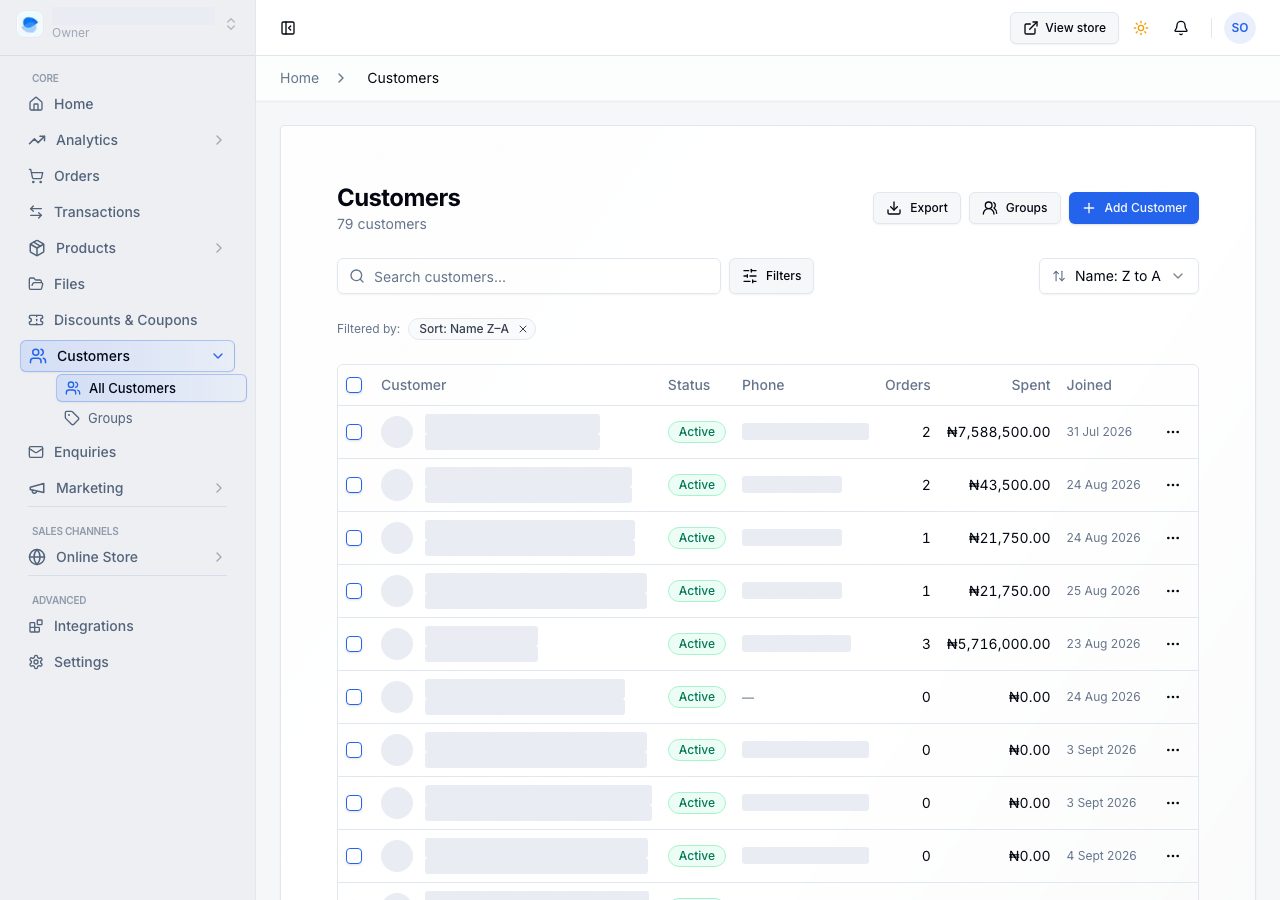
The list opens on All, sorted by what customers have spent, highest first. The views across the top are All, Purchased, Not purchased, Email subscribers and Blocked, each with its count.
The columns are the customer (their email, or their phone when they have no email), Location from their default address, Email subscription, Orders, Amount spent and Last order. Orders counts paid orders. Amount spent is what they paid you, less anything you refunded, plus any difference they paid on an exchange. Your Sales by customer report counts the same way, so the number here and the number there always agree. The list catches up with a new order or refund within a minute; the customer's own page shows it at once. A blocked customer is marked Blocked beside their name.
Finding someone
- Search matches a name, an email address or a phone number.
- Filters narrows by Customer group (your default groups first), Email subscription (with a count beside each), Account (registered or guest), Orders and Customer since. A filter with more than two choices is a dropdown.
- The sort control offers amount spent either way, most orders, last order, newest, oldest, and name either way.
- Tick customers to Block, Unblock, Add to group or Delete them together. When the selection holds a subscriber, Email marketing pauses, resumes or unsubscribes them.
- Every view shows the same columns, Email subscribers included. Where someone joined your list and when are on their page, and on Marketing → Subscribers.
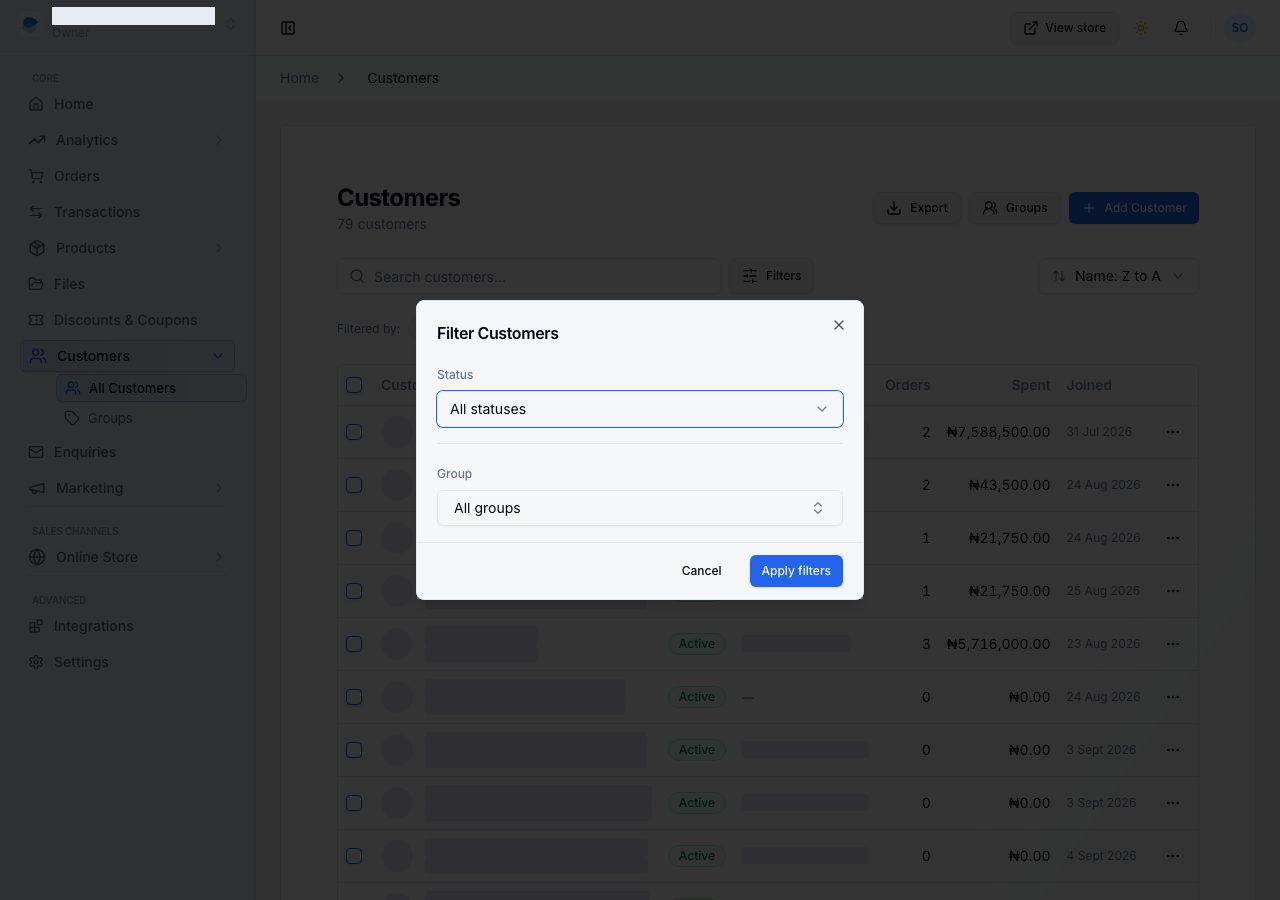
Export downloads the list as a CSV on Professional and Scale; the pricing page has the full list of what each plan includes.
Adding one yourself
Add customer takes a name, an email or a phone number (at least one), any addresses and a note, and can put them straight into a group. Everything is saved in one go, so there is no half-created customer if something is wrong.
A customer with only a phone number is fine: a regular you know by phone. They cannot sign in to your online store, because signing in uses an email, and they never get your emails. If the phone number already belongs to a customer, the form says who, and Add anyway adds them all the same, because a family often shares one phone.
If they asked you for your emails, tick Customer agreed to receive marketing emails under Email marketing. Tick it only if they asked: you are responsible for having their permission. See Subscribers and export.
One customer's profile
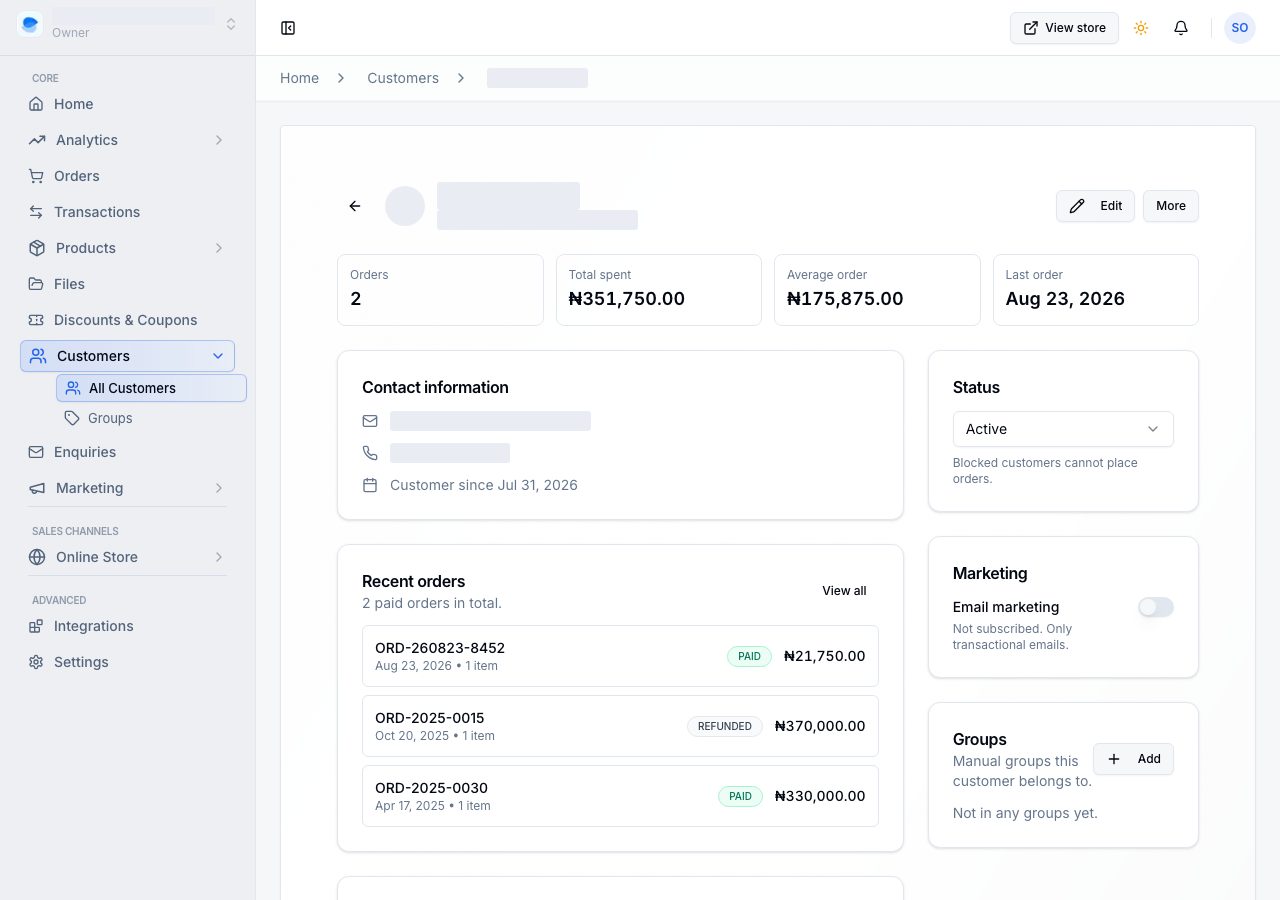
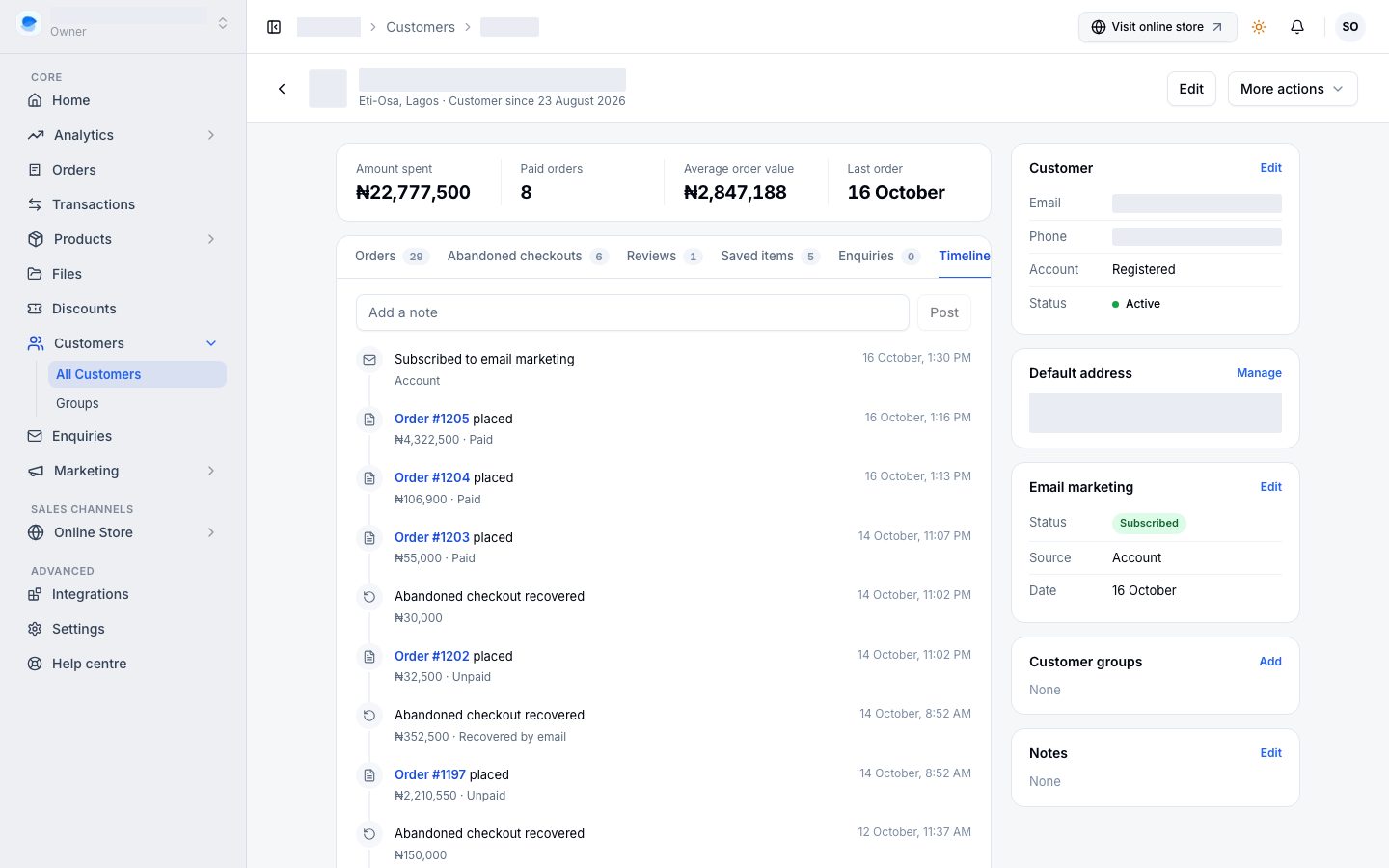
Choose a row to open it. Across the top: Amount spent, Paid orders, Average order value and Last order.
- The tabs are their Orders, Abandoned checkouts (on plans that have them), Reviews, Saved items (with each product's picture), Enquiries (the messages they sent from your contact form, matched by their email) and the Timeline. On a phone each is a row that opens the list.
- Customer is their email, phone, whether they have an account or checked out as a guest, and their status. Edit changes their name, email and phone.
- Default address is the one checkout offers first. Manage adds, edits, removes and makes another the default; deleting the default promotes the next one.
- Email marketing says Subscribed, Paused, Pending, Not subscribed or Unsubscribed, with where they joined and when, and who added them if the store did. Edit opens the box Customer agreed to receive marketing emails: tick it when they ask you for your emails, untick it when they ask you to stop. An address whose emails bounced or that marked one as spam is never sent to, and the card says why.
- Customer groups shows the manual groups they are in, and Add puts them in one. See Customer groups.
More actions blocks or deletes the customer. A blocked customer is signed out at once and cannot sign in to your online store or place an order until you unblock them; an invoice you already sent them can still be paid. Their page says Blocked at the top.
Notes
Two kinds, deliberately:
- Notes is one standing fact you want to see every time you open them: "prefers delivery after 5pm".
- The Timeline, the last tab, is a running record: what you and your team write under Add a note, beside what happened (orders placed, subscribing, abandoned checkouts recovered, reviews, the day they were added), newest first. Every note keeps its author and the time, and an owner or admin can delete any of them.
If it does not work
- You cannot delete a customer: if they have orders, they cannot be deleted, because their orders would lose their buyer. Block them instead, which stops them signing in and ordering and keeps the history.
- A blocked customer says they cannot order: that is what blocking does. Unblock in More actions lets them back in.
- There is no Edit on Email marketing: the customer has no email address, and marketing emails need one. Add their email first.
- A deleted customer is still on old orders: that is deliberate. An order keeps who bought it.
- Somebody is missing: a walk-in sale records no customer, and a guest is only here if they gave an email at checkout. Try searching by email rather than by name.
- Their spend looks low: only paid orders count, and refunds come off. Unpaid and cancelled orders are not spend.
Email support@shoponent.com with your store name if anything here does not match what you see. We read and answer every message.