Available on every plan · Updated 27 October 2026
Also asked as: “group my customers” · “vip customers” · “repeat buyers” · “segment customers” · “customer tags” · “default groups” · “email subscribers group”
A group is a named bucket of customers. Customers → Groups lists them, with how many people are in each and how many of those get your emails. The views are All, Default and Custom.
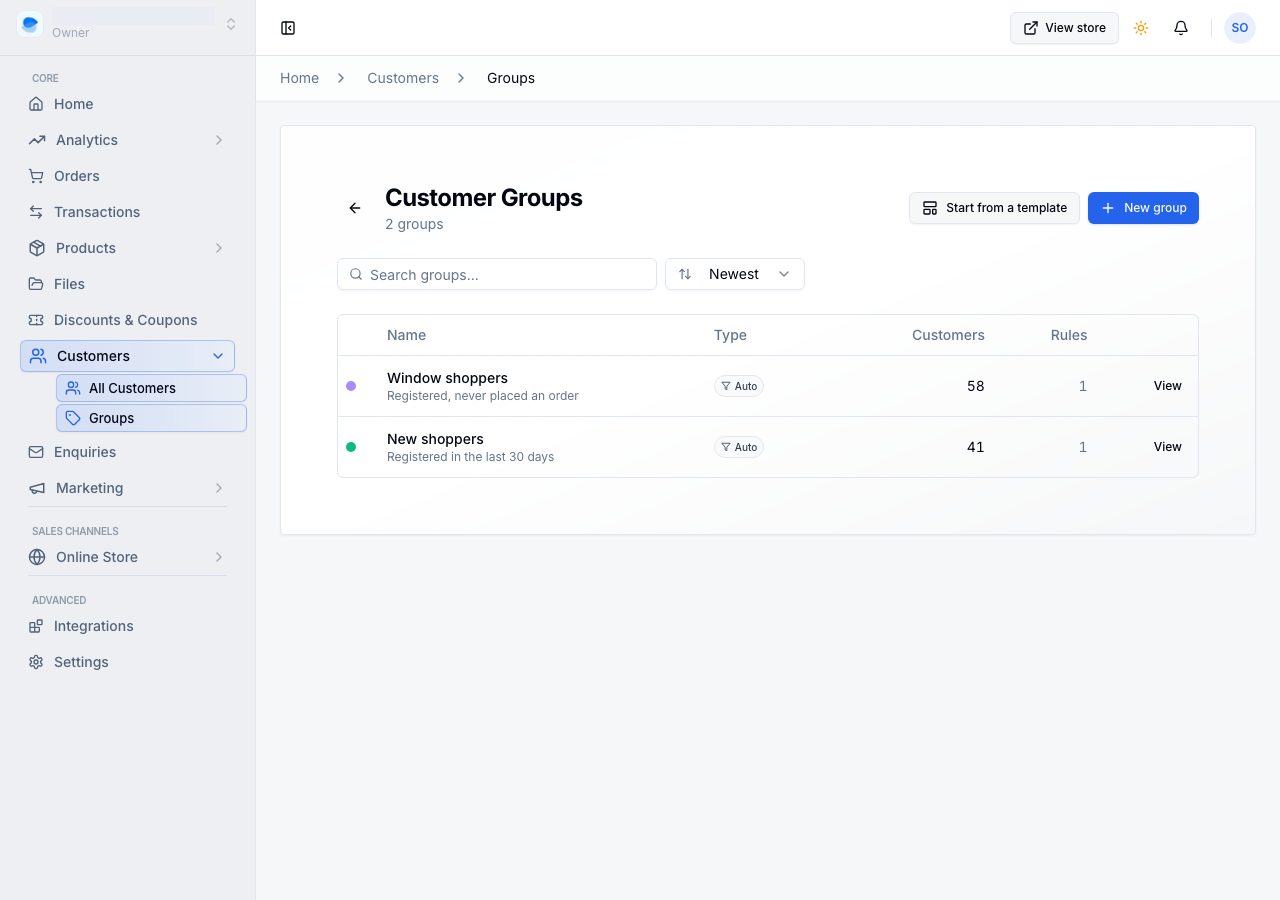
The default groups
Every store has seven groups from the start, marked with a lock. They keep themselves up to date and cannot be edited or deleted, so they mean the same thing in every store:
| Group | Who is in it |
|---|---|
| Email subscribers | customers who agreed to get your emails |
| Purchased | at least one paid order |
| Not purchased | no paid order yet |
| Repeat customers | two or more paid orders |
| New customers | added in the last 30 days |
| Abandoned checkout | left a checkout in the last 30 days |
| Lapsed customers | bought before, no order in 90 days |
Purchased, Not purchased and Email subscribers are also views on your customer list, and they always agree with it.
Your own groups
| You get | |
|---|---|
| Manual | a list you decide. Customers are put in one by one or in bulk, and stay until you take them out |
| Automatic | a rule. Anyone who matches is in it, anyone who stops matching drops out, and you never maintain it |
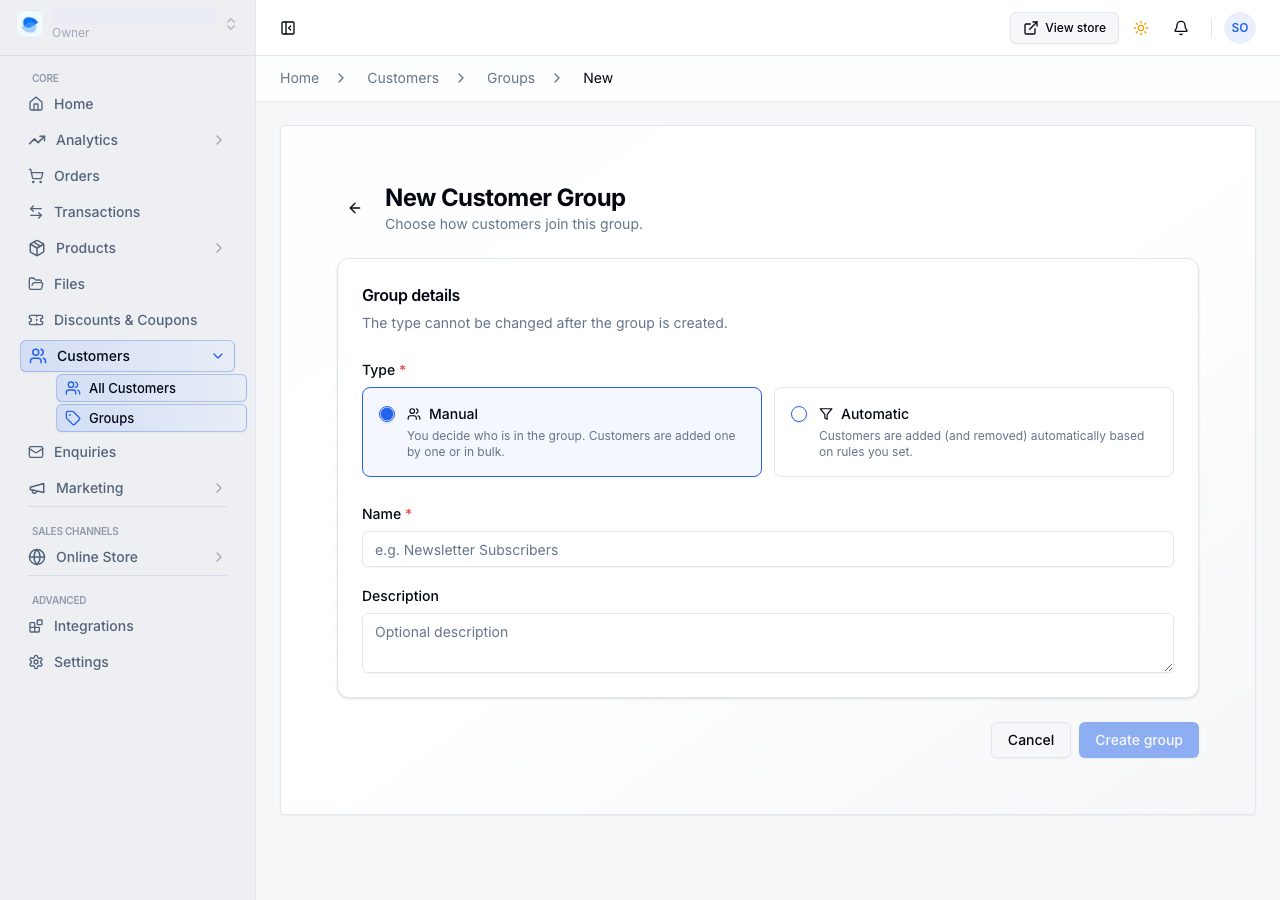
The type cannot be changed once a group exists, so pick it deliberately. "Our wholesale buyers" is a manual group; "people who have bought twice" is an automatic one.
Creating one
Create group opens a page of its own. Give the group a Name and, if you like, a Description that only you see. Choose its Type once: Manual, customers you add yourself, or Automatic, customers who match rules and are kept up to date, within a minute of an order or a refund.
An automatic group then takes its Rules, all of which must match. Each rule is a field, how it compares and a value, in the same words your customer list uses:
| Rule | What it asks |
|---|---|
| Purchased | whether they have a paid order |
| Orders | how many paid orders |
| Amount spent | how much they have spent |
| Last order | how long since their last order |
| Customer since | when they became a customer |
| Abandoned checkout | whether they left a checkout recently |
| Email subscription | whether they get your emails |
Under the rules a line says how many customers match today and how many of them get your emails, so you see the group before you save it.
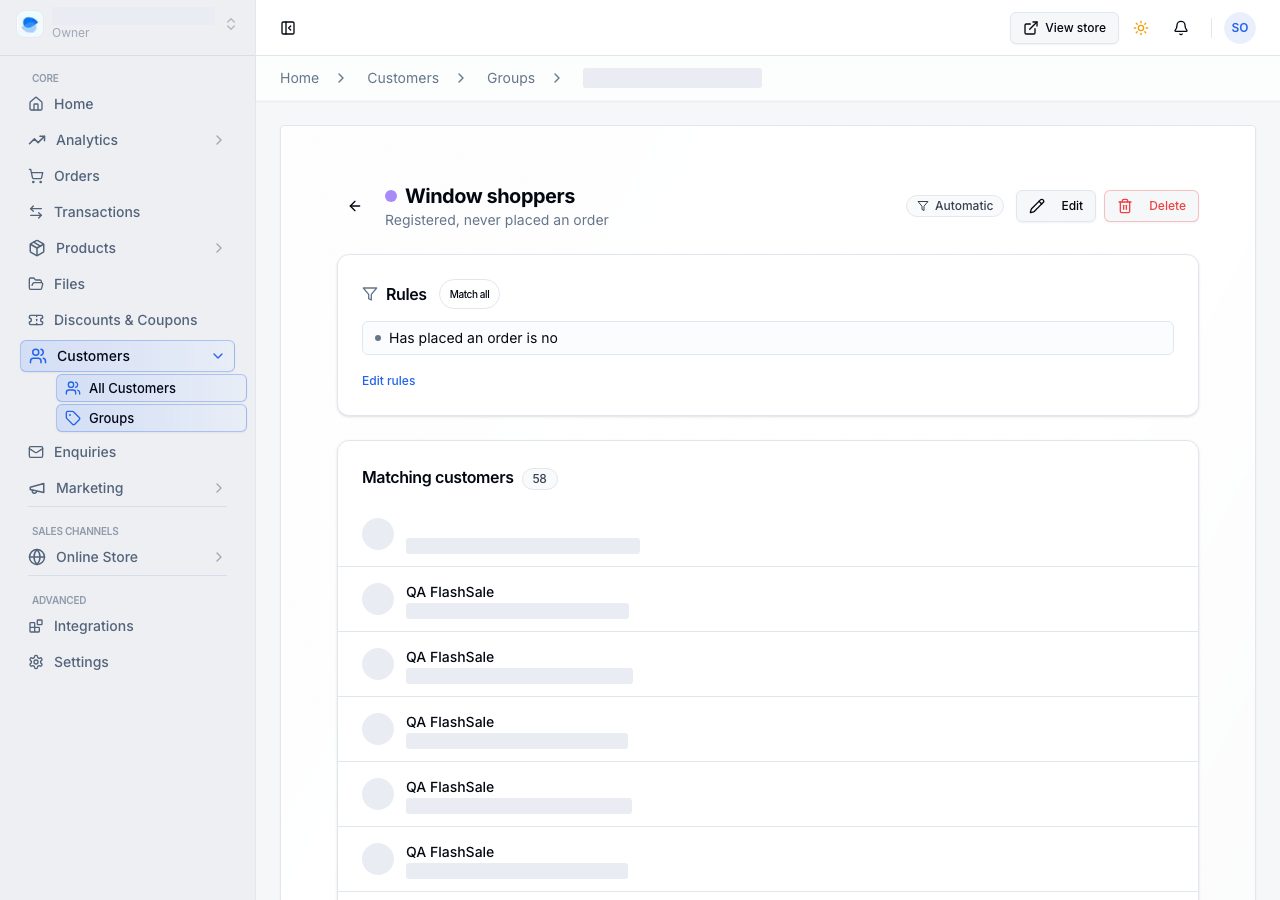
Inside a group
Open a group to see its members, with their email subscription, orders and amount spent. Search them by name, email or phone, and sort them as you sort your customer list. Beside them:
- an automatic group's Rule in words, or a manual group's Type;
- a Summary: how many customers, and how many of them get your emails, which is who an email to the group would reach.
Edit opens the same page as Create group, with the type fixed. A default group has no Edit or Delete.
Putting people in a manual group
Three ways, and they do the same thing:
- From the group: Add customers, search, tick who to add, and Add. Anyone already in the group shows as In group. To take people out, tick them and choose Remove from group.
- From the list: tick the customers you want, then Add to group.
- From one profile: the Groups card, then Add.
Automatic groups have no add or remove: the rule decides.
What groups are for
- Filtering your customer list: Filters, then Customer group.
- Targeting a discount at particular people: a discount code or an automatic discount can be limited to members of one or more groups, and anyone else is told the code is not available on their account. See Discounts.
Groups are on every plan.
If it does not work
- A group cannot be edited or deleted: it is one of the default groups. Create your own to use different rules.
- The type cannot be changed: it cannot, by design. Create the other kind and move on; deleting a group does not touch the customers in it.
- Add customers is missing: automatic groups do not accept members by hand, and a team member with view-only access cannot change groups at all.
- A count looks wrong: automatic counts are worked out when you look at them, so they move as your customers do. A customer whose payment was refunded still counts as a buyer, because they did buy; an unpaid or cancelled order never did.
- Somebody is in a group you did not put them in: check whether the group is automatic. The rule is on the group's own page.
Email support@shoponent.com with your store name if anything here does not match what you see. We read and answer every message.