Available on every plan · Updated 22 October 2026
Also asked as: “add staff to my store” · “invite someone to help” · “invitation pending” · “resend an invitation”
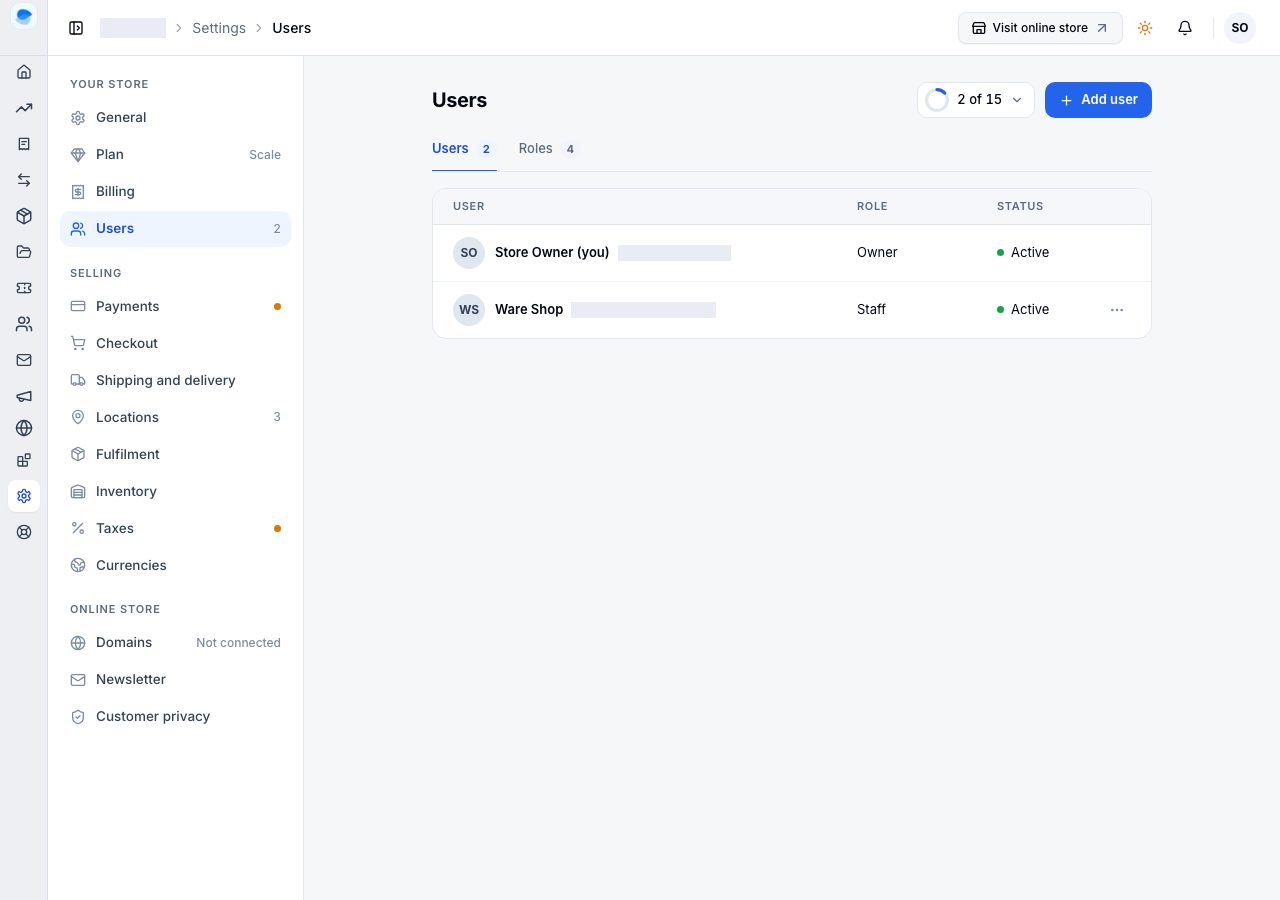
Settings → Users lists everyone who can open the store: you first, as the owner, then each user with their role and status, and invitations waiting to be accepted. Each row's menu edits, resends, reactivates or removes.
Invite someone
- Choose Add user.
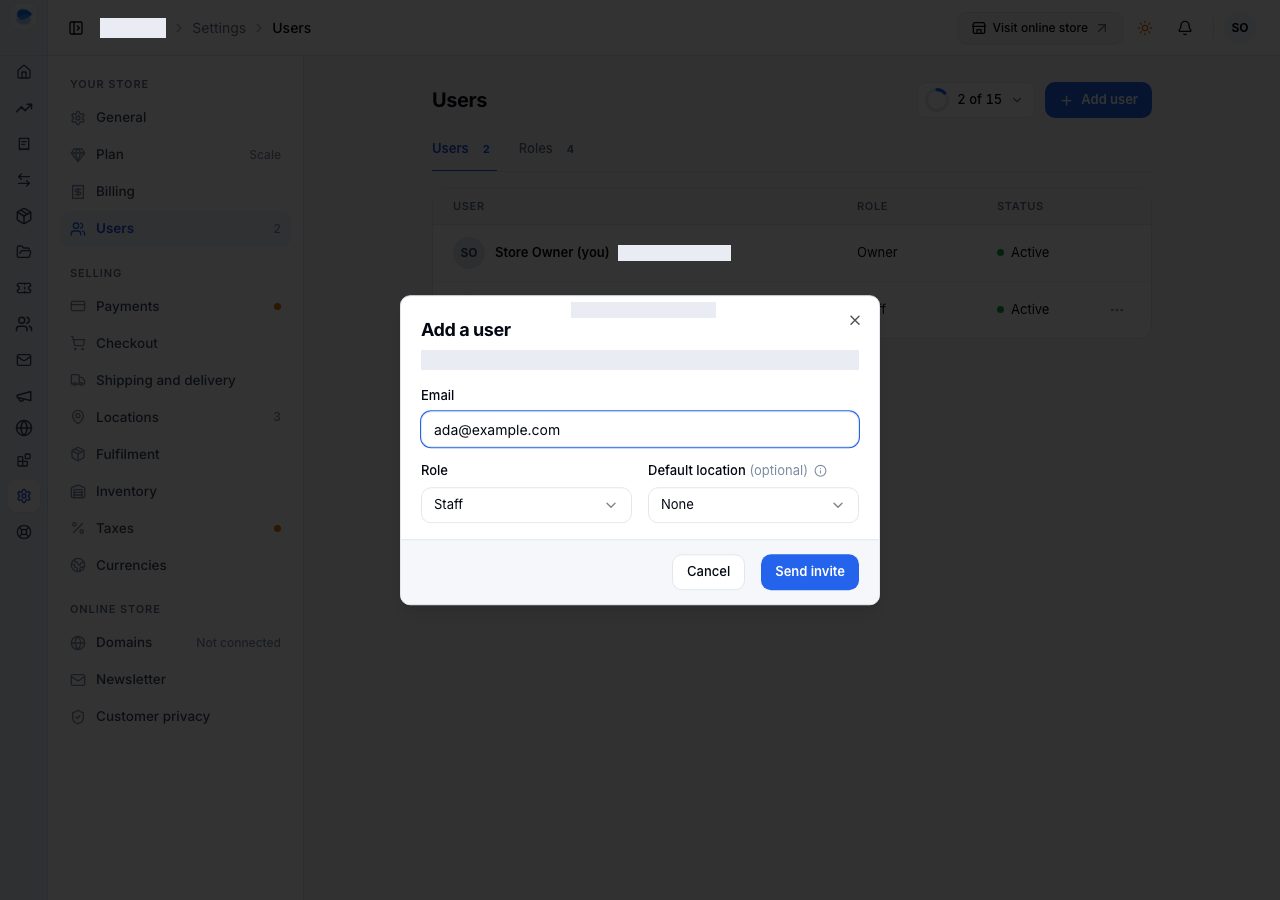
- Type their Email. They will sign in with this address, so use the one they will use.
- Choose their Role. Staff is chosen for you; see What each role can do. On Scale your custom roles are in the list too; see Custom roles.
- Optionally choose a Default location: where their counter sales and stock views start. It limits nothing.
- Choose Send invite.
They are emailed an invitation to join the store, and they appear on the Users page as invited until they accept. An invitation holds one of your plan's places; see How many users your plan allows. To accept, they follow the link in the email; see Accept an invitation.
Change or remove a user
Open the menu on their row: change their role, resend an invitation that was missed, reactivate a user who was suspended (into a free place), or remove them. Removing someone stops them opening the store; their past work, such as orders they fulfilled, stays.
If it does not work
- Add user is refused: every place your plan includes is in use. Buy an extra staff account, or cancel an invitation you no longer mean.
- They never got the email: check the address on their row, then resend it from its menu. Ask them to check spam.
- They accepted but cannot see the store: they signed in with a different address from the one invited. They need to sign in with the invited address.
Email support@shoponent.com with your store name if anything here does not match what you see. We read and answer every message.