Available on Scale · Updated 22 October 2026
Also asked as: “create a role” · “give access to only products” · “custom permissions” · “role for a warehouse worker”
The four built-in roles cover most stores. When they do not, Scale lets you define your own: a name, an optional description, and an access level for each area of Admin. Settings → Users → Roles lists your custom roles beside the built-in ones; below Scale it says custom roles are on Scale.
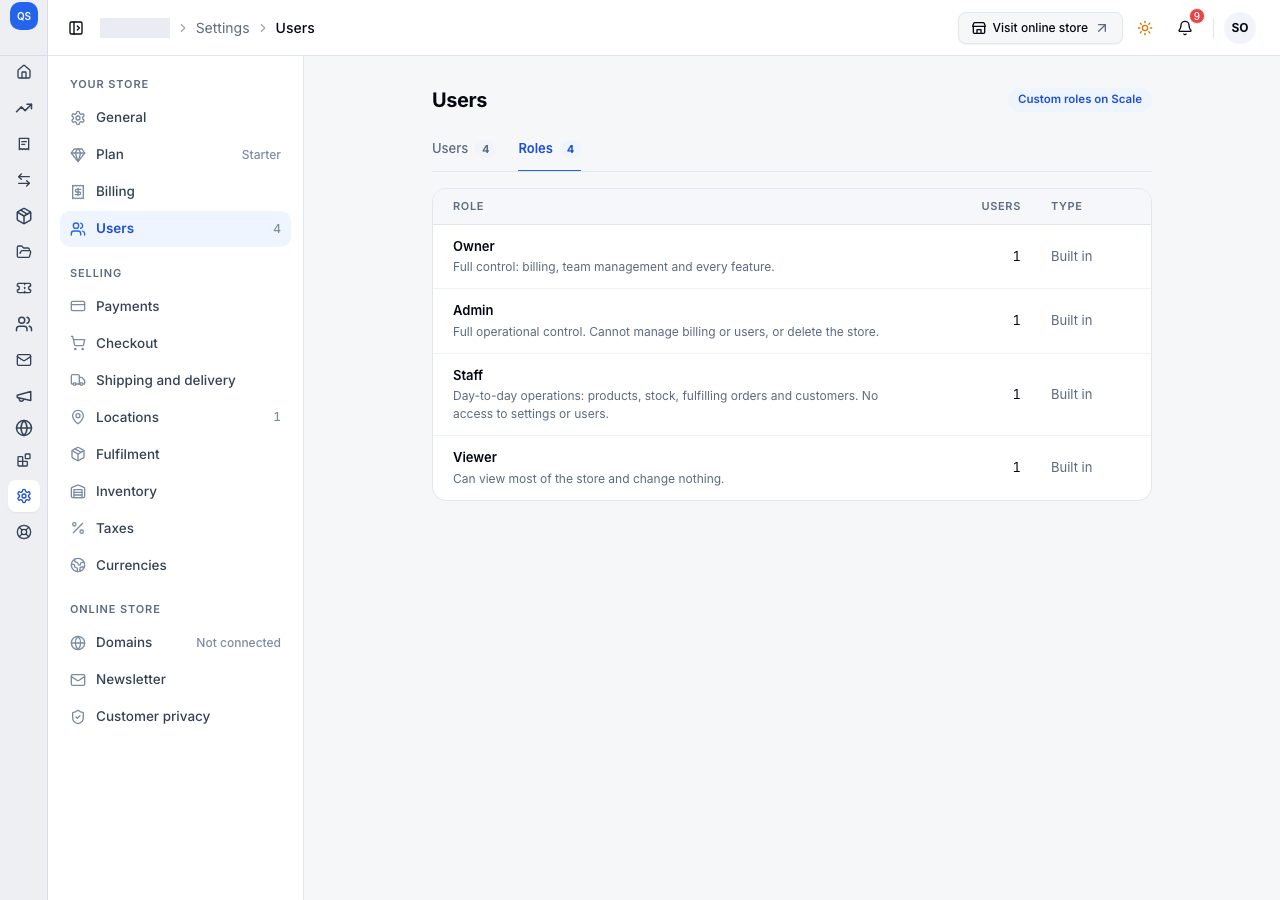
Create a role
Choose Create role. The role is its own page:
- Details: a Name, which appears in the role list when you add a user, and an optional Description.
- Access: every area of Admin, products, inventory, bundles, orders, customers, reviews, analytics, discounts, files, blog, shipping, settings, integrations, themes, pages, notifications, users and billing. Each starts at No access; choose the level you want per area.
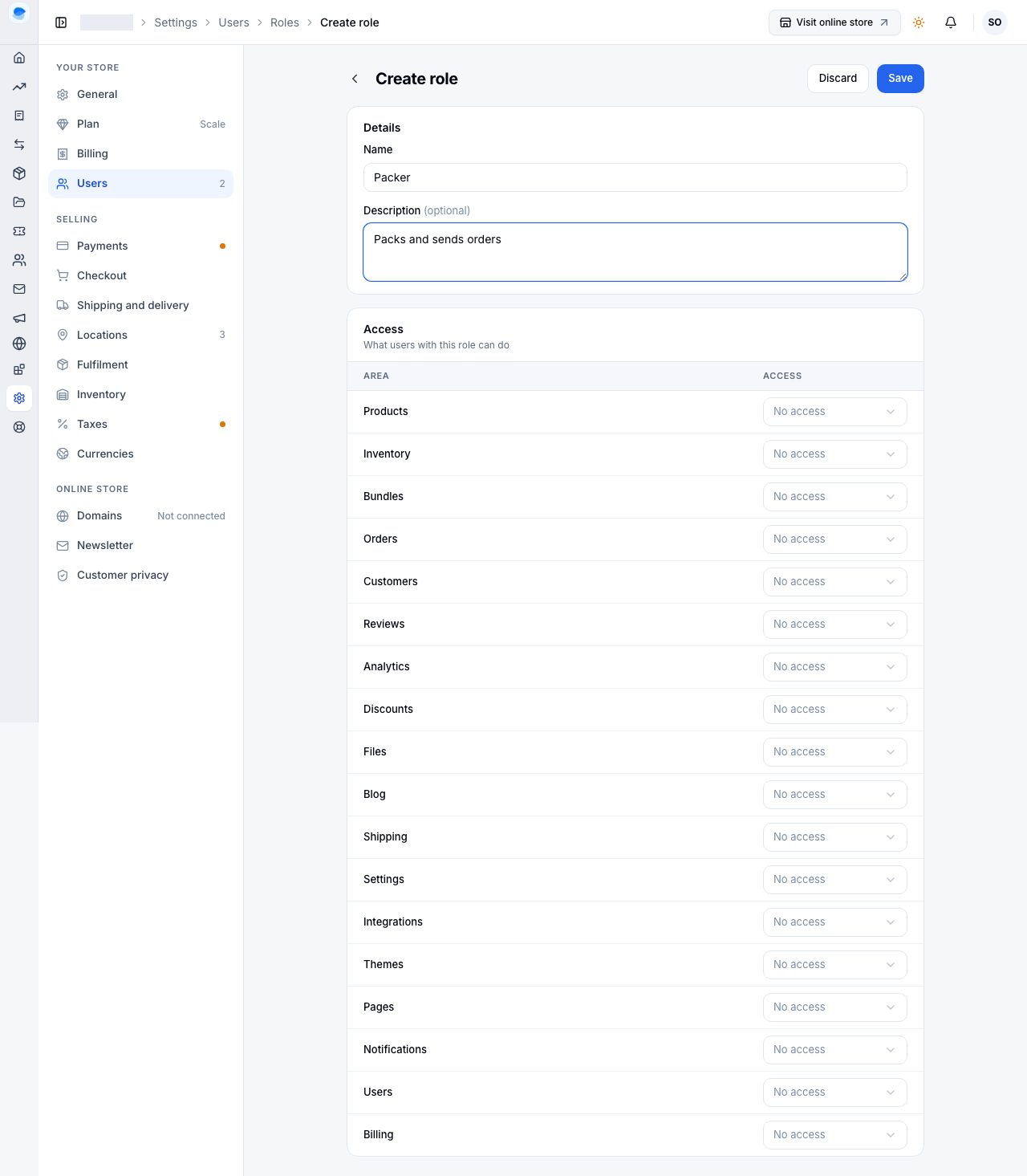
Choose Save, and the role is in the Role list when you add a user or change one.
Editing and deleting
A role's row opens it for editing; a change applies to everyone who holds it the next time they load a page. Delete role, at the foot of its page, asks you to confirm.
If it does not work
- Create role is missing: the store is not on Scale. The Roles tab says so.
- You want a custom role to edit menus: menus are not one of the areas a custom role offers; the built-in Admin role can edit them.
- Someone with the role cannot see an area: the area is at No access in the role. Edit the role, not the person. The sidebar greys a section they cannot open and shows a padlock beside it, so the section is visible without being reachable.
- A button they expected is missing, or greyed with a sentence under it: Admin offers exactly what the role allows, action by action. An order, for example, is four separate permissions: fulfilling it, changing it, cancelling it and refunding it. A role can have one without the others, and a verb it does not have says which permission it wants.
Email support@shoponent.com with your store name if anything here does not match what you see. We read and answer every message.