Available on every plan · Updated 22 October 2026
Also asked as: “I was invited to a store” · “invitation link” · “accept invitation with a different email” · “signed in as someone else” · “invitation can't be used”
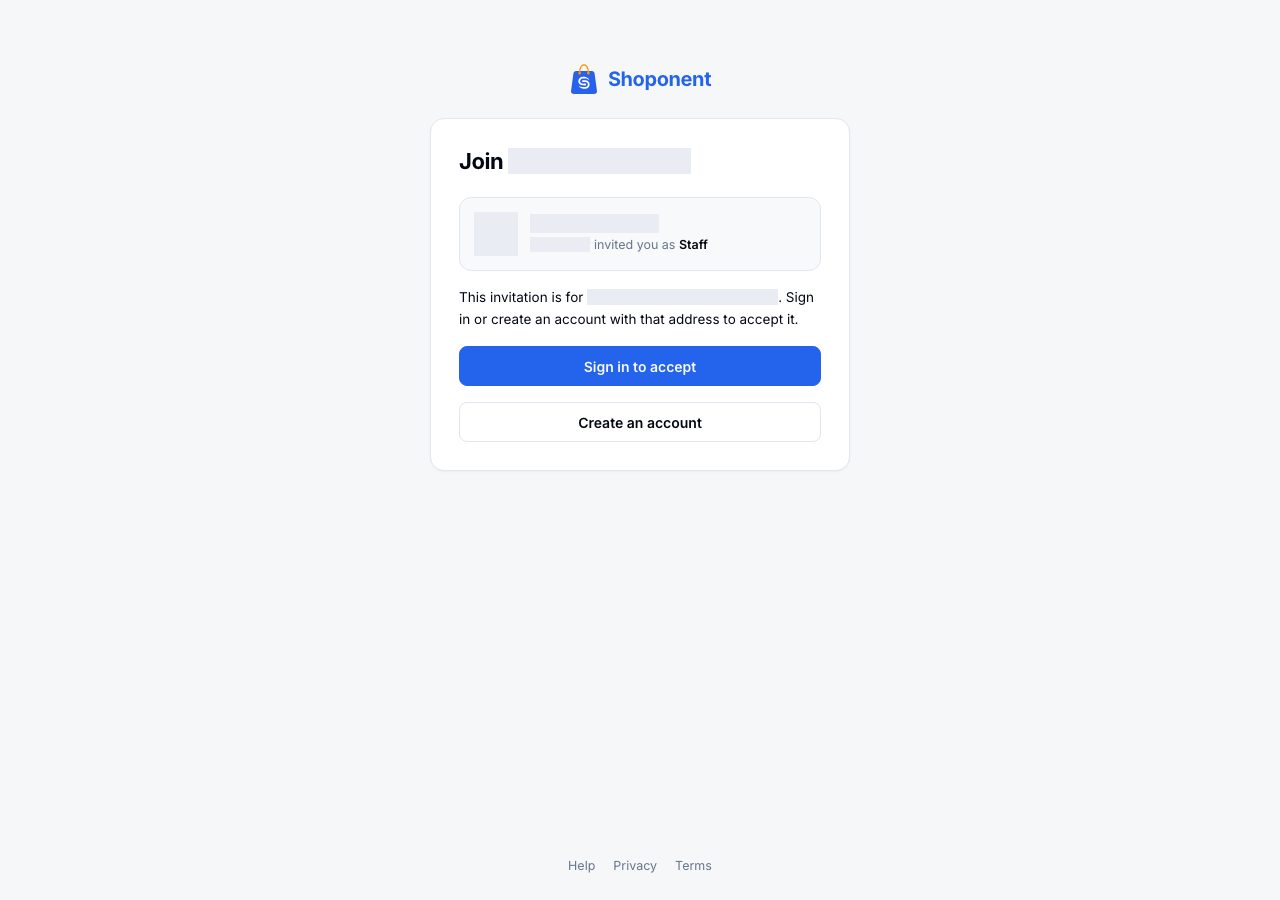
When a store invites you, Shoponent emails you a link. It opens a page headed Join and the store's name, with who invited you and the role you were given.
Sign in with the invited address
An invitation is for one email address, and only the account with that address can accept it. Signed out, the page says which address it is for:
- Sign in to accept if you already have a Shoponent account with that address.
- Create an account if you do not. The address is filled in for you, and you come back to the invitation afterwards.
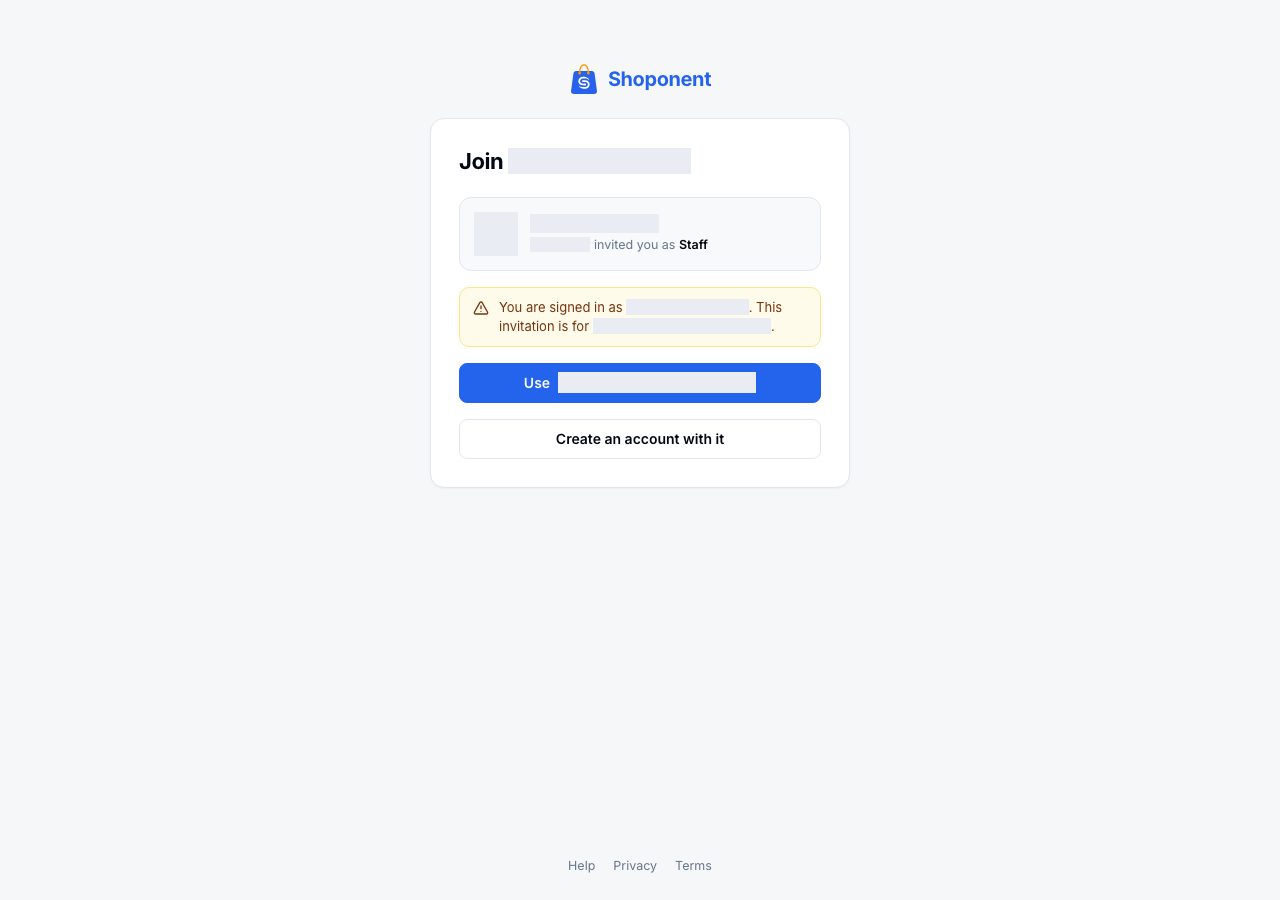
Signed in with a different account, the page says so. Use and the invited address switches to that account if this browser is already signed in to it, and otherwise asks you to sign in with it; Create an account with it makes one.
Accept
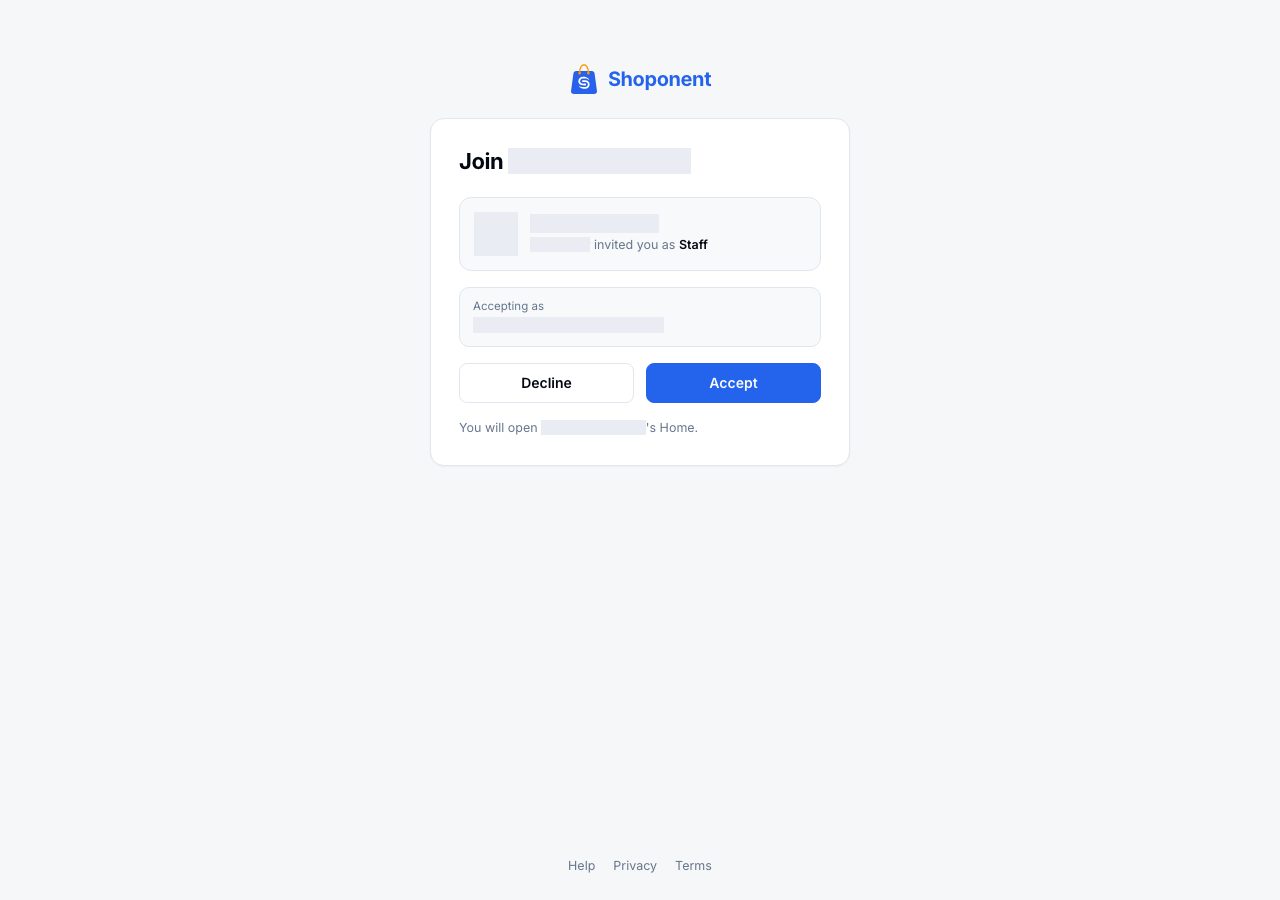
Signed in with the invited address, the page shows Accepting as and your address. Choose Accept. You do not need a code: the link already shows the email reached you, so accepting confirms your address too.
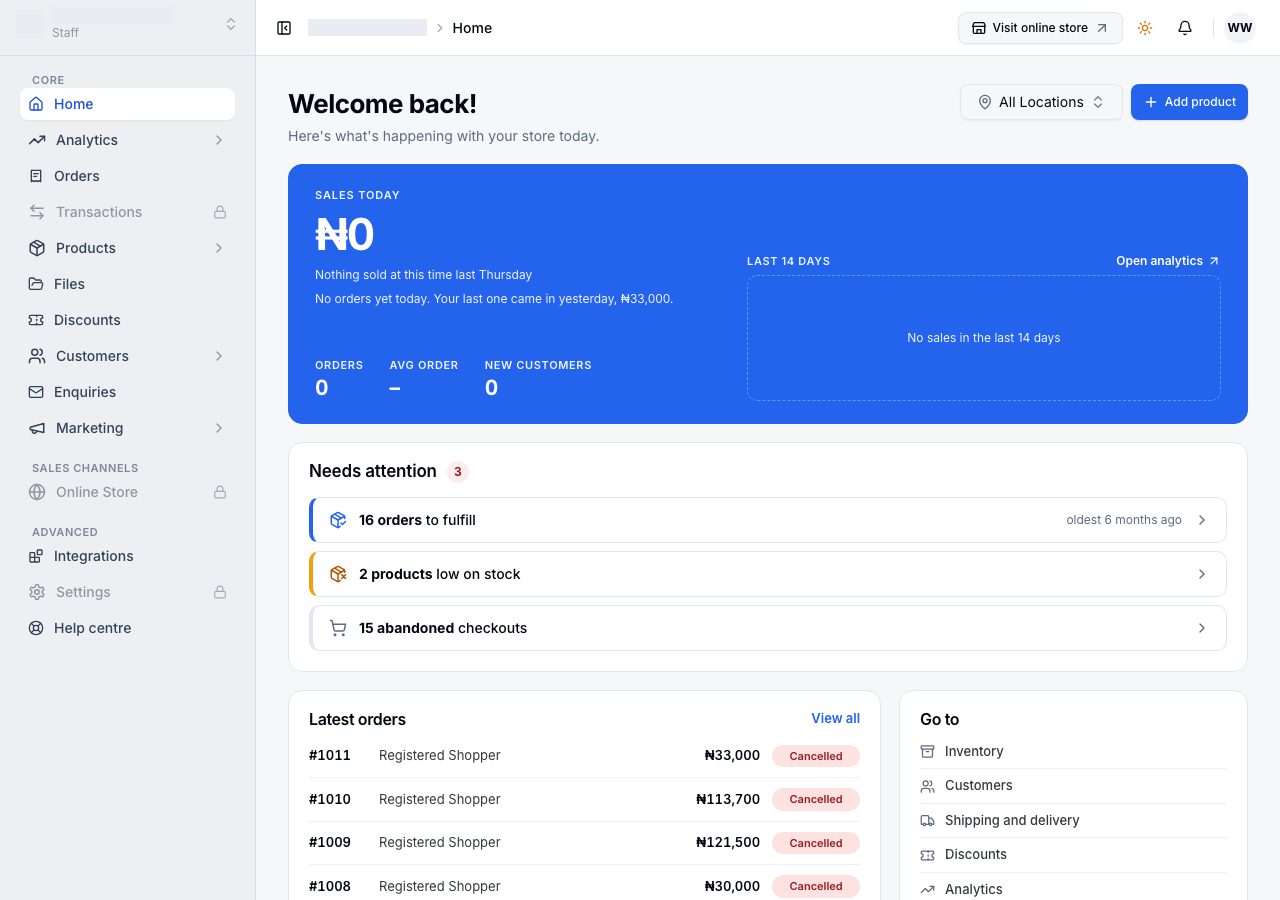
The store's Home opens, with the role you were given. A locked item in the menu is one your role does not include; ask the store's owner if you need it.
Decline closes the invitation without joining. The store can invite you again later.
If you are already signed in to Admin, the invitation also waits on Your stores, with Accept and Decline beside it.
If it does not work
- This invitation can't be used: it was already accepted, declined or cancelled. Ask the store to send a new one.
- The page names an address you do not use: the store invited a different address. Ask them to invite the one you sign in with.
Email support@shoponent.com with your account email if anything here does not match what you see. We read and answer every message.