Available on every plan · Updated 30 October 2026
Also asked as: “connect my bare domain” · “mybrand.com not shop.mybrand.com” · “three dns records” · “alias or aname record” · “record present will not turn green” · “godaddy root domain” · “cloudflare proxy orange cloud” · “route 53 alias record”
A root domain is the bare name with nothing in front: yourbrand.com. Connecting it takes three records rather than one, and brings www.yourbrand.com along with it on the same certificate. If one record would do, connect a subdomain instead: Connect a subdomain.
Connecting your own domain is available on every plan, as long as your subscription is active. Your Shoponent domain keeps working throughout.
Before you start: what your provider calls the root record
A bare domain cannot carry an ordinary CNAME, so pointing one at us needs a record that works at the root. Every provider names it differently, and a few do not offer one at all. The Domains page recognises most providers from your nameservers and labels the first record the way your panel does, but this is the whole list, so you can check before you start.
| Provider | Root record | Host for the root |
|---|---|---|
| Cloudflare | CNAME | @ |
| Namecheap | ALIAS | @ |
| Porkbun | ALIAS - CNAME flattening | leave blank |
| Name.com | ANAME | leave blank |
| Hostinger | CNAME | @ |
| Squarespace, including Google Domains | ALIAS | @ |
| AWS Route 53 | A and AAAA, with Alias on | leave blank |
| NS1 | ALIAS | @ |
| GoDaddy | none | |
| DigitalOcean | none |
What to watch for with each:
- Cloudflare: set Proxy status to DNS only (the grey cloud) on each record you add. A proxied record sends visitors to Cloudflare instead of your store. Cloudflare flattens a CNAME on
@by itself, on every plan. - Namecheap: add it under Advanced DNS, and delete any A, AAAA, CNAME or URL Redirect record on
@first, or they conflict. - Porkbun: the host for the root is left blank, not
@. - Name.com: the host is left blank, and the value goes in Answer.
- Hostinger: Hostinger flattens a CNAME on
@and lists it as CNAME ALIAS. One per domain, and only when the domain uses Hostinger's DNS. - Squarespace: switch off DNS Security Extensions first. Squarespace does not accept a CNAME on
@. - AWS Route 53: choose Alias to CloudFront distribution. Route 53 can only alias to a CloudFront address, so this is the one provider whose root record uses the value from the TXT row rather than the CNAME value; the page shows it in the first row for you when it recognises Route 53. Create the AAAA the same way.
- GoDaddy and DigitalOcean: neither offers a record that can point a root domain at another name. Use one of the ways out below.
- Anything else: look for ALIAS, ANAME or CNAME flattening, usually on
@. Many hosting control panels offer none of these. If you cannot find one, ask your provider, or use a way out below.
If your provider cannot do it
- Move your DNS to a provider that can. Your domain stays registered where it is; only its nameservers change. Cloudflare is free and handles this well. Read the two traps under If you moved your DNS to a new provider before you switch.
- Send the bare domain to www. Most registrars, GoDaddy included, can forward
yourbrand.comtowww.yourbrand.com. Then connectwww.yourbrand.comon its own, which is one record: Connect a subdomain. Check that the forwarding works overhttps, because some registrars only forward plainhttp. - Use a different subdomain, such as
shop.yourbrand.com, which is also one record.
1. Add the domain
Go to Settings → Domains and type the bare domain into the Custom domain box, without https:// and without www.
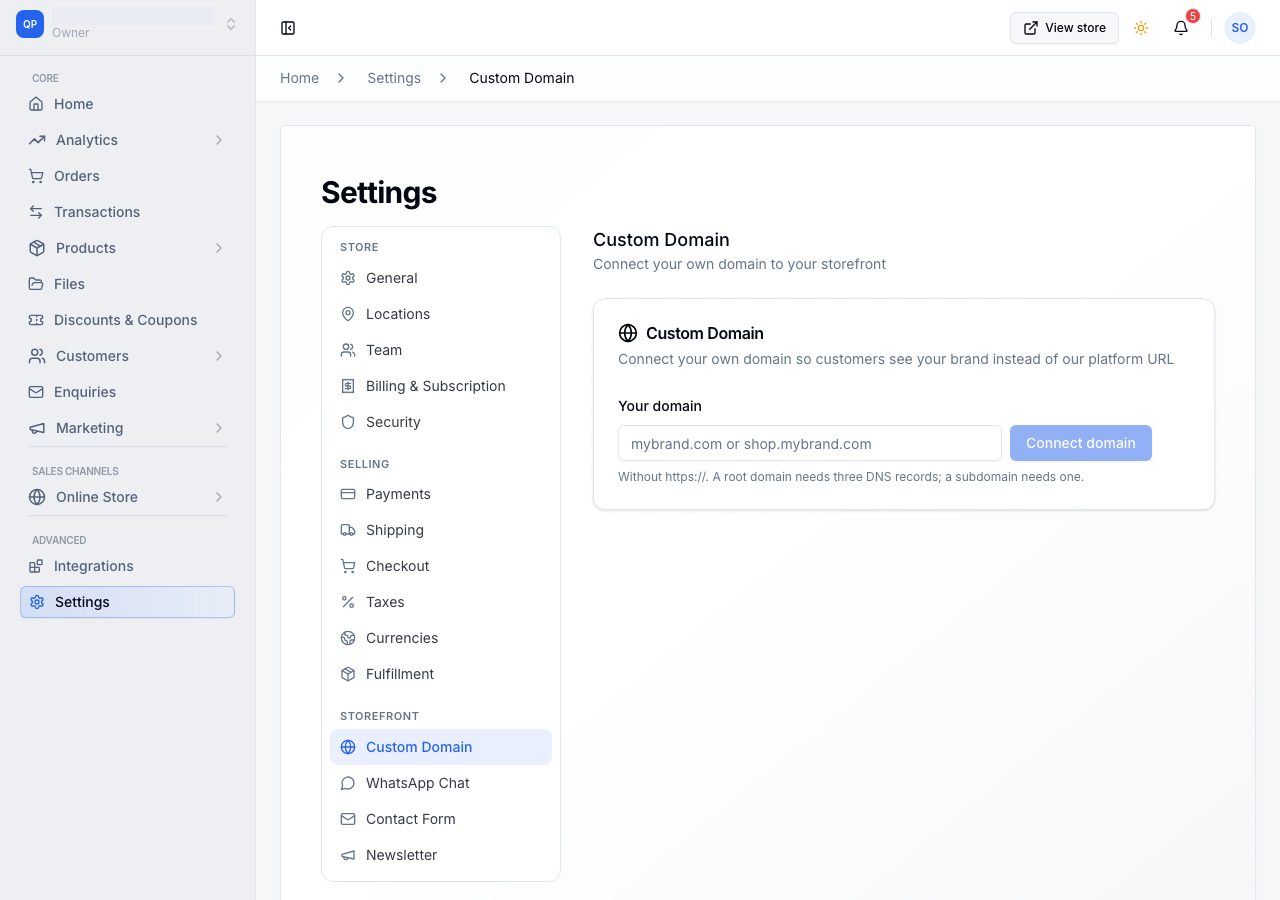
The page tells you what it is about to do before you commit to it.
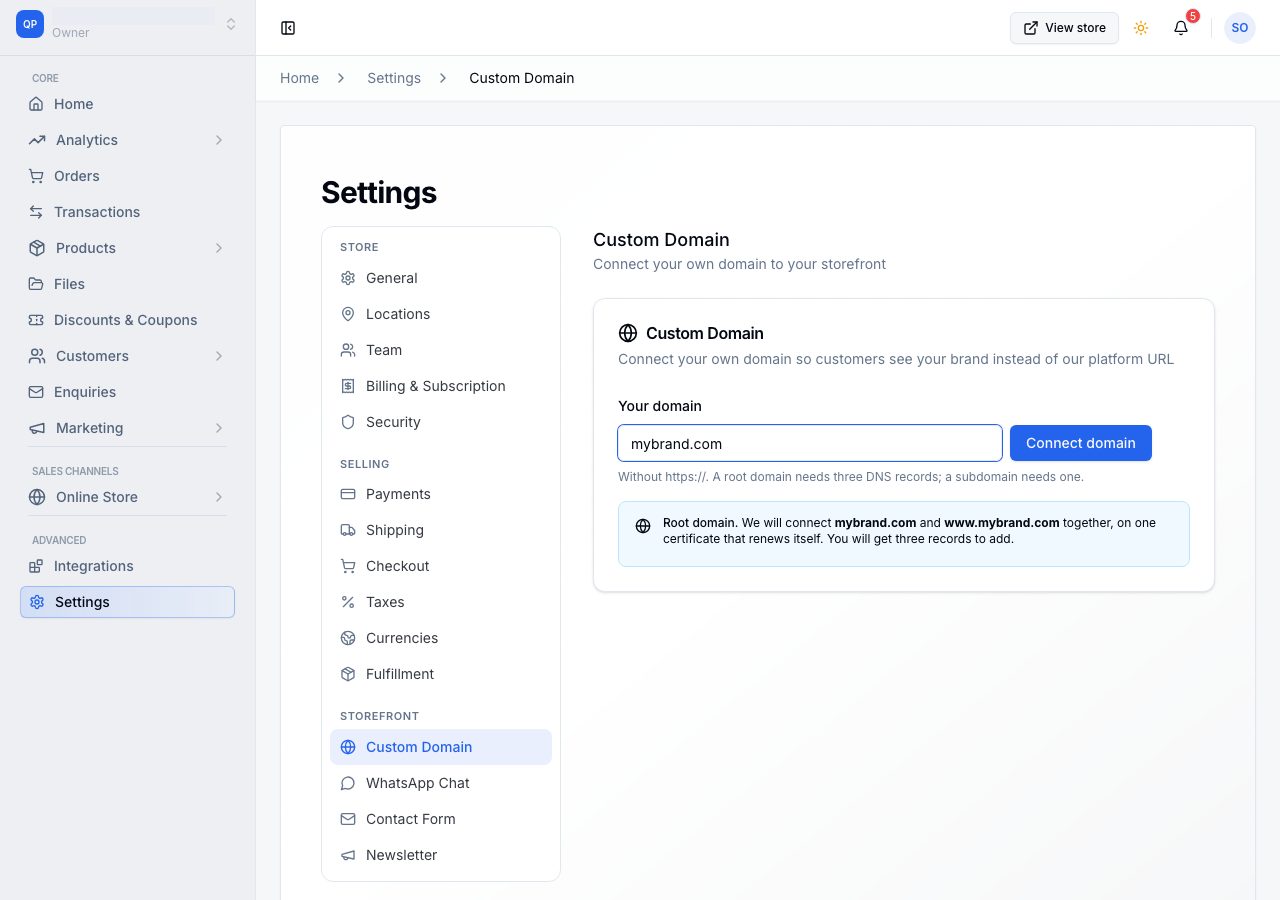
Choose Connect domain.
2. Add the three records
| Type | Host | Value | What it does |
|---|---|---|---|
| ALIAS, ANAME or CNAME flattening | @ |
the address shown in the Value column | Routes the bare domain to your store |
| CNAME | www |
the same address | Routes www to your store |
| TXT | _cf-challenge |
the value shown in the row | Proves the domain is yours |
Copy each value from the page. The first row's type is named for your provider where we recognise it, because they all call it something different. Each row says what it is for, Sends shoppers to your store or Proves you own the domain, so you can see which is which.
Order matters if the domain is already serving a website. The TXT record on its own changes nothing for visitors. The moment you point the routing records at us, traffic moves to your store. So if you want to prove ownership first and switch later, add the TXT record on its own and come back.
3. Wait, and expect one row to look unfinished
Each row reports its own state. The www and TXT rows can reach Verified. The @ row cannot, and stops at Record present until your store is actually being served.
That is expected rather than a fault, and the reason is worth one paragraph. A bare domain answers with addresses rather than a name, and the addresses that serve our storefronts are shared across an enormous pool that is not ours alone. So seeing the right addresses proves something is there; it does not prove it is us. Record present says exactly that much and no more. Once your store is serving on the domain we can ask the question properly, and the row settles to Verified by itself, usually within minutes.
Full detail on every state is on What each record status means.
4. Live
Once ownership is proven and the routing records are right, the status becomes Issuing SSL for a few minutes, then Live, and the page says Connected and serving. Both yourbrand.com and www.yourbrand.com answer, under one certificate that renews itself. There is nothing you have to keep alive for renewal.
Leave the records in place. Removing a routing record takes your store offline on that domain; we check daily and tell you if one disappears, and your Shoponent domain keeps serving in the meantime.
If you moved your DNS to a new provider
Two traps, neither of them ours, both of which merchants report as "the domain is broken":
- Changing nameservers does not delete the old zone. Your previous host keeps answering for anyone still asking it, often with a much longer cache time than the change itself, so the wrong answer can keep coming back for hours. Ask the old host to delete the zone, not merely stop using it.
- It works for your friend abroad and not for you. That sentence is the diagnosis, not a mystery: resolvers near you have the old answer cached and ones that have never seen the domain go and fetch the new one. It clears on its own.
If it does not work
- Your provider cannot point a root domain at us: the page says so by name. Move the DNS, or connect
wwwor another subdomain. - The
@row reads Record present and will not go green: that is correct during setup. It settles once the certificate is issued and the store is serving. - A row reads Incorrect: the value is not the one we gave. Replace it rather than adding a second record with the same name.
- A row still reads Not found after an hour: check it saved, and check the Host field. We stop checking after three days and tell you; Start again gives a fresh set.
- Your online store works in a private window and not a normal one: your browser is holding the old answer. In Chrome, clear it at
chrome://net-internals/#dns. - The page says Your subscription is not active: connecting a domain is on every plan, so this is about paying, not about your plan. Go to Billing on that card takes you to renew.
Email support@shoponent.com with the domain and a screenshot of your provider's records if anything here does not match what you see. We read and answer every message.