Connect Google Analytics

Paste your own GA4 Measurement ID into the Integrations hub and your storefront starts sending page views, product views and purchases to your property.

Available on every plan · Updated 12 September 2026

Also asked as: connect google analytics · ga4 measurement id · my store is not showing in google analytics · track purchases in google · where do I put my tracking code

Connecting Google Analytics lets your own Google Analytics property see what shoppers do on your storefront: which pages they open, which products they look at, what they put in the basket, and what they buy.

The property stays yours. We never sign in to your Google account, and we do not run or manage any advertising for you. All we do is send your storefront's events to the property you name.

Connecting is on every plan.

Before you start

You need two things, both from Google, not from us:

  1. A Google Analytics 4 property for your shop. If you do not have one, create it in Google Analytics first.
  2. That property's Measurement ID. Google shows it in the property's data stream settings, and it begins with G- followed by letters and numbers.

Copy the Measurement ID before you start. It is the only thing you will be asked for.

Find the card

Open Integrations in the sidebar. Connectors are grouped by what they are for, and Google Analytics 4 sits under Analytics & tracking.

The Integrations hub, with connectors grouped by purpose

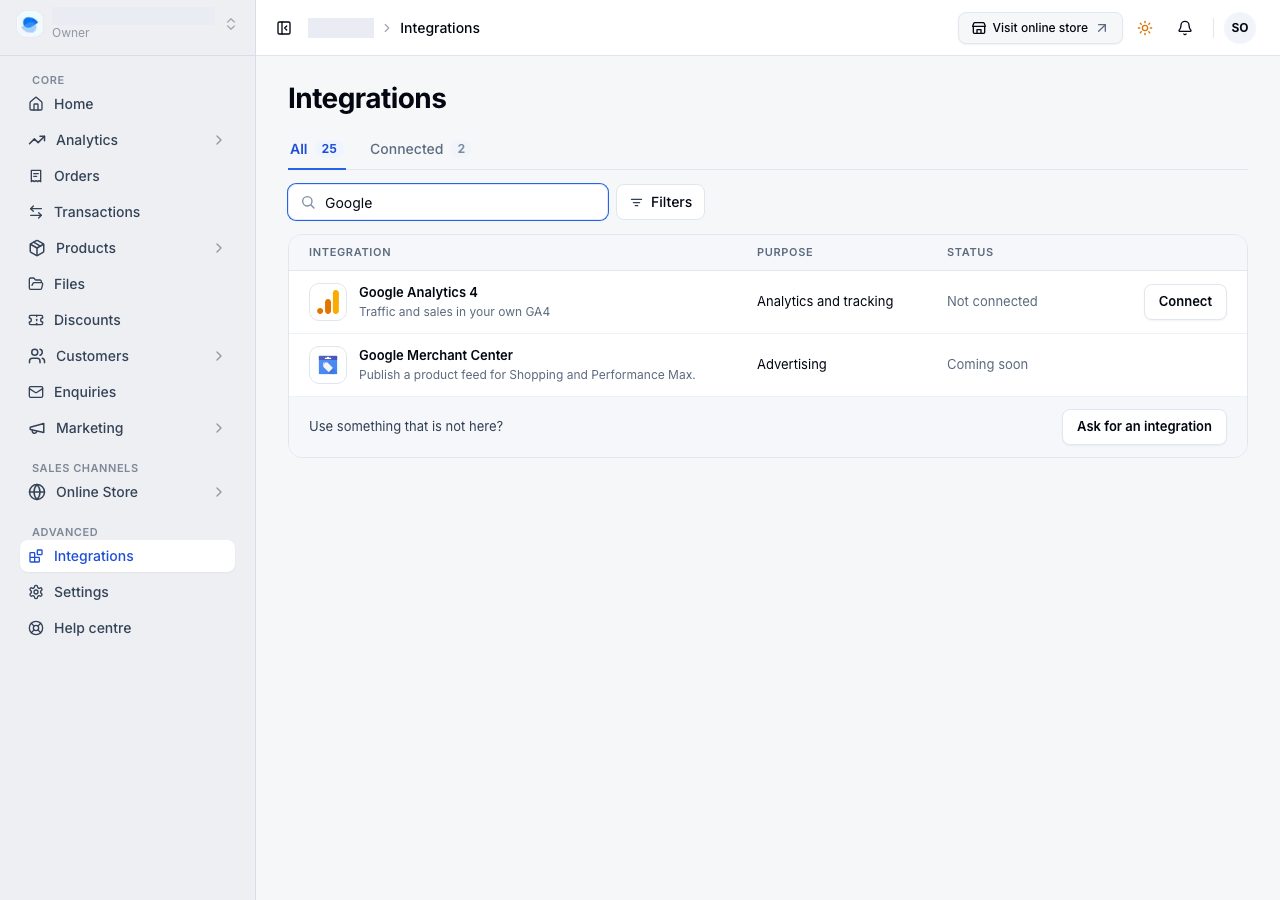
If you would rather not scroll, type "google" into the search box at the top. It matches the connector name, the company and what the card says it does, so you will see everything Google at once.

The hub filtered to Google, showing the Google Analytics 4 card

Connect it

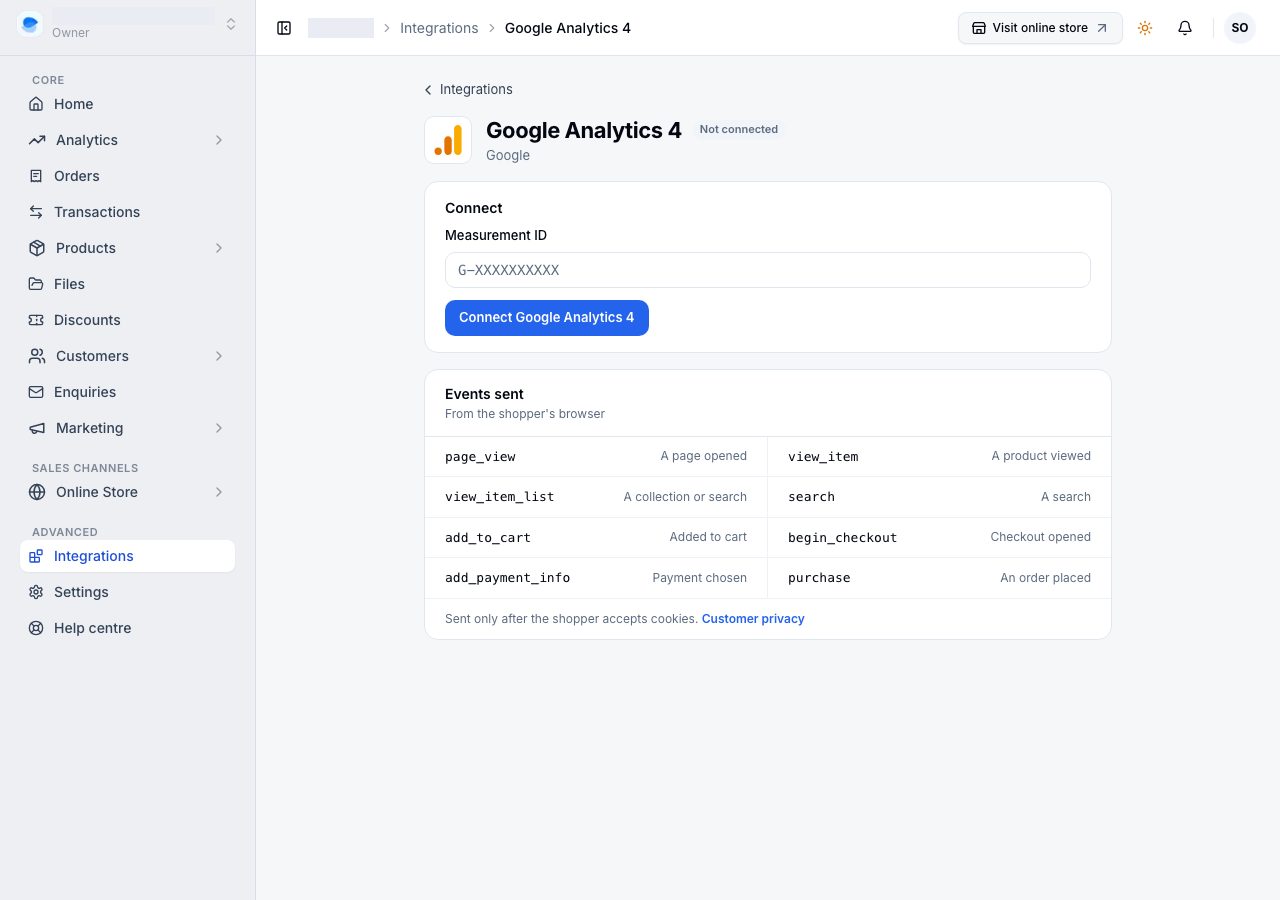
Choose the Google Analytics 4 card. It opens its own setup page, with one box on it and the card's status beside the name.

The Google Analytics 4 setup page, with the Measurement ID box empty
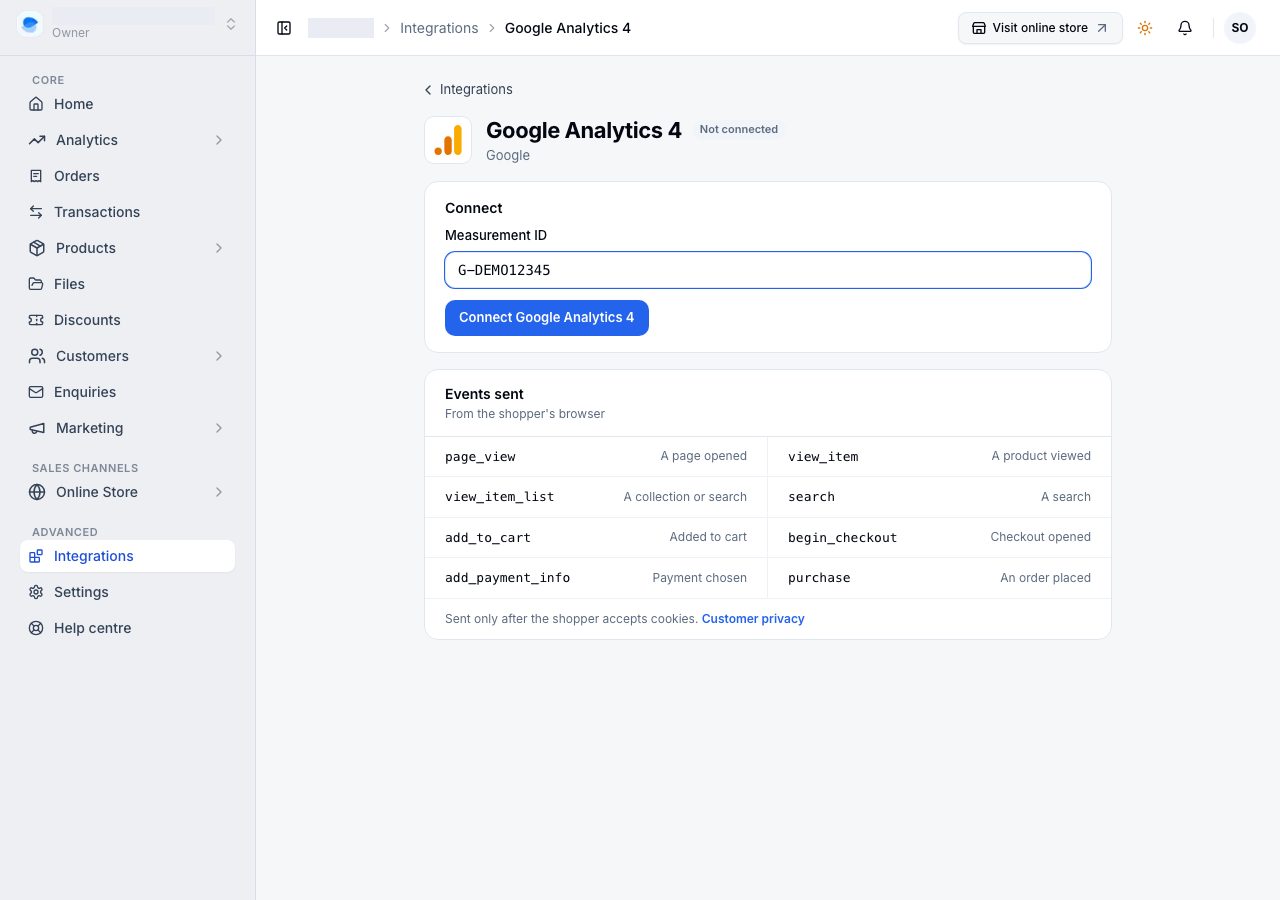
  1. Paste your Measurement ID into the Measurement ID box.
  2. Choose Test connection. It checks the ID is the right shape before you commit to it, and a note in the corner of the screen tells you either way.
  3. Choose Connect Google Analytics 4. The status beside the name changes to Connected, and your storefront starts sending events on its next page load.
The setup page with a Measurement ID filled in and the format confirmed

Your Google property will not show anything instantly. Google takes its own time to process incoming events, so give it a while, then check the realtime view in Google Analytics with your own storefront open in another tab.

What gets sent

Once connected, your storefront reports the six moments that matter for a shop:

  • a page opened,
  • a product viewed,
  • something added to the basket,
  • checkout started,
  • payment details entered,
  • an order placed, with what it was worth, the currency, and the items in it.

That last one is what lets Google show you revenue rather than just visits.

Changing or removing it

The same setup page carries Save changes if you move to a different property, and Disconnect to stop. Disconnecting stops the storefront sending anything and removes the setting; your Google property and everything already in it are untouched.

What this is not

  • It does not create or manage Google Ads campaigns, budgets or audiences. Those live in your own Google accounts.
  • It does not give us access to your Google data. The information flows one way, from your storefront to your property.

If it does not work

  • Test connection says the ID does not look right: check you copied the Measurement ID (it starts with G-) and not the stream ID or a tag snippet.
  • Nothing appears in Google: confirm the card says Connected, then open your storefront yourself and watch Google's realtime view. An ad blocker in your own browser will hide your own visit.
  • Purchases are missing but page views are there: purchases are reported when an order is placed, so place a small test order through your own storefront and watch for it.

Email support@shoponent.com with your store name if anything here does not match what you see. We read and answer every message.

Still stuck?

Email support@shoponent.com with your store name. We read and answer every message.